Some ways to check CPU parameters on Linux
Introduction
When you buy a server/VPS service from a provider such as AZDIGI , by default, AZDIGI will have all the CPU/Ram/Disk hardware parameters of each VPS service. Users can clearly know the configuration parameters and choose the right VPS for their needs.
And of course, from the user’s perspective, you will probably wonder how to check those parameters on your VPS. Then in this article, AZDIGI will show you some ways to check the CPU parameters on your VPS in the most accurate way because the CPU is considered the most important hardware on a Linux server. Checking the parameters on the server will help you ensure that you are using the correct parameters you purchased from the supplier.
Some commands to check CPU parameters
- The lscpu command
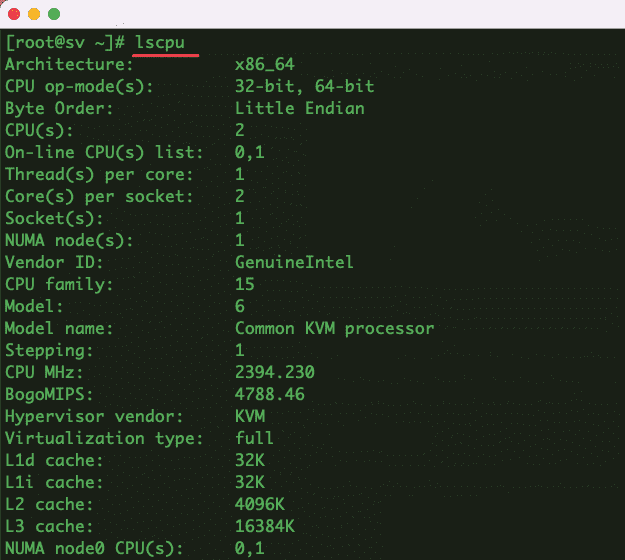
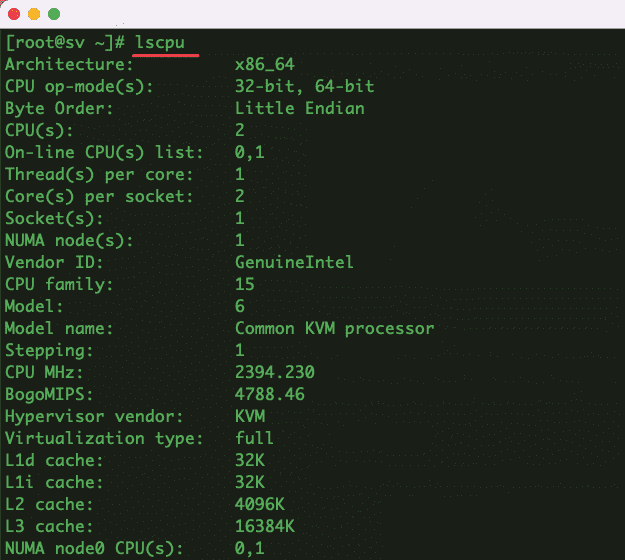
You can check the CPU structure with the lscpu command:
lscpu
- The cat /proc/cpuinfo command
The command cat /proc/cpuinfo is used to read CPU information from the /proc/cpuinfo file containing CPU parameters.
cat /proc/cpuinfo

- The dmidecode command
The dmidecode command is used to get SMBIOS hardware information from sysfs.
sudo dmidecode --type processor

- The cpuid command
To use the cpuid command, you need to install it according to the corresponding command:
On Ubuntu/Debian
sudo apt install cpuid -y
On CentOS/RHEL/Fedora
sudo yum install cpuid -y
After the installation is complete, use the following command to check CPU parameters:
cpuid | head -n 20 (xem 20 dòng đầu tiên)
- The lshw command
The lshw command (List Hardware Configuration) will list hardware information. And to use it, you need to install it according to the corresponding command:
On Ubuntu/Debian
sudo apt install lshw -y
On CentOS/RHEL/Fedora
sudo yum -y install lshw
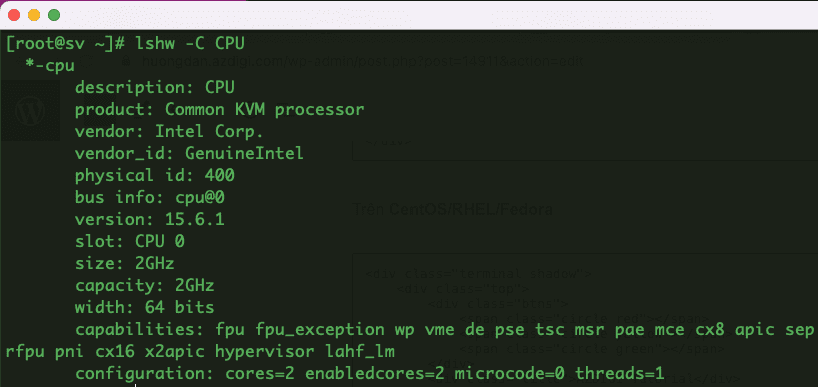
After the installation is complete, use the following command to check hardware parameters:
lshw -C CPU
- The hwinfo command
To use the hwinfo command, you need to install it first according to the corresponding command:
On Ubuntu/Debian
sudo apt install hwinfo -y
On CentOS/RHEL/Fedora
sudo yum install hwinfo -y
After installation is complete, use the following command to check the parameters:
hwinfo | head -n 20 (xem 20 dòng đầu tiên)

- The inxi command
To use the inxi command, you need to install it first according to the corresponding command:
On Ubuntu/Debian
sudo apt install inxi -y
On CentOS/RHEL/Fedora
sudo yum install inxi -y
After installation is complete, use the following command to check the parameters:
inxi -C

- The nproc command
The nproc command is used to check the number of CPUs.

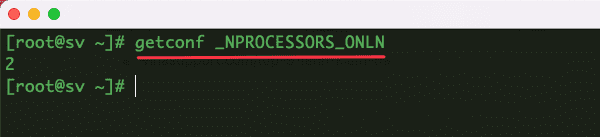
- The getconf _NPROCESSORS_ONLN command
The getconf _NPROCESSORS_ONLN command is used to check the number of CPU.
Thus, AZDIGI has completed some simple ways to check CPU parameters on VPS servers. This will helps you to know the exact configuration and CPU parameters you purchased at the supplier. Hopefully, this article will help you in administering a Linux server.
You can refer to other instructions at the link below:
If you need support, you can contact support in the ways below:
- Hotline 247: 028 888 24768 (Ext 0)
- Ticket/Email: You use the email to register for the service and send it directly to: support@azdigi.com .
You might also like
About the author

Thạch Phạm
Đồng sáng lập và Giám đốc điều hành của AZDIGI. Có hơn 15 năm kinh nghiệm trong phổ biến kiến thức liên quan đến WordPress tại thachpham.com, phát triển website và phát triển hệ thống.