WP Rocket is one of the best-paid plugins to speed up your WordPress website by creating more cache for your website. In this article, AZDIGI will guide you through configuring the NGINX webserver when using LarVPS to work well with the WP Rocket plugin.
Before following the instructions below, you must first install the WP Rocket plugin on your WordPress website. If you use Hosting & VPS services at AZDIGI, you can contact the Technical Department for free WP Rocket installation support.
Configure WP Rocket on LarVPS
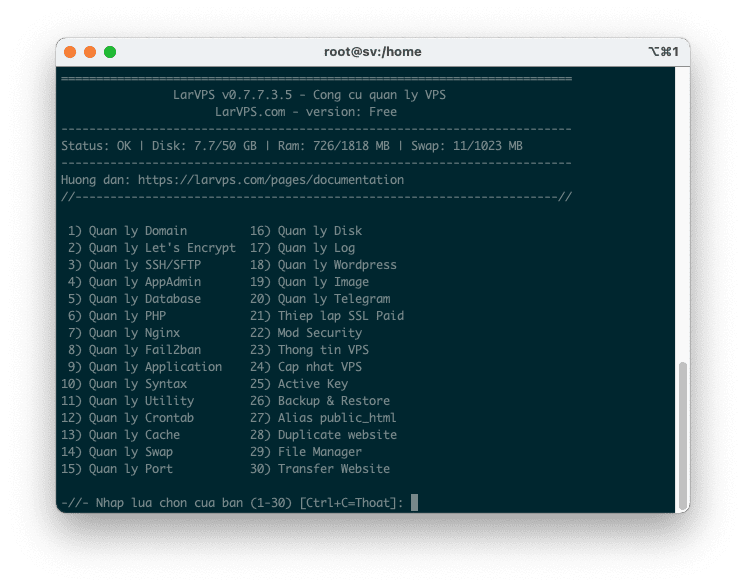
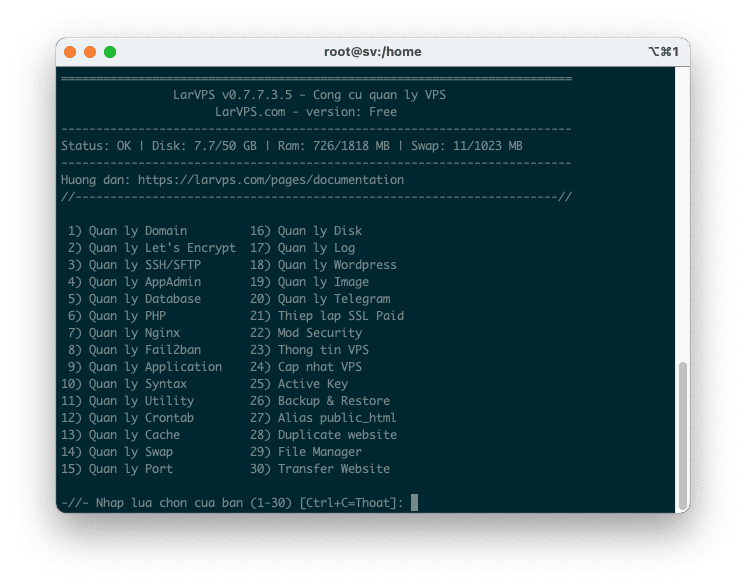
First, you type the larvps command to open the menu interface of LarVPS on the server. Then you choose option number 7) Manage Nginx.
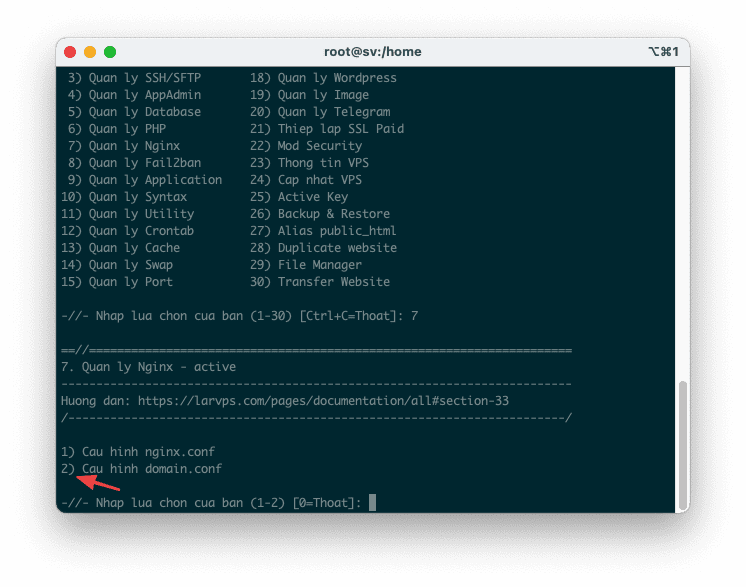
Next, you choose option 2) Configure domain.conf.
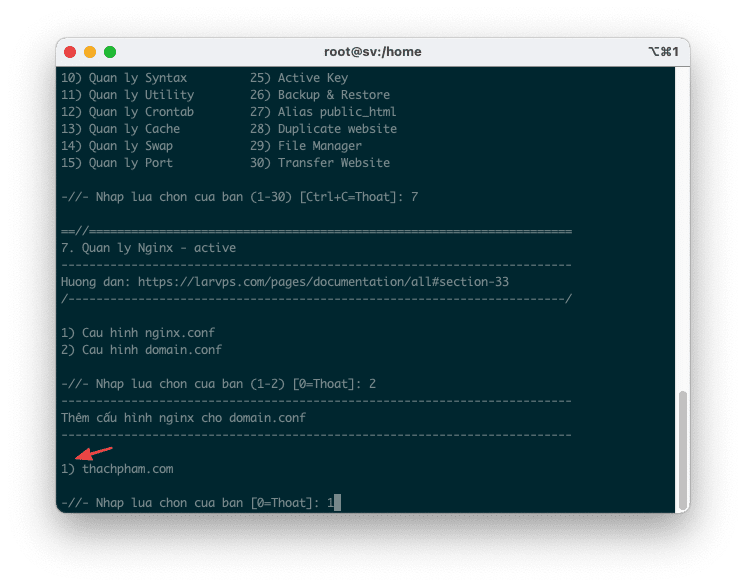
And select the option corresponding to the website you need to configure, the example below is to choose the configuration option for the website named thachpham.com.
When the interface redirects to the website’s .conf file content editing page, copy the content below into:
# Add debug information into header set $rocket_debug 0;# HTTP Strict Transport Security (to overwrite default) set $rocket_hsts_value "";
# WP-Content directory (leave as is if you did not alter WordPress' default value) set $rocket_wpcontent_directory "$document_root/wp-content";
# WP-Content URL (leave as is if you did not alter WordPress' default value) set $rocket_wpcontent_url "/wp-content";
################################################################################################### # Do not alter theses values # set $rocket_bypass 1; # Should NGINX bypass WordPress and call cache file directly ? set $rocket_encryption ""; # Is GZIP accepted by client ? set $rocket_file ""; # Filename to use set $rocket_is_bypassed "No"; # Header text added to check if the bypass worked or not. Header: X-Rocket-Nginx-Bypass set $rocket_reason ""; # Reason why cache file was not used. If cache file is used, what file was used set $rocket_https_prefix ""; # HTTPS prefix to use when cached files are using HTTPS set $rocket_hsts 0; # Is HSTS is off (0) by default. Will be turned on (1) if request is HTTPS
# HSTS Default value : 1 year,include subdomains. set $rocket_hsts_value_default "max-age=31536000; includeSubDomains";
################################################################################################### # PAGE CACHE
# Is GZIP accepted by client ? if ($http_accept_encoding ~ gzip) { set $rocket_encryption "_gzip"; }
# Is SSL request ? if ($https = "on") { set $rocket_https_prefix "-https"; set $rocket_hsts 1; }
# If HSTS value is not set, use default value if ($rocket_hsts_value = "") { set $rocket_hsts_value "$rocket_hsts_value_default"; }
# If HSTS is disabled, unset HSTS set for Rocket-Nginx configuration if ($rocket_hsts = "0") { set $rocket_hsts_value ""; }
# File/URL to return IF we must bypass WordPress # index-mobile.html # index-mobile-https.html set $rocket_end "/cache/wp-rocket/$http_host/$request_uri/index$rocket_https_prefix.html$rocket_encryption"; set $rocket_url "$rocket_wpcontent_url$rocket_end"; set $rocket_file "$rocket_wpcontent_directory$rocket_end"; set $rocket_mobile_detection "$rocket_wpcontent_directory/cache/wp-rocket/$http_host/$request_uri/.mobile-active";
# Do not bypass if it's a POST request if ($request_method = POST) { set $rocket_bypass 0; set $rocket_reason "POST request"; }
# Do not bypass if arguments are found (e.g. ?page=2) if ($is_args) { set $rocket_bypass 0; set $rocket_reason "Arguments found"; }
# Do not bypass if the site is in maintenance mode if (-f "$document_root/.maintenance") { set $rocket_bypass 0; set $rocket_reason "Maintenance mode"; }
# Do not bypass if one of those cookie if found # wordpress_logged_in_[hash] : When a user is logged in, this cookie is created (we'd rather let WP-Rocket handle that) # wp-postpass_[hash] : When a protected post requires a password, this cookie is created. if ($http_cookie ~* "(wordpress_logged_in_|wp-postpass_|woocommerce_items_in_cart|woocommerce_cart_hash|wptouch_switch_toogle|comment_author_|comment_author_email_)") { set $rocket_bypass 0; set $rocket_reason "Cookie"; }
if (-f "$rocket_mobile_detection") { set $rocket_bypass 0; set $rocket_reason "Specific mobile cache activated"; }
# Do not bypass if the cached file does not exist if (!-f "$rocket_file") { set $rocket_bypass 0; set $rocket_reason "File not cached"; }
# If the bypass token is still on, let's bypass WordPress with the cached URL if ($rocket_bypass = 1) { set $rocket_is_bypassed "Yes"; set $rocket_reason "$rocket_url"; }
# Clear variables if debug is not needed if ($rocket_debug = 0) { set $rocket_reason ""; set $rocket_file ""; }
# If the bypass token is still on, rewrite according to the file linked to the request if ($rocket_bypass = 1) { rewrite .* "$rocket_url" last; }
# Add header to HTML cached files location ~ /wp-content/cache/wp-rocket/.*html$ { add_header Vary "Accept-Encoding, Cookie"; add_header X-Rocket-Nginx-Bypass $rocket_is_bypassed; add_header X-Rocket-Nginx-Reason $rocket_reason; add_header X-Rocket-Nginx-File $rocket_file; #add_header Strict-Transport-Security "$rocket_hsts_value"; expires 30d;
#!# HEADER_HTTP #!# #!# HEADER_NON_GZIP #!# }
# Do not gzip cached files that are already gzipped location ~ /wp-content/cache/wp-rocket/.*_gzip$ { gzip off; types {} default_type text/html; add_header Content-Encoding gzip; add_header Vary "Accept-Encoding, Cookie"; add_header X-Rocket-Nginx-Bypass $rocket_is_bypassed; add_header X-Rocket-Nginx-Reason $rocket_reason; add_header X-Rocket-Nginx-File $rocket_file; #add_header Strict-Transport-Security "$rocket_hsts_value"; expires 30d;
#!# HEADER_HTTP #!# #!# HEADER_GZIP #!# }
# Debug header (when file is not cached) add_header X-Rocket-Nginx-Bypass $rocket_is_bypassed; add_header X-Rocket-Nginx-Reason $rocket_reason; add_header X-Rocket-Nginx-File $rocket_file;
# No HSTS header added here. We suppose it's correctly added in the site configuration
################################################################################################## # BROWSER CSS CACHE # location ~* .css$ { gzip_vary on; expires 30d;
#!# HEADER_CSS #!# }
################################################################################################### # BROWSER JS CACHE # location ~* .js$ { gzip_vary on; expires 30d;
#!# HEADER_JS #!# }
################################################################################################### # BROWSER MEDIA CACHE # location ~* .(ico|gif|jpe?g|png|svg|eot|otf|woff|woff2|ttf|ogg)$ { expires 30d;
#!# HEADER_MEDIAS #!# }
Next, press Ctrl + O to save and Ctrl + X to exit the file editing interface. Then press Ctrl + C to exit the larvps menu and type the following command to restart the NGINX webserver:
nginx -t && systemctl restart nginx
Wishing you success!
You might also like
- How to configure WP Rocket with Nginx
- Configure NGINX FastCGI Cache WordPress on aaPanel
- Setup WP Rocket with CloudFlare to Boost WordPress Performance
- Setting up Nginx FastCGI Cache on NGINX reduces server response time
- How to install NextCloud on Ubuntu 20.04 with NGINX
- 401 Unauthorized Error: causes and how to fix
About the author

Thạch Phạm
Đồng sáng lập và Giám đốc điều hành của AZDIGI. Có hơn 15 năm kinh nghiệm trong phổ biến kiến thức liên quan đến WordPress tại thachpham.com, phát triển website và phát triển hệ thống.