WordPress 7.0 was just released on 20/05/2026 under the codename Armstrong. This is the first major release after the 6.9 branch, and it is also the point where WordPress pushes AI foundations into Core much more aggressively. If you manage a website, work on content, or develop plugins, this update is worth reviewing closely before you hit the upgrade button.
In this article, AZDIGI will give you a broader view of the new features in WordPress 7.0, especially the completely new AI functionality.
- Release date: 20/05/2026
- Codename: Armstrong, named after jazz artist Louis Armstrong
- Main highlights: AI foundations in Core, a new dashboard, and better design tools and editorial workflows
- Groups that should care most: website admins, content teams, WordPress agencies, and plugin or theme developers
What changed in WordPress 7.0 compared to 6.9?
At a glance, 7.0 is an upgrade focused on the day-to-day working experience. WordPress 6.9 laid the groundwork for Notes and the Abilities API. In 7.0, the Core team brings many of those pieces together into a clearer toolkit: there is a connection management screen, an AI Client, a command palette in the admin bar, visual revisions, and several new blocks for building interfaces more flexibly.
| Category | WordPress 6.9 | WordPress 7.0 |
|---|---|---|
| AI in Core | Only the Abilities API foundation was available | Includes AI Client, Connectors screen, and client-side abilities |
| Admin experience | Stable, focused on smaller improvements | New admin interface, view transitions, and a command palette in the admin bar |
| Content editing | Notes and better collaboration | Visual revisions, editable patterns as a single block, and responsive editing |
| Interface design | Continued improvements to the block editor | Navigation overlay, Icon block, Breadcrumbs block, and custom CSS per block |
| Developers | Many APIs had already been opened up | Adds PHP-only block registration, routing for the Site Editor, and an expanded Interactivity API |
The most practical point, in my view, is that WordPress 7.0 does not try to cram in too many features just for show. The new work focuses on the places users open every day: the admin area, the editor, and the content publishing workflow.
How is AI starting to enter WordPress Core?
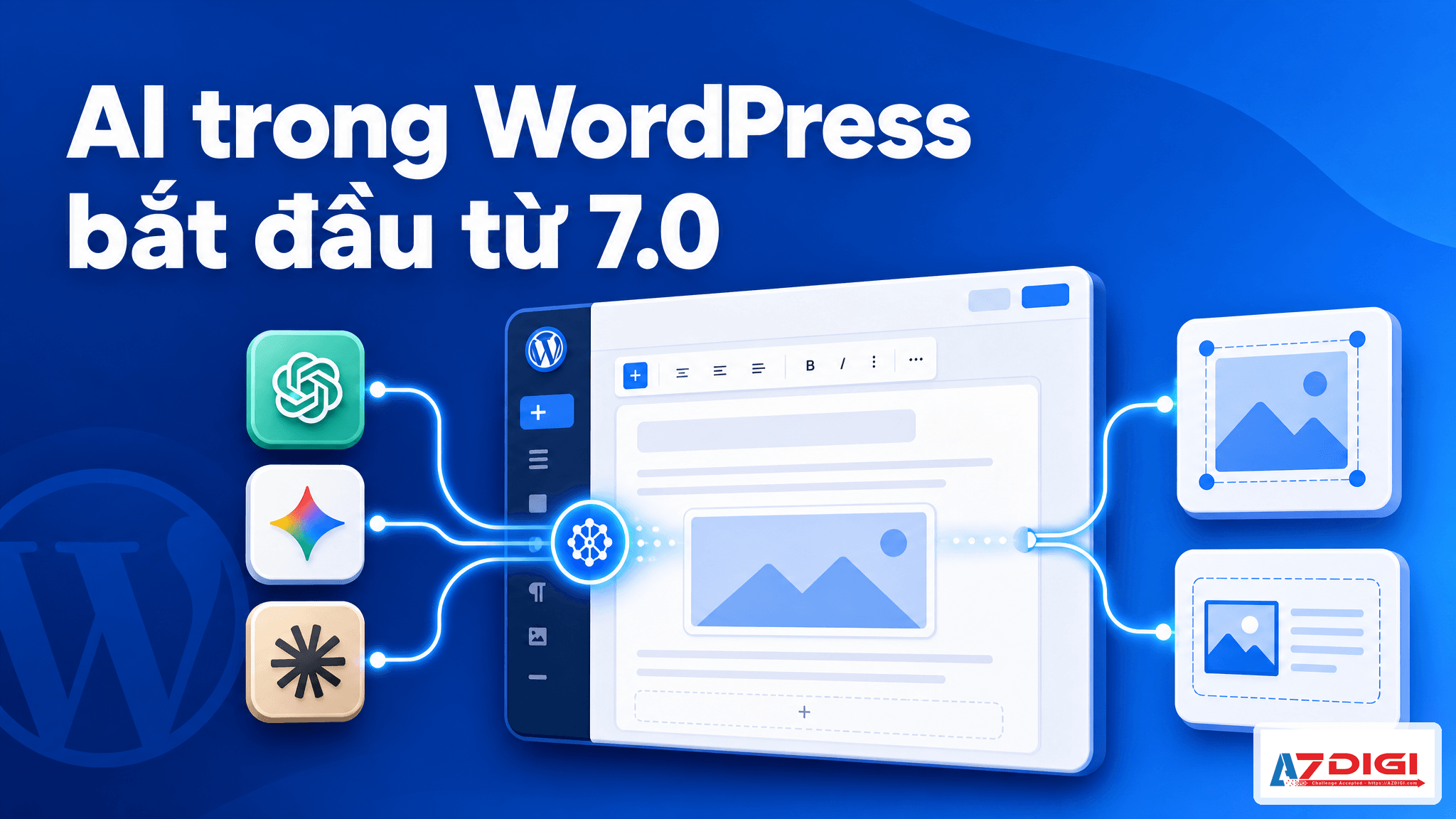
This is the easiest part of WordPress 7.0 to misunderstand. This release does not turn WordPress into a place where every website suddenly gets a built-in AI writing button out of the box. What Core mainly adds is the infrastructure for plugins and other features to use AI in a standardized way, including the WP AI Client, configuration in Settings > Connectors, and the client-side Abilities API.
Where is AI in WordPress 7.0 actually used?
- In the admin area: administrators go to Settings > Connectors to configure API keys for OpenAI, Gemini (Google), or Anthropic.
- Inside the official AI plugin or third-party plugins: features such as title suggestions, excerpt generation, alt text suggestions, image generation, or content classification will all run through the shared WP AI Client layer instead of each plugin building its own separate integration.
- Inside plugin PHP code: developers can call the server-side AI API through functions such as
wp_ai_client_prompt(). - Inside JavaScript admin interfaces: developers can load
@wordpress/core-abilitiesor@wordpress/abilitiesto use abilities on the client side, for example navigation, block insertion, or executing abilities registered through the REST API.
In other words, regular users will mainly notice AI through the Connectors screen and through plugins that adopt this new foundation. Developers will care more about the fact that the API is now standardized.
What is WP AI Client?
According to the official WordPress dev note, wp_ai_client_prompt() is the main entry point for AI tasks in PHP. A plugin describes the prompt, model preference, or output format. WordPress then chooses a suitable provider from the connections that the administrator has already configured in Connectors.
ℹ️ The practical benefit here is that plugins do not need to store API keys themselves. Credential management goes through the Connectors API, so permissions and key storage are centralized in one place.
PHP example from the WordPress 7.0 documentation
The example below follows the dev note Introducing the AI Client in WordPress 7.0. This is how a plugin can call text generation through the official Core API:
$text = wp_ai_client_prompt( 'Write a haiku about WordPress.' )
    ->generate_text();
if ( is_wp_error( $text ) ) {
    // Handle error.
    return;
}
echo wp_kses_post( $text );
If a plugin wants to prefer specific models, the WordPress documentation also provides an example using using_model_preference():
$text_result = wp_ai_client_prompt( 'Summarize the history of the printing press.' )
    ->using_temperature( 0.1 )
    ->using_model_preference(
        'claude-sonnet-4-6',
        'gemini-3.1-pro-preview',
        'gpt-5.4'
    )
    ->generate_text_result();
This needs to be understood correctly: this is an API for plugin developers, not a code snippet that end users can paste into the admin interface and use immediately.
What is the Connectors screen for?
The Connectors screen is where administrators connect AI providers. According to the Introducing the Connectors API in WordPress 7.0 documentation, WordPress 7.0 comes with three featured connectors: Anthropic, Google, and OpenAI. This is where you can install the provider plugin, enter the API key, and check connection status. Developers can use functions such as wp_is_connector_registered(), wp_get_connector(), or wp_get_connectors() to inspect the registry.
if ( wp_is_connector_registered( 'anthropic' ) ) {
    // The Anthropic connector is available.
}
$connector = wp_get_connector( 'anthropic' );
if ( $connector ) {
    echo $connector['name']; // 'Anthropic'
}
⚠️ It is important to keep the scope clear: WordPress 7.0 only lays the AI groundwork in Core. Features such as title generation, image generation, or alt text suggestions still live in the official AI plugin or third-party plugins built on top of this foundation. Core does not automatically enable all of them for every website.
When is the client-side Abilities API used?
This part leans toward JavaScript inside the admin area. According to the dev note Client-Side Abilities API in WordPress 7.0, a plugin can enqueue @wordpress/core-abilities if it wants to use abilities registered on the server, or use only @wordpress/abilities if it wants to register client-side abilities for a custom page.
add_action( 'admin_enqueue_scripts', 'my_plugin_enqueue_abilities' );
function my_plugin_enqueue_abilities() {
    wp_enqueue_script_module( '@wordpress/core-abilities' );
}
import { executeAbility } from '@wordpress/abilities';
try {
const result = await executeAbility( 'my-plugin/create-item', {
title: 'New Item',
content: 'Item content',
status: 'draft',
} );
console.log( 'Created item:', result.id );
} catch ( error ) {
console.error( 'Execution failed:', error.message );
}This JavaScript example fits when your plugin has its own workflow inside the admin area, for example creating an item, navigating to a settings page, or inserting a block. It is not a direct AI prompt API for the public frontend. The WordPress AI Client documentation is also quite clear on this point: a safer pattern is for plugins to create a dedicated REST endpoint for each AI feature, then let JavaScript call that endpoint instead of letting the client send arbitrary prompts.
How are the dashboard, editor, and design tools changing?
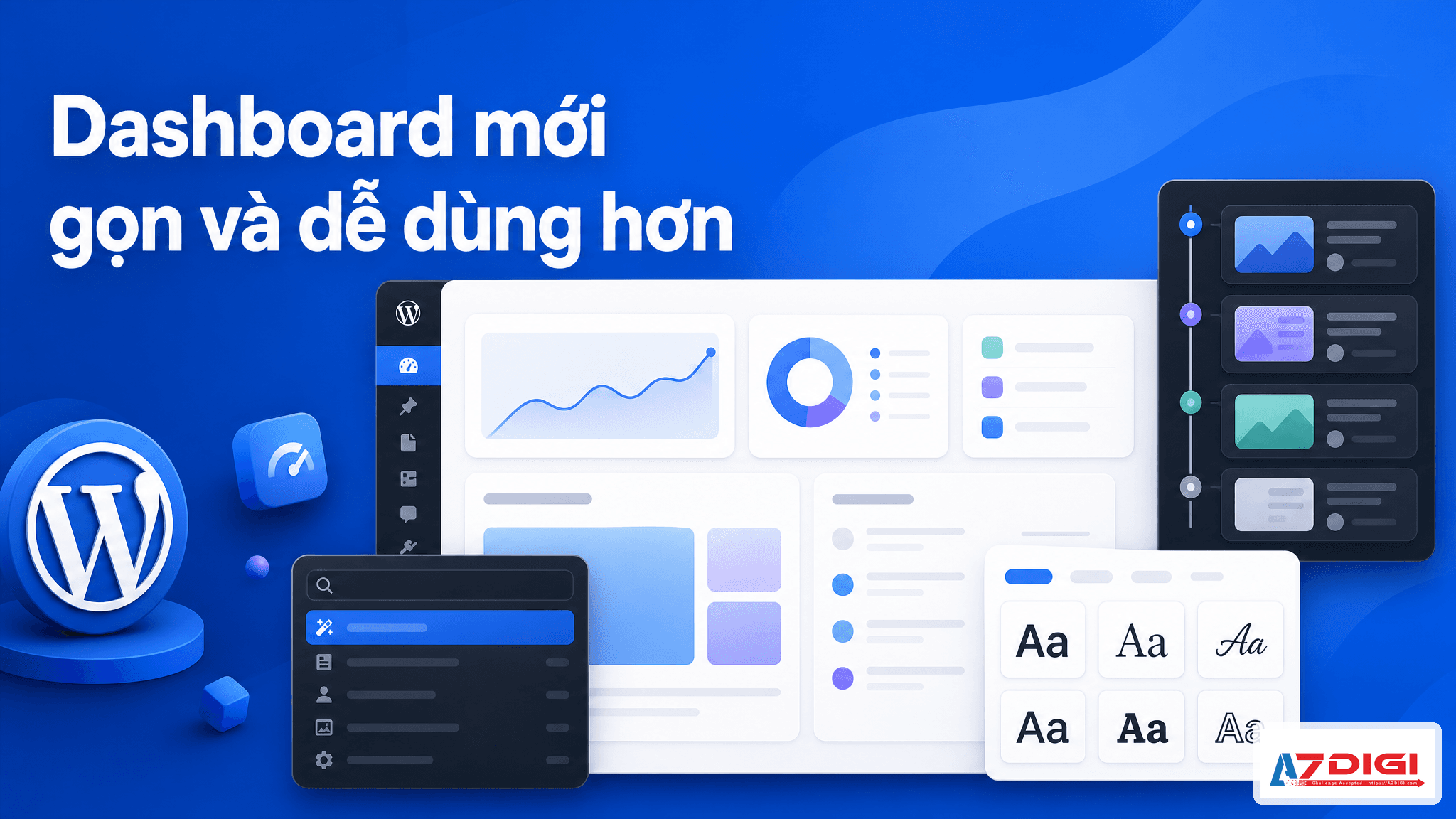
This is the group of changes that regular users will notice right after logging in. WordPress 7.0 refreshes the admin interface with a Modern tone, adds page transition effects, places the command palette button in the admin bar, and improves quite a few areas in the editor.
1. Visual Revisions
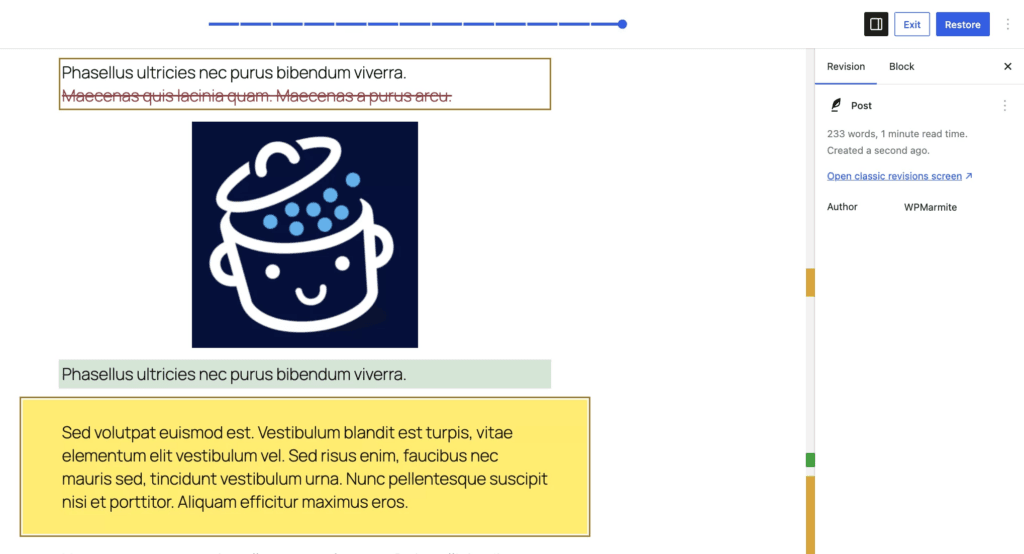
Previously, WordPress revision history had its own separate interface, and you compared content through plain text, including HTML tags. That could be convenient for technical users, but it felt unfamiliar to content editors who were not comfortable with technical markup.
Version 7.0 lets you view content changes directly in a visual interface right inside the editing canvas instead of in a separate screen.
2. Shared Font Library for all themes
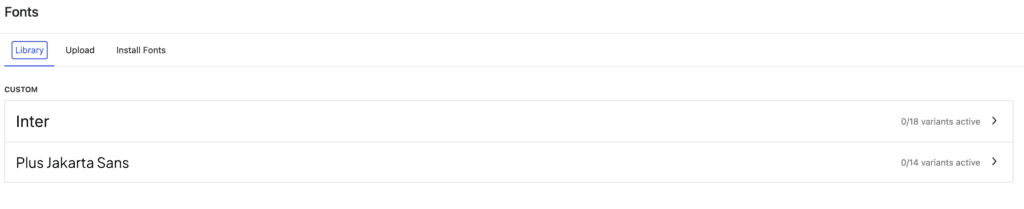
Instead of each theme having its own separate font management area, you can now reuse fonts across all themes through the new font management feature under Appearance => Fonts.
3. Responsive Editing Mode and new blocks
Page builders get more control over how blocks appear on different devices. You can hide or show blocks by desktop, tablet, or mobile directly inside the editor. There is also an Icon block, a Breadcrumbs block, a gallery lightbox, and a navigation overlay canvas for building menus more flexibly.
Anyone optimizing WordPress performance should also look at this from a practical angle. Easier interface building does not mean the site automatically becomes faster. After upgrading, you should still review cache, images, and server configuration. These two articles, configuring LiteSpeed Cache for WordPress and slow WordPress on VPS, will be useful if you want to maintain speed after the update.
💡 If you are building a new site, WordPress 7.0 is a good fit for setting it up in a staging environment first. You can install it quickly with Docker Compose or LEMP on Ubuntu 22.04 to test plugins and themes more safely.
What should developers and site owners keep in mind before upgrading?

WordPress 7.0 includes many new parts, but not every website should update on day one. For sites with many plugins, custom themes, or daily revenue coming in, I lean toward a controlled upgrade approach.
- Back up the entire site: include files, the database, and cache configuration.
- Test on staging: check the theme, page builder, forms, SEO plugins, and WooCommerce if used.
- Review plugins related to AI or the editor: this is the group most likely to be affected when Core adds new APIs and interface changes.
- Measure performance again after the update: check Core Web Vitals, slow queries, lazy-loaded images, and cache.
- Review the editorial workflow: if your team relies heavily on revisions, start testing visual revisions early so people can get used to it.
For developers, the 7.0 field guide is more useful than the general overview post. It clearly lays out the changes around PHP-only block registration, the Interactivity API, block bindings, the plugin list filter, routing for the Site Editor, and some security updates such as tighter user registration flows.
If your site is just a standard content blog with few plugins and you already keep WordPress updated regularly, moving to 7.0 will probably be fairly smooth. But if you run an ecommerce site or a high-traffic website, move it to staging, test it, and only then push to production. The article Installing and setting up a WordPress website is also useful if you need to review the basics before upgrading.
🚫 Do not update directly on a live website that is running ads or receiving orders continuously if you have not tested payment plugins, forms, cache, and the theme. A small issue in the editor or layout can be enough to hurt conversions.
Should you upgrade to WordPress 7.0 right now?
The short answer is: yes, but follow a rollout plan. WordPress 7.0 is a notable release because it opens a new direction for AI in the WordPress ecosystem, while also fixing several pain points in the admin area and editor. If you work with websites for the long term, you will eventually need to get familiar with these changes.
If you need a stable environment to run WordPress after the upgrade, AZDIGI offers WordPress Hosting already optimized for content websites, blogs, and small business sites. For websites with more plugins or broader resource needs, Premium Business Hosting or X-Platinum VPS will be a better fit because they give you more control over performance and scaling as traffic grows.
In the end, WordPress 7.0 is not an update to look at casually. It changes how WordPress prepares for AI, how content teams work inside the editor, and how developers will extend the system later on. If you manage a WordPress website every day, this is a release whose notes are worth reading carefully before you update.
When was WordPress 7.0 released?
WordPress 7.0 was officially released on 20/05/2026 according to the release archive and the announcement on WordPress.org.
Does WordPress 7.0 include AI in Core?
It includes AI foundations in Core such as WP AI Client, the Connectors screen, and the client-side Abilities API. However, specific content generation features still require an AI plugin or third-party plugins built on this shared foundation.
Should you update WordPress 7.0 directly on a live website?
You should back up the site and test on staging first, especially for websites using WooCommerce, many plugins, or custom themes. Only update production after stability is confirmed.
What is useful in WordPress 7.0 for a content team?
Visual revisions, the command palette, the Font Library, responsive editing, and the new AI ecosystem are the most useful additions for editorial teams.
Does WordPress 7.0 require a block theme?
No. Some features such as the Font Library in 7.0 now extend to block, hybrid, and classic themes, so older sites can still benefit from this update.
You might also like
About the author

Trần Thắng
Expert at AZDIGI with years of experience in web hosting and system administration.