Checking Open Port Remotely with Nmap on Linux with 2 steps
Introduction
Nmap (Network mapper) is a free, open-source utility for network information mining and security testing. Nmap is designed to quickly scan large networks but achieve high performance with a single server. Nmap can work on many familiar operating systems and official binary packages are available on Linux, Windows and Mac OS.
So in this article, AZDIGI will show you how to install Nmap to check the open port remotely on Linux.
Implementation Guide
First, you need to SSH into your server and follow the steps below.
Step 1: Install nmap
To install nmap on some servers, you can refer to the corresponding commands below:
- On Ubuntu/Debian
sudo apt install nmap
- On RedHat, you can use yum or dnf to install
sudo yum install nmap
Or
sudo dnf install nmap
- After the installation is complete, you need to check with the command below:
If the screen displays the results as below, the installation is successful.
[root@sv ~]# nmap -v
Starting Nmap 6.40 ( http://nmap.org ) at 2022-04-25 21:57 +07
Read data files from: /usr/bin/../share/nmap
WARNING: No targets were specified, so 0 hosts scanned.
Nmap done: 0 IP addresses (0 hosts up) scanned in 0.04 seconds
           Raw packets sent: 0 (0B) | Rcvd: 0 (0B)
Step 2: Check the open port with nmap
- Check open ports
To check the open port with nmap, you can use the command with the following option:
nmap IP/hostname/domainname
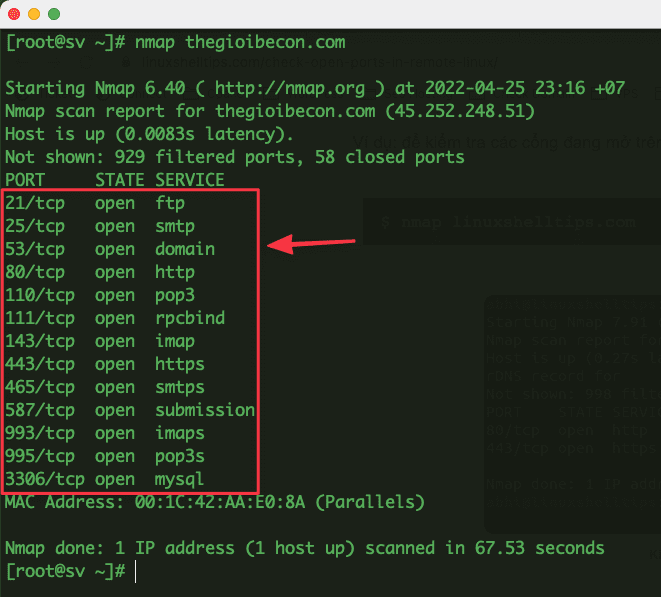
For example, to check the open ports on the thegioibecon.com website, you run the command:
nmap thegioibecon.com
After running the command, the result will show open ports on the server side as follows:
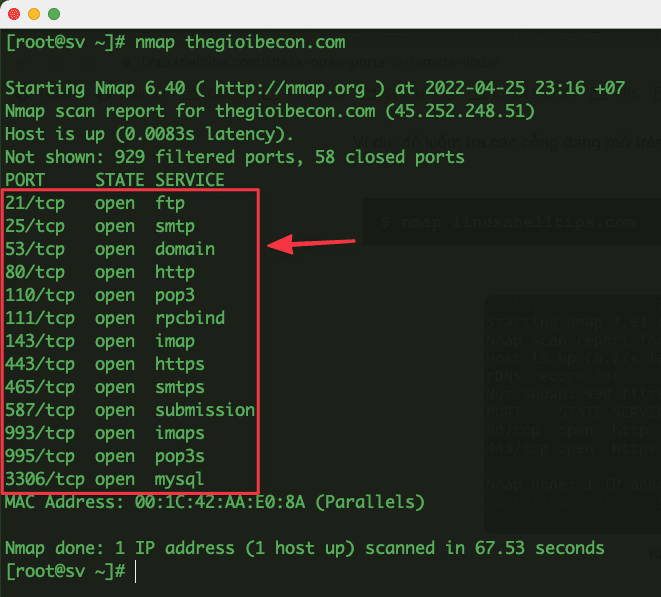
As shown above, all are default ports (should have) on web servers. However, with the above command, it will not be possible to list all the ports because this command only checks the most commonly used 1000 ports.
So to check all the open ports, you just need to add the -p- option to the command as below: (Note that this command will run for a long time, so please be patient)
nmap -p- thegioibecon.com
- Check specific port
To check a specific port, you can use the command with the following option:
nmap -Pn -p port_number IP/hostname/domainname
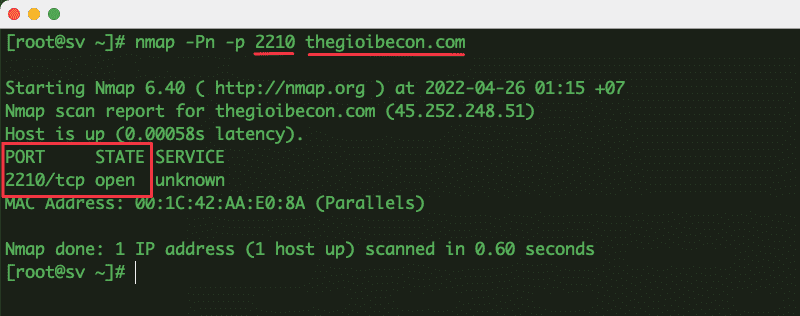
For example, to check that Port 2210 is open on the thegioibecon.com website, run the command:
nmap -Pn -p 2210 thegioibecon.com
After running the command, the result will show that Port 2210 is open on the server side as follows:
So in this article, AZDIGI showed you how to install nnmap to check the open port remotely on Linux. Hope this article is useful to you, wish you success!
You can refer to other instructions at the link below:
If you need assistance, you can contact support in the ways below:
- Hotline 247: 028 888 24768 (Ext 0)
- Ticket/Email: You use the email to register for the service and send it directly to: support@azdigi.com .
About the author

Thạch Phạm
Đồng sáng lập và Giám đốc điều hành của AZDIGI. Có hơn 15 năm kinh nghiệm trong phổ biến kiến thức liên quan đến WordPress tại thachpham.com, phát triển website và phát triển hệ thống.