
Instructions to change the SSH Port in Linux to limit brute force attacks.
Terms used in the article.
- Port
- Passwd: Password
I. Overview
Welcome back to AZDIGI‘s documentation channel. In today’s article, AZDIGI would like to share with you how to change SSH PORT. While this article may not be too unfamiliar to those familiar with Linux, for newcomers to the system, the first thing to do when logging in to a Linux system is to change the SSH port immediately to ensure security and limit brute force attacks.
The default SSH port for accessing a Linux system is 22. But this port is very easy to exploit. Therefore, changing the port and setting a complex password is inevitable for you to manage the server safely.

II. Change SSH Port in Linux
To change the SSH Port in Linux, follow the steps below.
Step 1: Access the server via SSH protocol
First, you need to SSH into your server with the initial default port of 22. After successfully SSH, continue with the next steps.
Step 2: Check SSH Port
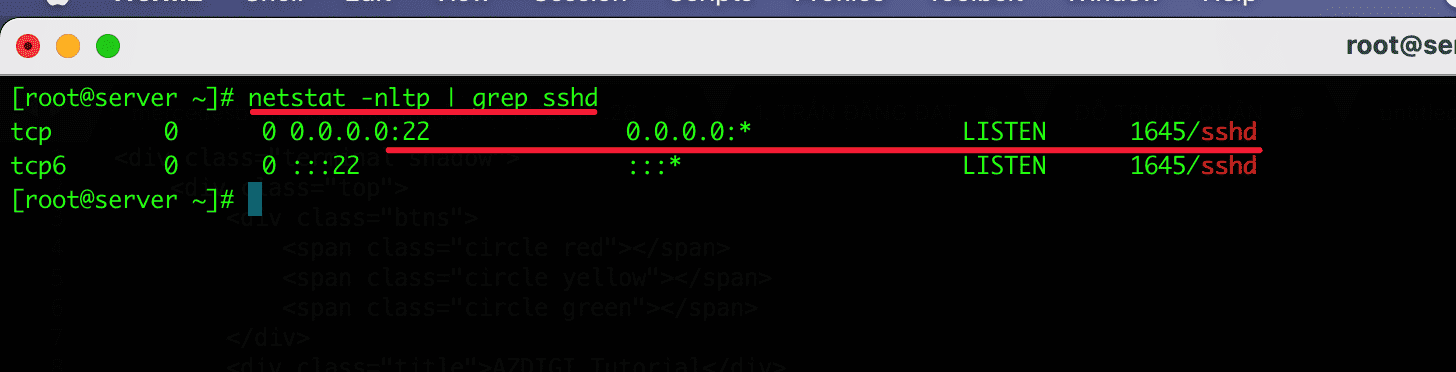
To check the current ssh port, you can use netstat to check the ports that are listening.
netstat -nltp | grep sshd
As shown below, my server’s ssh port is 22 and I will change it to another port.
Step 3: Change SSH PORT
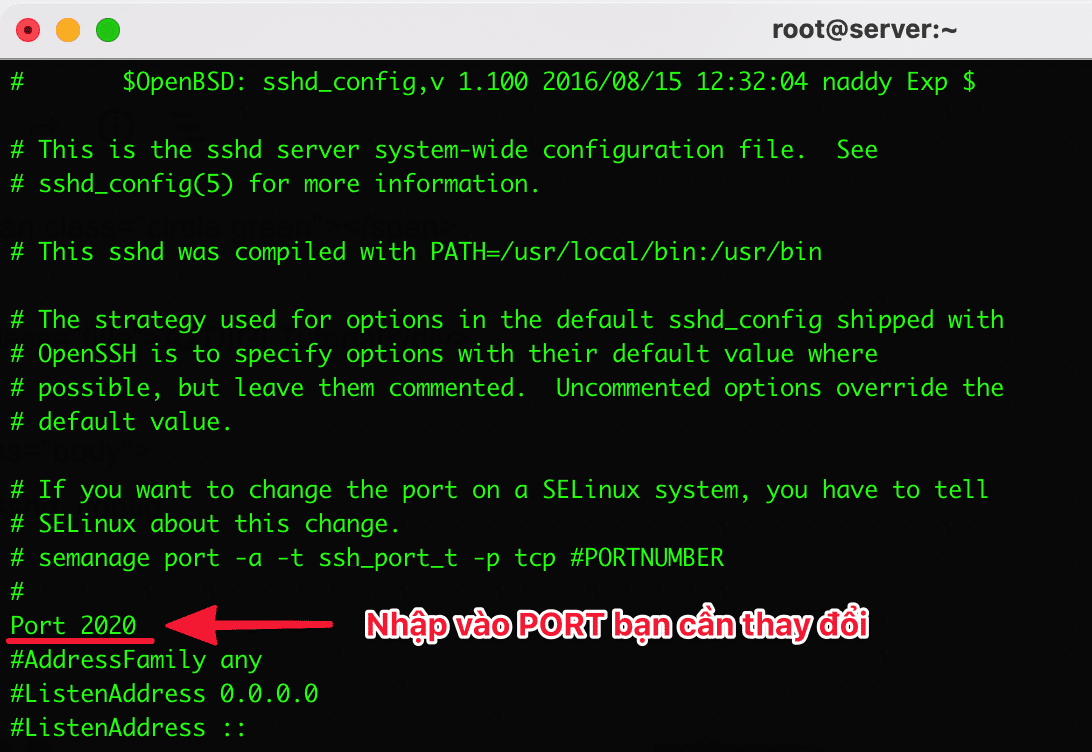
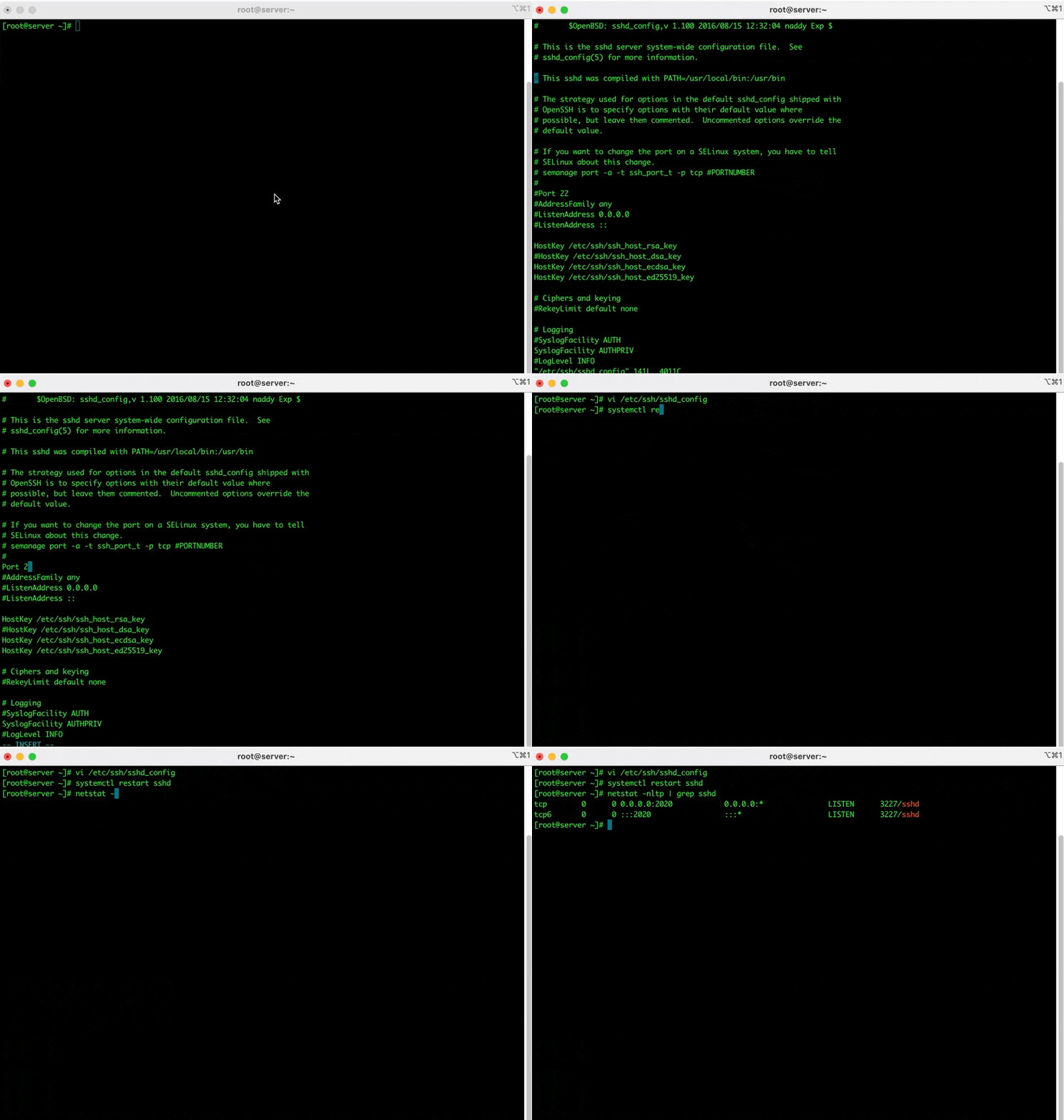
The ssh configuration file is named sshd_config and located at the path /etc/ssh/sshd_config . Please open this file with the command vivim or nano depending on usage. I will use the command vi to edit the file:
vi /etc/ssh/sshd_config
After opening the file, find the line #Port 22, then remove the sign # and change the number22 to the port you want. Here, I choose the ssh port as 2020 and I will enter it as 2020
Note: You cannot change to the port that another service is using. For example: “80, 21,23,53..”
Once you have made the changes, please don’t close this window but open the ssh port on the firewall system.
Step 4: Open the firewall port
Since each server, you will use a different firewall application. So please choose the corresponding applications below to open the port.
- For servers using Firewalld
If you use firewalld, open the port and reload with the following command:
sudo firewall-cmd --permanent --zone=public --add-port=2020
sudo firewall-cmd --reload/tcp
- For server using ufw (UIbuntu/Debian)
If you use ufw, enter the following command to change the port
sudo ufw allow 2020/tcp
- For servers using iptables
With iptables, enter the following commands sequentially to open the port, start and check the opened port.
iptables -I INPUT -p tcp -m tcp --dport 22 -j ACCEPT
service iptables restart
iptables -L -n
- For server install CSF
CSF (ConfigServer & Firewall) is the most popular firewall system. And to open the port, you do the following sequentially. Open the configuration file csf.conf with the following command:
vi /etc/csf/csf.conf
When you have opened the configuration file, find the lineTCP_IN and add ports. Ports will be separated by phẩy ,
# Allow incoming TCP portsTCP_IN = “20,21,22,25,26,53,80,110,143,443,465,587,993,995,2020”
# Allow outgoing TCP ports
TCP_OUT = “20,21,22,25,26,37,43,53,80,110,113,443,465,873,2020”
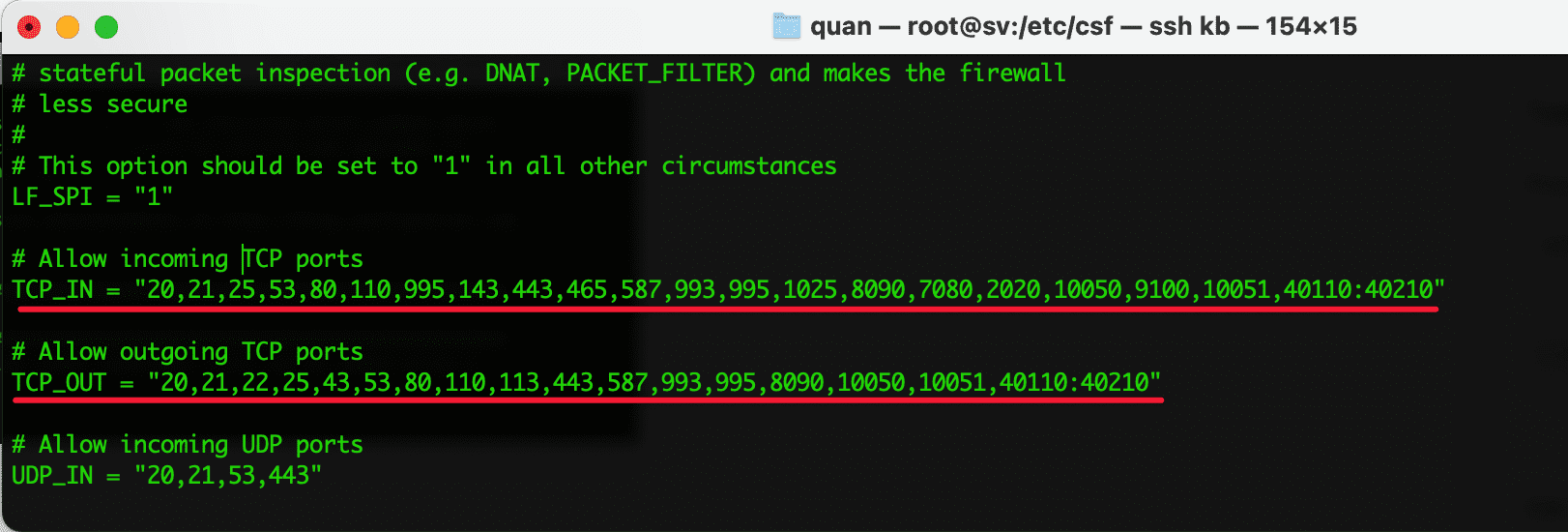
After editing the csf.conf file, please restart your csf to apply the changes. You use the csf -r command to restart.
Step 4: Restart the SSH service
Be sure to open the changed port to the firewall system, to ensure that restarting sshd works. Otherwise, you won’t be able to ssh in if you closed the old session. In this case, only when VNC enters the server, you can do it again.
systemctl restart sshd
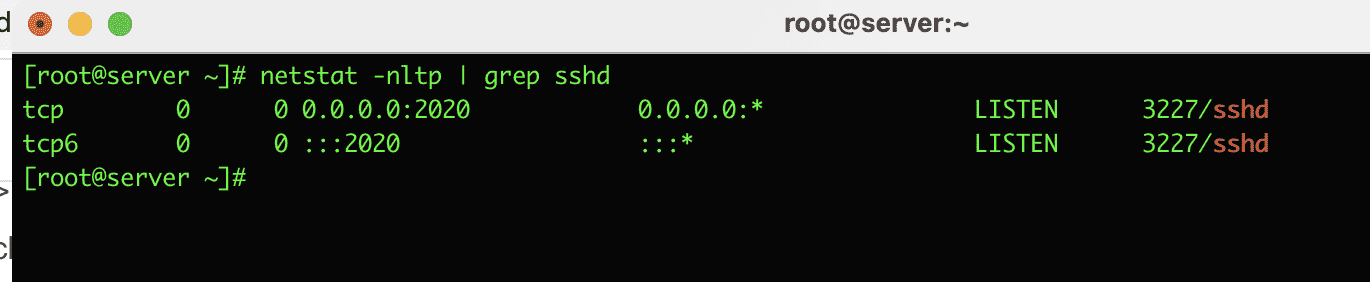
After restarting the sshd service, please netstat and recheck.
IV. Summary
So AZDIGI has completed the instructions on how to change the sshd port to secure the server system. But the way to change the port is still not absolutely safe. In the next article, AZDIGI will guide you to secure the server in the most secure way.
If you need assistance, you can contact support in the ways below:
- Hotline 247: 028 888 24768 (Ext 0)
- Ticket/Email: You use the email to register for the service and send it directly to: support@azdigi.com .
About the author

Thạch Phạm
Đồng sáng lập và Giám đốc điều hành của AZDIGI. Có hơn 15 năm kinh nghiệm trong phổ biến kiến thức liên quan đến WordPress tại thachpham.com, phát triển website và phát triển hệ thống.