Meta has announced Facebook Verified, a free badge for personal accounts that complete verification through a short video selfie. Vietnamese media and users often refer to it as Facebook’s “white check.” It is different from the blue verified badge and does not prove that an account is completely trustworthy.
Facebook Verified is rolling out in phases in selected markets. Meta has not published a complete country list or confirmed when it will be available in Vietnam. If the option has not appeared in an account, users should not pay an outside service or upload a facial video through an unfamiliar link.
What is the Facebook Verified badge?
According to Meta’s official announcement, the new Facebook Verified badge indicates that an account belongs to a real person who completed verification and meets the platform’s safety standards.
Meta designed the badge to help users recognize that there is a real person on the other side when buying and selling on Marketplace, joining Groups, using Facebook Dating, or viewing a personal profile. It is an identity signal, not a guarantee about a seller’s reputation or the quality of their content.
Where can users access Facebook Verified?
Facebook does not provide one universal application link for every account. Meta is rolling the feature out in phases and shows a prompt to eligible users. A Meta spokesperson told Inc. that the prompt may appear on a personal profile or inside Marketplace, Groups, and Dating.
The shortest route is:
- Open the Facebook app and sign in to the personal account you want to verify.
- Tap your profile picture or name to open your Profile.
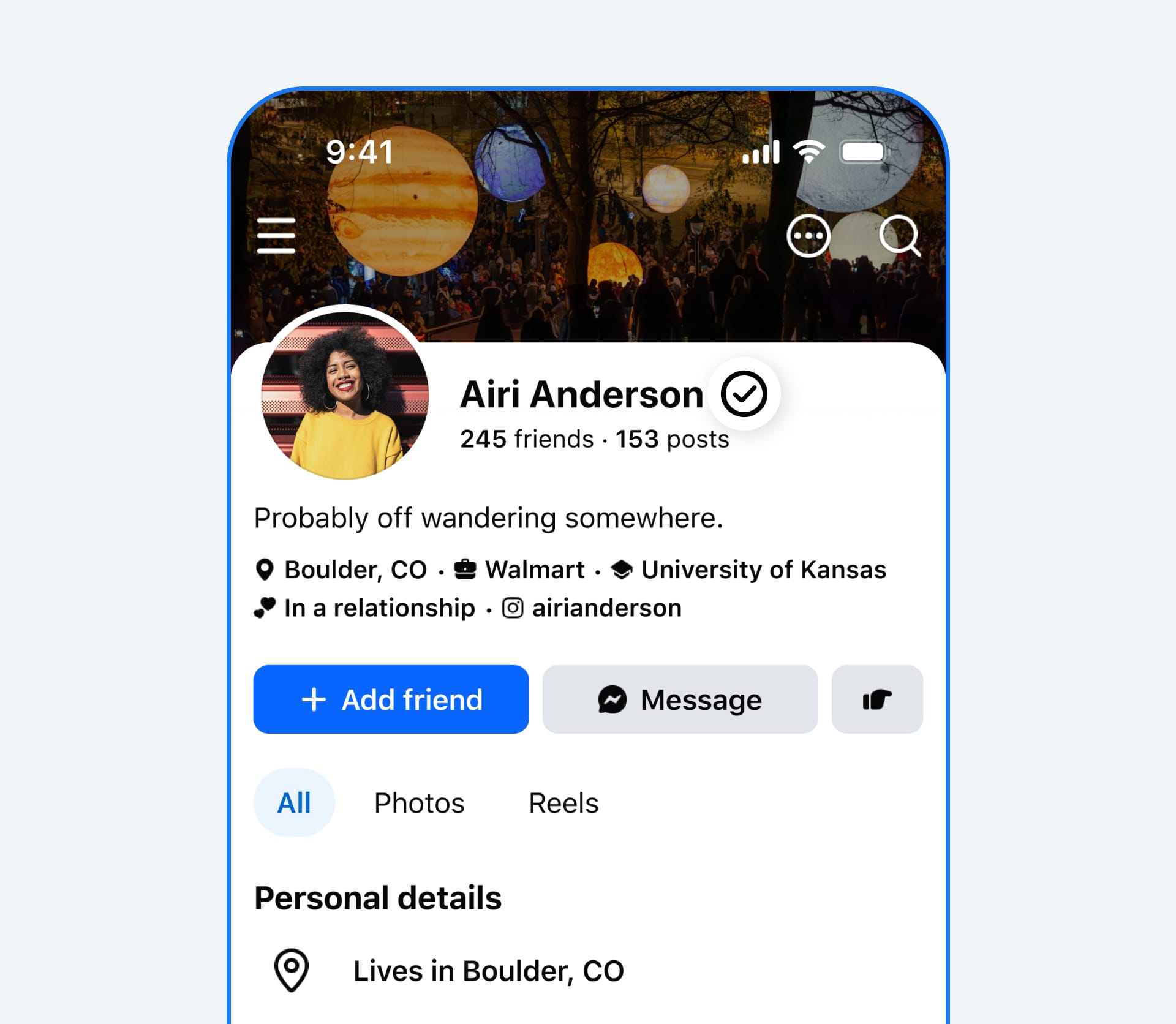
- Look for Get verified or a Facebook Verified prompt on the profile.
- If the prompt is not there, open Marketplace, Groups, or Facebook Dating and check for the verification prompt.
If none of these locations shows a prompt, the feature is not yet available for the account or region. There is no legitimate hidden URL, VPN method, or paid third-party service that can enable it.
How to apply for Facebook Verified step by step
Step 1: Update the Facebook app
Open the App Store or Google Play, search for Facebook, and install the latest update. Meta normally enables new features from its servers, but an older app may not display the prompt or selfie screen correctly.
Step 2: Open the Get verified prompt
Open your personal profile and select Get verified if it appears. The prompt may also show while you use Marketplace, Groups, or Dating. Continue only when the screen is inside the official Facebook app.
Step 3: Review the data notice and allow camera access
Facebook will display information about how the selfie video is used. Read the notice before continuing, then allow camera access if you agree. Do not upload a prerecorded video or send a facial video to someone over Messenger.
Step 4: Record the video selfie
Place your face inside the on-screen frame, use a well-lit location, and remove dark glasses or anything covering your face. Follow the movements requested on screen. Facebook compares the video with existing profile photos, so the account should have a clear profile photo of its owner.
Step 5: Submit and wait for the result
Review the information and submit the video. Meta says the process normally takes a few minutes. If approved, the badge will appear on the profile and across Marketplace, Groups, and Dating. Feed posts are planned for a later stage.
Step 6: Check the badge
Return to the profile and look for the verification icon next to the account name. Users do not need to verify separately in each Facebook surface.
A Meta spokesperson told Inc. that the company will automatically delete the video selfie and related facial data within 30 days after verification. Users should still read the privacy notice shown on their own account because terms may differ by region.
What if the Get verified button is missing?
- Confirm that you are using a personal account rather than a Page.
- Check whether ProMode is enabled. Do not change account mode solely to chase the badge when the feature is unavailable in your region.
- Review the birthday on the account because Facebook Verified is limited to users aged 18 or older.
- Update Facebook and sign in again once.
- Check the profile, Marketplace, Groups, and Dating.
- If no prompt appears, wait for Meta’s rollout. Do not send identification, a selfie video, or money to someone offering a verification service.
The Video selfie verification route in Accounts Center
Some accounts already show a Video selfie verification option in Accounts Center. The route in the Facebook app is:
- Tap the three-line Menu icon in the bottom navigation bar. Its position can vary by app version.
- Select Settings & privacy, then Settings.
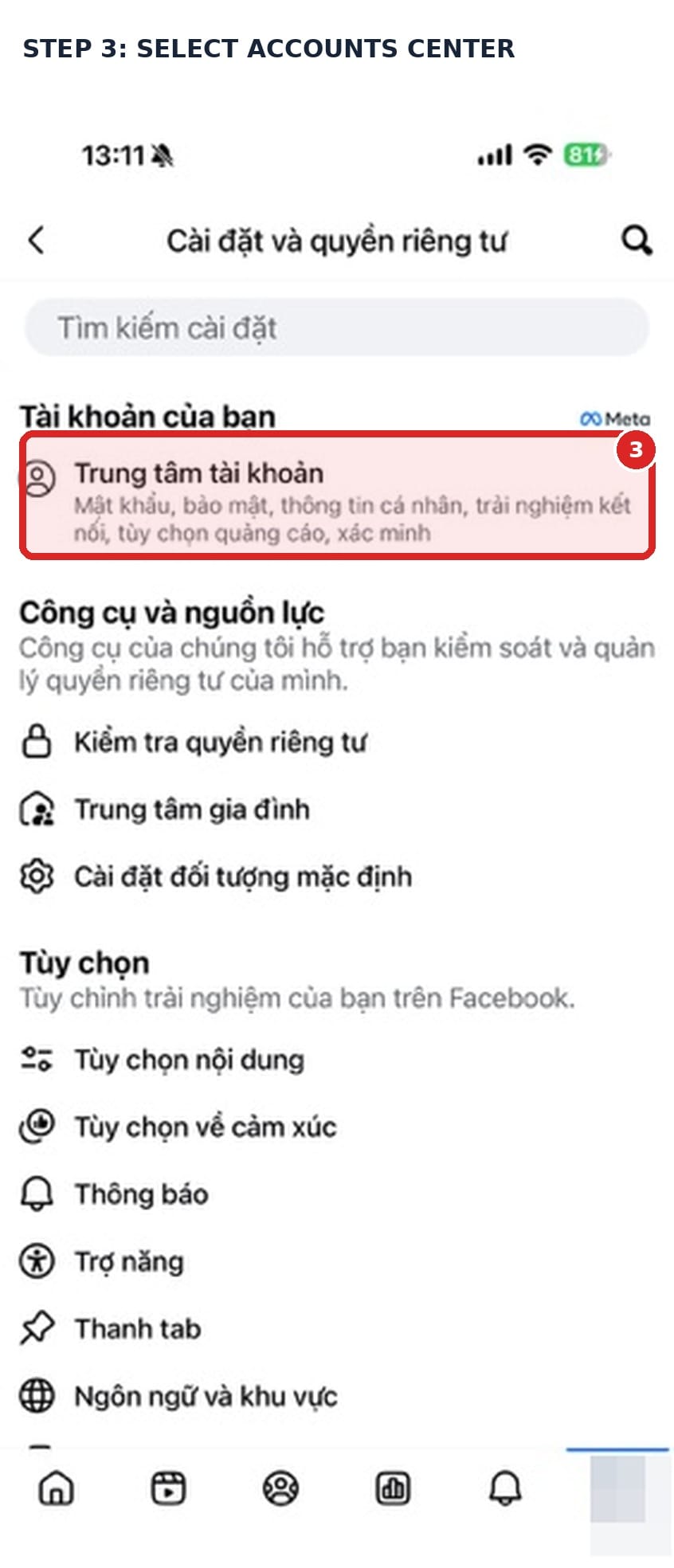
- Select Accounts Center.
- Select Password and security.
- Select Video selfie verification.
- Select the profile you want to configure.
- Review the information, tap Continue, and follow the on-screen recording instructions.
Step 3: Select Accounts Center
Step 4: Select Password and security
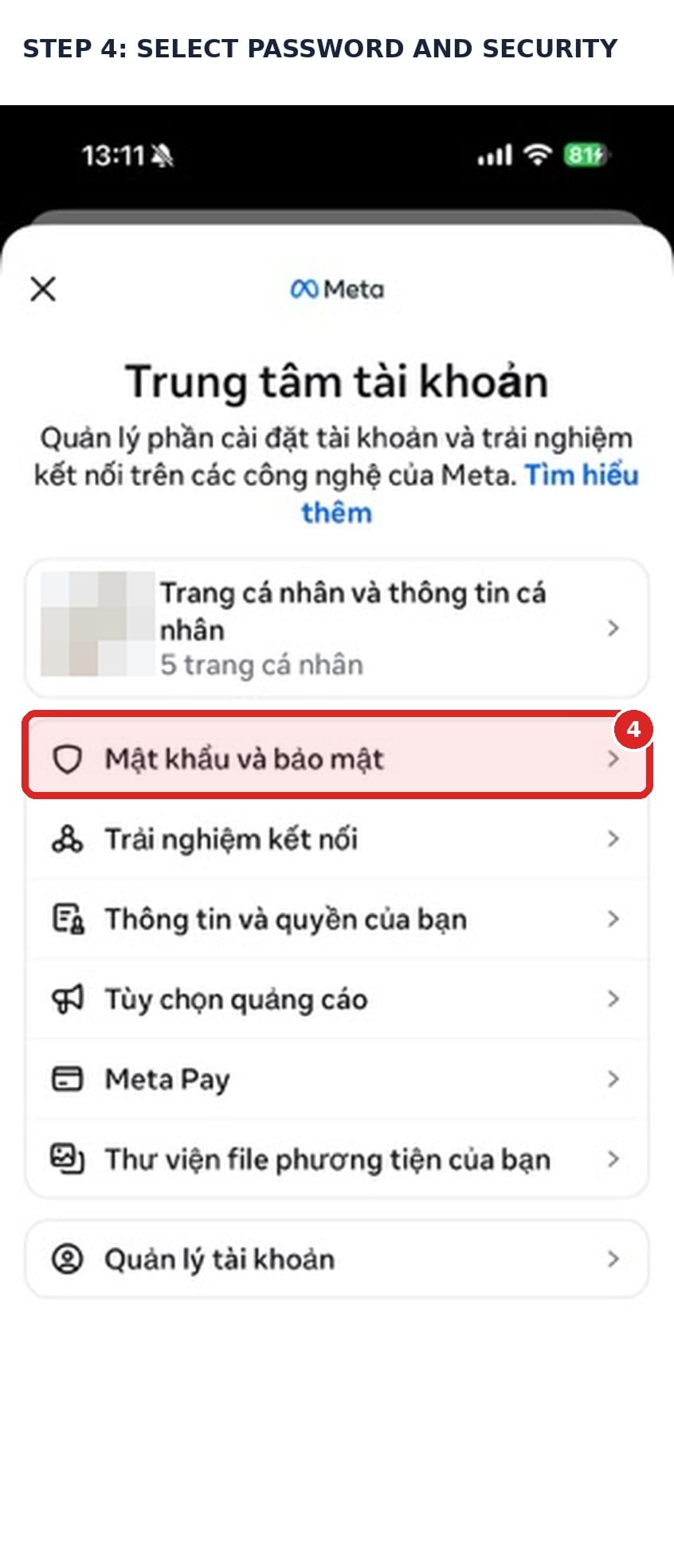
Step 5: Select Video selfie verification
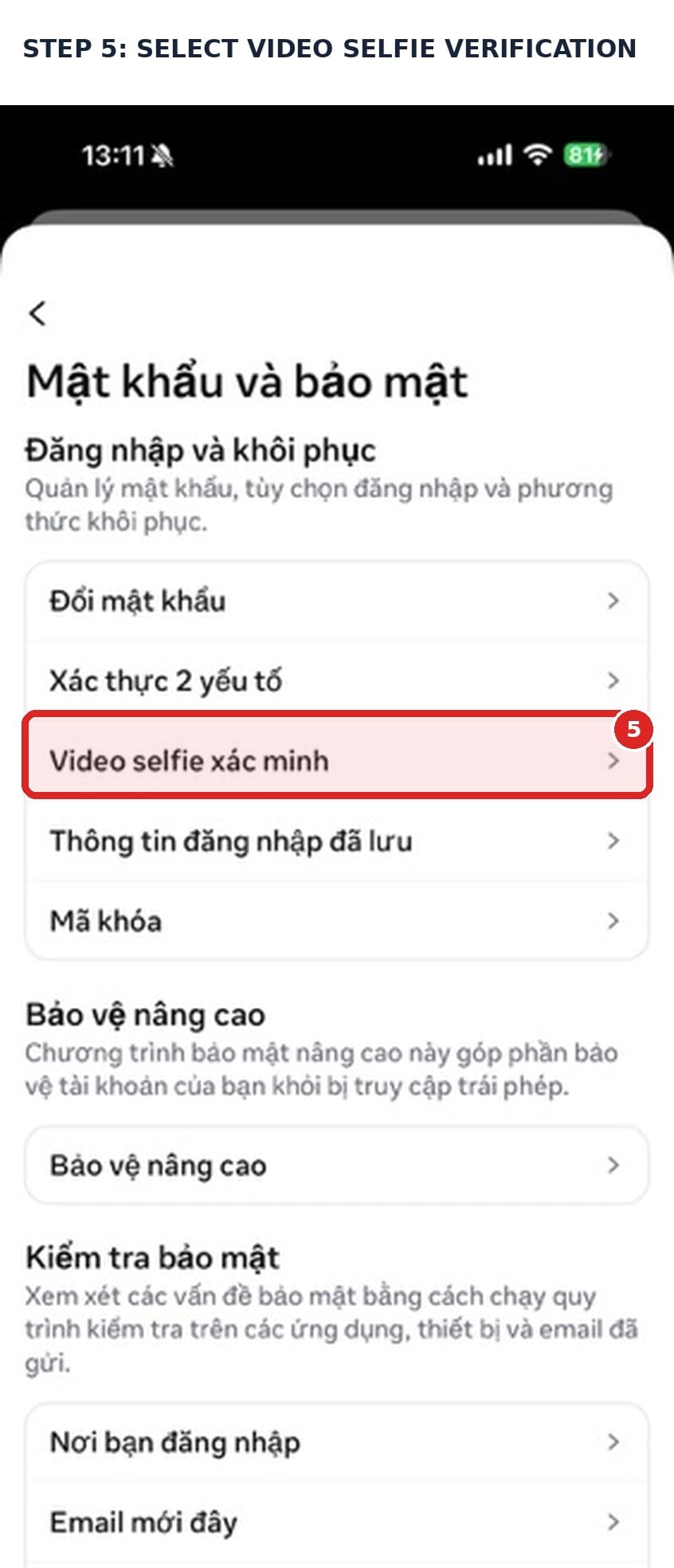
Step 6: Select the profile

Step 7: Review the notice and continue
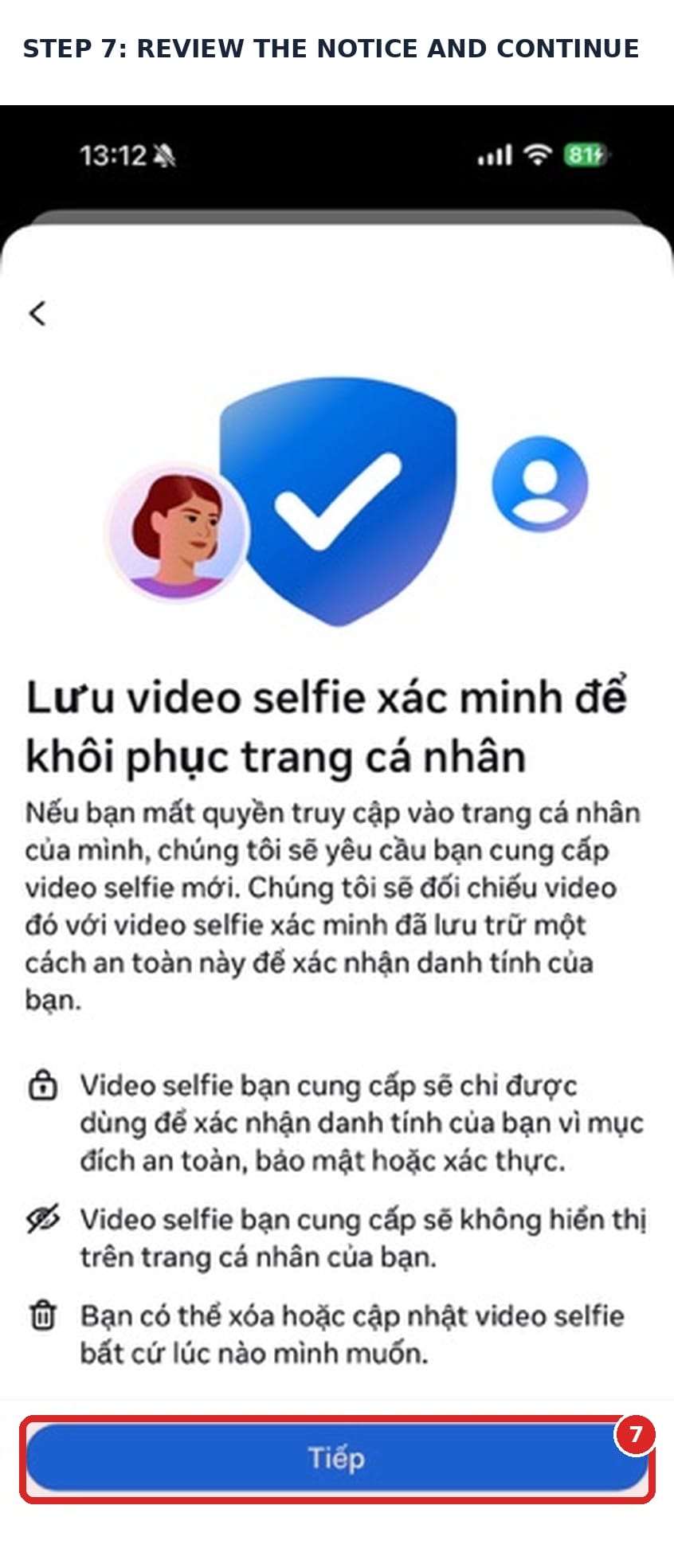
Important: this is an account recovery feature
The final screen says that the selfie is saved to help recover the profile. This Accounts Center route is therefore a security and account recovery feature. It is not evidence that the account has enrolled in Facebook Verified or will receive the new badge after recording a video.
To receive the new Facebook Verified badge, users still need to wait for a Get verified invitation when Meta enables the feature for their market and eligible account. Both processes use a video selfie, but they serve different purposes.
Who is eligible?
The new Facebook Verified badge is available to eligible users aged 18 or older. The account must be in good standing, follow Facebook’s Community Standards, and show no evidence of inauthentic behavior.
Meta states that the badge is not available to Facebook Pages or accounts using ProMode. Businesses, brands, and professional creators therefore cannot treat the new badge as a replacement for existing verification programs.
How is it different from the blue badge and Meta Verified?
| Criteria | New Facebook Verified badge | Existing blue badge or Meta Verified |
|---|---|---|
| Main purpose | Signals that a real person is behind the account | Confirms identity or an official presence under the relevant program |
| Cost | Free according to Meta | May be free for notable accounts or paid through a Meta Verified subscription |
| Verification method | Video selfie checked against profile photos | May require government ID and other eligibility checks |
| Eligible accounts | Qualifying personal accounts for users aged 18 or older | Individuals, creators, or businesses depending on the program |
| What it means | A real person completed verification | Identity or an official presence was confirmed within the program’s scope |
The names can be confusing because “Facebook Verified” sounds similar to “Meta Verified.” When an invitation appears, check the badge type, eligibility rules, and stated benefits before continuing.
The badge is not a guarantee of safety or trustworthiness
Meta explicitly says the badge is not an endorsement. A verified person can still post false information, violate platform rules, or fail to honor a transaction.
When dealing with someone on Marketplace, users should still review the account’s history, previous posts, payment method, and transaction details. Never transfer money based on a badge alone. Do not share an OTP, password, or card information with someone claiming to work for Facebook.
What should users check before submitting a video selfie?
A facial video is sensitive data. Before continuing, users should read the privacy notice shown inside the app, including the stated purpose, data handling terms, and available account controls.
- Complete verification only in the official Facebook app or on a facebook.com help page.
- Do not upload a selfie video through a form sent by a stranger over Messenger, email, or comments.
- Do not install an unofficial app that promises to obtain the badge.
- Enable two-factor authentication and review active sessions afterward.
- If the feature is unavailable, wait for an official in-app notice.
What does this mean for businesses?
Facebook Verified shows how social platforms are responding to fake accounts, AI-generated profiles, and impersonation. For a business, however, a social-media badge solves only part of the identity problem.
A business still needs a website under its control, an official domain, HTTPS, and clear contact details. Customers can use the website to verify promotions, payment policies, support channels, and the company’s official social accounts.
If the website handles online sales, its hosting also needs to remain responsive when traffic arrives from Facebook posts or advertising campaigns. AZDIGI’s Vietnamese guide to choosing hosting for an e-commerce website covers resource planning, speed, and traffic capacity.
Is Facebook Verified available in Vietnam?
At the time of writing, Meta only says that Facebook Verified is rolling out in selected markets and will expand over time. The company has not officially confirmed Vietnam as part of the first phase.
Eligible users should see the verification option directly inside Facebook. There is no valid reason to pay a third party for this badge because Meta describes it as free.
Sources
You might also like
- What Is Hermes Agent? Installation and Usage Guide
- Complete OpenClaw Guide: Step-by-Step Tutorial from A to Z
- Integrate Facebook chat into the WordPress website
- Using AI to troubleshoot, deploy, and vibe code websites on cPanel hosting with hosting_ai_skills
- Install Open WebUI + Ollama with Docker Compose - Create Your Own ChatGPT on VPS
- How to transfer data between Object Storage services (S3-to-S3 Migration)
About the author

Trần Thắng
Expert at AZDIGI with years of experience in web hosting and system administration.