Ping is a utility used to check if a server is reachable or not. Ping will send ICMP echo request packets to the destination host.
Ping (Packet Internet Groper) is a tool for computer networks used on TCP/IP networks to check if a particular host can be connected. In addition, Ping estimates the round-trip delay time to send packets and the rate at which packets can be lost between the two servers.
In simpler words, Ping is used to testing the connection of two or more devices on a transmission line or test the connection from a workstation to the server it connects to by measuring the total sending and returning time of the standard packet data.
Method 1: Disable ping via /etc/sysctl.conf
Step 1: SSH into VPS
First, we need to SSH into your server as root. If you don’t know how to SSH into your VPS/Server, you can refer to the following tutorial:
Step 2: Open the configuration file sysctl.conf sysctl.conf
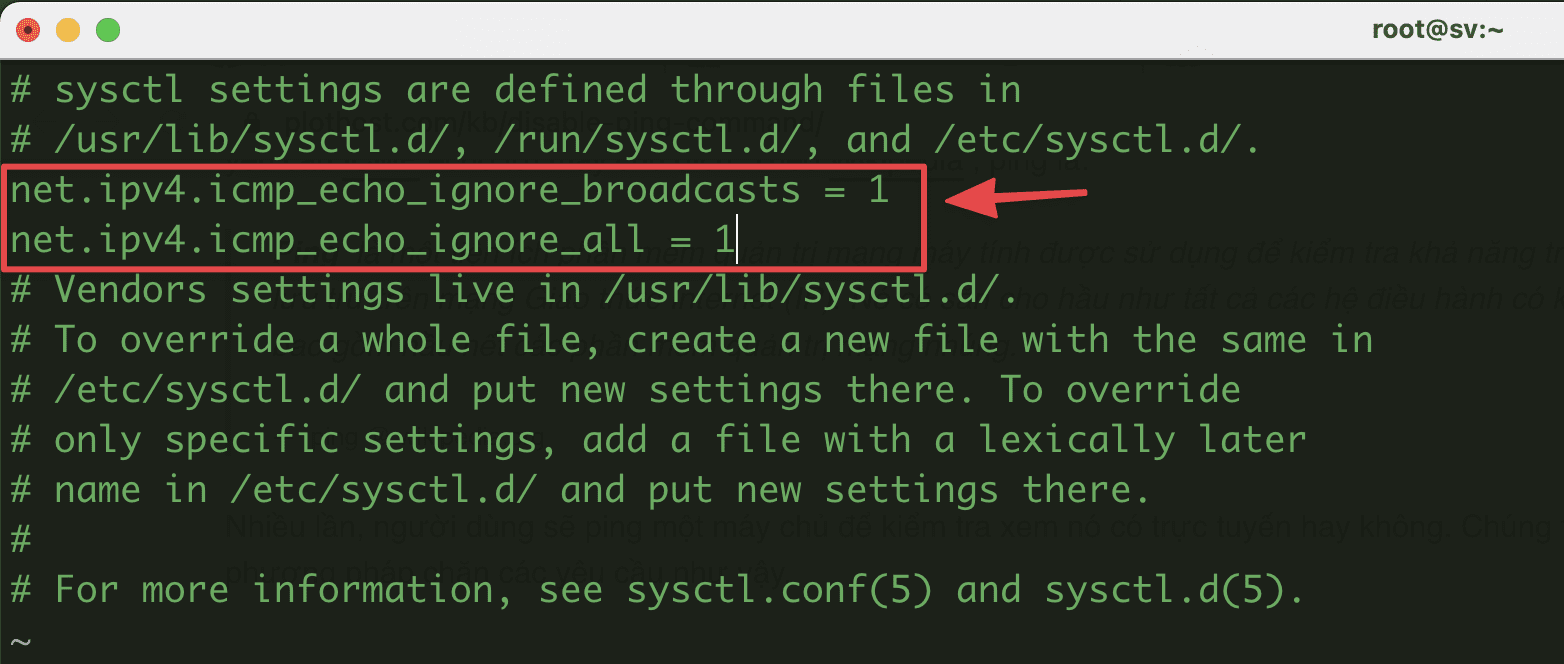
You edit the file /etc/sysctl.conf and add the following configuration:
vi /etc/sysctl.conf
And add below configuration:
net.ipv4.icmp_echo_ignore_broadcasts = 1
net.ipv4.icmp_echo_ignore_all = 1
Here are my results:
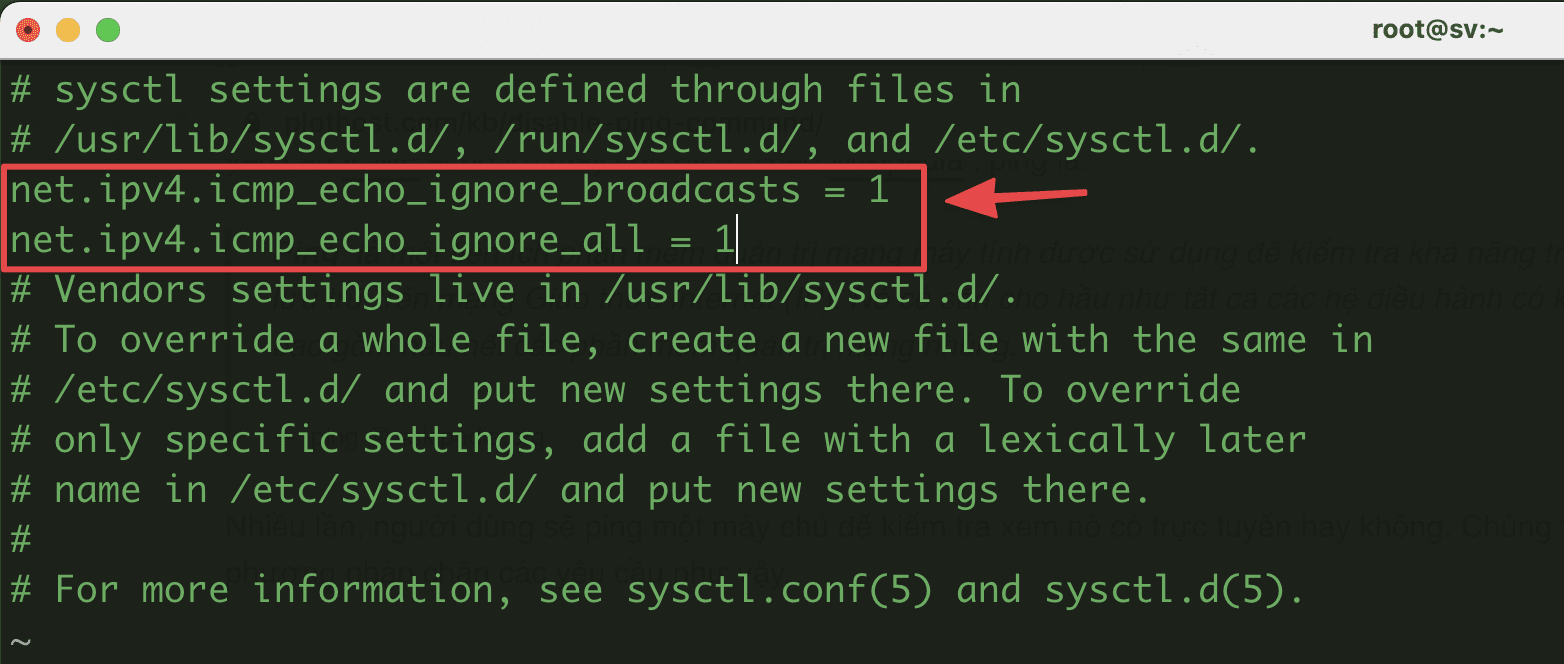
Conversely, if you need to reopen Ping, you should change the value 1 to 0.
Or if you want to edit faster, you can use the 2 commands below to Block (1) and Open (0) Ping.
echo "0" >  /proc/sys/net/ipv4/icmp_echo_ignore_all
echo "1" >  /proc/sys/net/ipv4/icmp_echo_ignore_all
Step 3: Update settings
You run the command to update the configuration you just edited with the command below:
sysctl -p
Here are my results:
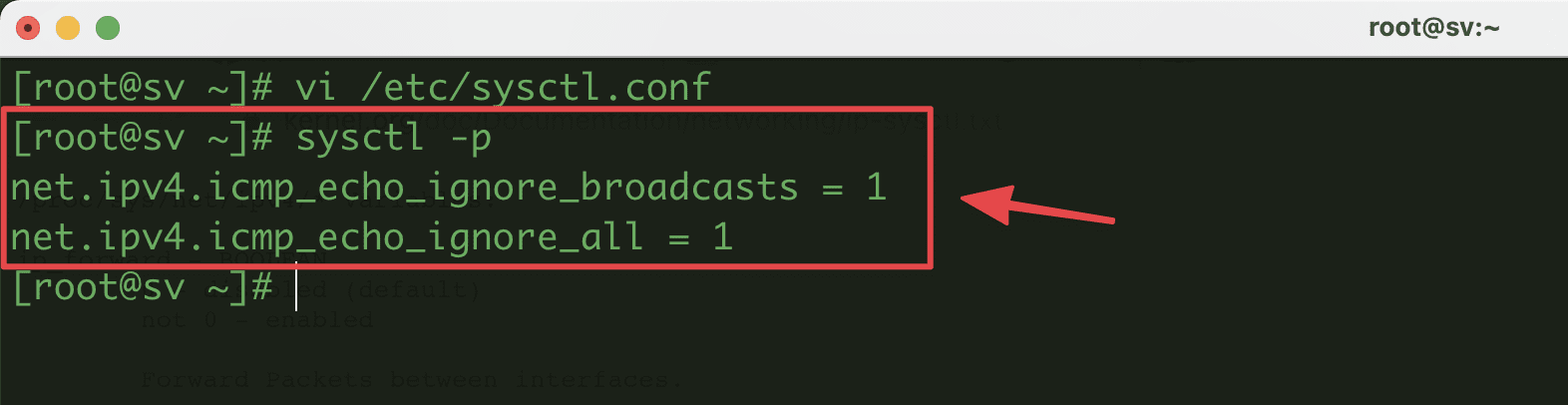
Explain the definition of the 2 newly added parameters:
- net.ipv4.icmp_echo_ignore_broadcasts = 1: Don’t reply to ICMP broadcast/multicast packets to prevent Smurf Attack.
- net.ipv4.icmp_echo_ignore_all = 1: Not receiving ICMP ping packets. Depending on specific needs, we should enable/disable this option.
In addition, you can see more definitions here.
Method 2: Disable ping through CSF (ConfigServer Security & Firewall)
Step 1: SSH into VPS
First, we need to SSH into your server as root. If you don’t know how to SSH into your VPS/Server, you can refer to the following tutorial:
Step 2: Open the configuration file /etc/csf/csf.conf
CSF is a pretty good firewall installed on many servers. You can disable/block ICMP response with it through editing the CSF config file as follows:
vi /etc/csf/csf.conf
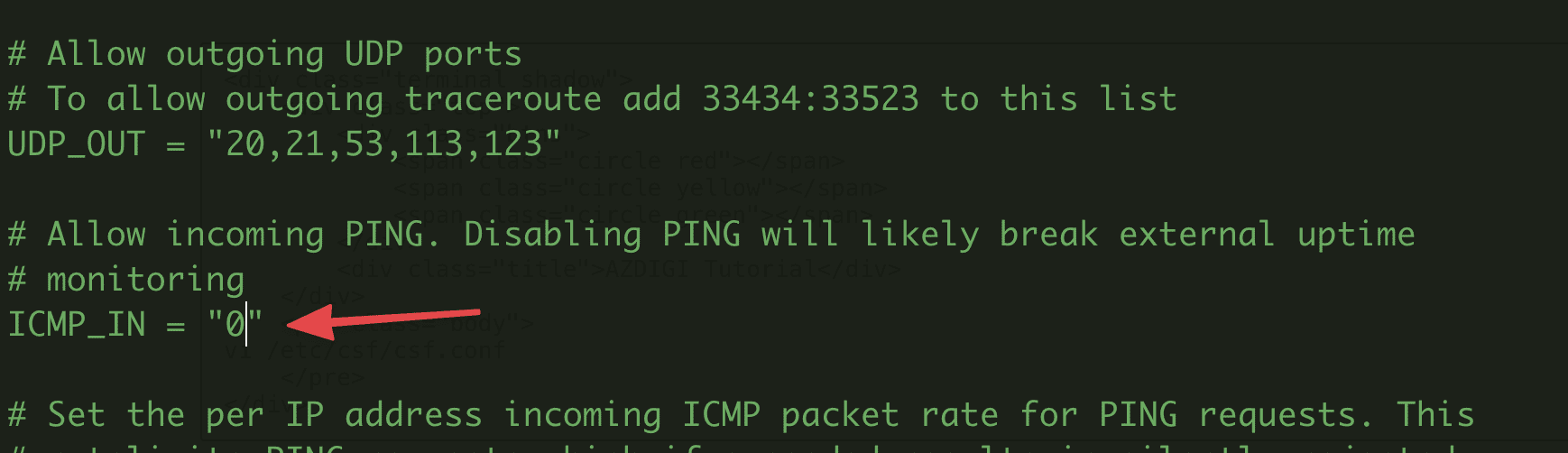
Find and edit the following content:
# Allow incoming PING
ICMP_IN = "0"
Here are my results:
Step 3: Restart CSF and LFD
Restart 2 services CSF and LFD with the following command:
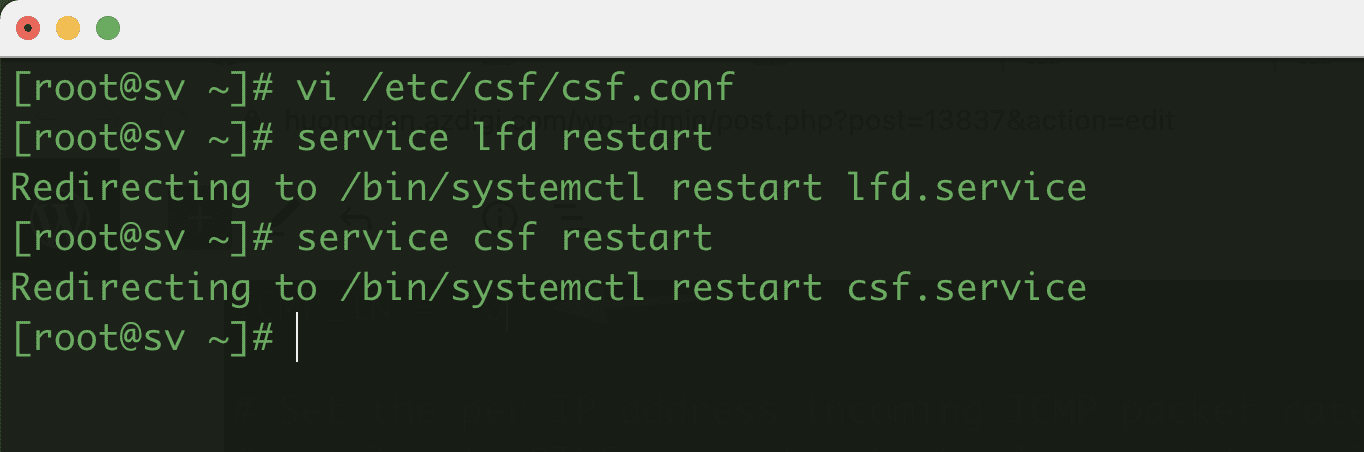
service lfd restart
service csf restart
Here are my results:
And this is the result after you do 1 of the 2 methods above:

Hope this article will be of help to you. Wishing you success!
See more useful articles about Linux at the following link:
If you need assistance, you can contact support in the ways below:
- Hotline 247: 028 888 24768 (Ext 0)
- Ticket/Email: You use the email to register for the service and send it directly to: support@azdigi.com .
About the author

Thạch Phạm
Đồng sáng lập và Giám đốc điều hành của AZDIGI. Có hơn 15 năm kinh nghiệm trong phổ biến kiến thức liên quan đến WordPress tại thachpham.com, phát triển website và phát triển hệ thống.