Many customers use the service at AZDIGI need a document to check which IP the website is pointing to and which provider that IP belongs to. So this article, AZDIGI will guide you to check IP by 2 popular online tools that AZDIGI technicians use daily to support customers.
Check the website’s IP
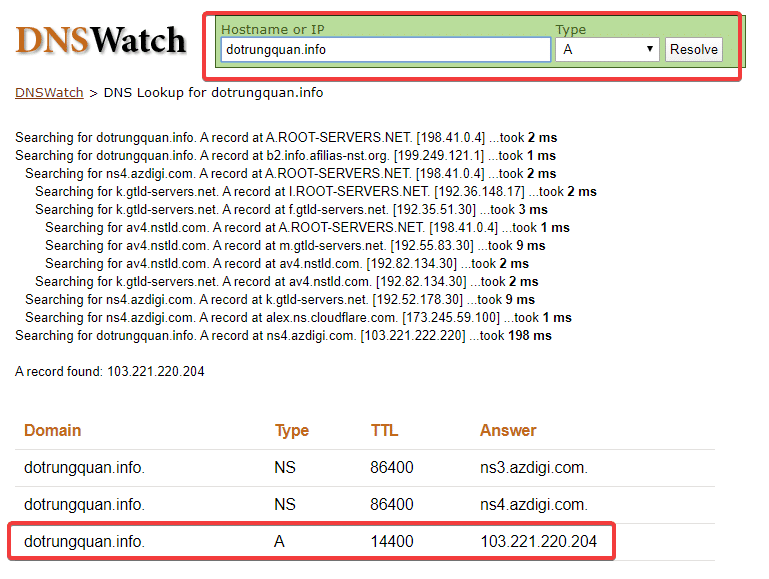
To check the IP address of the website, you can use the DNSWatch tool for the fastest check.
Go to the website above and enter your domain name, select type A and click Resolve. Next, the website will display the website’s IP address as shown below.
If no results are displayed, it means that the domain has not been pointed to, or the domain is temporarily locked, the Nameserver has not been updated…

Check provider
After determining the IP, you can check this IP address owner information to determine the hosting service provider, by going through the Info section and entering the obtained IP address.
Here you see the ISP/Organization section and you will see the service provider information.

Wishing you success!
You might also like
- AZDIGI Tools User Guide - Free DNS, Network, SSL Checker Toolkit
- How to use DNS on CloudFlare
- 401 Unauthorized Error: causes and how to fix
- Turbo Business Hosting - Powerful with Intel Xeon Platinum, NVMe U.2 RAID-10
- How to install the Opencart website with Softaculous
- How to configure Static IP on Ubuntu
About the author

Thạch Phạm
Đồng sáng lập và Giám đốc điều hành của AZDIGI. Có hơn 15 năm kinh nghiệm trong phổ biến kiến thức liên quan đến WordPress tại thachpham.com, phát triển website và phát triển hệ thống.