
Introduction to AZDIGI Tools
AZDIGI Tools (tools.azdigi.com) is a free online toolkit consisting of over 20 tools, serving DNS, network, SSL, SEO checking and utilities related to website administration. You don’t need to install software or register an account — just access the browser, enter a domain or IP, and get results immediately.
This article provides detailed instructions on how to use each tool, how to read results, and when to use which tool.
Group 1: DNS Tools
DNS tools help you check, monitor and troubleshoot issues related to the domain name resolution system. When your website is not accessible, emails can’t be sent/received, or you just changed DNS and want to confirm — this is the first group of tools you need to use.
1. DNS Trace
DNS Trace helps you trace the entire DNS resolution process, from root servers down to TLD servers then to authoritative nameservers of the domain. This tool is useful when you need to determine exactly where a domain is pointing according to “the source” — without going through any cache.
Access /dns/trace, enter the domain to check (e.g., dotrungquan.info) and click Trace.
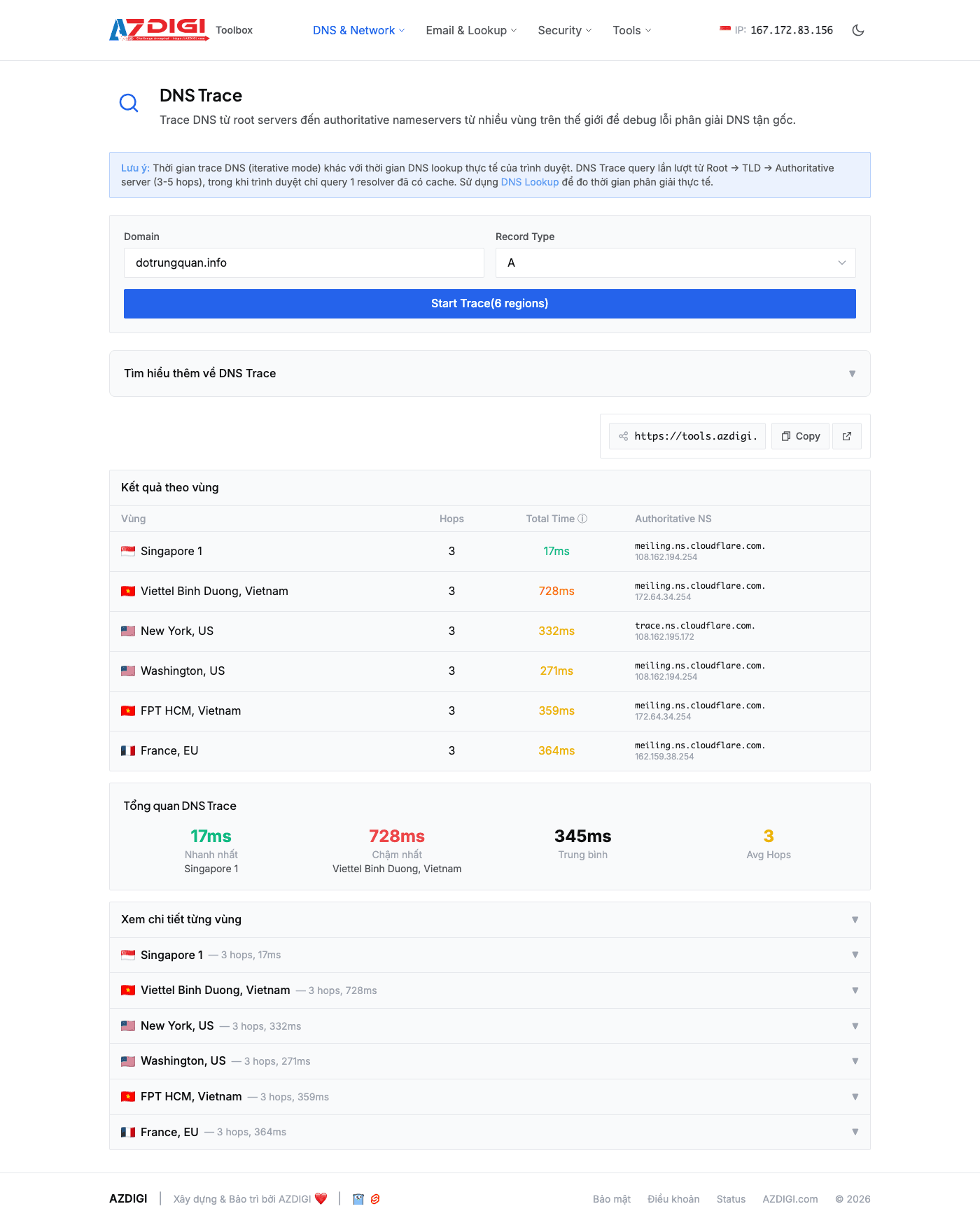
The result shows each step in the resolution chain: starting from root servers (.), to TLD servers (.info.), then to the domain’s authoritative nameservers. Each step shows which server responded and what records were returned. If the domain just changed nameservers, you’ll see the new authoritative NS appear in the final step — this is the most reliable way to confirm that the change has taken effect at the source, regardless of DNS cache at other resolvers.
2. DNS Lookup
DNS Lookup queries domain DNS records through 4 public resolvers simultaneously: Google (8.8.8.8), Cloudflare (1.1.1.1), Quad9 (9.9.9.9) and OpenDNS (208.67.222.222). Use this when you want to quickly check A, AAAA, MX, NS, TXT, or CNAME records of a domain.
Access /dns/lookup, enter domain (e.g., dotrungquan.info), select the type of record to check — default is A — then click Lookup.
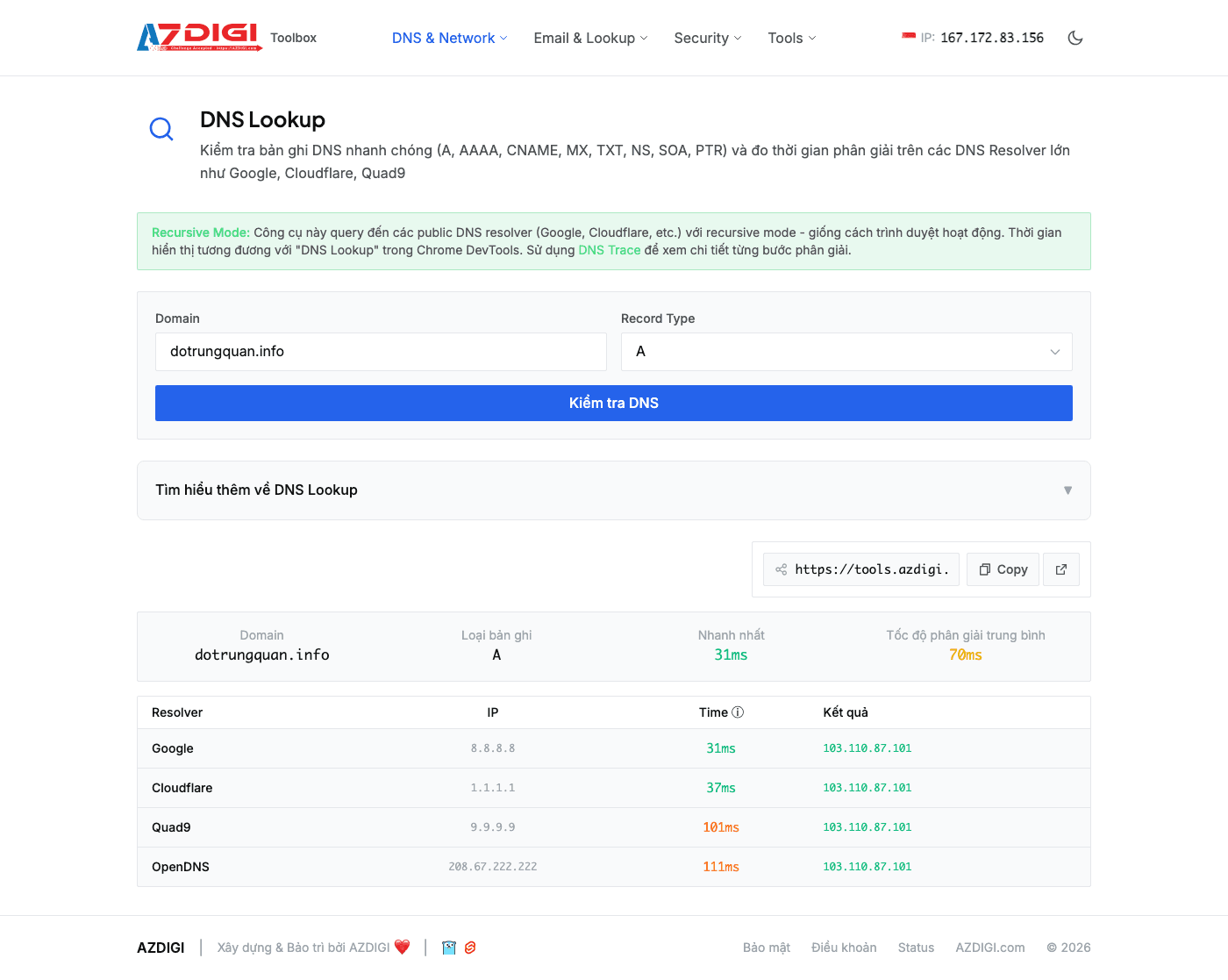
Results display record values from all 4 resolvers, along with response time of each resolver in milliseconds. If all 4 resolvers return the same result, your DNS is working normally. If results differ between resolvers, DNS may not have finished propagating or there might be configuration issues. Response time also shows which resolver responds fastest from AZDIGI Tools’ server location.
3. ISP Block Check
Sometimes websites are accessible normally from abroad but cannot be accessed from Vietnam. ISP Block Check helps determine whether a domain is being blocked by Vietnamese ISPs (Viettel, FPT, VNPT, CMC…) at the DNS level.
Access /dns/isp-block, enter the domain to check and click Check.
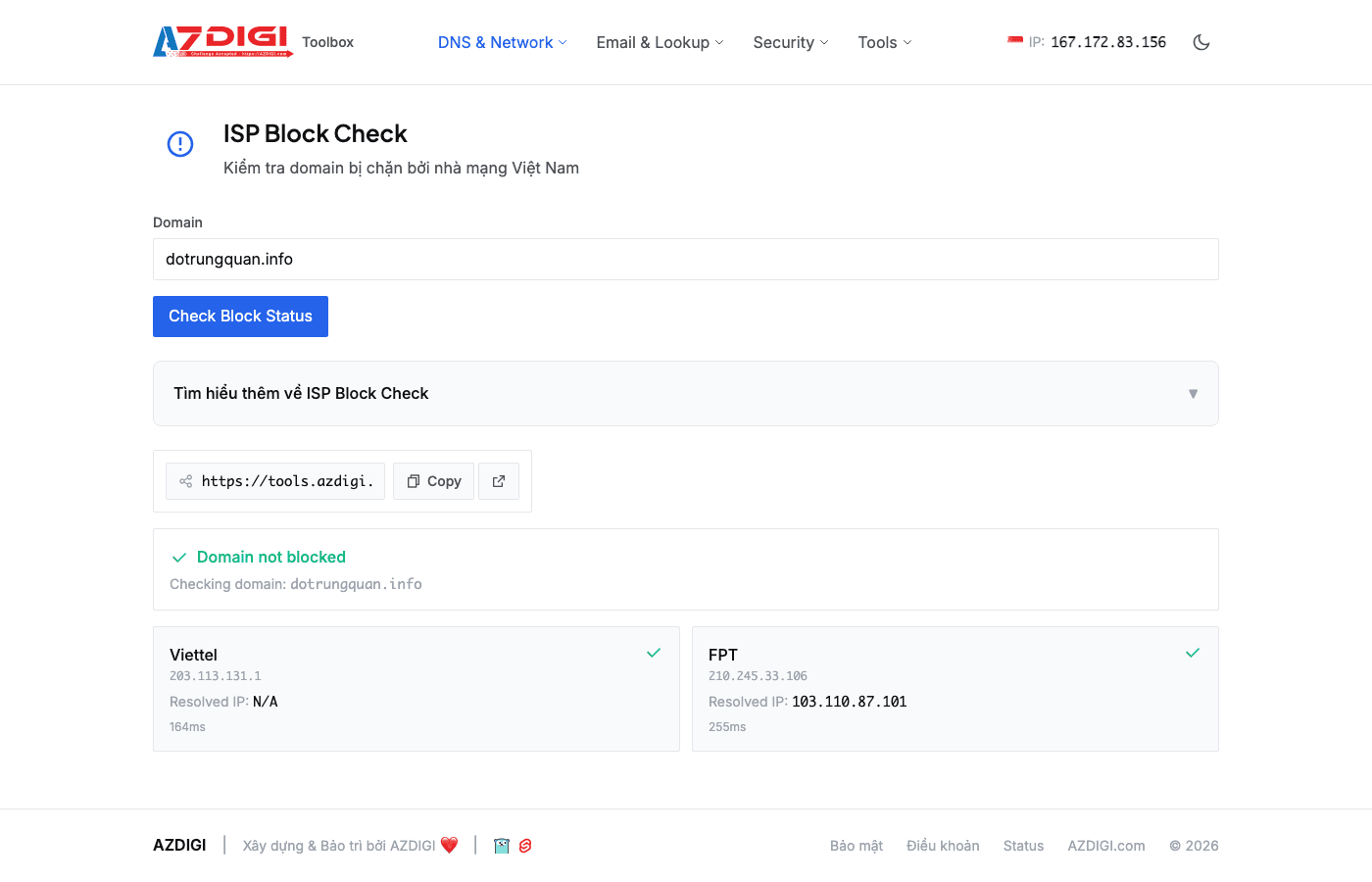
The tool will resolve the domain through each Vietnamese ISP’s DNS resolver. If an ISP returns a different IP (usually the ISP’s blocking page) or no result, that domain is being blocked on that ISP. Results clearly show the status of each ISP — you’ll immediately know where the domain is blocked and where it’s still accessible.
4. DNSSEC Check
DNSSEC (Domain Name System Security Extensions) adds a digital signature authentication layer to DNS, preventing DNS record spoofing. DNSSEC Check verifies the entire chain of trust from root zone to your domain, confirming whether DNSSEC is properly configured.
Access /dns/dnssec, enter domain (e.g., dotrungquan.info) and click Check.
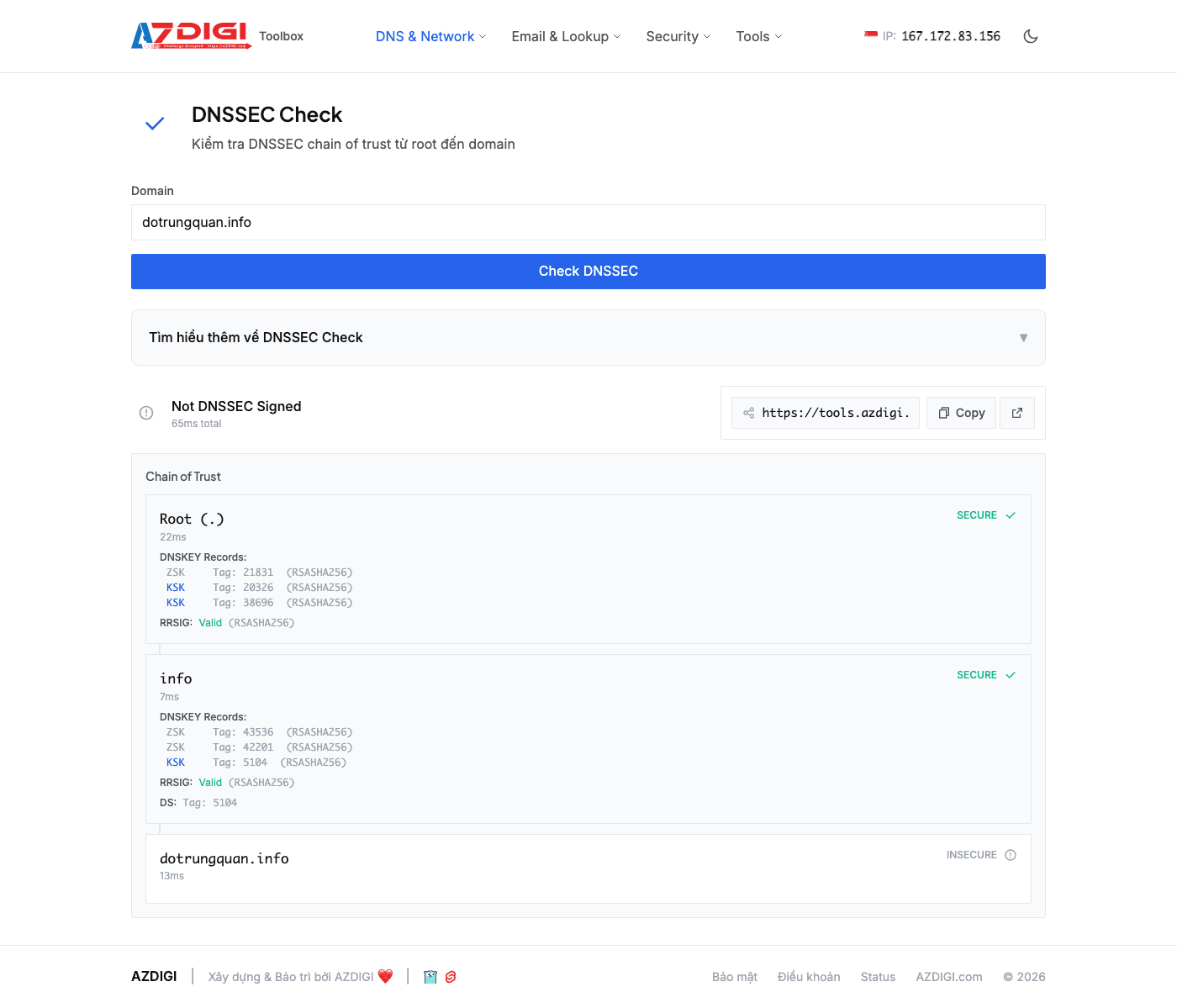
Results show DNSSEC status at each level: root (.), TLD (.info.), and domain. Each level displays information about DS record, DNSKEY, and RRSIG signatures. If the chain of trust is continuous from root to domain, DNSSEC is working correctly. If there are errors (broken chain, missing DS record, expired signature), the tool will point out exactly where the break occurs so you know what to fix — at the registrar or DNS provider.
5. DNS History
DNS History allows you to view the historical changes of a domain’s A records over time. When you need to know what IPs a domain previously pointed to, what hosting it was on, or want to check if the domain has ever been redirected suspiciously — this is the right tool.
Access /dns/history, enter domain and click Search.
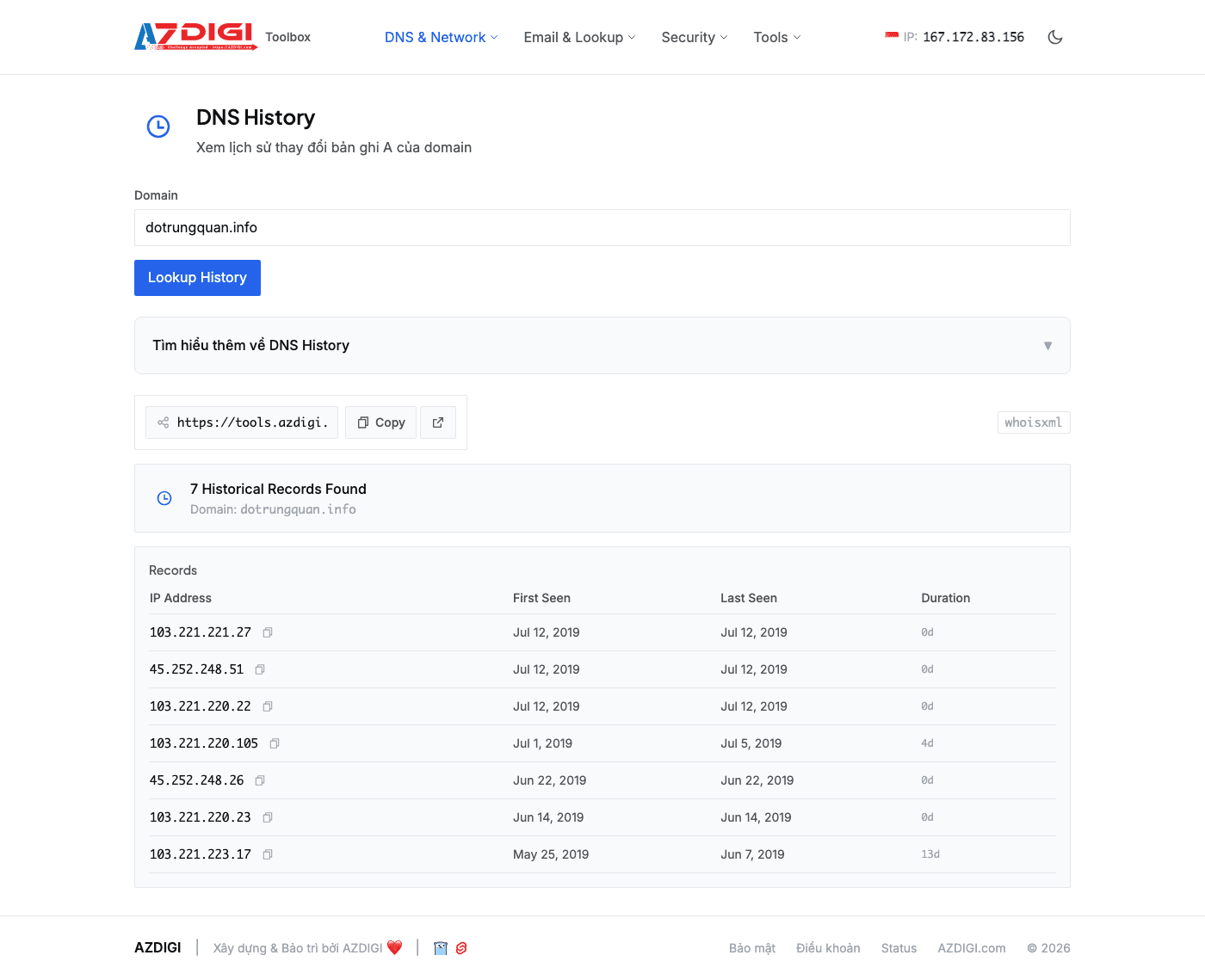
Results display a timeline of A records in chronological order, including IP addresses and recording timestamps. You can see how many times the domain changed hosting, what IPs it was on, and the time intervals between migrations. This information is also useful when you buy an old domain and want to know its usage history.
Group 2: Network Tools
Network tools focus on checking network connectivity, response speed, and server accessibility. When your website is slow, can’t connect, or you want to evaluate server performance from multiple locations worldwide, this group of tools will give you specific answers.
6. Ping
Ping sends ICMP packets to a host to measure response time (RTT — Round Trip Time) and check if the host is online. AZDIGI Tools performs pings from multiple geographical regions, giving you a global view of network latency.
Access /ping, enter domain or IP (e.g., dotrungquan.info or 103.110.87.101), select regions to ping, and click Ping.
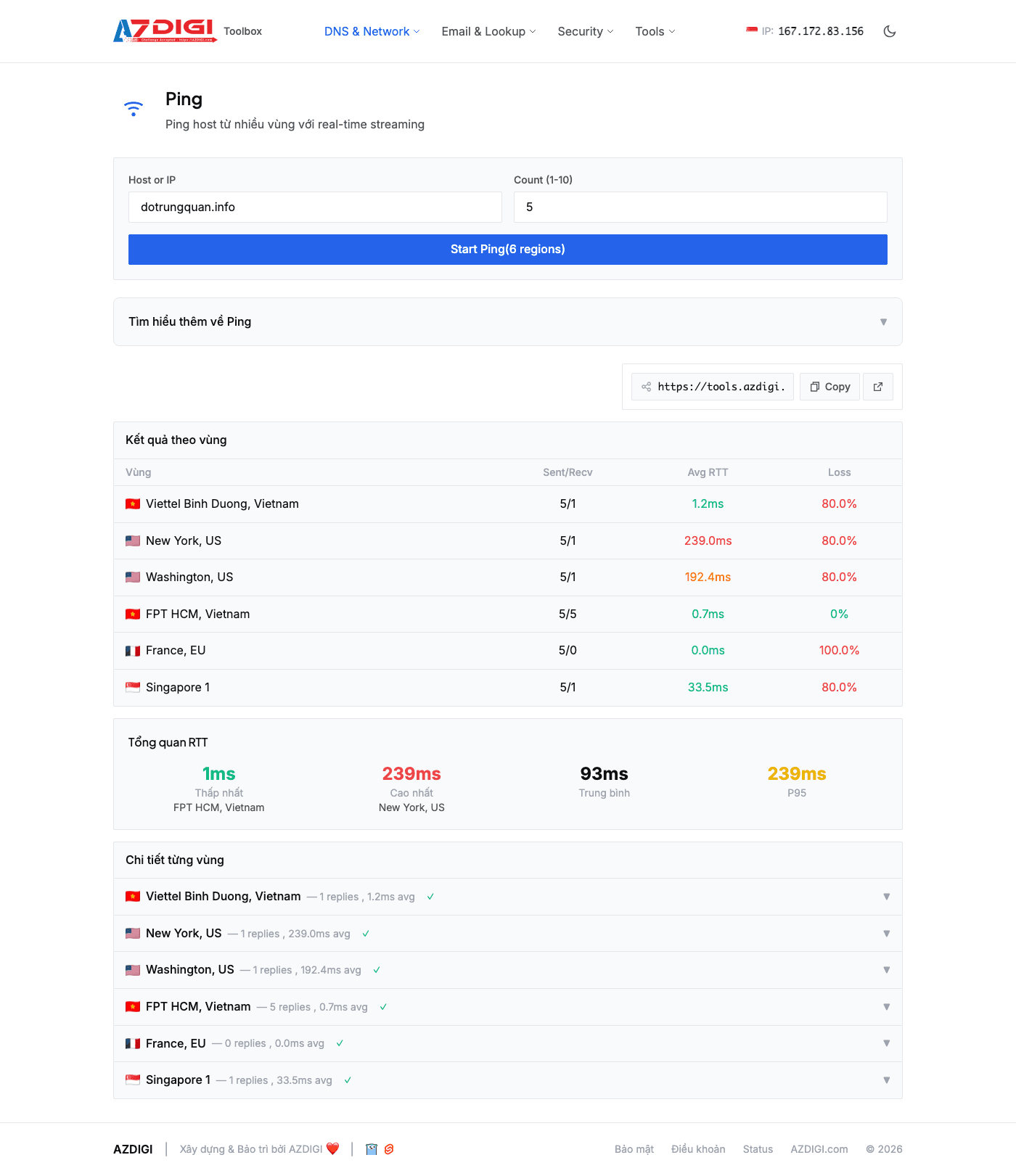
Results from each region show: packets sent/received, packet loss (%), average RTT, min, max, and jitter. RTT under 50ms from the same region is good, under 200ms from other continents is acceptable. 0% packet loss means stable connection. If you see high packet loss or abnormal RTT from a specific region, there might be routing or network issues in that area.
7. Traceroute
Traceroute traces the path of packets from AZDIGI Tools server to the destination host, listing each hop (intermediate router) along the way. When ping shows high latency but you don’t know where the bottleneck is, traceroute will pinpoint exactly which hop is causing slowness.
Access /traceroute, enter domain or IP, select source region, and click Trace.
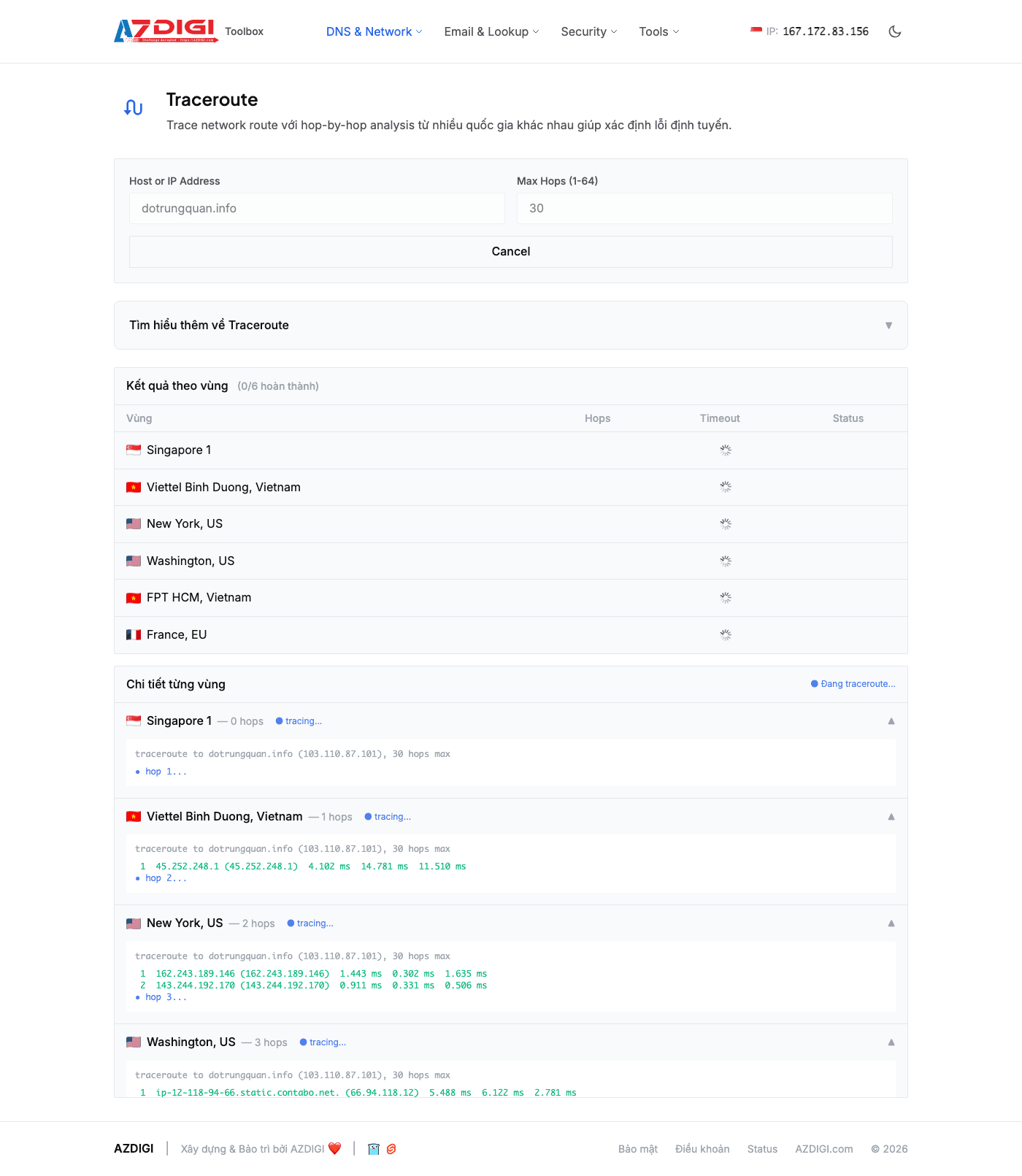
Results show a list of hops in order, each hop including: sequence number, router IP/hostname, and response time. The first hop is usually the datacenter gateway, the last hop is the destination host. If you see * * * at a hop, that router doesn’t respond to ICMP — this is common and not necessarily an error. Pay attention to hops with RTT sudden spikes compared to the previous hop — that’s usually the bottleneck point.
8. Port Check
Port Check verifies whether a specific TCP port on a host is open and accepting connections. Use this when you need to confirm a service is running on the correct port (e.g., web server on port 80/443, SSH on port 22, MySQL on port 3306) or check if a firewall is blocking any ports.
Access /port, enter domain or IP (e.g., 103.110.87.101), enter the port number to check, and click Check.
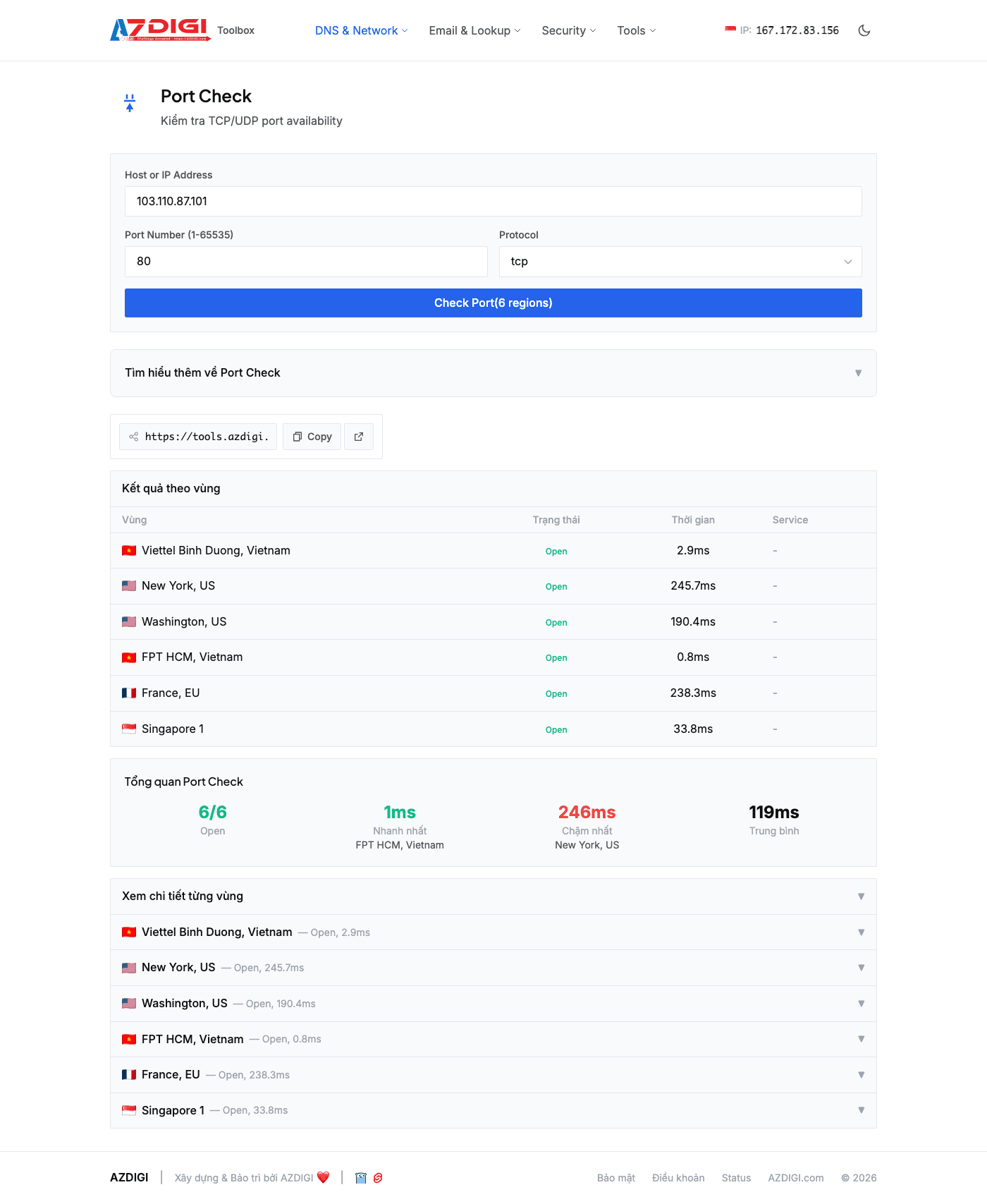
Results are simple: port is Open (open, service is listening) or Closed/Filtered (closed or blocked by firewall). If you just installed a new service but the port shows Closed, check the firewall settings (iptables, CSF, UFW) and confirm the service started successfully.
9. HTTP Protocol
HTTP Protocol checks which HTTP versions a website supports: HTTP/1.1, HTTP/2, and HTTP/3 (QUIC). HTTP/2 and HTTP/3 significantly improve page loading speed — if your website doesn’t support them yet, you should consider enabling them.
Access /tools/http-protocol, enter website URL (e.g., dotrungquan.info) and click Check.
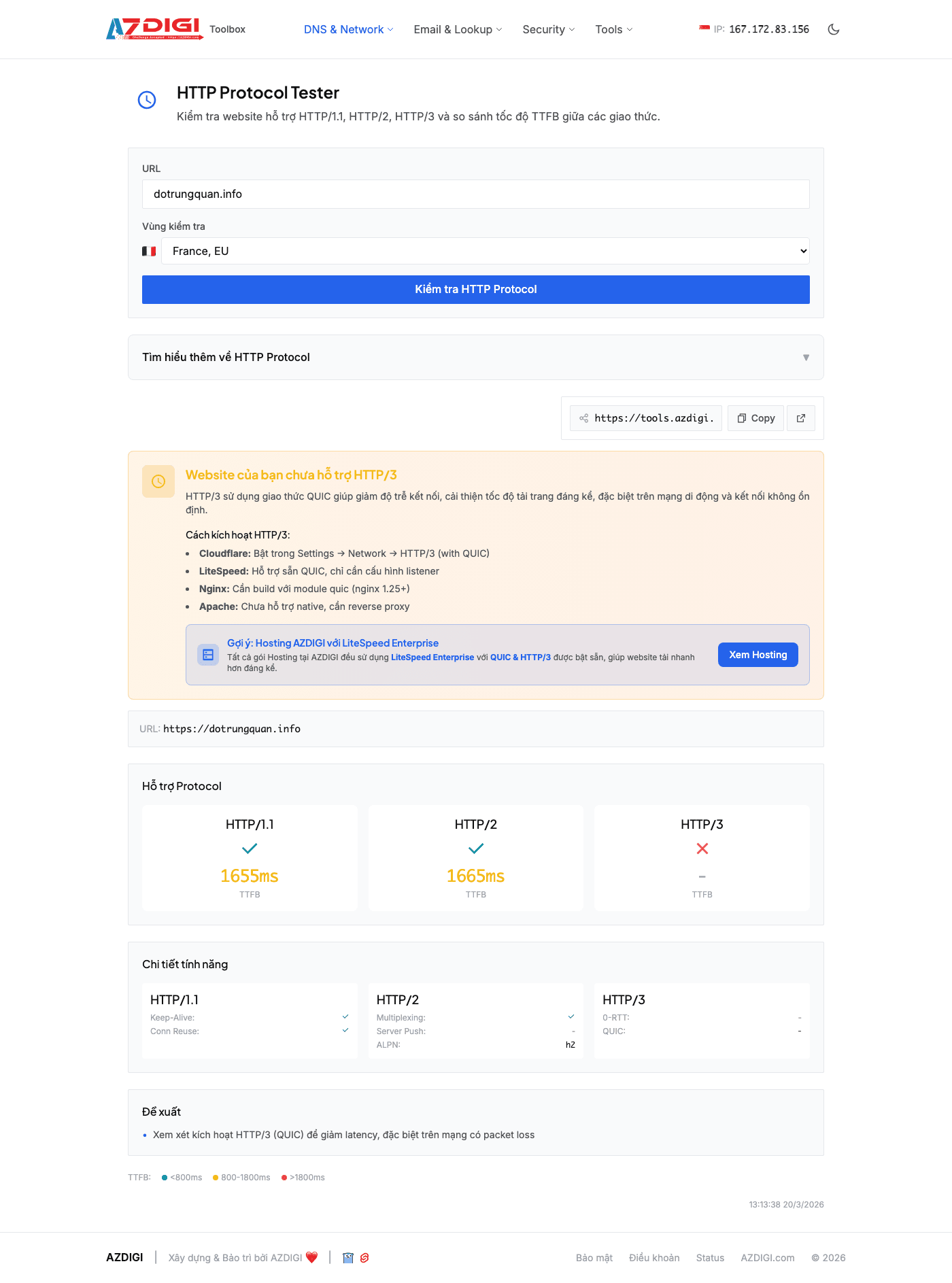
Results list each HTTP version with support status (Supported / Not Supported). HTTP/1.1 is almost always supported. HTTP/2 requires SSL and proper web server configuration — most current hosting providers have it enabled by default. HTTP/3 (QUIC) runs on UDP, usually requires Cloudflare or web servers with specific support (like LiteSpeed, nginx with quic module). If HTTP/2 isn’t enabled, check web server configuration and ensure the website has SSL.
10. TTFB Test
TTFB (Time To First Byte) is the time from when the browser sends a request until it receives the first byte from the server. This metric directly reflects server processing speed. AZDIGI Tools measures TTFB from multiple regions worldwide and breaks down timing into stages.
Access /tools/ttfb-test, enter URL (e.g., https://dotrungquan.info) and click Test.
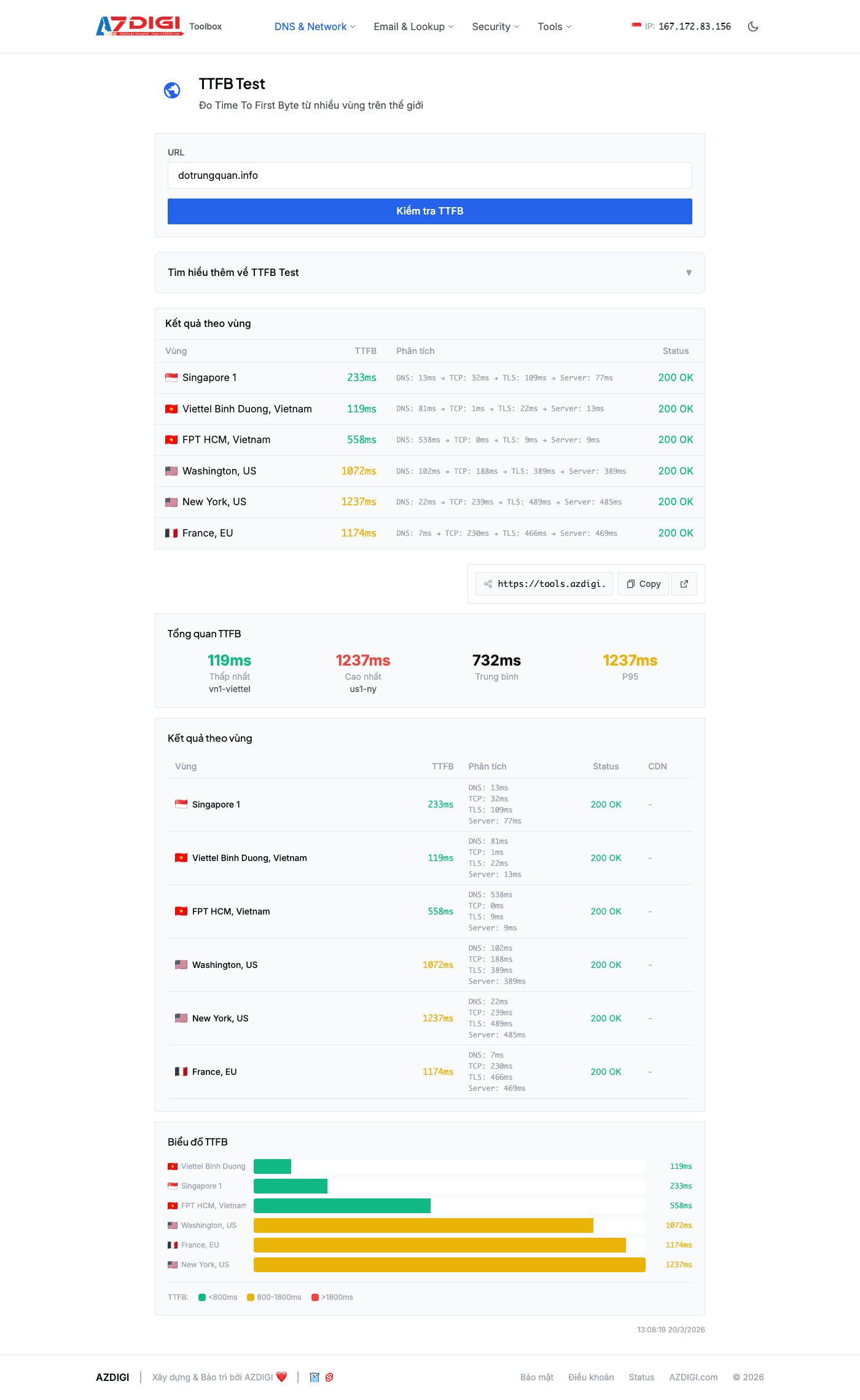
Results from each region show total TTFB with detailed breakdown: DNS (domain resolution time), TCP (connection establishment time), TLS (SSL handshake time), and Server (server request processing time). This breakdown is very useful for identifying bottlenecks: if DNS time is high, review your DNS provider; if Server time is high, the issue is in the backend (code, database, caching). TTFB under 200ms from the same region is good, under 600ms from other continents is acceptable.
11. IP Lookup
IP Lookup retrieves detailed information about an IP address: geographical location (country, city), Internet Service Provider (ISP), owning organization, timezone, and displays location on a map.
Access /tools/ip-lookup, enter IP to check (e.g., 103.110.87.101) and click Lookup.
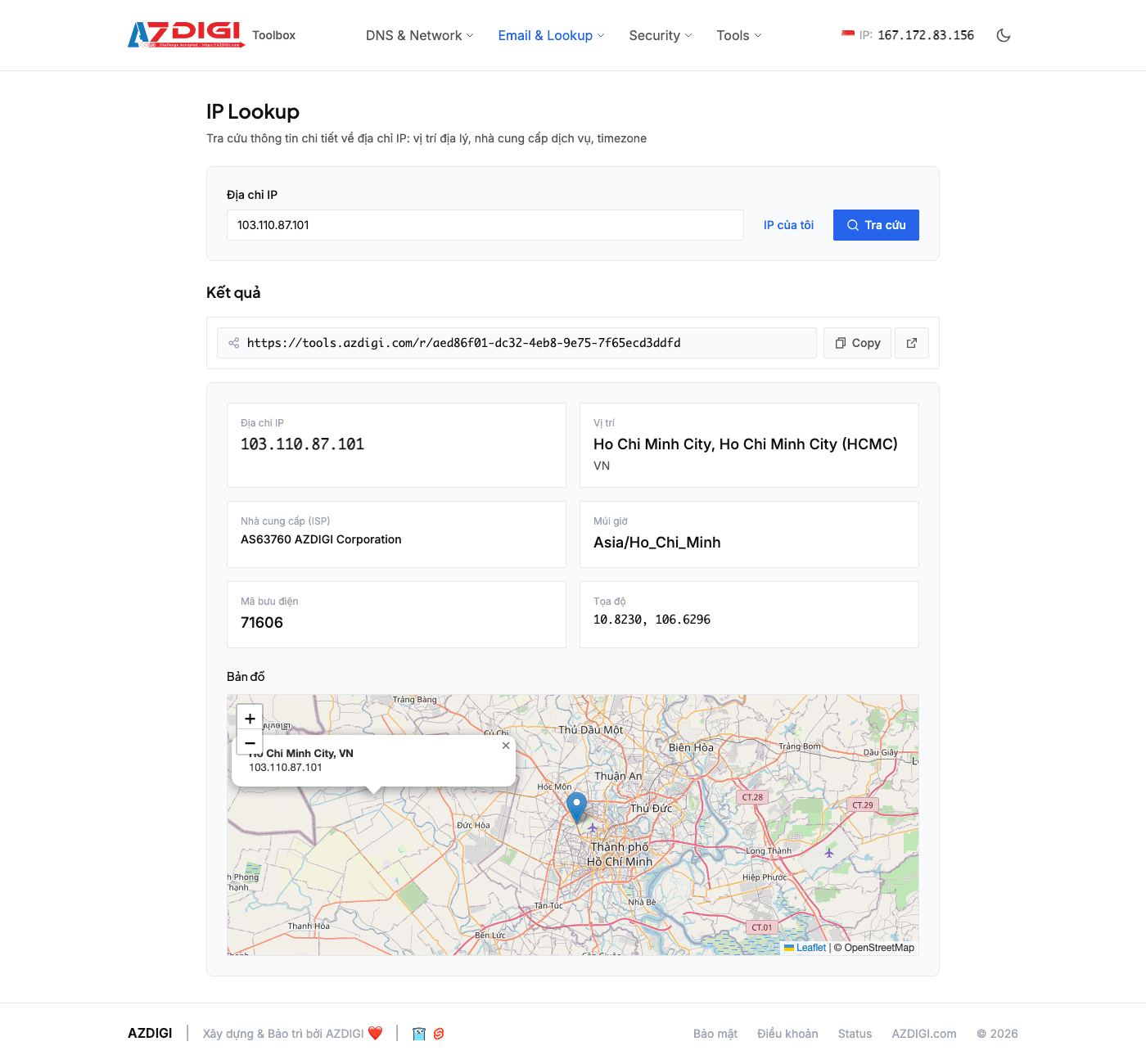
Results include: country, region, city, coordinates, ISP, organization, ASN, and timezone. The map shows the estimated location of the IP. This tool is useful when you want to verify which datacenter your server is in, check suspicious IPs in access logs, or simply verify the geographical location of any IP address.
Group 3: SSL & Security
SSL & Security tools help check SSL certificates, security HTTP headers configuration, email health, and blacklist status. These are important checks for any website running in production — especially if you handle user data or send emails from your domain.
12. SSL Analyzer
SSL Analyzer comprehensively analyzes SSL certificates and TLS configuration of a website. The tool checks supported TLS versions, certificate information (issuer, expiry, SANs), certificate chain, OCSP stapling, and gives an overall grade A/B/C/F.
Access /ssl/analyze, enter domain (e.g., dotrungquan.info) and click Analyze.
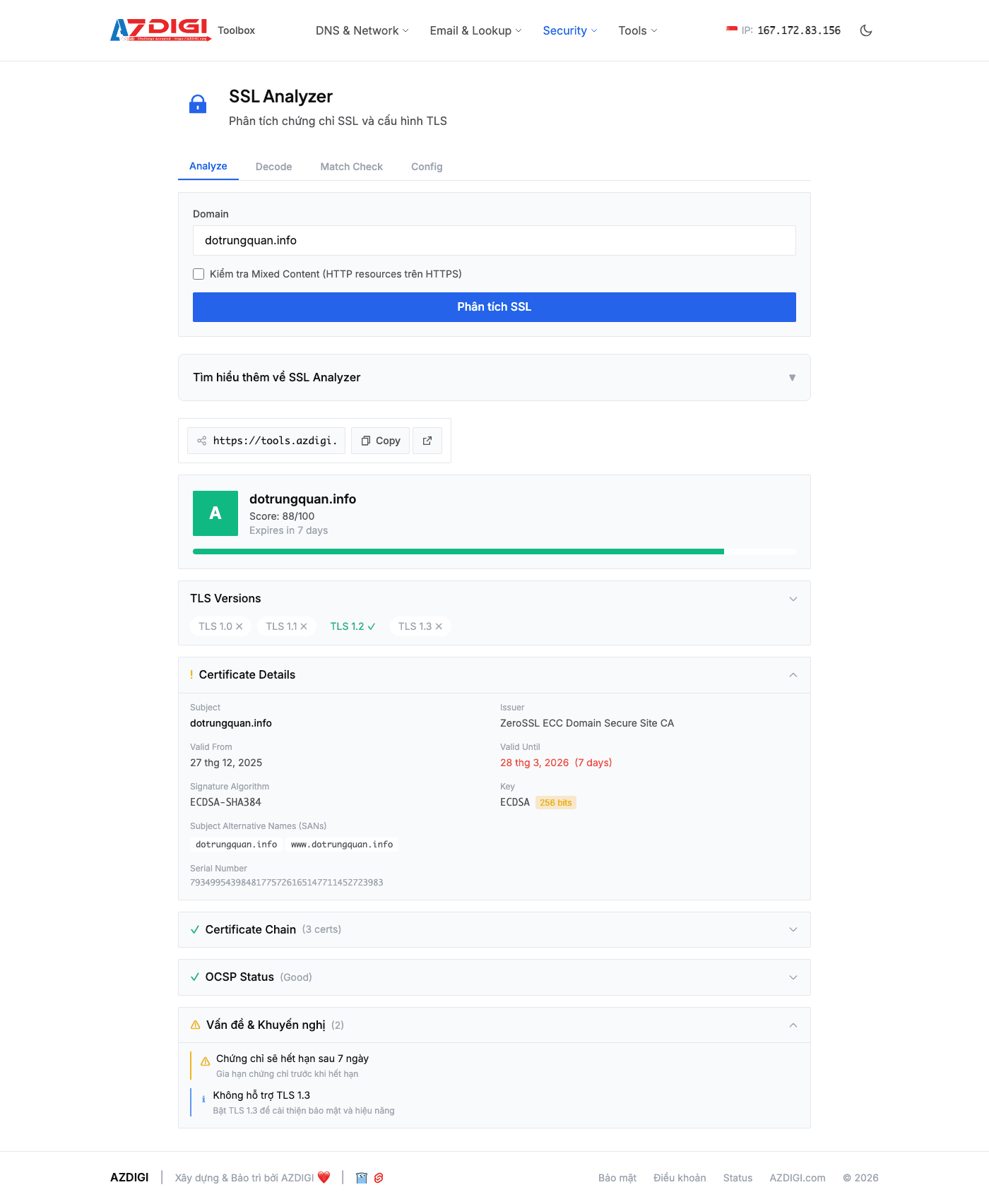
Results show overall grade at the top — grade A is the target. Detailed sections include: Certificate Details (issuer, valid from/to, subject, SANs), Protocol Support (TLS 1.0, 1.1, 1.2, 1.3 — ideally only enable TLS 1.2 and 1.3), Certificate Chain (certificate chain from leaf to root CA), and OCSP (stapling status). If the grade is lower than A, the tool will indicate specific reasons — e.g., TLS 1.0 still enabled, certificate expiring soon, or incomplete certificate chain.
13. Security Headers
HTTP security headers are an additional protection layer for websites, helping prevent common attacks like XSS, clickjacking, MIME sniffing. Security Headers checks which headers your website has configured and which ones are missing.
Access /tools/security-headers, enter website URL and click Scan.
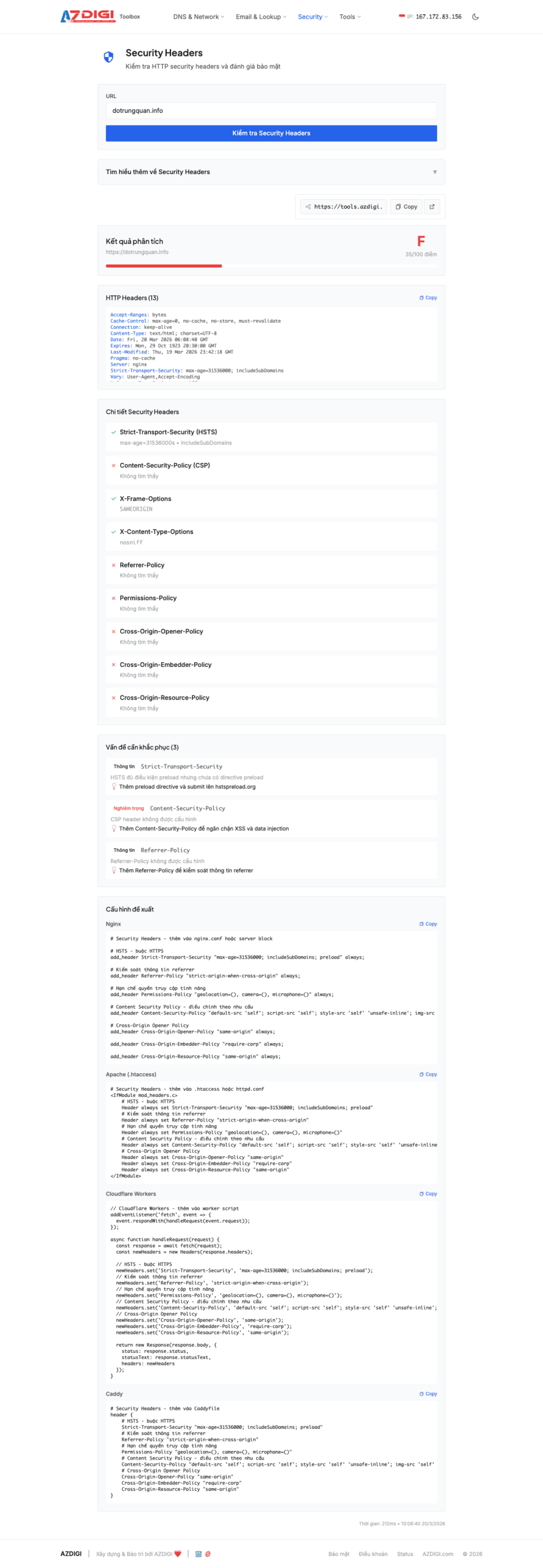
Results list each header with status: present/absent, and current value. Common headers checked include: Strict-Transport-Security (HSTS — force HTTPS), Content-Security-Policy (CSP — control resource sources), X-Frame-Options (prevent clickjacking), X-Content-Type-Options (prevent MIME sniffing), Referrer-Policy, and Permissions-Policy. The tool provides an overall score and configuration suggestions for Nginx, Apache, or Cloudflare — you can copy and apply them directly to your server.
14. Email Health
Email Health checks your domain’s email system health by evaluating SPF, DKIM, DMARC configuration and blacklist status. If emails from your domain often go to spam or bounce, this tool helps identify the cause.
Access /email/health, enter domain (e.g., dotrungquan.info) and click Check.
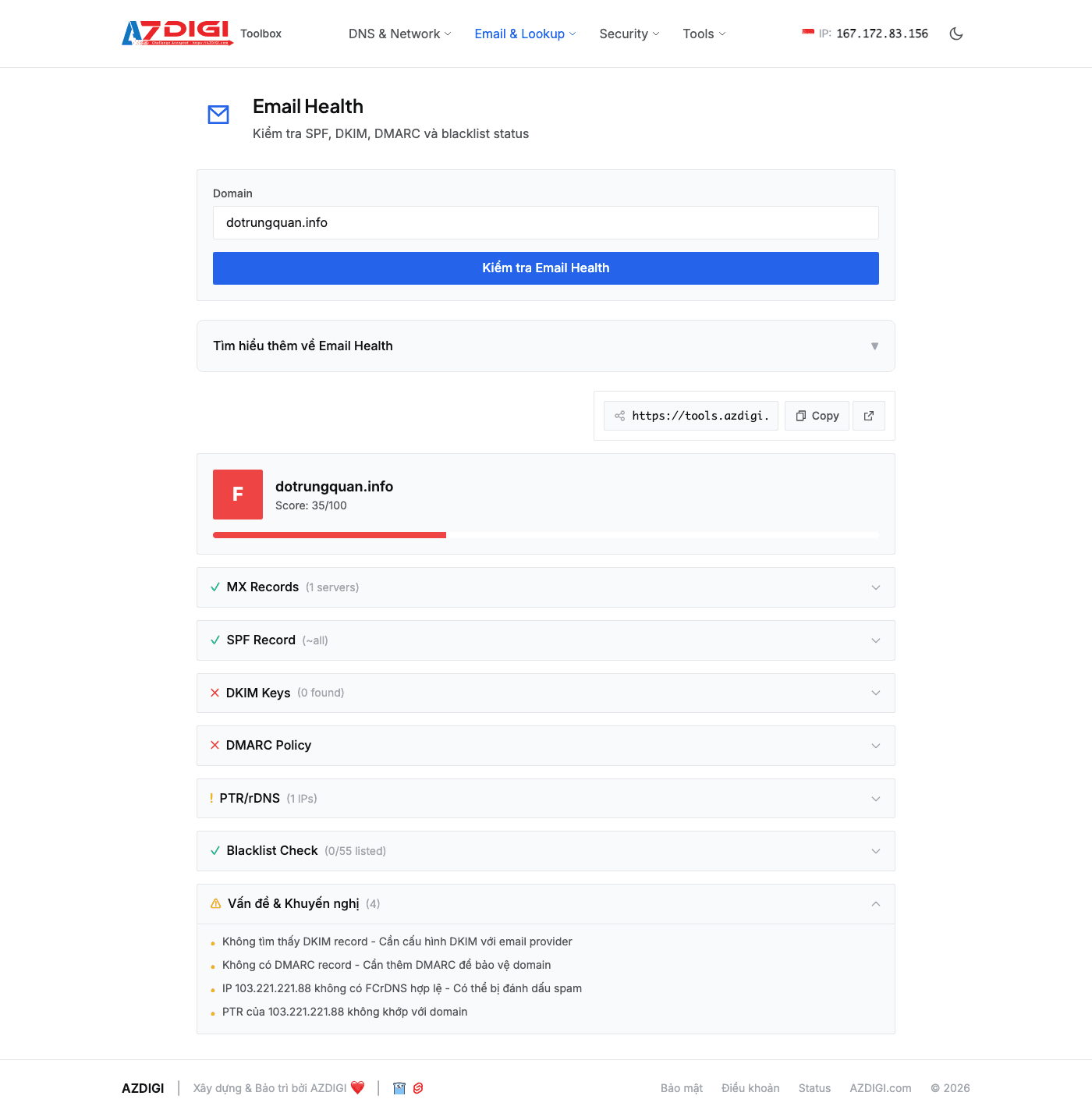
Results show an overall score from 0 to 100 and evaluate each component. SPF (Sender Policy Framework) specifies which servers are allowed to send email on behalf of your domain — missing SPF is the most common reason emails go to spam. DKIM (DomainKeys Identified Mail) adds digital signatures to emails for authentication. DMARC (Domain-based Message Authentication) specifies how to handle emails that fail SPF/DKIM authentication. The blacklist check section shows whether your domain or mail server IP is listed on any blacklists. A score of 80+ means email configuration is healthy, below 60 needs immediate attention.
15. Blacklist Check
Blacklist Check verifies whether an IP address is listed on blacklists (DNSBL — DNS-based Blackhole List). The tool queries over 55 different DNSBLs. Blacklisted IPs will cause emails to be rejected or marked as spam by destination mail servers.
Access /tools/blacklist-check, enter IP (e.g., 103.110.87.101) and click Check.
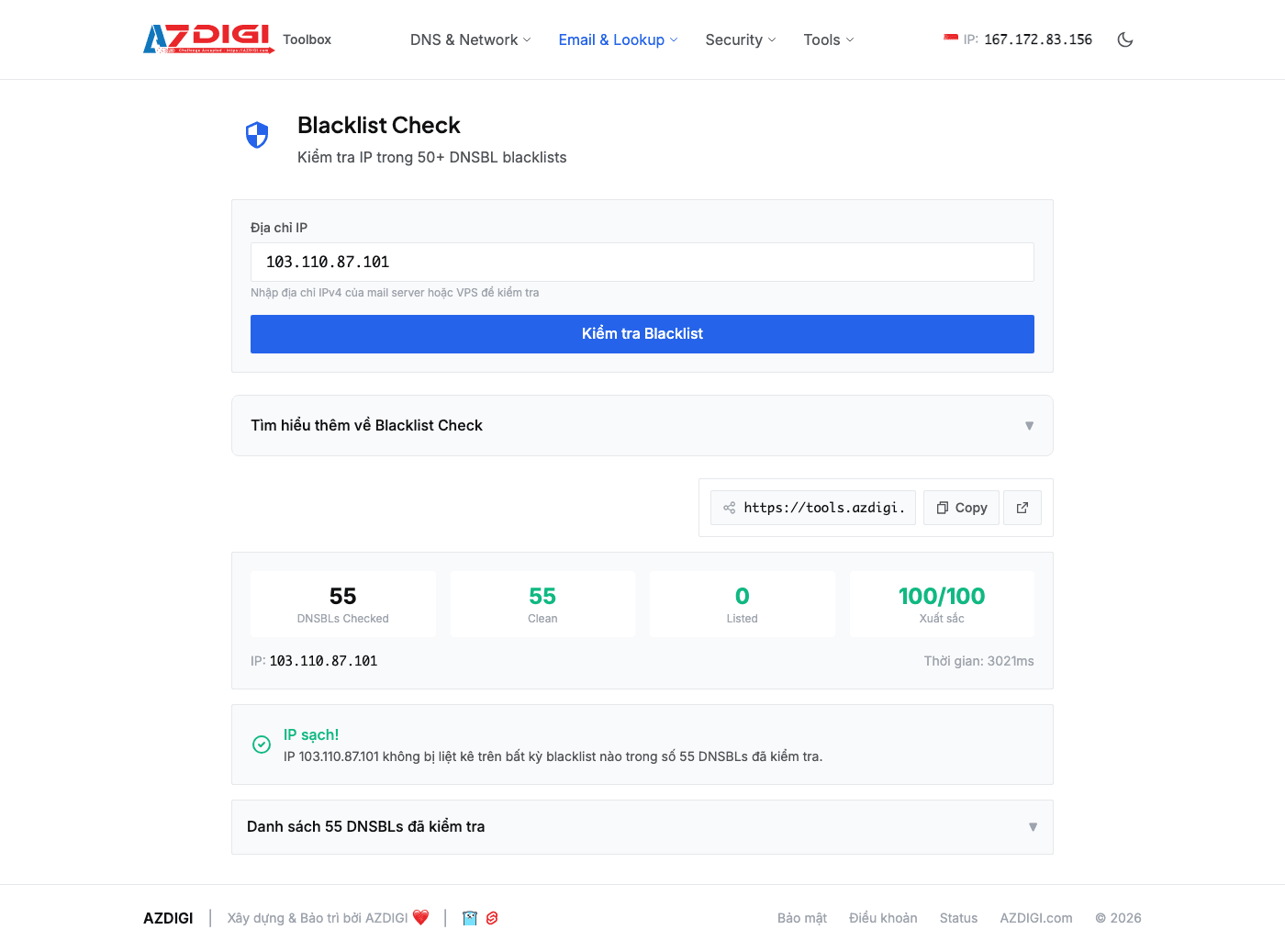
Results show a list of all DNSBLs checked, each line indicating whether the IP is listed or not. A score of 100 means the IP is completely clean — not on any blacklist. If the IP is listed on one or more DNSBLs, you need to contact those DNSBLs to request delisting, and also check your server for any spam abuse (compromised accounts, open relay, malware).
Group 4: SEO & Web
SEO & Web group includes 2 tools to help you see your website from search engine bot perspective and check accessibility from different geographical regions.
16. Bot Simulator
Bot Simulator simulates how bots (Googlebot, Bingbot, AI bots) access and read your website content. The content bots see might differ from what users see in browsers — especially for websites using heavy JavaScript rendering.
Access /tools/bot-sim, enter website URL (e.g., https://dotrungquan.info), select bot type to simulate, and click Simulate.
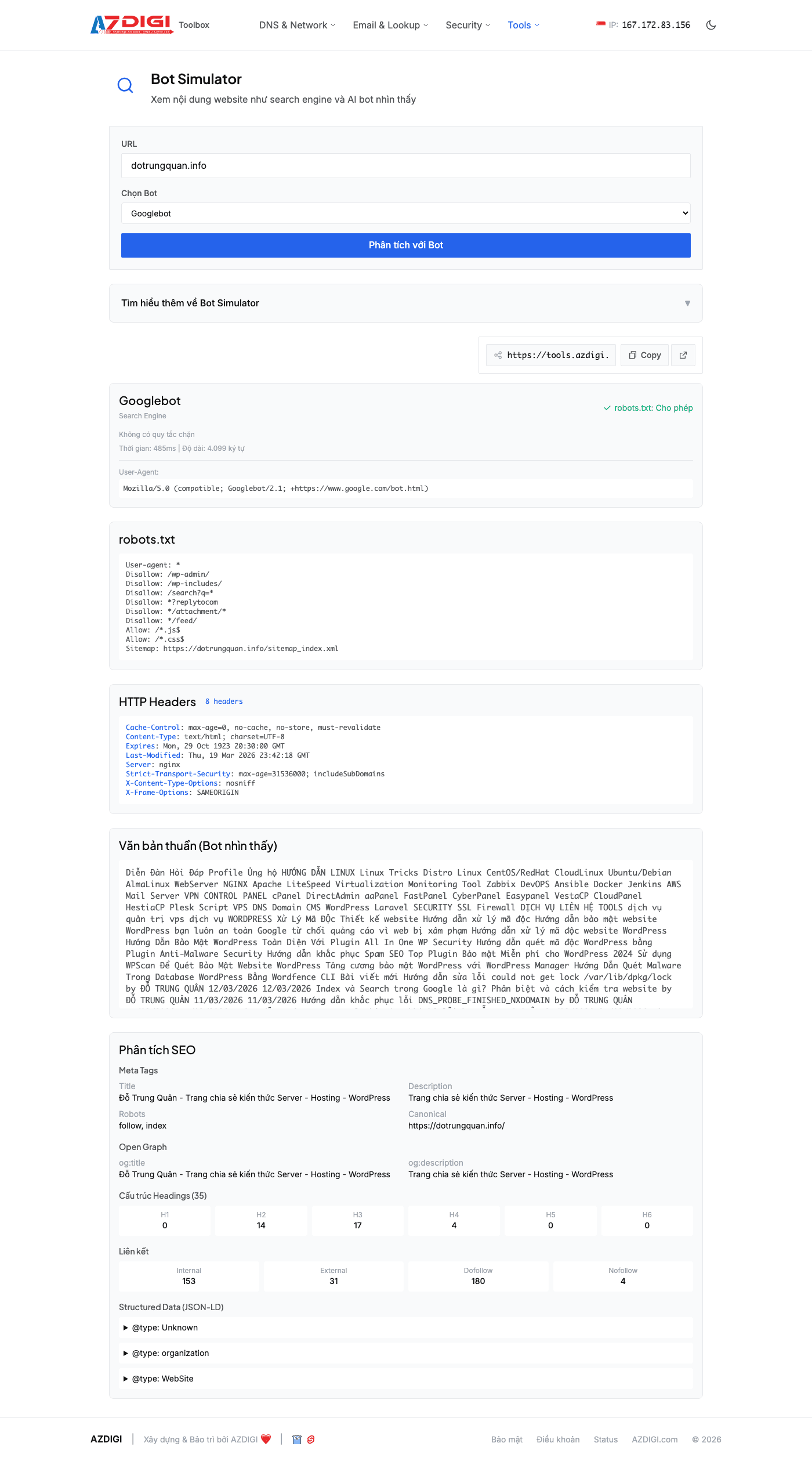
Results include multiple sections: robots.txt (robots.txt content and whether bot is blocked), HTTP Headers (response headers server returns to bot), Rendered Content (text content bot can read after rendering), and SEO Analysis (analysis of title, meta description, headings, canonical URL). If rendered content is empty or missing main content, your website might have server-side rendering issues — search engines won’t be able to index that content.
17. Proxy Fetch
Proxy Fetch accesses and renders your website from multiple regions worldwide, helping you verify whether the website displays correctly from different geographical locations. The tool also collects HTTP status, response headers, console logs, and takes screenshots.
Access /tools/proxy, enter URL, select source region, and click Fetch.
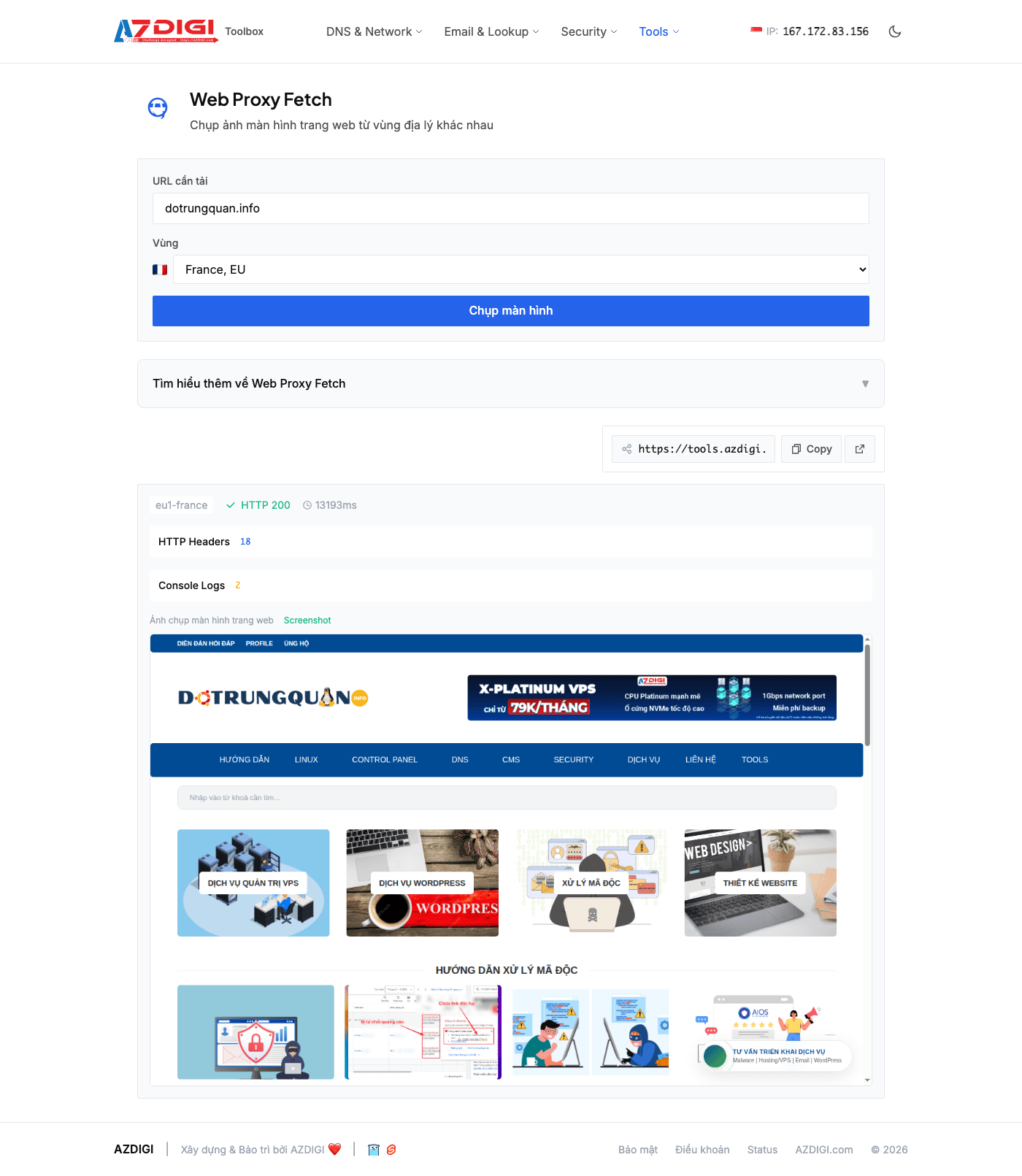
Results show: HTTP Status Code (200, 301, 403, 500…), Response Headers (server, cache control, content type…), Console Logs (JavaScript errors if any), and Screenshot (webpage screenshot as rendered in browser from that region). This tool is especially useful when you use CDN or geo-based routing — helps confirm the right content is being served to the right regions. Console logs also help detect JS errors you might not see on your local machine.
Group 5: Lookup & Generators
The final group includes tools for domain information lookup, pre-migration hosting checks, and key/certificate generation — common tasks in server and website administration.
18. Whois Lookup
Whois Lookup retrieves domain registration information: who registered it (registrant), which provider it was registered through (registrar), registration date, expiration date, and nameservers in use.
Access /whois, enter domain (e.g., dotrungquan.info) and click Lookup.
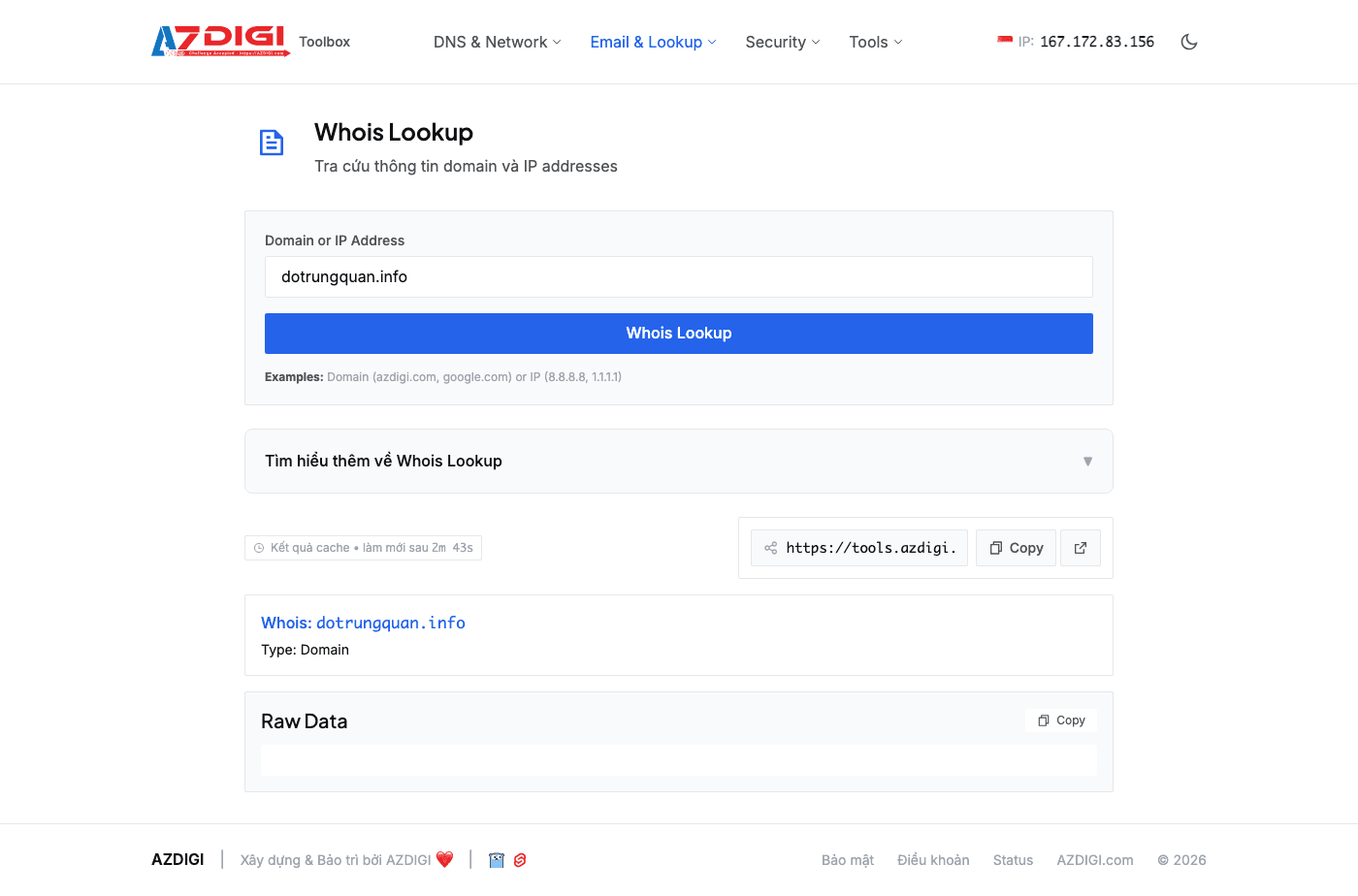
Results display standard Whois information fields: Registrar (domain registrar), Created Date (first registration date), Expiry Date (expiration date — important, need to renew before this date), Updated Date (last update), Name Servers (nameservers in use), and registrant information (may be hidden by Privacy Protection). If you’re buying a domain from someone else, Whois helps verify who the actual owner is and how long until the domain expires.
19. Migration Validator
Migration Validator checks necessary conditions before you migrate your website to new hosting. Instead of migrating first and discovering problems later, this tool helps you identify potential issues before starting.
Access /tools/migration, enter domain to migrate and click Validate.
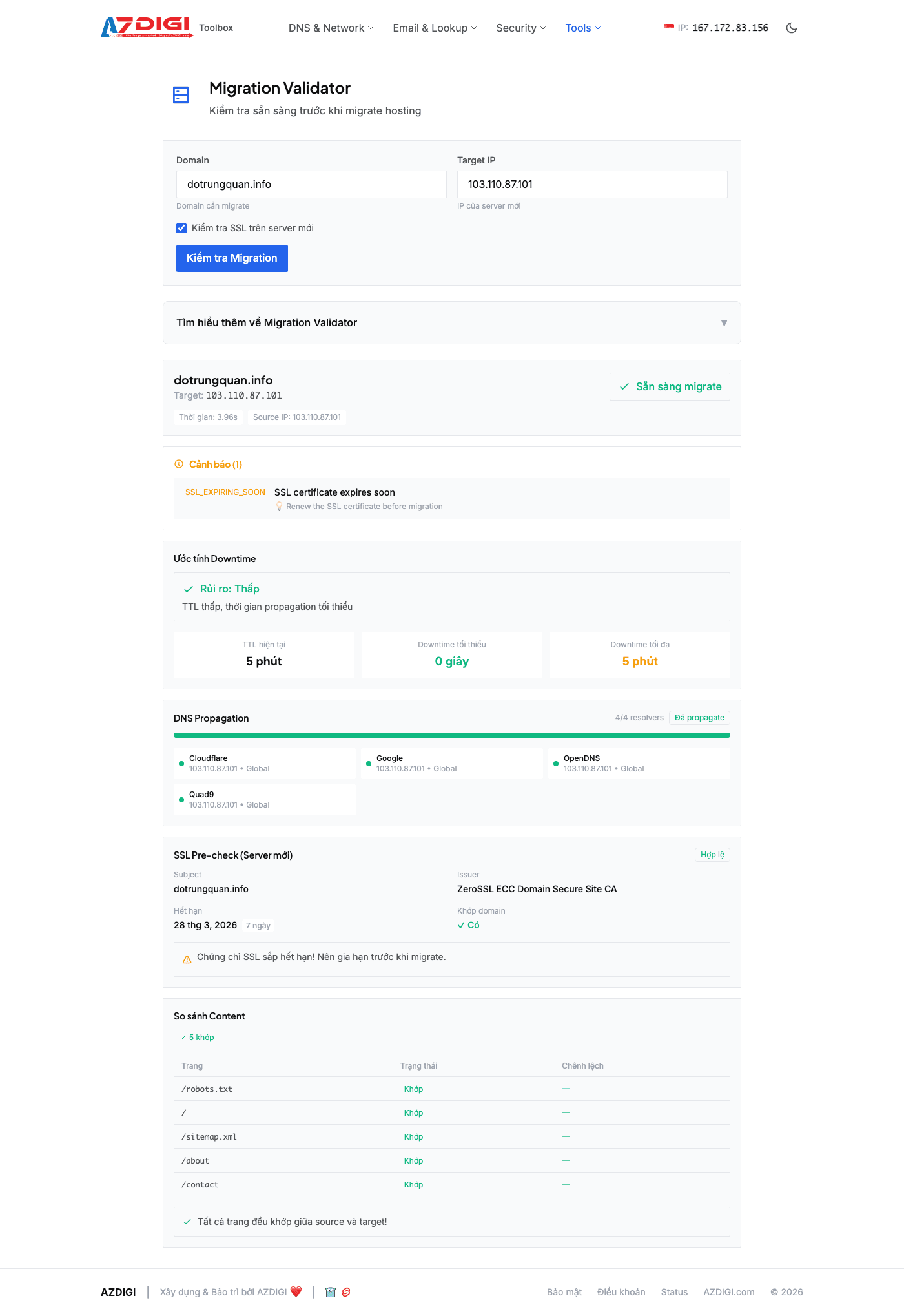
The tool checks various factors: where current DNS is pointing, whether SSL certificate is working, whether website returns HTTP 200, if there are complex redirect chains, current DNS record TTL (high TTL means longer propagation time after DNS change). Results provide a list of items to pay attention to before performing migration, helping minimize downtime and avoid issues after the transition.
20. SSH Key Generator
SSH Key Generator creates SSH key pairs (public key + private key) directly in the browser. Supports algorithms: RSA (2048/4096 bit), Ed25519, and ECDSA. Important point: keys are generated completely client-side (in your browser) — no data is sent to the server.
Access /tools/ssh-keygen, select algorithm (recommend Ed25519 for most cases — fast and secure), set passphrase if desired (optional but recommended), and click Generate.
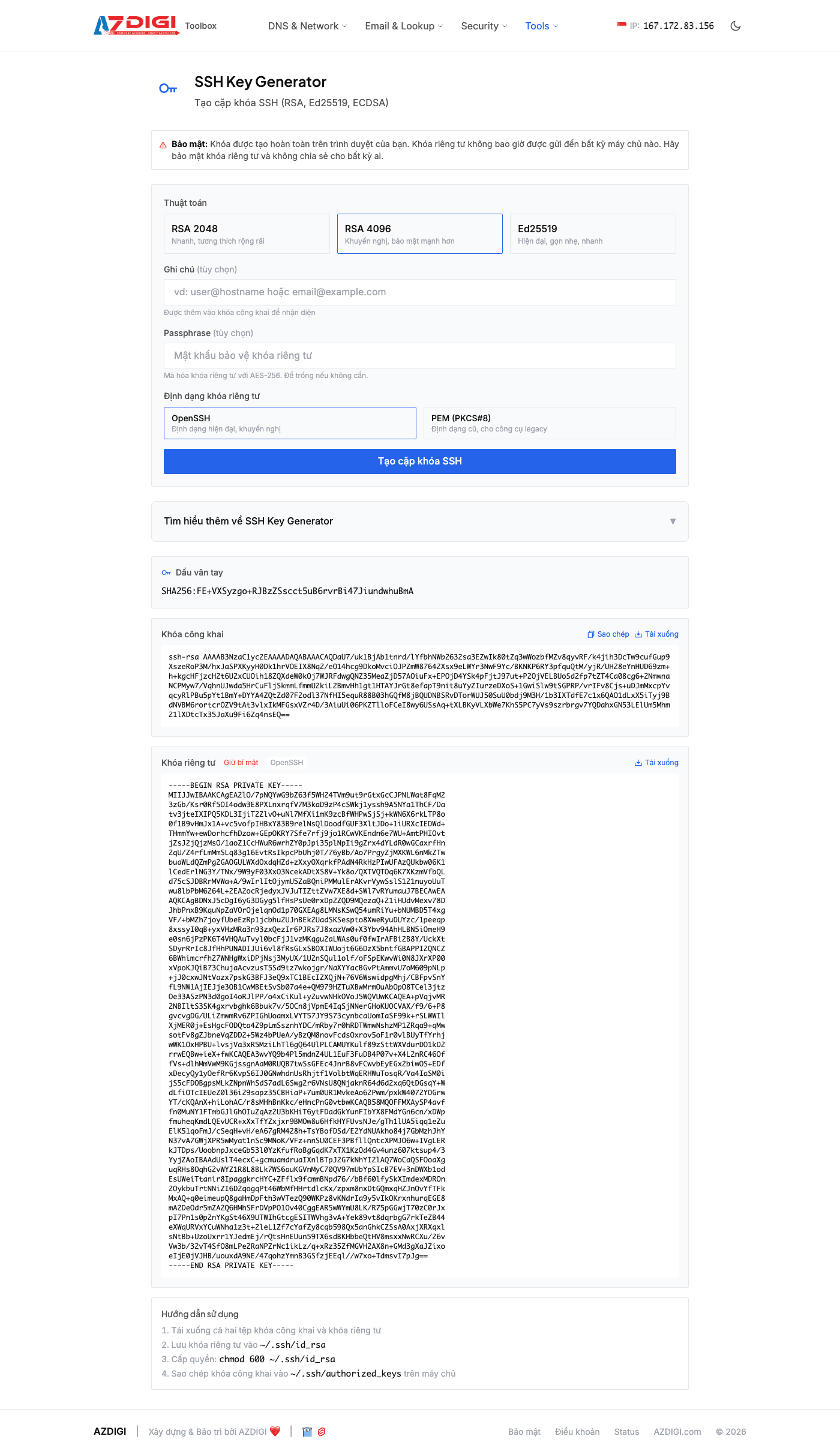
Results show 2 parts: Public Key (paste into ~/.ssh/authorized_keys file on server) and Private Key (save to local machine, never share with anyone). You can copy each key or download files. After generation, don’t forget to set proper permissions for the private key: chmod 600 ~/.ssh/id_ed25519. If you’re using a public computer or don’t trust the device, generate keys on your local machine instead of through the browser.
21. CSR Generator
CSR (Certificate Signing Request) is a file requesting SSL certificate issuance that you send to Certificate Authority (CA). CSR Generator creates CSR along with corresponding Private Key — necessary when purchasing SSL certificates from commercial CAs (Comodo, DigiCert, GlobalSign…).
Access /tools/csr, fill in information: Common Name (domain, e.g., dotrungquan.info), Organization (organization name), Country, State/Province, City, and Email. Select key size (2048 or 4096 bit), then click Generate.
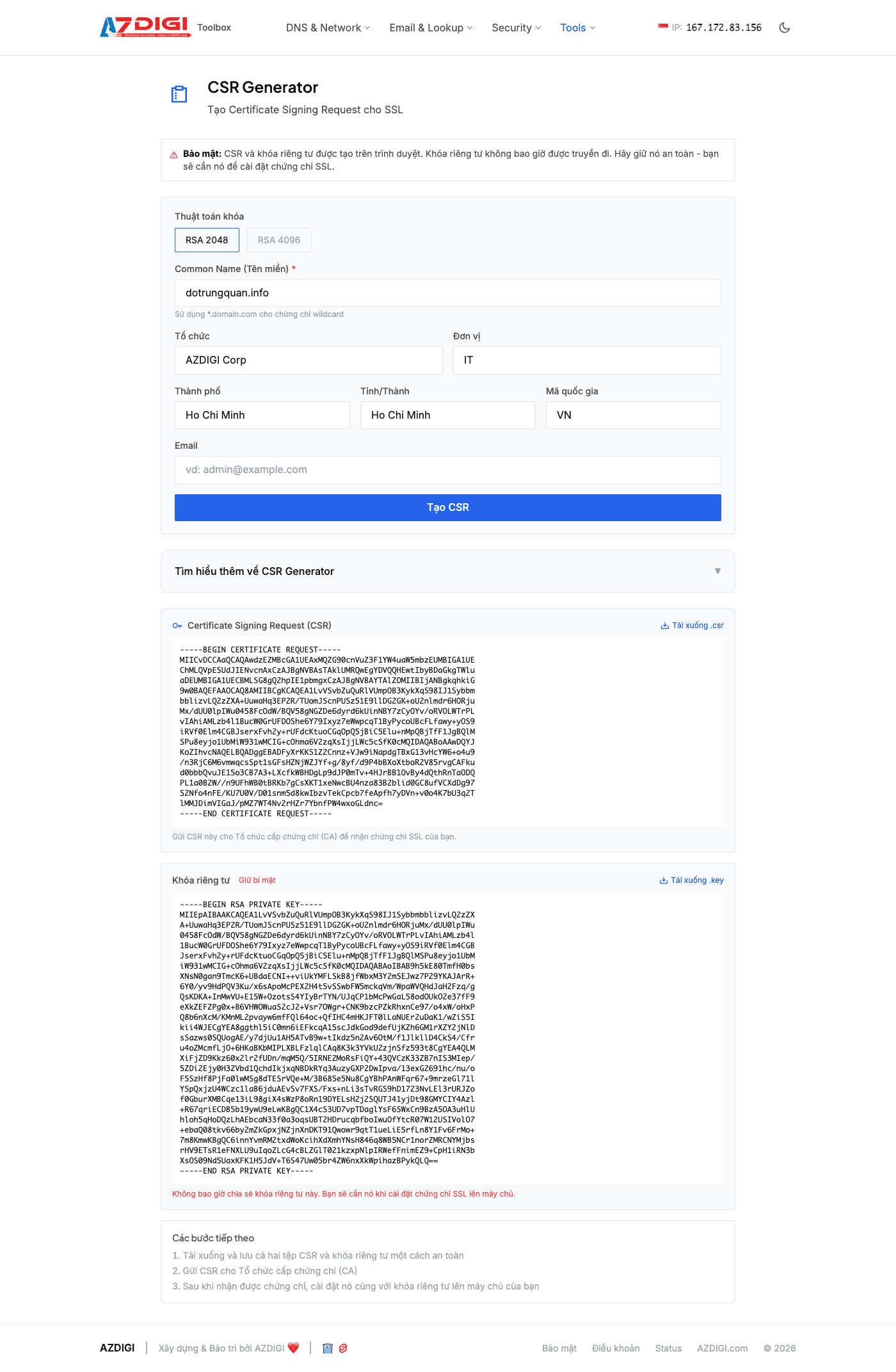
Results include 2 parts: CSR (content starting with -----BEGIN CERTIFICATE REQUEST-----) and Private Key (starting with -----BEGIN PRIVATE KEY-----). Copy the CSR and paste into the CA’s SSL order form. Private Key must be carefully stored — you’ll need it when installing the SSL certificate on your server. Losing the private key means having to generate a new CSR and request certificate reissuance from the CA.
Conclusion
AZDIGI Tools provides over 20 tools covering the most common checking needs when operating websites and servers: from DNS, network, SSL to SEO and key generation utilities. All are free, require no registration, and provide fast results.
Some usage suggestions by scenario:
- Website not accessible: Start with DNS Lookup → Ping → Port Check → Traceroute to determine which layer has the problem.
- Just changed hosting: Use DNS Propagation to monitor, Migration Validator to check beforehand, TTFB Test to compare speed.
- Emails going to spam: Run Email Health to check SPF/DKIM/DMARC, Blacklist Check for mail server IP.
- Security check: SSL Analyzer for certificates, Security Headers for HTTP headers.
- Technical SEO check: Bot Simulator to see what Googlebot sees, HTTP Protocol to ensure HTTP/2+ is enabled.
If you’re looking for hosting or VPS services with stable infrastructure for website operation, you can explore service packages at azdigi.com.
You might also like
- Guide to Installing Self-hosted Bitwarden on VPS for Password and Sensitive Data Management
- How to install free SSL with ZeroSSL
- How to install SSL on Webinoly
- How to validate a 90-day trial SSL certificate
- Cloudflare Tunnel: Access Your Home Computer Remotely Without Port Opening
- 4 Free and Open-Source Coolify Alternatives for Self-Hosting Applications
About the author

Trần Thắng
Expert at AZDIGI with years of experience in web hosting and system administration.