You’re trying to access a web page or call an API and suddenly get a 401 Unauthorized error? This error means the server doesn’t accept the authentication credentials you’ve provided, or you haven’t provided any credentials at all.
In this article, we’ll explain what the 401 error is, list the most common causes, and walk you through 4 ways to fix it, from basic to advanced. Whether you’re a regular user or a website administrator, you’ll find a suitable approach.
What is a 401 Unauthorized error?
The 401 error is an HTTP status code in the 4xx group (client-side errors). When a server returns a 401 code, it’s saying: “I need you to authenticate before accessing this resource, but the credentials you sent are either invalid or missing.”
It’s important to clarify: 401 relates to authentication, meaning the server doesn’t know who you are. This is entirely different from a 500 Internal Server Error, which is a server-side issue.
Although the official name is “Unauthorized,” the actual meaning is closer to “Unauthenticated.” In simple terms, the server is asking: “Who are you? Please prove your identity.”
When the browser receives a 401 response, the server also sends a WWW-Authenticate header indicating the accepted authentication method. For example: Basic Auth (username/password), Bearer Token (used for APIs), or Digest Auth. The browser uses this header to display a login prompt, or the application knows it needs to resend the request with proper credentials.
You may encounter the 401 error displayed in different formats depending on the server and browser:
401 UnauthorizedHTTP Error 401Authorization RequiredAccess Denied
Despite different displays, they all carry the same meaning: the server needs you to authenticate first.
Difference between 401 and 403 errors
Many people confuse 401 with 403 Forbidden. The key difference is:
- 401 Unauthorized: The server doesn’t know who you are. You need to log in or provide valid authentication credentials. Once properly authenticated, you’ll gain access.
- 403 Forbidden: The server knows who you are, but you don’t have permission to access that resource. Logging in again won’t help; you need to contact the admin to get the appropriate permissions.
Simply put: 401 means “not logged in,” 403 means “logged in but insufficient permissions.” The approach to fixing each is completely different, so identify the correct error before attempting a fix.
5 common causes of the 401 error
1. Incorrect login credentials
The simplest cause: you’ve entered the wrong username or password. This could be due to a typo, having Caps Lock on, or using an old password that’s already been changed. This commonly happens when accessing the WordPress admin panel (/wp-admin), cPanel, or other login-required systems.
Additionally, if you use a password manager, it might be auto-filling an old password saved from before. Double-check the auto-filled information before hitting Login.
2. Session expired
Most websites set a time limit for each login session. If you leave a browser tab idle for too long, the session will expire. After that, all subsequent requests will be rejected by the server with a 401 code.
For example, WordPress keeps sessions for about 48 hours by default (or 14 days if you check “Remember Me”). Banking and financial applications typically have session timeouts of just 5-15 minutes for security reasons. Logging in again is the quickest fix.
3. Directory protection with .htpasswd
On Apache servers, administrators can use .htaccess combined with .htpasswd files to require authentication when accessing a specific directory. If you access a URL within that directory without entering the correct credentials, the server returns a 401 error.
# Example .htaccess configuration for directory protection
AuthType Basic
AuthName "Restricted Area"
AuthUserFile /home/user/.htpasswd
Require valid-user
This configuration requires all visitors to enter a username/password. If the .htpasswd file is corrupted, the AuthUserFile path points to the wrong location, or the password hashes in the file are in the wrong format, the server will return 401 for everyone, even when they enter the correct credentials.
On Nginx, a similar mechanism uses the auth_basic and auth_basic_user_file directives. The principle is the same, only the configuration syntax differs.
4. Invalid or expired API token
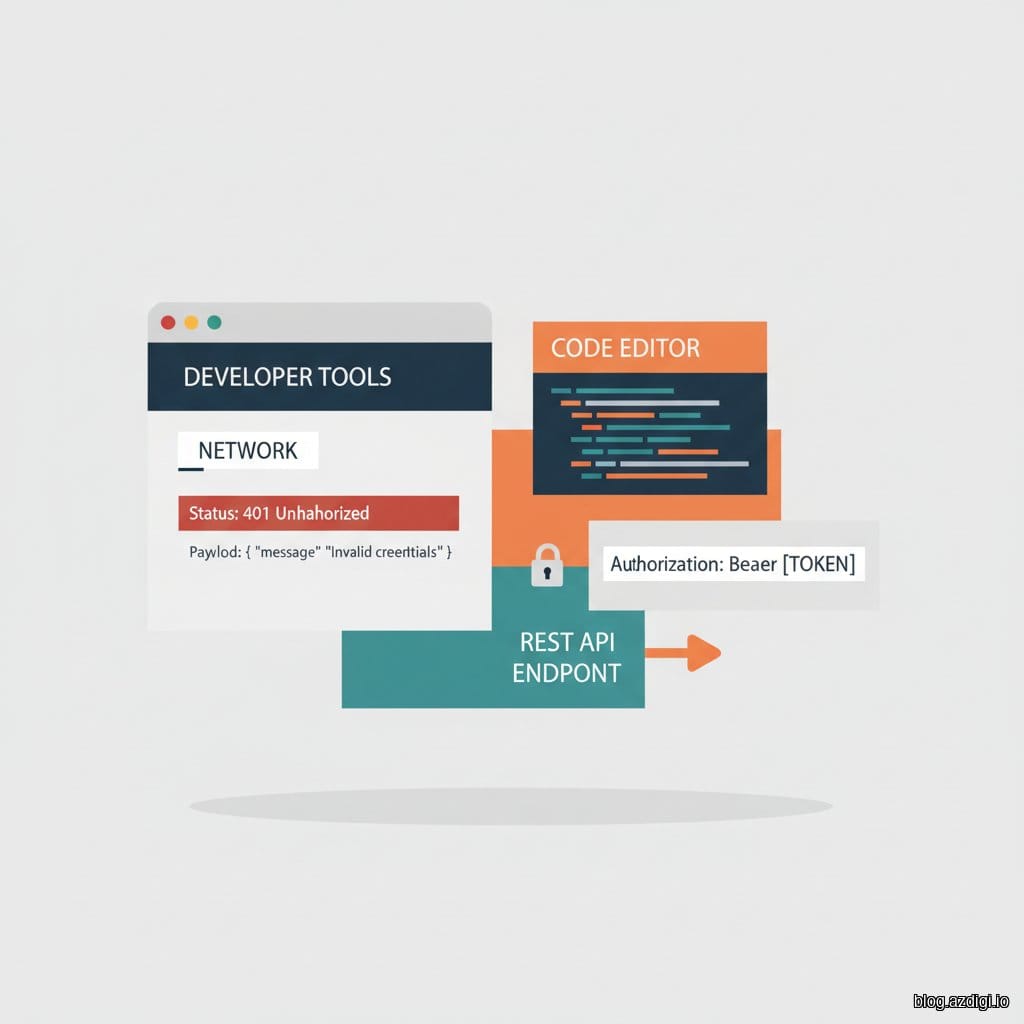
For applications using REST APIs, the 401 error commonly appears when the access token has expired, been revoked, or was sent in the wrong format in the Authorization header. This is common when working with the WordPress REST API, third-party services, or mobile apps calling backend APIs.
# Example API request with missing or invalid token
curl -H "Authorization: Bearer expired_token_here" https://api.example.com/data
# Server responds:
# HTTP/1.1 401 Unauthorized
# {"error": "invalid_token", "message": "Token has expired"}
Some common API token mistakes:
- Sending the token in the wrong header (e.g., using
X-Auth-Tokeninstead ofAuthorization: Bearer). - Token copied with missing characters, often caused by trailing newlines or whitespace.
- Using a staging environment token in production, or vice versa.
- Token has been revoked by the admin but the application still caches the old token.
5. Security plugin false positive
On WordPress, security plugins like Wordfence, iThemes Security, or Sucuri can sometimes be overly sensitive, misidentifying a legitimate login attempt as a brute force attack and blocking it. The result is a 401 error even when you’ve entered the correct credentials.
Additionally, if you’ve entered the wrong password too many consecutive times, some plugins will temporarily lock your account or IP for a certain period (usually 15-60 minutes). During the lockout period, all login attempts are rejected, even with the correct password.
Web Application Firewalls (WAF) like ModSecurity or Cloudflare WAF can also block requests if the request pattern resembles an attack. For example, sending too many requests in a short time from the same IP.
4 ways to fix the 401 Unauthorized error
Method 1: Verify your login credentials
The first step is always to check your username and password. It sounds simple, but this is the most common cause:
- Turn off Caps Lock, check if the keyboard is set to the correct input language.
- If you can’t remember your password, use the “Forgot Password” feature to reset it.
- For APIs: verify your API key or token, ensure it hasn’t expired and has the correct scope/permissions.
- Check if your account has been locked due to too many failed login attempts.
- Try logging in with a different account to determine if the issue is with a specific account or the entire system.
Method 2: Clear browser cache and cookies
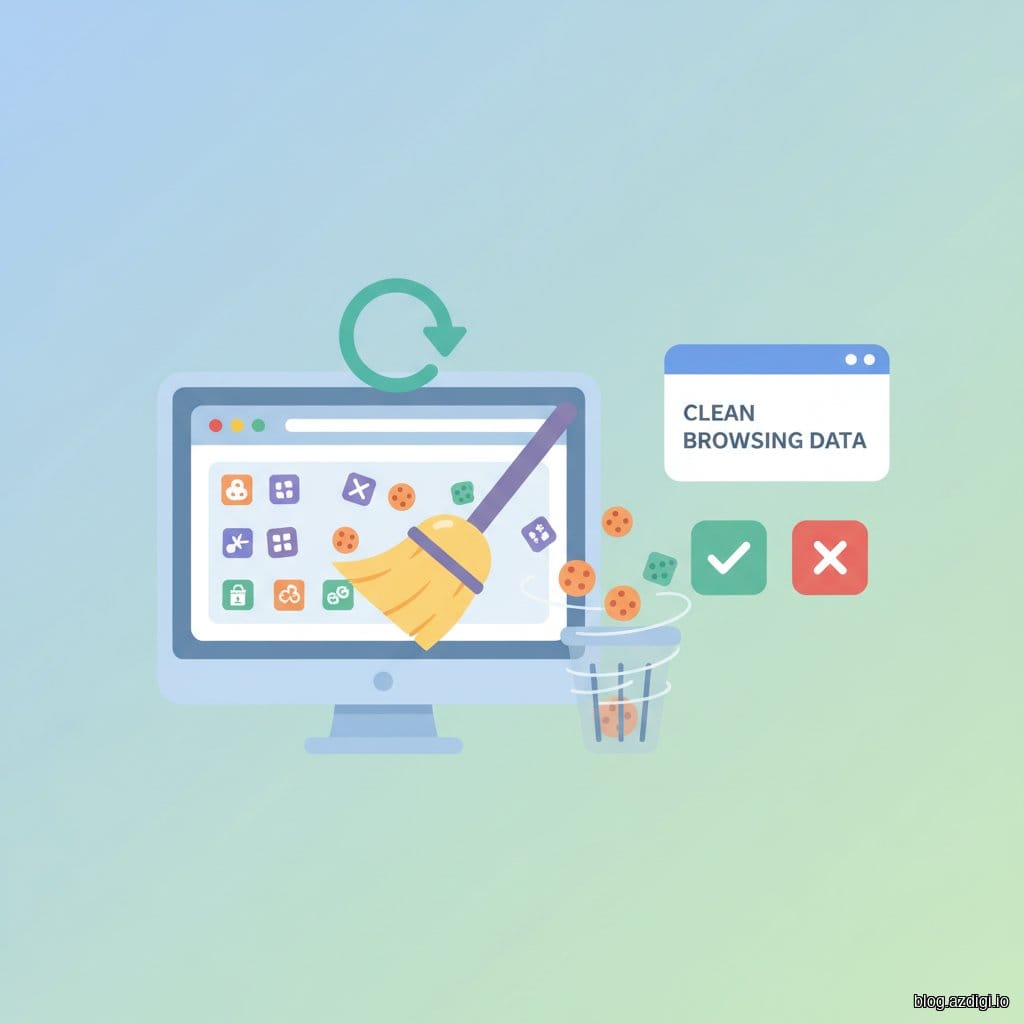
Browsers store cookies and cache from previous visits. If old authentication data has become outdated, the browser still automatically sends it, causing the server to reject the request. This is a silent culprit that many people don’t think of.
How to clear on Chrome:
- Press
Ctrl + Shift + Delete(Windows) orCmd + Shift + Delete(Mac). - Select time range: All time.
- Check Cookies and other site data and Cached images and files.
- Click Delete data.
After clearing, revisit the page and log in again from scratch. You can also try opening the page in Incognito mode to quickly check if the issue is caused by cache. If Incognito mode works fine, the old cookies/cache are definitely the culprit.
On Firefox: go to Settings > Privacy & Security > Cookies and Site Data > Clear Data. On Safari: go to Preferences > Privacy > Manage Website Data > Remove All.
Method 3: Flush DNS cache
In some rarer cases, an outdated DNS cache on your computer may send requests to the wrong server address, leading to a 401 error. This happens when a website has recently changed servers or DNS records, but your computer still caches old information.
Flush DNS cache using the following commands:
# Windows
ipconfig /flushdns
# macOS
sudo dscacheutil -flushcache; sudo killall -HUP mDNSResponder
# Linux (systemd)
sudo systemd-resolve --flush-caches
# Linux (nscd)
sudo systemctl restart nscd
After flushing, wait a few seconds and try accessing the website again. If the error persists, the cause lies elsewhere.
Method 4: Check server configuration (for administrators)
If you’re the website administrator and users report encountering 401 errors, check the following areas:
Check the .htaccess file:
- Open the
.htaccessfile in the website’s root directory. - Look for lines containing
AuthType,AuthName,Require valid-user. If they’re applied to directories that don’t need protection, comment them out with#. - Verify that the
AuthUserFilepath correctly points to the.htpasswdfile. An absolute path is required. - If unsure, temporarily rename the
.htaccessfile to.htaccess.bakand check the website again.
Check security plugins (WordPress):
- Temporarily disable all plugins, especially security plugins. You can disable them via FTP/File Manager by renaming the
wp-content/pluginsfolder toplugins.bak. - If the error disappears, re-enable plugins one by one to identify the conflicting one.
- Check the plugin’s logs for any blocked IPs and unblock legitimate ones.
Check API configuration:
- Ensure the
Authorizationheader is sent in the correct format (Bearer token, Basic auth, etc.). - Verify the token has the correct scope/permissions.
- Review CORS configuration if making cross-origin API calls, ensuring the
Authorizationheader is in the allowed headers list. - Check the server’s access logs to see if the request actually reached the server, or if it was blocked at the proxy/CDN layer.
If your website is running on hosting and you’re having difficulty troubleshooting server errors, consider switching to AZDIGI Pro Hosting with 24/7 technical support to help resolve server configuration issues quickly.
How does the 401 error affect SEO?
If important pages on your website return a 401 error, Googlebot won’t be able to crawl and index that content. Direct consequences include:
- Pages with 401 errors will disappear from search results.
- Googlebot encountering repeated 401 errors may reduce crawl frequency for the entire site (wasting crawl budget).
- New content will take longer to be indexed than usual.
- Internal links pointing to 401 pages become “dead ends,” affecting the internal link structure.
You should regularly check the Coverage report in Google Search Console to detect URLs returning 401 early. If a page is public and shouldn’t require authentication, fix it immediately. If the page needs to be secured (e.g., admin pages), then 401 is perfectly normal and nothing to worry about.
How to prevent 401 errors in the future
- Use a password manager (Bitwarden, 1Password, KeePass) to store login credentials accurately, avoiding wrong passwords or forgotten credentials.
- Set up automatic token refresh for API-based applications. Most modern frameworks support refresh token mechanisms to renew access tokens before they expire.
- Configure reasonable session timeouts: not too short to annoy users, not too long to create security risks. For regular websites, 24-48 hours is reasonable. For financial applications, 15-30 minutes.
- Review .htaccess configuration whenever you change server settings, install new plugins, or migrate hosting. Many WordPress plugins automatically add rules to .htaccess when activated.
- Monitor server logs regularly to detect sudden spikes in 401 errors early. You can use tools like GoAccess, AWStats, or the logging features in your hosting control panel.
- Enable two-factor authentication (2FA) for important accounts. 2FA not only enhances security but also helps reduce the risk of account lockouts from brute force attacks.
Frequently asked questions about the 401 error
Is the 401 error a server error?
No. The 401 error belongs to the 4xx group, meaning it’s a client-side error. The server is working normally; it simply refuses access because you haven’t authenticated or your credentials are wrong. Server-side errors belong to the 5xx group, such as the 500 Internal Server Error.
What’s the difference between 401 and 403 errors?
A 401 error means you haven’t authenticated (the server doesn’t know who you are). A 403 error means you’ve authenticated but don’t have sufficient permissions to access that resource. The fix differs: for 401, log in again; for 403, contact the admin to get the appropriate permissions.
Can WordPress security plugins cause 401 errors?
Yes. Some security plugins like Wordfence and iThemes Security can mistakenly block legitimate login requests if they detect “suspicious” behavior (e.g., logging in from an unfamiliar IP, multiple consecutive attempts). Temporarily disable the plugin and try again to confirm.
How to fix a 401 error when calling a REST API?
Check three things: (1) Is the token or API key correct and not expired? (2) Is the Authorization header sent in the correct format (e.g., Bearer <token>)? (3) Does the token have the correct scope/permissions for the endpoint you’re calling? If using OAuth, refresh the token and try again.
Conclusion
The 401 Unauthorized error may sound serious, but most cases are easy to fix. Start by checking your login credentials, clearing browser cache, then dig deeper into server configuration if needed.
If you’re a website administrator, pay attention to checking the .htaccess file, security plugins, and server logs regularly. For developers working with APIs, ensuring the token refresh mechanism works correctly will significantly reduce 401 errors for end users.
We hope this article helps you understand and resolve the 401 error. If you have any further questions, leave a comment below.
You might also like
- 401 Unauthorized Error: causes and how to fix
- Processing 403 error when accessing WordPress admin (Forbidden)
- Configure WP Rocket for WordPress on LarVPS
- How to configure WP Rocket with Nginx
- How to fix the blocked by CORS policy error on WordPress
- How to fix error: website redirects too many times in WordPress
About the author

Trần Thắng
Expert at AZDIGI with years of experience in web hosting and system administration.