You’re accessing a website normally when the browser suddenly shows “401 Unauthorized” or “Authorization Required”. A blank page, no content, no further hints. The 401 error belongs to the HTTP 4xx error group, meaning the problem is on the client side (browser, application), not a server crash.
The good news is that in most cases, you can fix this error yourself in just a few minutes. This article goes straight into each cause and specific solution.
What is 401 Unauthorized?
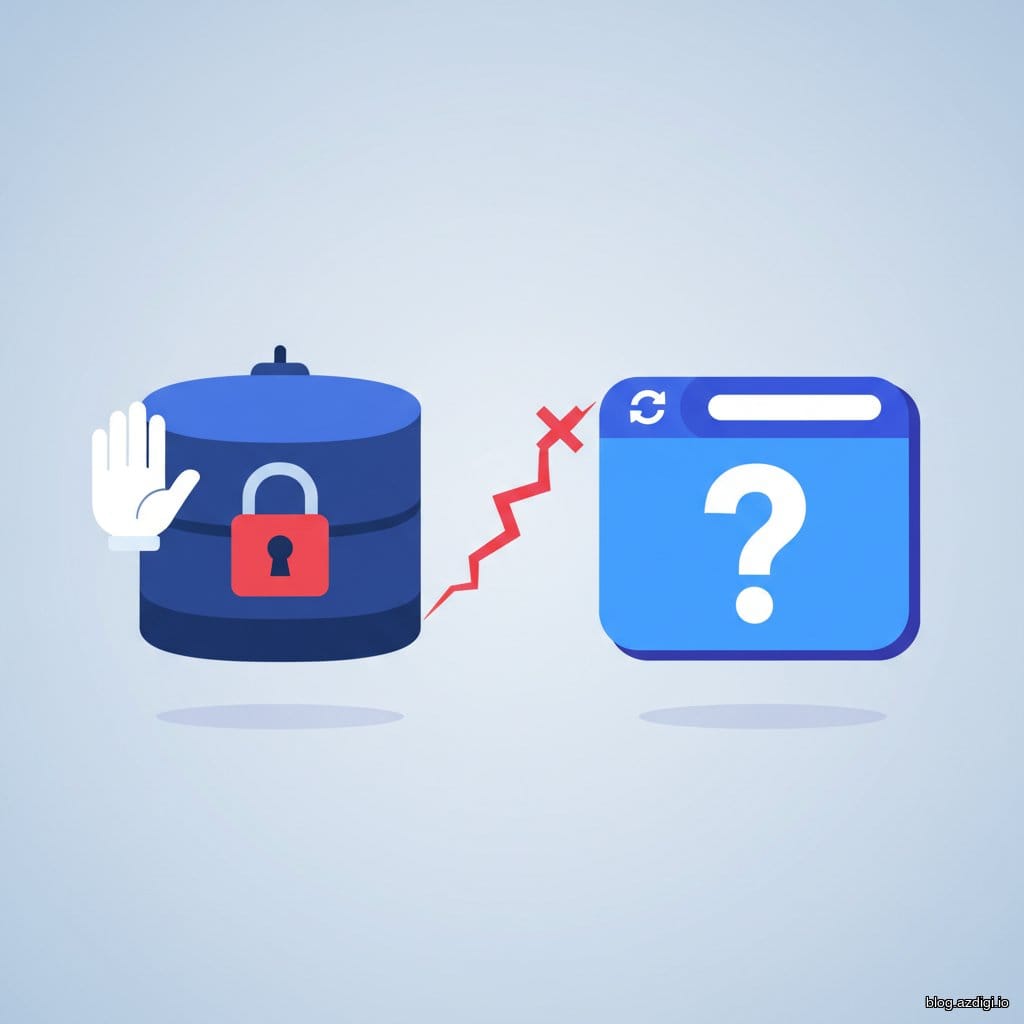
401 Unauthorized is an HTTP status code indicating that your request was rejected because of missing or incorrect authentication credentials. Simply put, the server is saying: “I don’t know who you are, please log in first.”
The 401 code belongs to the 4xx group (client error). Unlike a 500 error (server internal issue), a 401 error shows the server is working fine, it just can’t verify your identity. The resource you want to access still exists; the only problem is that you haven’t “proven” you have permission to view it.
When this error occurs, the server sends a WWW-Authenticate header to tell the browser what authentication method to use (Basic Auth, Bearer Token, etc.). The browser uses this to show a login popup, or returns an error page if the credentials sent were wrong.
The name “Unauthorized” is a bit misleading. Its actual meaning is closer to “Unauthenticated” rather than “Unauthorized”. The server doesn’t know who you are yet, rather than knowing and refusing you.
Some common variations you might see across browsers:
- 401 Unauthorized
- Authorization Required
- HTTP Error 401
- Access Denied
Difference between 401 and 403: A 401 error means “not authenticated” (the server doesn’t know who you are). A 403 error means “no permission” (the server knows who you are but won’t let you access). Logging in again can fix a 401, but not a 403.
Common causes of 401 errors

A 401 error can come from the user side or the server side. Here are the most common causes:
Wrong login credentials
The number one cause and also the most common. You typed the wrong username, password, or forgot to check Caps Lock. With APIs, it could be an incorrect API key or missing characters when copying. This is especially common when passwords contain special characters, or when you’ve recently changed your password but the browser still auto-fills the old one.
Expired login session
You logged in a while ago, and the session cookie or token has expired. The server no longer recognizes your session, so it returns 401. This often happens when you leave a browser tab open overnight, or use an app calling an API with short-lived tokens (for example, JWT tokens typically expire after 1 hour).
On WordPress, the default session lasts 2 days (without “Remember Me”) or 14 days (with it). After that, the auth cookie expires and you get redirected to the login page.
Server has .htpasswd or HTTP Basic authentication enabled
On Apache, administrators can configure .htaccess + .htpasswd to require login for accessing a directory. If you don’t have the login credentials, or the .htpasswd file is misconfigured, a 401 error will appear.
REST API returns 401
An application calls an API but doesn’t send the Authorization header, or the token has expired. On WordPress, this often happens when Application Passwords are deleted, or security plugins block the REST API. With SPA (Single Page Application) or mobile apps, failed token refresh is also a common cause of 401.
Wrong URL leading to an authenticated area
A URL typo accidentally directs you to an admin area or protected directory. The browser sends a request without credentials, and the server returns 401. For example, you want to access /products but type /admin/products instead, and the admin area requires login.
Firewall or CDN false positive
If you’re using Cloudflare, ModSecurity, or a server firewall, sometimes overly sensitive security rules block legitimate requests. The result is users getting a 401 despite having no issues with their login credentials. Check firewall logs to identify this.
Fix 1: Check the URL and reload the page
First step, simple but effective: check the URL in the address bar.
- Check for any mistyped characters, such as an extra
/or missing path - Make sure you’re using the correct protocol:
https://instead ofhttp://(or vice versa) - Press F5 or Ctrl + R (Windows) / Cmd + R (Mac) to reload
- If the page requires login, re-enter username/password carefully, watch for Caps Lock
Sometimes the 401 error is just temporary, caused by slow server processing or an interrupted connection. A reload is all it takes.
Also, if you’re accessing from an old bookmark, try typing the URL directly into the address bar. Bookmarks sometimes store URLs with expired authentication parameters, or point to old paths that have been changed.
Tip: Try opening the page in an incognito/private window. If the page opens normally, the issue is with your browser’s cache or cookies, not the server.
Fix 2: Clear browser cache and cookies

Browsers store cache and cookies to load pages faster. But if cookies contain old login information (expired session, revoked token), the browser still sends that old data to the server, and the server rejects it.
On Google Chrome:
- Press Ctrl + Shift + Delete (Windows) or Cmd + Shift + Delete (Mac)
- Select time range: “All time”
- Check Cookies and other site data and Cached images and files
- Click Delete data
- Close the browser, reopen it and access the page again
On Firefox:
- Press Ctrl + Shift + Delete
- Select “Everything” for Time range
- Check Cookies and Cache
- Click Clear Now
If you only want to clear cookies for the specific site (without affecting others): press F12, go to the Application tab, select Cookies, choose the domain, and delete.
After clearing, log in again from scratch. Most 401 errors caused by old sessions will be resolved at this step.
If you use multiple browsers or devices, try on a different device to see if you still get 401. This helps quickly determine whether the problem is browser-side or server-side.
On mobile (Chrome Mobile), go to Settings, then Privacy and Security, then Clear browsing data, select Cookies and Cached images, and tap Clear data.
Fix 3: Check .htpasswd configuration on the server
If you’re a server or hosting administrator, the 401 error may be caused by HTTP Basic authentication configuration in .htaccess. This method is commonly used to protect /wp-admin, staging sites, or internal areas.
Check the .htaccess file:
# Open the .htaccess file in the directory showing 401
# Look for a config block like:
AuthType Basic
AuthName "Restricted Area"
AuthUserFile /home/username/.htpasswd
Require valid-user
If you see this block, make sure:
- The
.htpasswdfile exists at the path specified inAuthUserFile - The username/password in the
.htpasswdfile matches what you’re entering - The path uses an absolute path, not a relative path
Recreate the .htpasswd file (if needed):
# Create a new .htpasswd file with user "admin"
htpasswd -c /home/username/.htpasswd admin
# Add a new user (don't use -c as it will overwrite the existing file)
htpasswd /home/username/.htpasswd user2
Note: If you didn’t intentionally enable HTTP Basic authentication, comment out or remove the AuthType block in .htaccess (add # at the beginning of each line). Always back up the file before editing.
On cPanel, you can manage this through the Directory Privacy section (under Security) without manually editing files. Select the directory to protect, toggle password protection on/off, and add users right from the web interface.
On DirectAdmin, the equivalent feature is at File Manager, select the directory, then Protect. With Nginx, since it doesn’t use .htaccess, you need to configure this in the virtual host config file, using the auth_basic and auth_basic_user_file directives.
# Nginx configuration example
location /admin {
    auth_basic "Restricted";
    auth_basic_user_file /etc/nginx/.htpasswd;
}
Fix 4: Check REST API and SSL certificate
For developers and WordPress administrators, getting a 401 when calling APIs is quite common. Here are some things to check:
Incorrect Authorization header
Make sure the request sends the correct header. For example with curl:
# Basic Auth
curl -u "username:password" https://example.com/wp-json/wp/v2/posts
# Bearer Token
curl -H "Authorization: Bearer YOUR_TOKEN" https://api.example.com/data
Common mistakes: missing a space after “Bearer”, or the token getting truncated when copying.
Application Passwords on WordPress
WordPress since version 5.6 supports Application Passwords. If you’re using this feature for REST API authentication, check whether the password has been deleted or expired. Go to Users, then Profile, then Application Passwords to regenerate if needed.
Security plugins blocking REST API
Some plugins like Wordfence, iThemes Security, or All-In-One Security can block the REST API for non-logged-in users, or restrict by IP. Try temporarily disabling security plugins to see if the 401 error goes away.
Expired or invalid SSL certificate
If your website’s SSL has expired or is misconfigured, some servers will reject requests and return 401 instead of a typical SSL error. Check with:
# Check SSL certificate
openssl s_client -connect example.com:443 -servername example.com 2>/dev/null | openssl x509 -noout -dates
# Or use curl with verbose mode
curl -vI https://example.com 2>&1 | grep -i "SSL\|expire\|certificate"
If SSL has expired, renew or reinstall it. With hosting using Let’s Encrypt, run the renew command:
# Renew Let's Encrypt
certbot renew
# Or renew for a specific domain
certbot certonly --webroot -w /var/www/html -d example.com
After renewal, restart the web server (systemctl restart nginx or systemctl restart apache2) for the new SSL to take effect.
With shared hosting, most Let’s Encrypt SSL certificates are renewed automatically. If not, contact your hosting provider to check the renewal cron job.
If you’re using hosting at AZDIGI, Let’s Encrypt SSL is installed and renewed automatically. You can quickly check via AZDIGI Tools or contact the 24/7 technical support team.
Frequently asked questions
Does 401 Unauthorized affect SEO?
Yes. If Googlebot encounters a 401 error when crawling a page, it cannot read the content and will skip that page. Pages with persistent 401 errors may be removed from the search index. Additionally, if Googlebot consistently hits 401 on many URLs, it may reduce crawl frequency for the entire site, affecting how new content gets indexed. Check Google Search Console under “Pages”, then the “Not indexed” filter to detect these URLs early.
What’s the difference between 401 and 403 errors?
A 401 error means not authenticated: the server doesn’t know who you are, please log in. A 403 error means no permission: the server knows who you are but denies access. For 401, try logging in again; for 403, you need to contact the administrator to get the right permissions.
Can WordPress security plugins cause 401 errors?
Yes. Security plugins like Wordfence and iThemes Security often block REST API access, limit login attempts, or block suspicious IPs. If you’re getting unexpected 401 errors on WordPress, try temporarily disabling security plugins and check again.
Can clearing browser cache fix 401 errors?
In many cases, yes. Browsers store cookies and old session data. If the session has expired but the browser still sends old credentials, the server will return 401. Clearing cookies and cache, then logging in again usually resolves this.
How to check for 401 errors on the server?
Check the web server access log. On Apache, logs are typically at /var/log/apache2/access.log or /var/log/httpd/access_log. On Nginx: /var/log/nginx/access.log. Search for requests returning status code 401 using grep:
# Find 401 requests in access log
grep " 401 " /var/log/nginx/access.log | tail -20
# Or on Apache
grep " 401 " /var/log/apache2/access.log | tail -20
Also check the .htaccess file, virtual host authentication settings, and security plugin logs (if using WordPress). On cPanel, you can view logs via Metrics, then Raw Access or Errors.
Summary
The 401 Unauthorized error sounds scary but is not hard to fix. It’s an authentication error, not a server error. In most cases you just need to:
- Check the URL and reload the page
- Clear browser cache and cookies
- Log in again with correct credentials
If you’re an administrator, also check .htpasswd configuration, REST API, security plugins, and SSL certificates. Once you’ve identified the cause, note it down for faster resolution next time.
A few prevention tips: set reasonable session timeouts (not too short so users don’t get kicked out constantly), use Application Passwords instead of the main password for API connections, and check access logs regularly to catch unusual 401 requests early.
See also our other HTTP error guides: customize Error Pages on cPanel (403, 404, 500) | check DNS, Network, SSL with AZDIGI Tools.
If you’re using hosting and encounter a 401 error that you can’t resolve on your own, your hosting provider’s technical team can help investigate. With AZDIGI, you can reach the 24/7 support team or check out the Pro Hosting plans that come pre-optimized for security and configuration.
You might also like
- 401 Unauthorized Error: causes and how to fix
- Reverse Proxy Ollama with Nginx - Access AI via Custom Domain with HTTPS
- Processing 403 error when accessing WordPress admin (Forbidden)
- Coolify Interface - Detailed Dashboard Usage Guide
- How to fix SSL link errors on WordPress
- How to fix error 404 on aaPanel
About the author

Trần Thắng
Expert at AZDIGI with years of experience in web hosting and system administration.