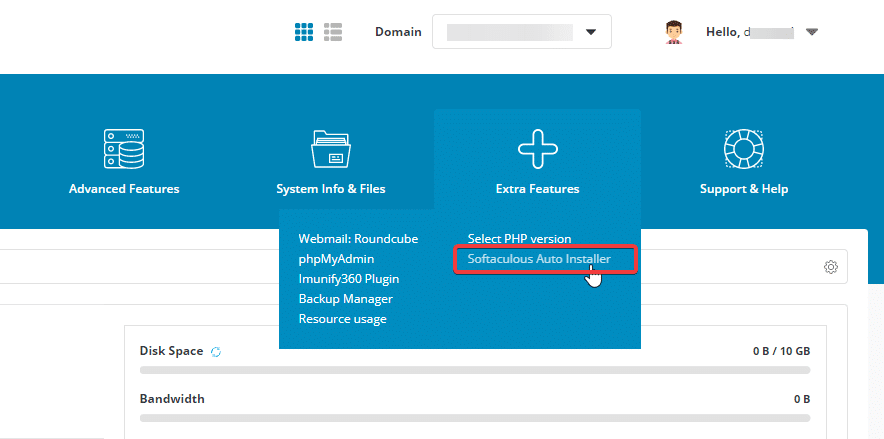
SEO Hosting service has a built-in Softaculous Auto Installer tool that helps you easily install over 500 different website source codes with just a few clicks. In this article, AZDIGI will show you how to install a WordPress website automatically through the Softaculous tool on SEO Hosting.
You log in to SEO Hosting => Extra Features => Softaculous Apps Installer

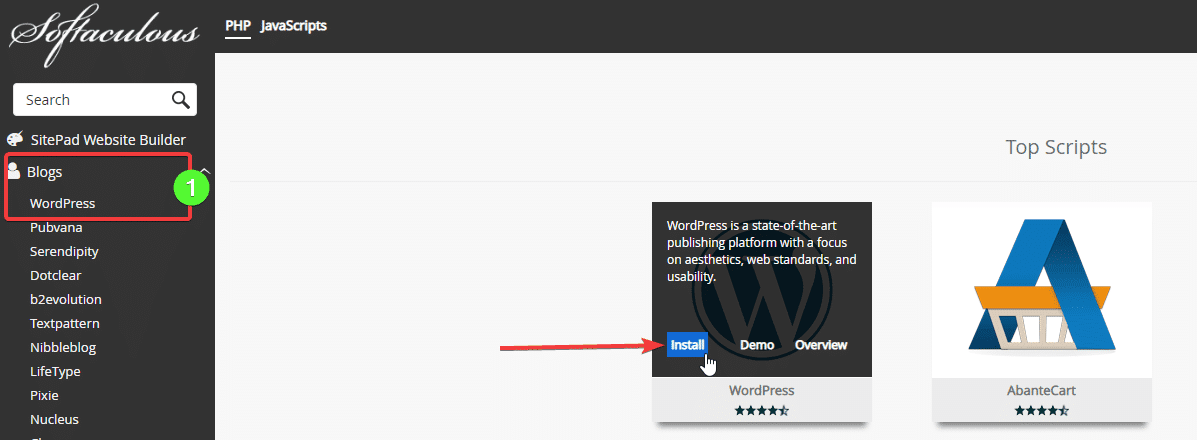
In AZDIGI, the default page displays all Softaculous settings. You choose the right-hand side to find Blogs => WordPress to install this source code.
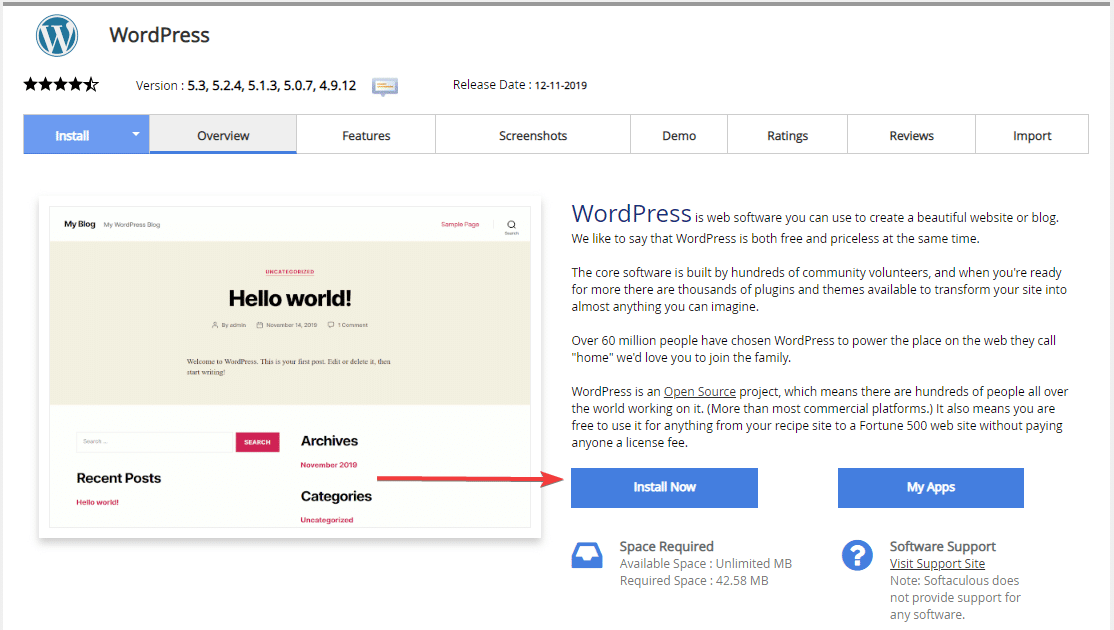
And click the Install Now button to enter the installation page.
Here, you will enter the necessary website information to proceed with the installation
Note:
- Select the version of WordPress to install
- Select the website to install
- This step is very important, you need to remove the word WP because if you leave it as is, WordPress will install into the wp folder, then you can’t access the website with the domain name but have to access the domain/wp. That’s so inconvenient.
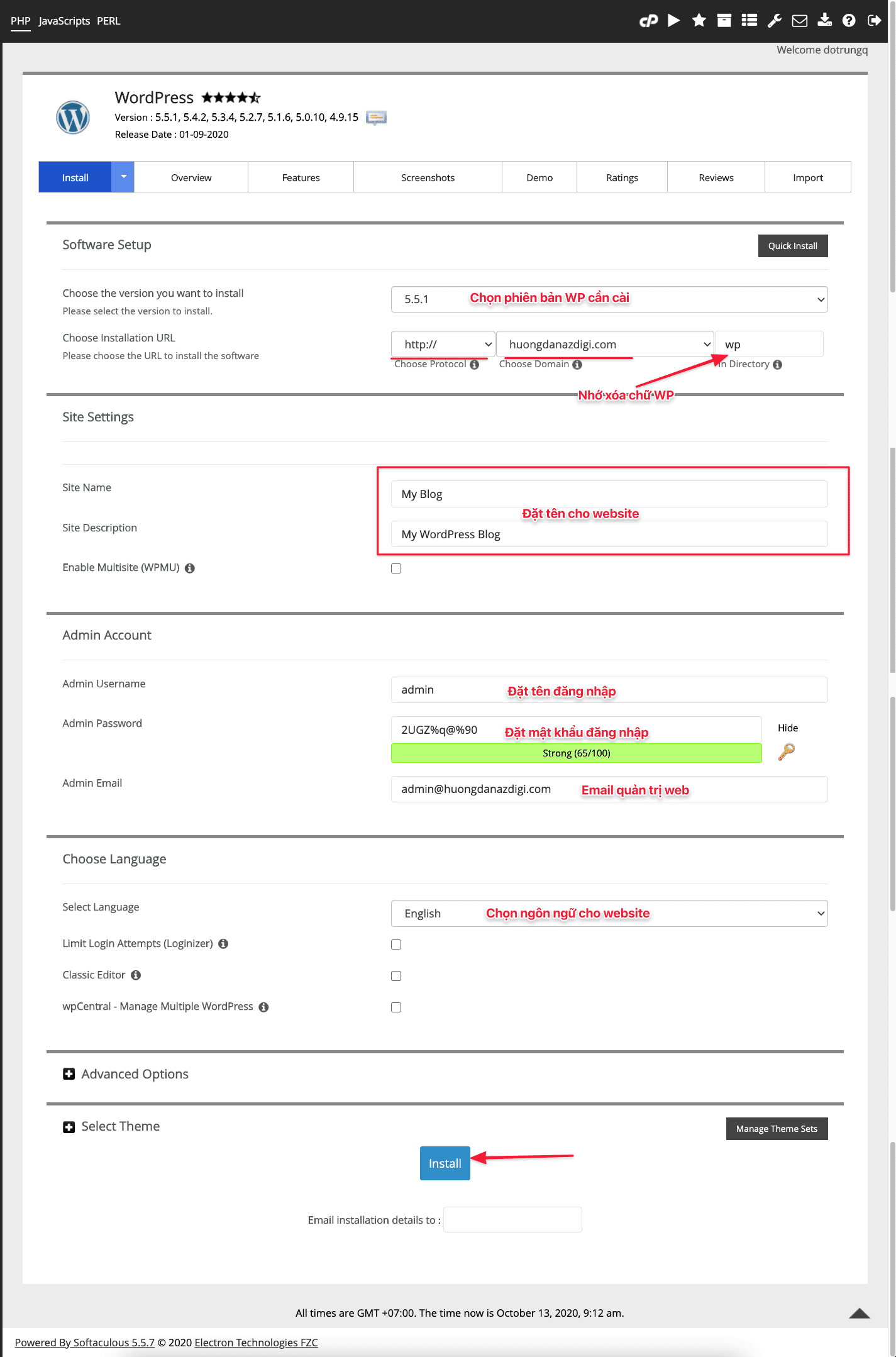
Note: Don’t set a password that is too simple, but needs to set a suggested WordPress Password for higher security. Absolutely don’t set a password 123456 12345678 123567a
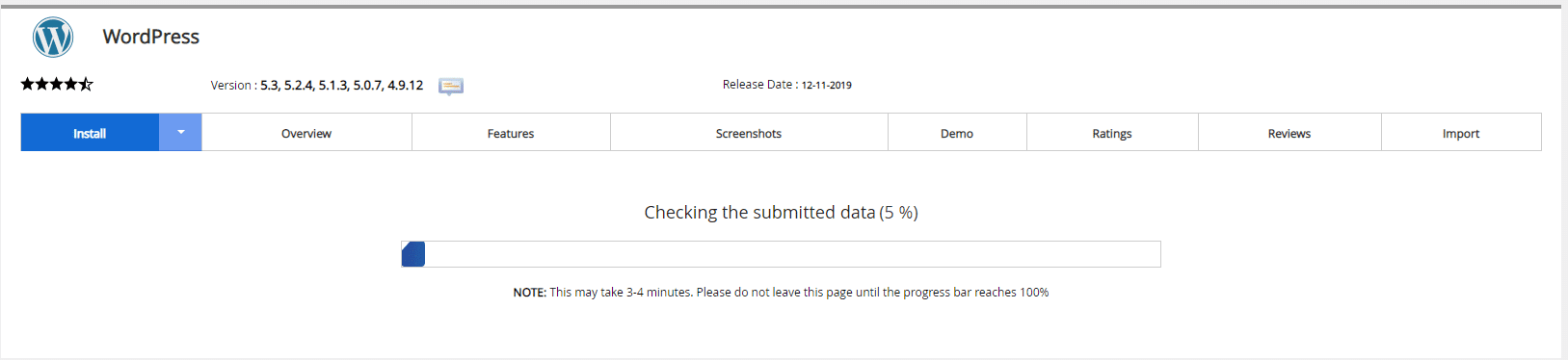
Installation is in progress. You just need to wait a few minutes.
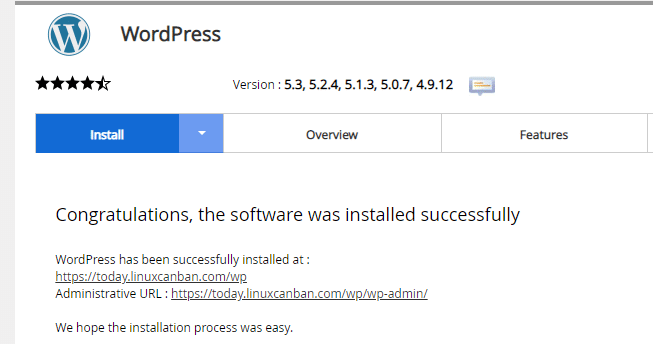
And the installation complete message.
Wishing you success!
You might also like
- Install WordPress automatically with Softaculous on cPanel
- Automatically install WordPress Multisite via Softaculous on cPanel with 2 steps
- How to enable Redis Cache on SEO Hosting
- Restore SEO Hosting package data with the Backup Manager in 2 ways
- Install WordPress with Softaculous on CentOS Web Panel (CWP)
- How to create and import Database on SEO Hosting
About the author

Thạch Phạm
Đồng sáng lập và Giám đốc điều hành của AZDIGI. Có hơn 15 năm kinh nghiệm trong phổ biến kiến thức liên quan đến WordPress tại thachpham.com, phát triển website và phát triển hệ thống.