During your use of VPS at AZDIGI, there will be times when you need to reinstall the Operating System to use a new installation of applications or panels. With the system at AZDIGI with built-in interface support, users can optionally reinstall the operating system directly in the interface with a few clicks. Please refer to the following article to reinstall the OS on Turbo Cloud Server.
AZDIGI will guide you in detail in the following 3 steps.
Step 1: Log in to your AZDIGI account
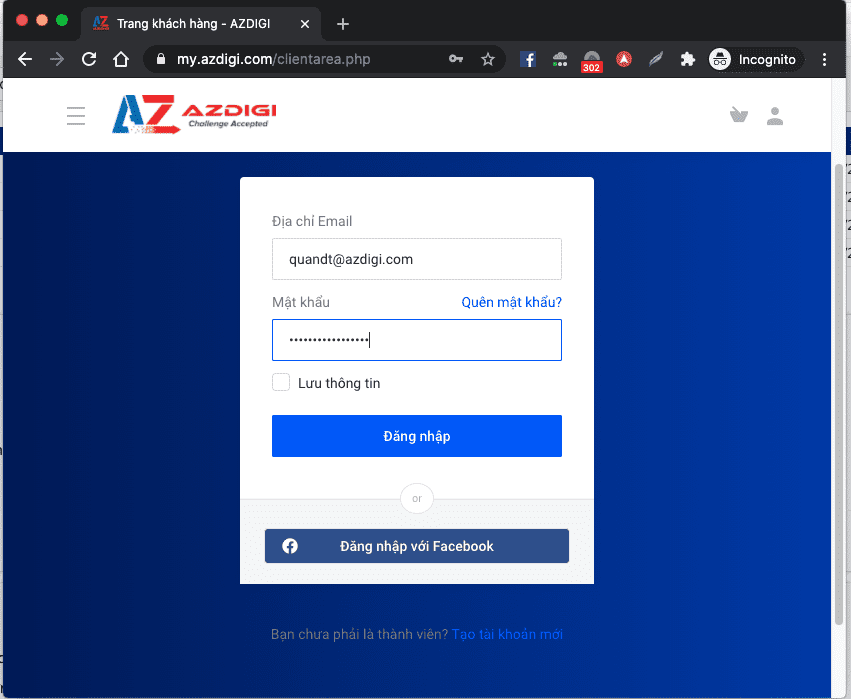
You log in to the service administration at the link: https://my.azdigi.com, then log in to access the management services.

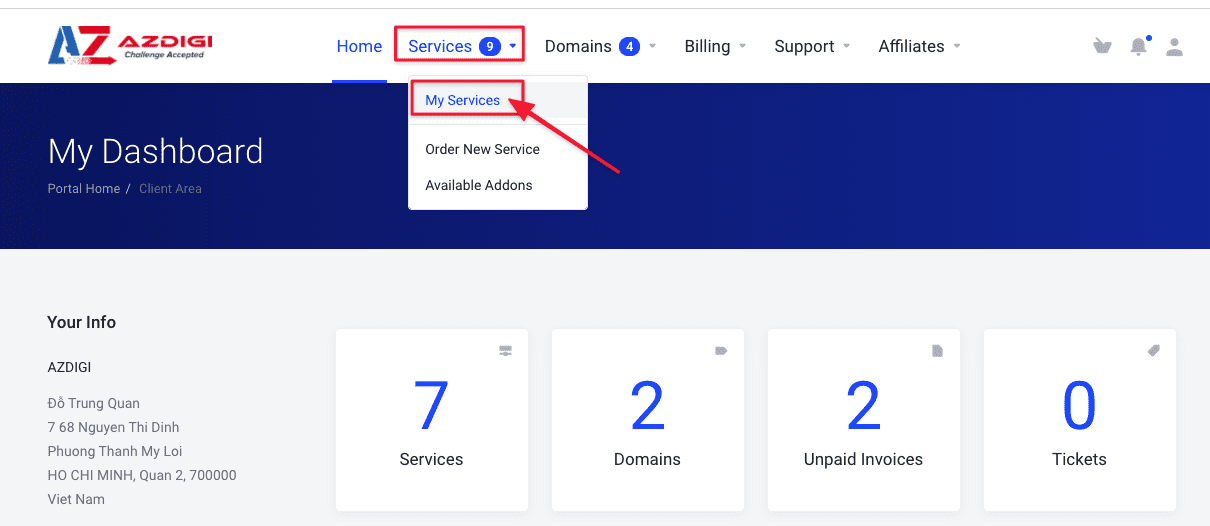
Next, click Services => My Services to enter the list of services.
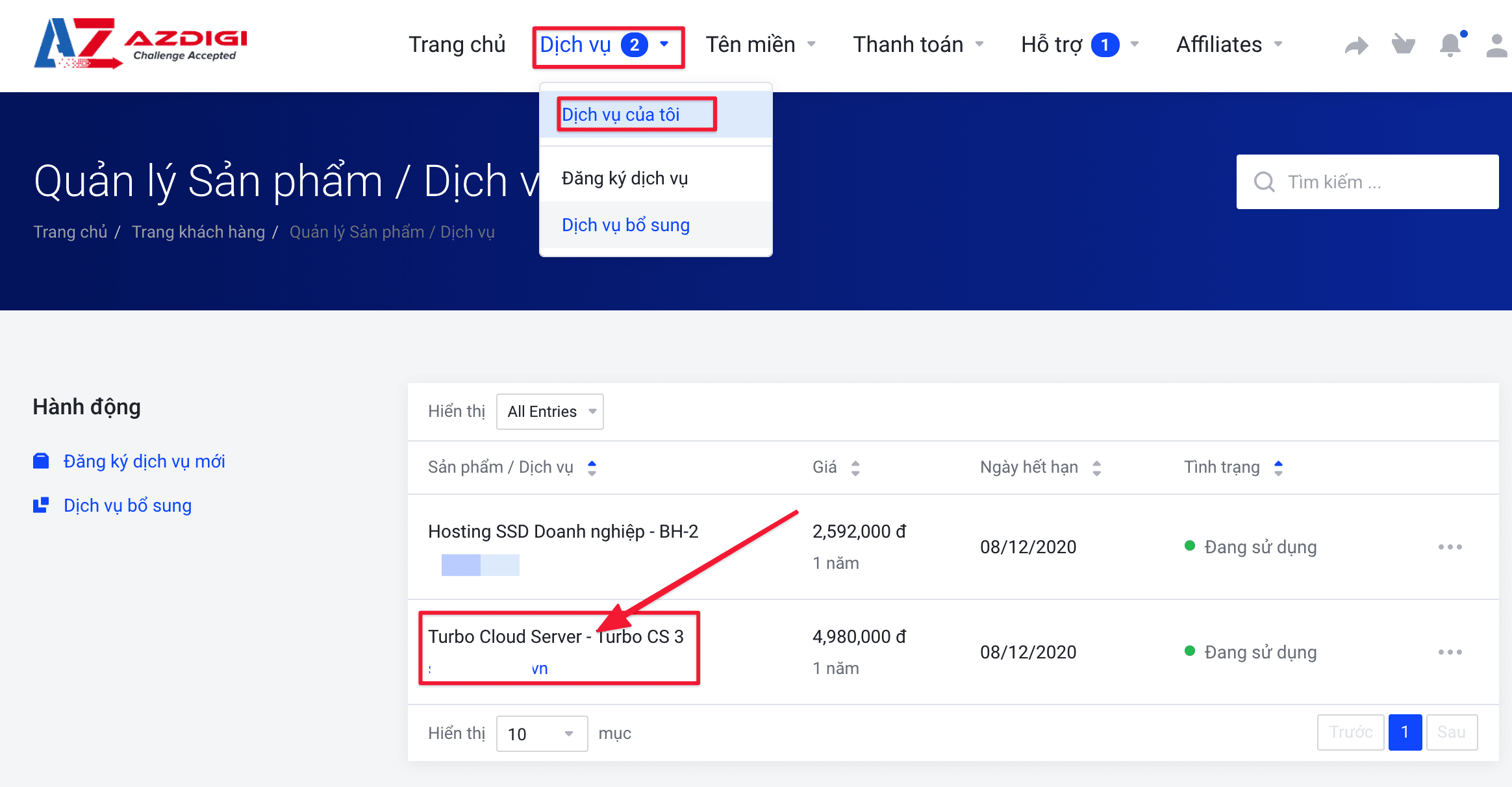
Step 2: Select the Turbo Cloud Server service to install
Note: choosing the right package Turbo Cloud Server needs to reinstall the operating system to avoid mistaken installation and will lose all existing data on the server.
Once you have identified the correct service to install, click on that Turbo Cloud Server package to enter the functional interface.
Step 3: Reinstall OS on Turbo Cloud Server
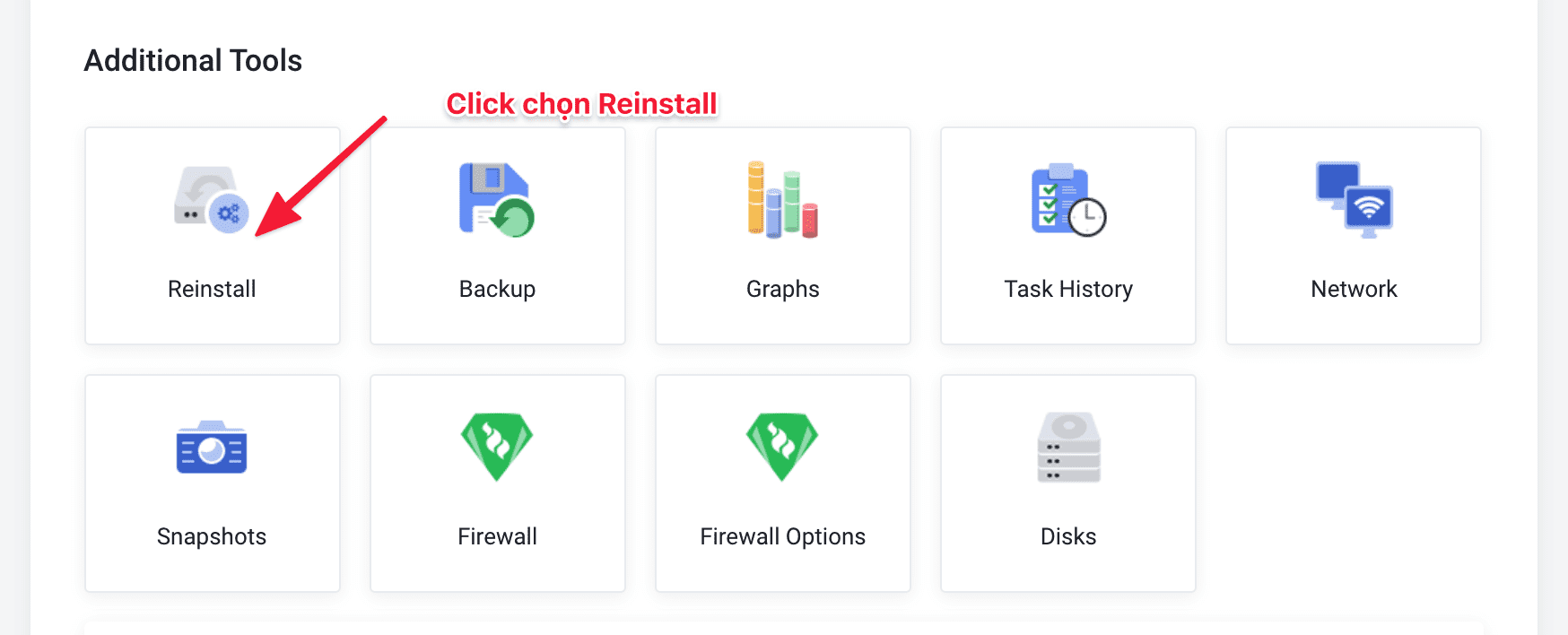
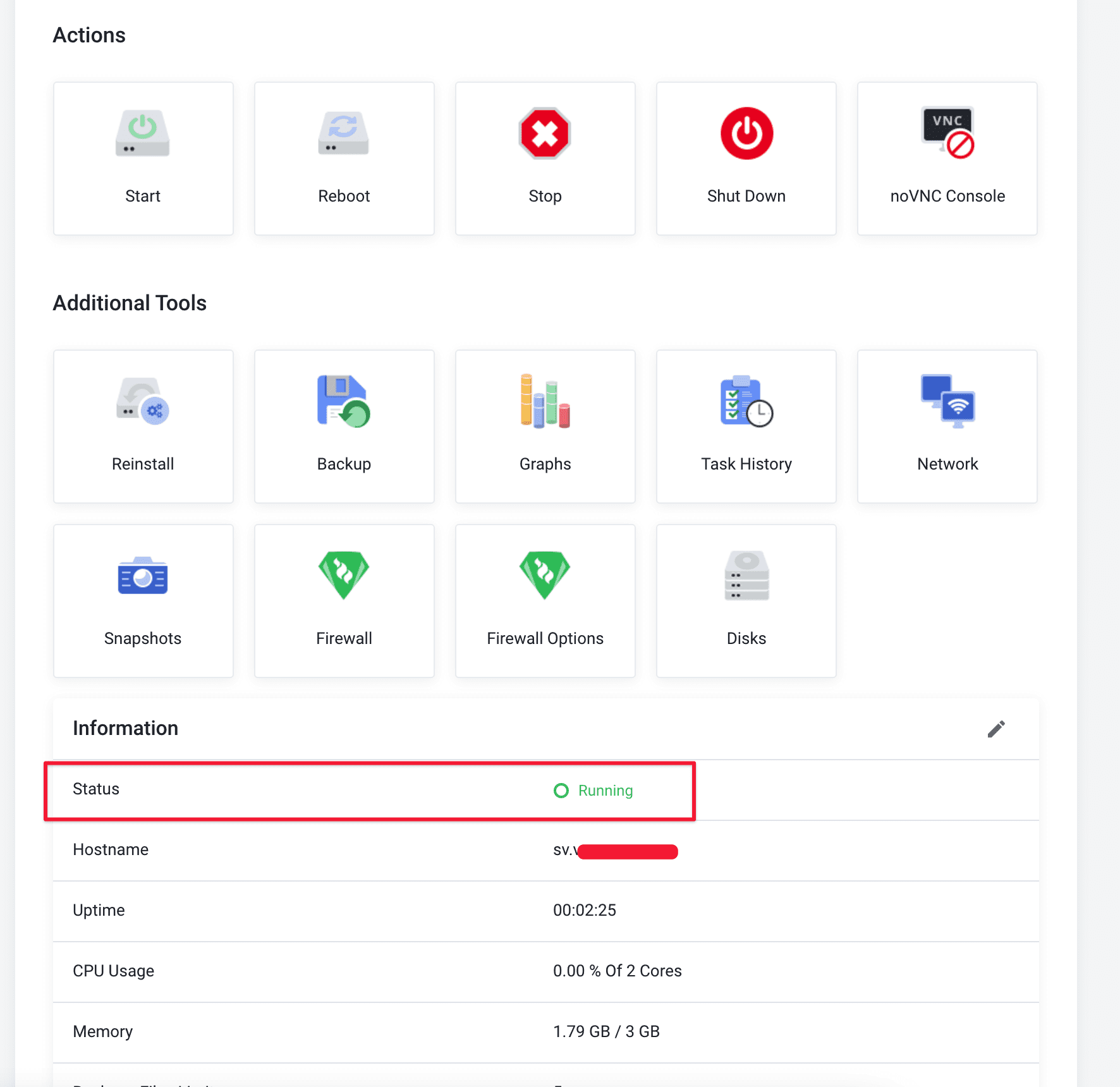
On the Turbo Cloud Server service, there are many functions that support and to reinstall the operating system, click Reinstall.
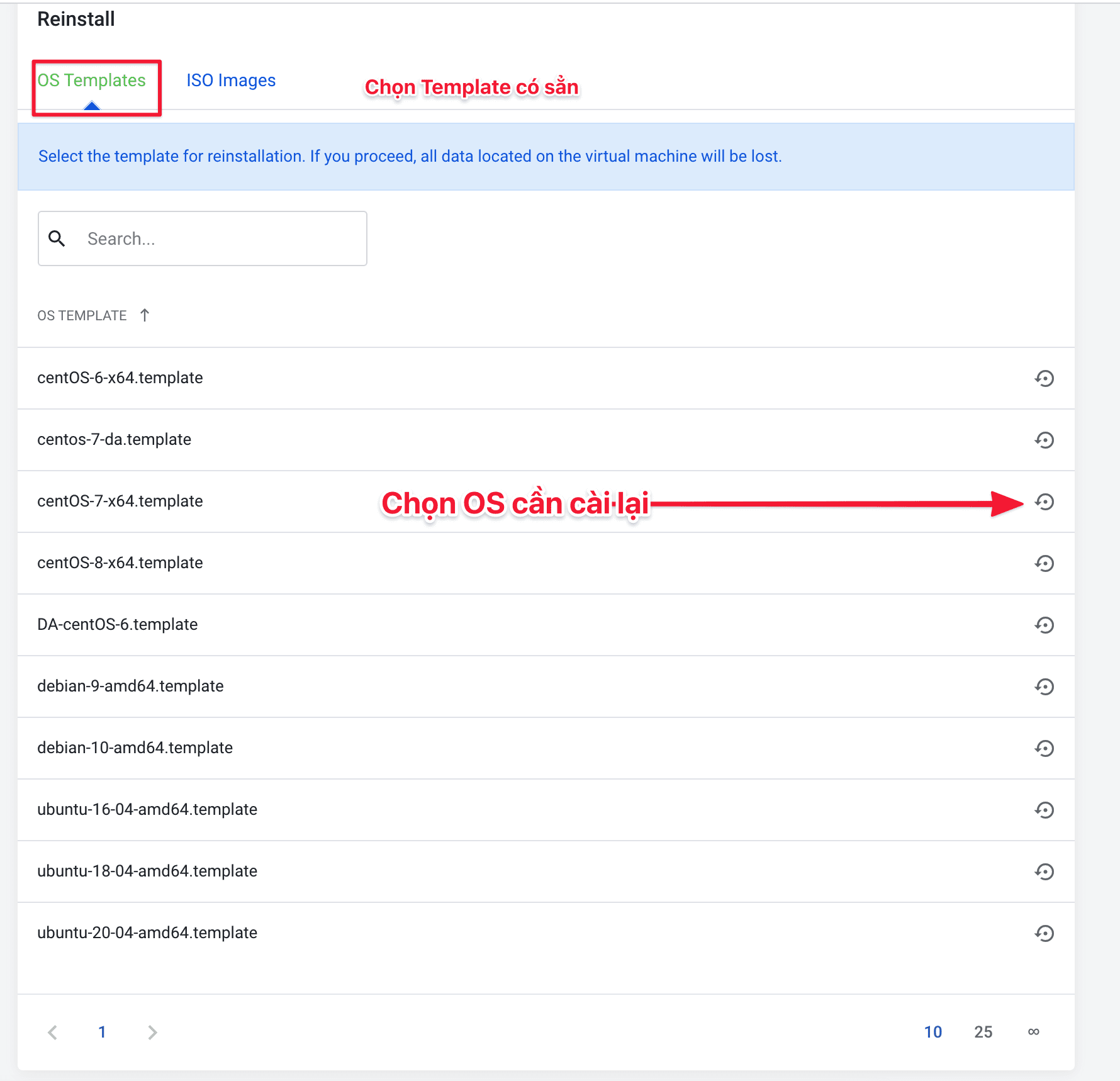
The screen will show templates with available Operating Systems that AZDIGI supports. Select the operating system you need to reinstall and click on the Mũi tên ngược.
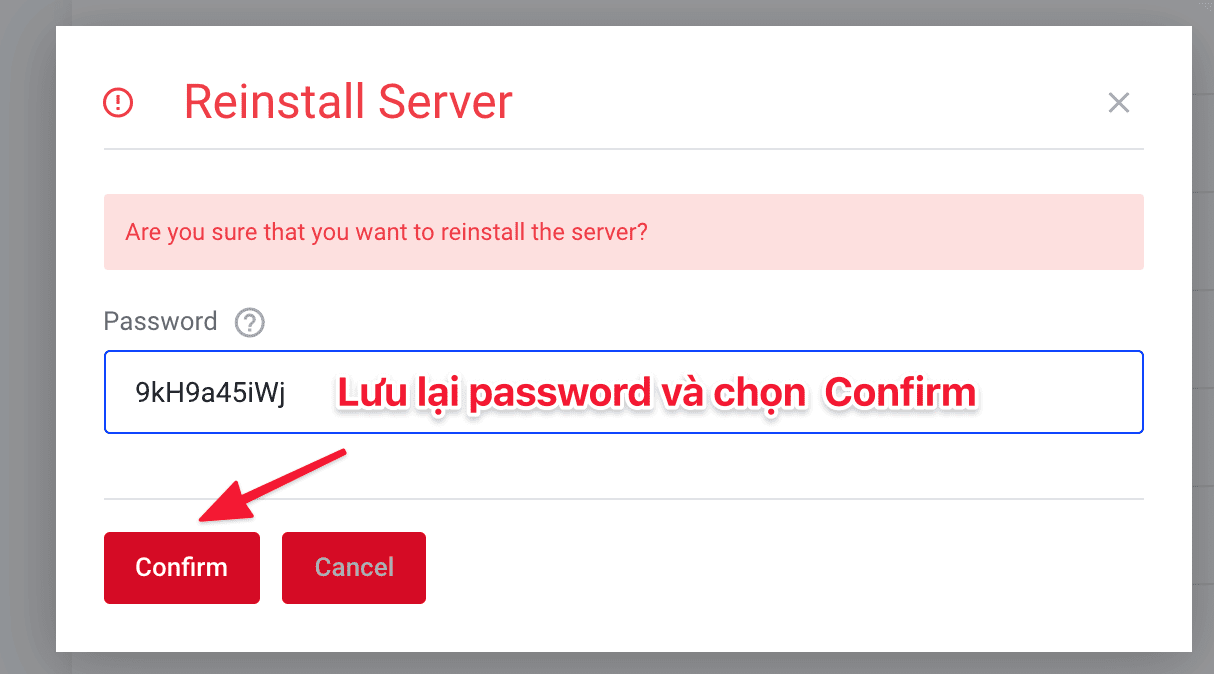
At this point, a message appears asking if you are sure you want to reinstall the operating system. If you agree, enter the Password to set and select Confirm. AZDIGI recommends that you leave the default password suggested.
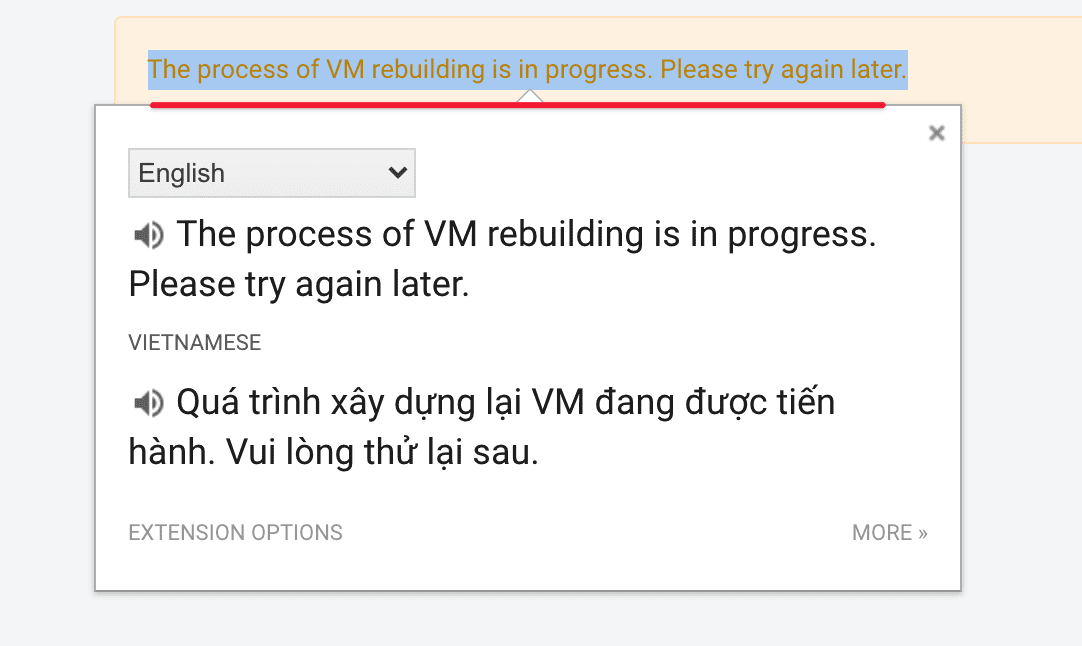
After clicking on Confirm, you will see a message that the process is being rebuilt and you just have to wait a bit. When the installation is complete, the system will send an email to your email notifying you that the installation is complete.
After more than 1 minute, the installation was successful, you will see the Status Running as below and you can use the information to SSH into the server.
Thus, AZDIGI has completed the tutorial on reinstalling the OS on Turbo Cloud Server. Hopefully, this article can help you proactively manage and reinstall the operating system for work.
Wishing you success!
If you have questions or need technical support. Please contact the Technical Department using the information below.
Technical Department contact information
- Hotline 247: 028 888 24768 (Ext 0)
- Ticket/Email: You use the email to register for the service and send it directly to: support@azdigi.com .
You might also like
- How to restore Turbo Cloud Server service
- Start/Shut down/Reboot Turbo Cloud Server
- How to reset the SSH password of the Turbo Cloud Server service
- How to reinstall Cloud Server operating system at AZDIGI
- Introducing the Turbo Cloud Hosting service
- How to reinstall the operating system for AZDIGI VPS
About the author

Thạch Phạm
Đồng sáng lập và Giám đốc điều hành của AZDIGI. Có hơn 15 năm kinh nghiệm trong phổ biến kiến thức liên quan đến WordPress tại thachpham.com, phát triển website và phát triển hệ thống.