In today’s article, AZDIGI will show you how to log in to an email account on Windows 10’s Mail application. Let’s follow along.
Step 1: Create an email account
AZDIGI has written an article to create an email account, you can refer to the link below:
Step 2: Open the application and sign in
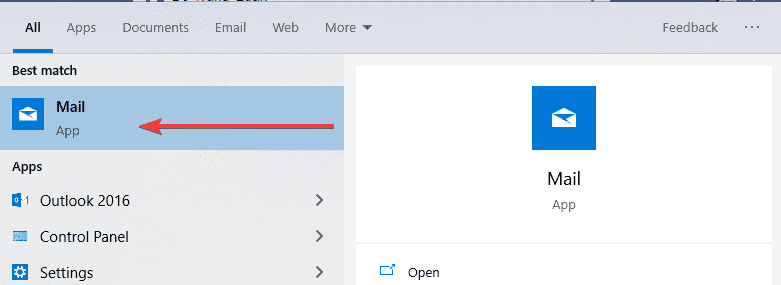
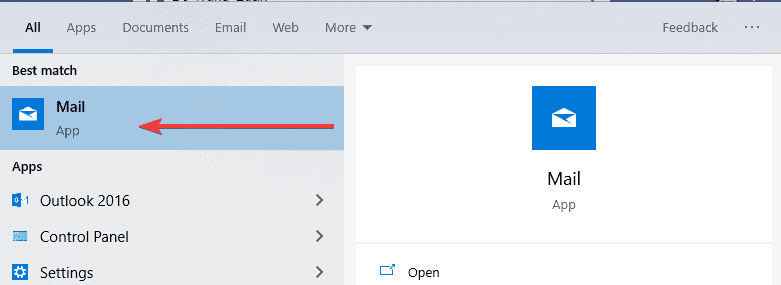
You open Windows’s Mail application của Windows as shown below:
In the image below, click the settings icon and select Manage accounts

Click Add Account to add a new account

You choose Other account POP, IMAP to log in email

Then you fill in the information:
- The email account you created in step 1
- Enter display name
- Enter the password of the email account
- Sign in
The screen displays the message below that the login is successful.

- Hotline 247: 028 888 24768 (Ext 0)
- Ticket/Email: You can use your email to register for the service and send it directly to: support@azdigi.com
- Visit the AZDIGI website to refer to the best hosting/VPS service in Vietnam.
You might also like
- How to login to email on Outlook
- Pro Mail Hosting: How to login mail on Outlook IOS
- Pro Mail Hosting: How to configure email into Outlook
- Pro Mail Hosting: How to add a domain email account to Gmail
- Pro Mail Hosting - Configuration Guide on Mail iOS Application
- Add an Email Account to the Gmail Application
This article has been reviewed by AZDIGI Team
About the author

Thạch Phạm
Đồng sáng lập và Giám đốc điều hành của AZDIGI. Có hơn 15 năm kinh nghiệm trong phổ biến kiến thức liên quan đến WordPress tại thachpham.com, phát triển website và phát triển hệ thống.
10+ years serving 80,000+ customers