
When creating a WordPress website, the first email you declare will be the email used to administer the website, this email is also the admin email of the first user created on the website, called admin.
In some cases, you need to change the website admin email or user email for some reason but don’t know how, AZDIGI will show you how to change those emails in this article.
What is the function of admin email?
The website admin email address is used to send important email notifications, such as: receiving notifications when new user accounts are created, notifications about automatic updates being installed, website moderation, etc. In addition, the website admin email is also used to recover the user’s lost password and notify about the user’s account.
How to change to website admin email
Method 1: Change the admin email on the WordPress admin interface
Note: Since WordPress version 4.9.x and above, changing the website admin email becomes more complicated because you have to confirm the link email is sent to the new email address that needs to be changed.
To change the website admin email, you do the following:
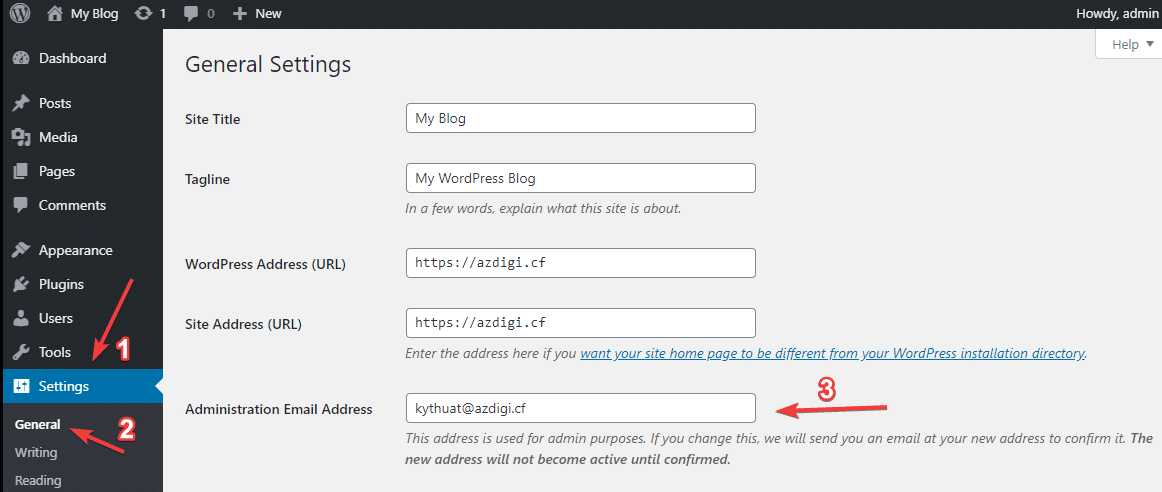
First, log in to your website administrator => go to Settings (1) => General (2).
In the Administration Email Address section (3), you add a new email => click Save Changes.
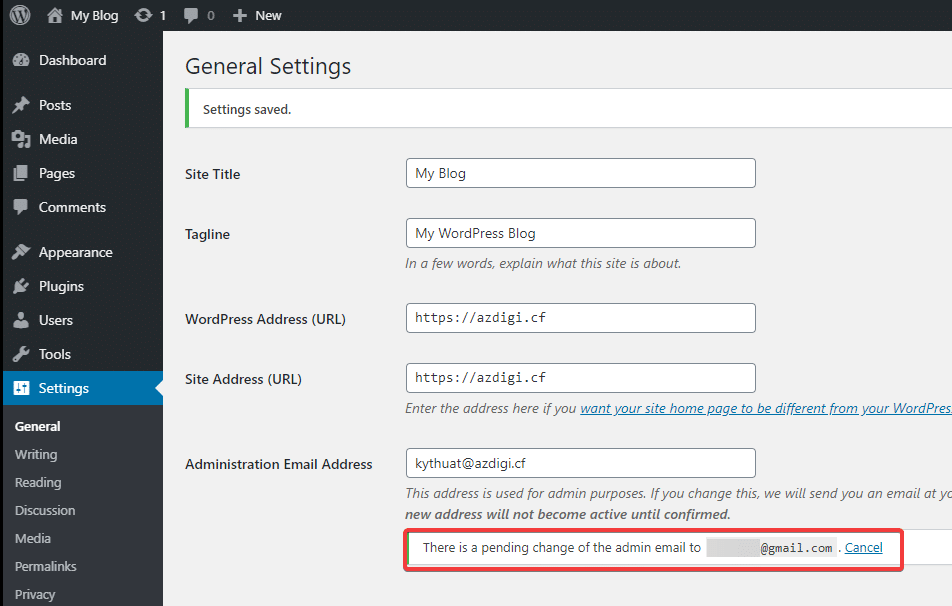
You will receive a notification that you will need to check your new email to verify the link sent to you.
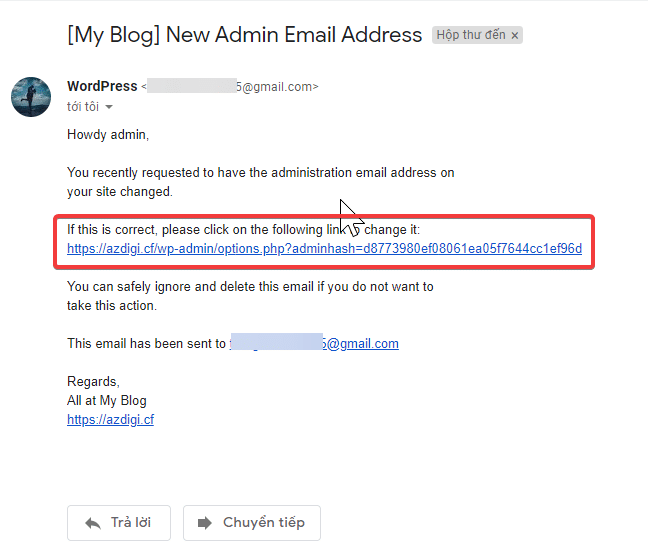
Then you check the new email and click on the verification link as shown below:
For other users email
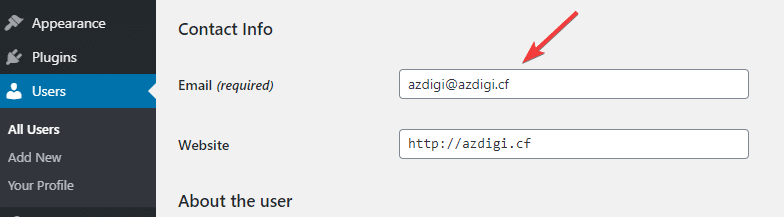
Go to Users (1) => All Users (2) => select the user to edit and click Edit (3)
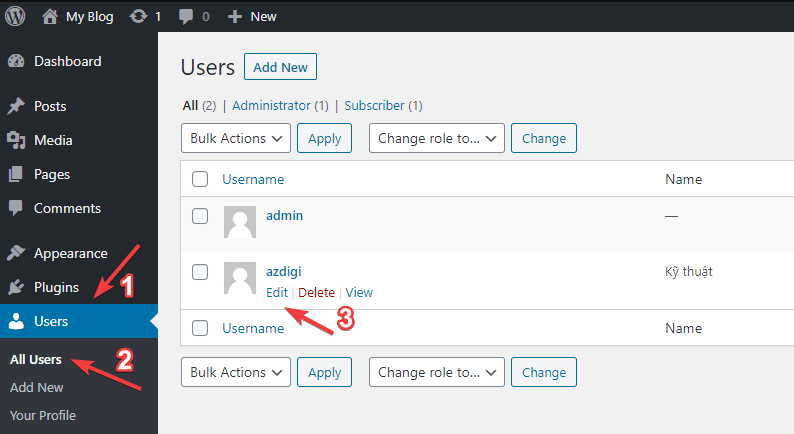
In Contact Info => Email (required), enter your new email => click Update User to complete.
Note: If your website has not been configured to send email through gmail’s SMTP or a domain email service, you will not receive an email with the confirmation link above. To solve this issue, you can perform additional configuration of SMTP for the website according to the instructions below:
Method 2: Change Admin Email via phpMyAdmin
Go to your hosting control panel and navigate to the phpMyAdmin section.
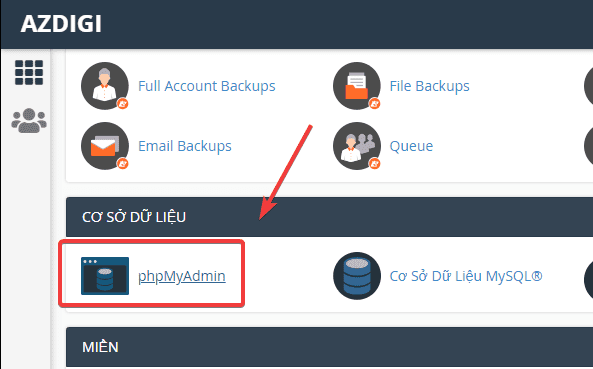
To change the website admin email, you do the following:
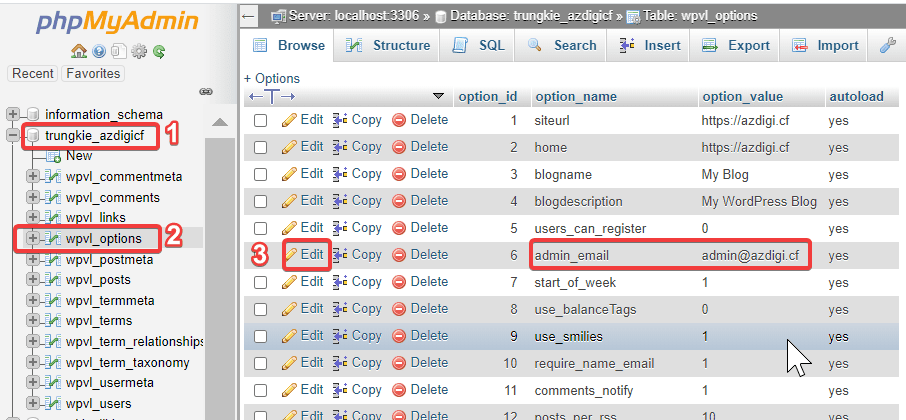
On the left side, you choose the database name of the website (1) => go to the wp-options table (2) => click Edit (3) in the admin_email section => change the new email and click Go.
- Note: wp_ is called prefix, this value is optional and can be set optionally. So you need to find the table options with the corresponding prefix of the database.
For other users email
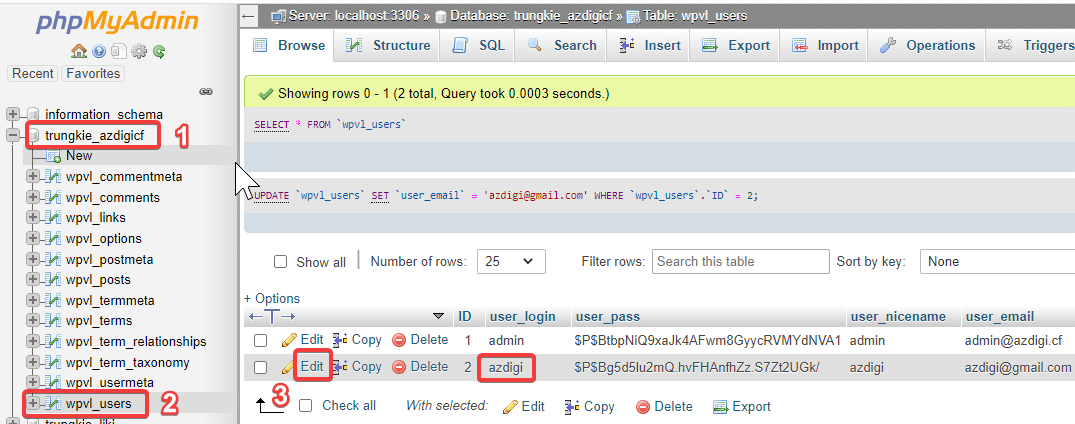
On the left side, you choose the database name of the website (1) => go to the wp_users table (2) => select the user to edit and click Edit (3), change the new email and click Go.
Thus, in this article, AZDIGI has shown you in detail 2 ways to change the website’s admin email and the user’s email in the simplest and fastest way.
You can refer to the email hosting service of AZDIGIhere!
Wishing you success!
- Hotline 247: 028 888 24768 (Ext 0)
- Ticket/Email: You can use your email to register for the service and send it directly to: support@azdigi.com
You might also like
About the author

Thạch Phạm
Đồng sáng lập và Giám đốc điều hành của AZDIGI. Có hơn 15 năm kinh nghiệm trong phổ biến kiến thức liên quan đến WordPress tại thachpham.com, phát triển website và phát triển hệ thống.