In today’s article, AZDIGI will guide you to install WP CLI on HestiaCP with some simple steps. Let’s follow along.
I. Overview
WP-CLI is a set of tools that help developers easily manage installation packages for WordPress websites. With WP-CLI, developers can perform backend tasks easily through the command line.
The tasks that WP-CLI supports can be listed as follows:
- Install, set up, update and remove themes, plugins, widgets.
- Manage posts and comments on the page.
- Manage uploaded media files.
- Manage menus.
- Manage user list.
- Manage cron jobs.
- Manage site options.
II. Install WP CLI on HestiaCP
To install WP CLI on HestiaCP, follow these 2 steps.
Step 1: SSH login to your server
To install WP CLI on HestiaCP, we first need to SSH into your VPS/server as root. If you don’t know how to SSH into your VPS/Server, you can refer to the following tutorial:
Step 2: Install WP CLI on HestiaCP
To install WP CLI on HestiaCP, you need to run the following commands:
curl -O https://raw.githubusercontent.com/wp-cli/builds/gh-pages/phar/wp-cli.phar
php wp-cli.phar --info
chmod +x wp-cli.phar
sudo mv wp-cli.phar /usr/local/bin/wp
wp help --allow-root
Below is an illustration of the process of installing WP CLI on HestiaCP. Please refer to it and see if it’s the same as you.
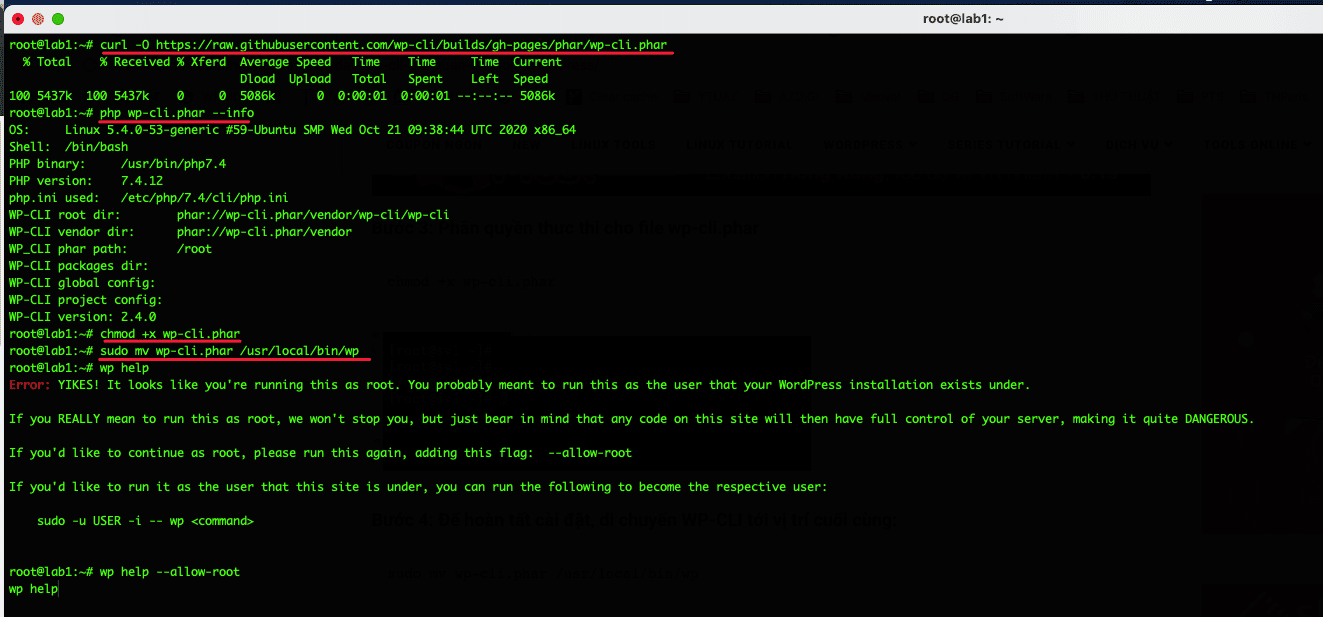
Note: Because you are running as root, you need to add the option –allow-root to run.
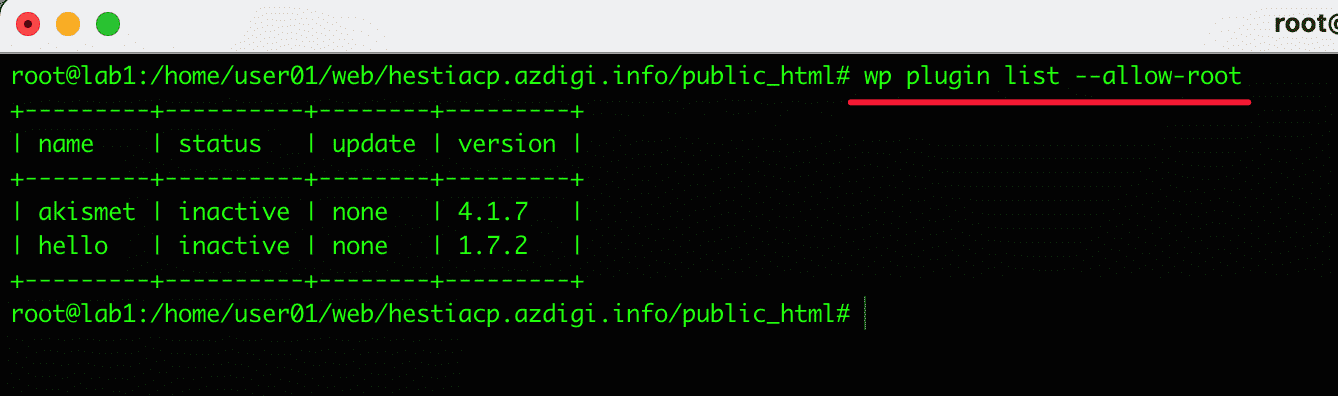
Some illustrations after installing WP CLI on HestiaCP:
Check out the plugin library
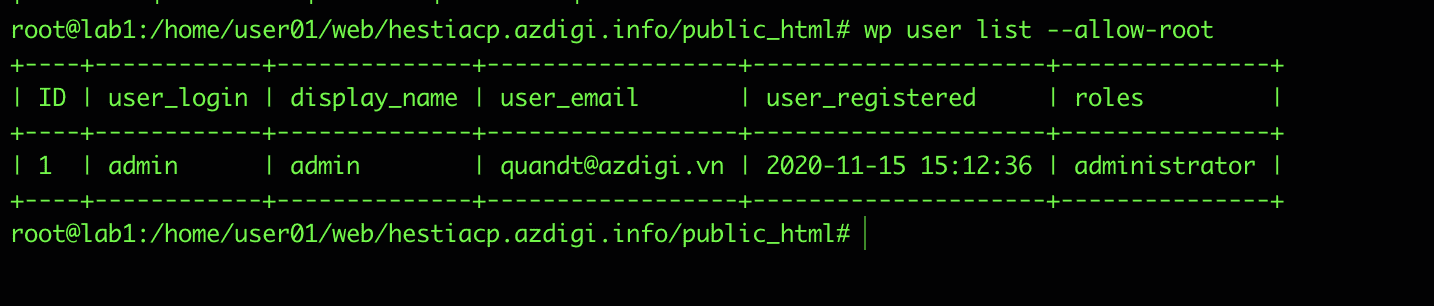
Check the list of users
To learn more about how to use WP-CLI, please refer to the following documents.
III. SUMMARY
Hopefully, this article will help you manage your WordPress website safely and quickly.
In the following articles, AZDIGI will guide you through setting up and installing other advanced options and optimizing your website. Let’s stay tuned!
If you need assistance, you can contact support in the ways below:
- Hotline 247: 028 888 24768 (Ext 0)
- Ticket/Email: You use the email to register for the service and send it directly to: support@azdigi.com .
You might also like
About the author

Thạch Phạm
Đồng sáng lập và Giám đốc điều hành của AZDIGI. Có hơn 15 năm kinh nghiệm trong phổ biến kiến thức liên quan đến WordPress tại thachpham.com, phát triển website và phát triển hệ thống.