Why downgrade the Plugin version?
With the WordPress open source code growing stronger and constantly for new updates, Plugin developers must continuously upgrade and give new Plugin updates to be best compatible with WordPress. Constantly upgrading Plugins to the latest versions, is fine in theory, but for a small number of users, it creates some unexpected problems like compatibility errors with other Plugins/Themes on the same website.
The best solution for this case is that you should downgrade the plugin version you just upgraded to restore compatibility and stability for the whole website. So how to downgrade the Plugin version? In this article, AZDIGI will guide you on how to do it. please follow along.
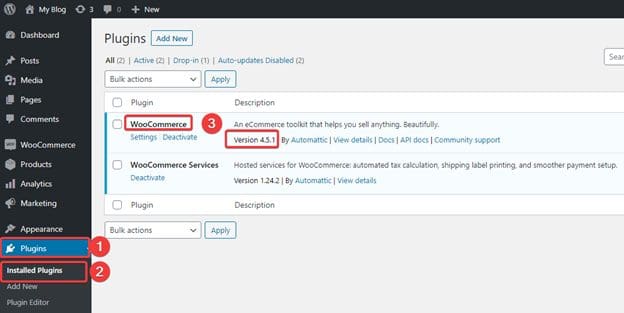
AZDIGI will do an example with the WooCommerce plugin. First, we need to check the current version of the plugin. You go to Plugins => Installed Plugins (As shown below, WooCommerce is version 4.5.1)

Method 1: Re-upload the old plugin version manually
Step 1: Download Plugin versions at WordPress.Org
First, visit the link https://wordpress.org/plugins/ to find and download the Plugin with all versions.


Next, click on Advanced View.

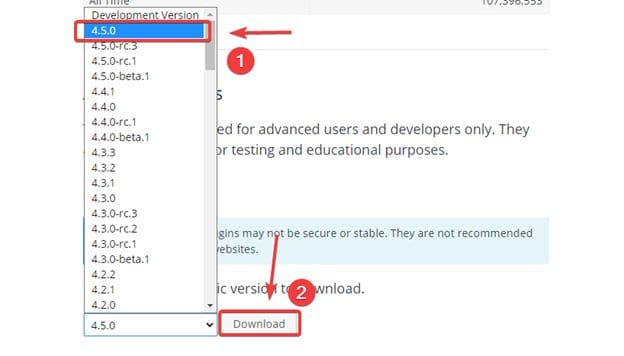
You scroll to the bottom of the page, in the PREVIOUS VERSIONS section, you select the required plugin version and download it.
Step 2: Upload the old version to Host/VPS
You use FTP or File Manager of Host/VPS to upload the Plugin file downloaded in Step 1, and the path you need to upload is yourdomain.com/wp-content/plugins.


So the upload is completed, the old Plugin version has overwritten the current version, now you go back to the website admin to check.

As shown below, has successfully downgraded WooCommerce from version 4.5.1 => 4.5.0.
Method 2: Using WP Rollback Plugins
At the admin page, go to Plugins (1) => Add New (2) => Search for WP Rollback plugin (3) => Install Now (4) => Activate.

After activating the Plugin is complete, you access Plugins (1) => Installed Plugins (2) => Rollback (3)

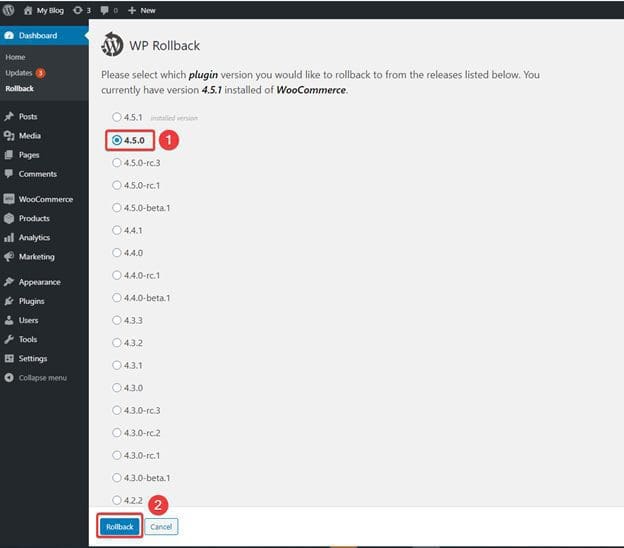
Next, you choose the version to downgrade (1) => Rollback (2)
=> click Activate Plugin.
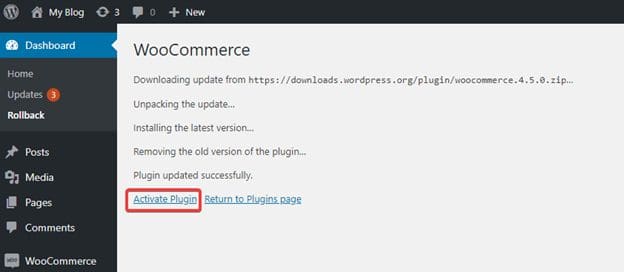
So you have downgraded the Plugin with WP Rollback complete, now you go back to the WordPress admin page and recheck the version.
Method 3: Using WP-CLI
If the Server/VPS/Hosting you are using supports the Command and has WP-CLI installed, you can downgrade WordPress via WP-CLI with a simpler and faster operation than the above two methods.
You open your Command window and move to the folder containing the website source code and use the following commands:
- Check the current version of the plugin.
wp plugin list
[trungkie@chv10-24851 azdigi.cf]$ wp plugin list
+----------------------+----------+--------+---------+
| name                 | status   | update | version |
+----------------------+----------+--------+---------+
| woocommerce          | active   | none   | 4.5.1   |
| woocommerce-services | active   | none   | 1.24.2
- Downgrade plugin version
wp plugin update woocommerce --version=4.5.0
[trungkie@chv10-24851 azdigi.cf]$ wp plugin update woocommerce --version=4.5.0
Installing WooCommerce (4.5.0)
Downloading installation package from https://downloads.wordpress.org/plugin/woocommerce.4.5.0.zip...
Unpacking the package...
Installing the plugin...
Removing the old version of the plugin...
Plugin updated successfully.
Success: Installed 1 of 1 plugins.
[trungkie@chv10-24851 azdigi.cf]$ wp plugin list
+----------------------+----------+-----------+---------+
| name                 | status   | update    | version |
+----------------------+----------+-----------+---------+
| woocommerce          | active   | available | 4.5.0   |
| woocommerce-services | active   | none      | 1.24.2  |
| wp-rollback          | inactive | none      | 1.7.1   |
| advanced-cache.php   | dropin   | none      |         |
+----------------------+----------+-----------+---------+
So you have successfully downgraded WooCommerce Plugin from version 4.5.1 => 4.5.0 with WP-CLI.
Summary
Thus, AZDIGI has shown you some of the simplest methods to downgrade the plugin version, you can choose which way suits your situation and the ability to do it. If you find the article useful, you can share it widely!
Wishing you success!
If you need assistance, you can contact support in the ways below:
About the author

Thạch Phạm
Đồng sáng lập và Giám đốc điều hành của AZDIGI. Có hơn 15 năm kinh nghiệm trong phổ biến kiến thức liên quan đến WordPress tại thachpham.com, phát triển website và phát triển hệ thống.