In this article, AZDIGI will guide you to fix the error: Error establishing a database connection when accessing your WordPress website. This error is displayed because your WordPress website cannot connect to the database server, so to handle this error, we will have several cases:
- WordPress website cannot connect to the database due to wrong connection information.
- The database prefix does not match the
$table_prefixvalue declared in wp-config.phbp - The server is overloaded, causing the MySQL service can’t work.
- If using VPS/Dedicated Server, there may not be enough hard disk space for MySQL to write data.
Check connection information in wp-config.php
In the WordPress source code, wp-config.php is the most important file. This is where you define the details for WordPress to connect to your database. If you change the MySQL database password, you need to update the database information again. The database information section of a page has the following form:
define('DB_NAME', 'database-name');
define('DB_USER', 'database-username');
define('DB_PASSWORD', 'database-password');
define('DB_HOST', 'localhost');
Your DB_Host value may not be localhost but depending on the host, it will be different. Usually, shared hosting has a value of localhost. If you are using MySQL remote from another site you may need to keep an eye on updates.
If everything in the wp-config.php file is correct (be sure to check for typos), then there is definitely something wrong with your hosting/server setup.
Check User and Database permissions
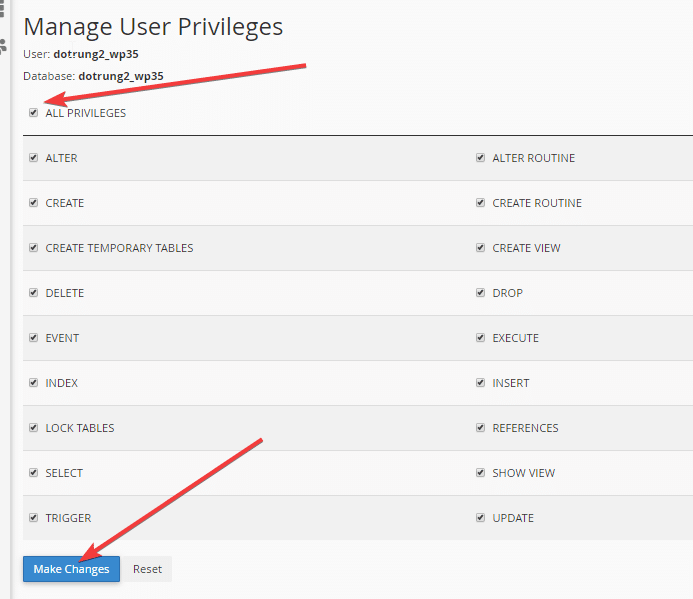
You need to make sure that the user configured in wp-config.php has full permission to manipulate the database. And in cPanel, you update the permissions as follows:
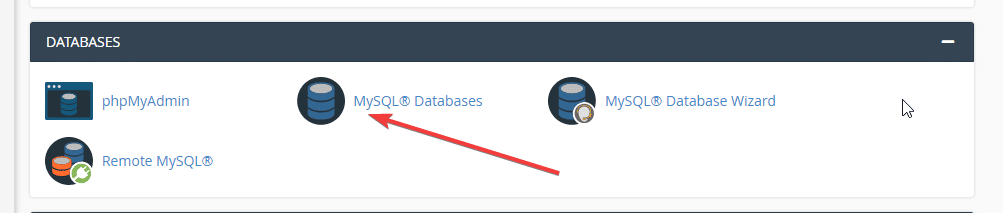
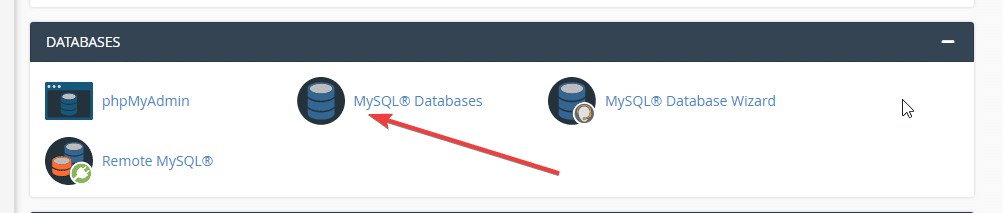
- You check the database permissions for users inside the MySQL admin page.
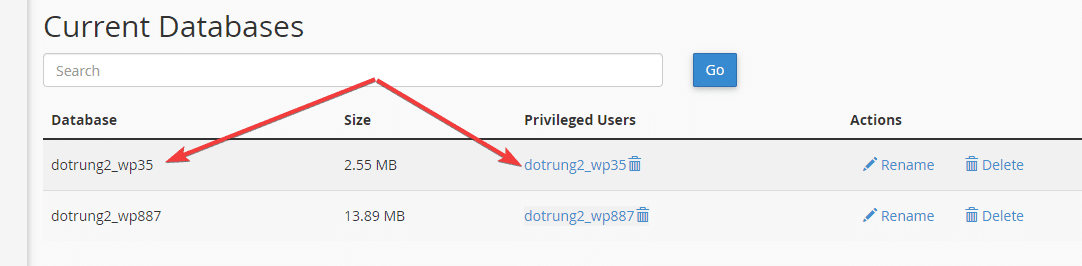
- You check if the user has full rights to the database in the Add User To Database section
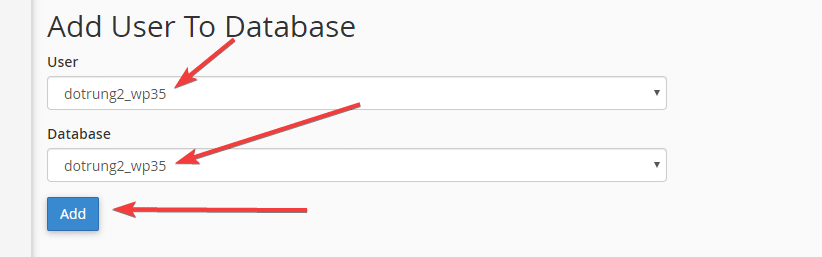
- You click the tick on full permissions and click Change.
Check table prefix value
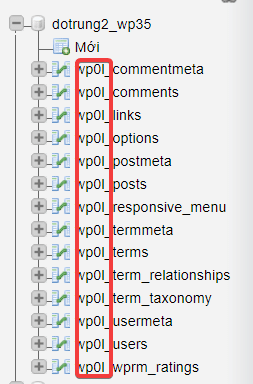
You should make sure that your prefix value is set to the same as on the database, for example, in wp-config.php the value:
$table_prefix = 'wp_';
On my database must also be the correct wp_. As shown below, I set it as wp0l_
- Note: You can set it as you like
Check that the mysql extension in PHP is enabled.
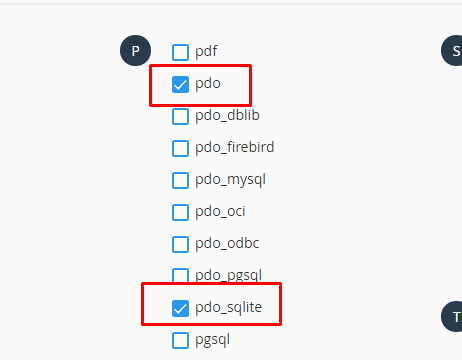
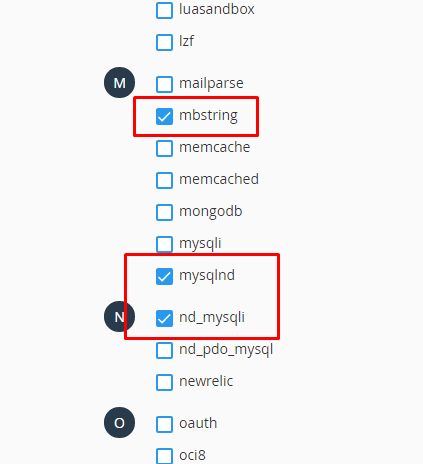
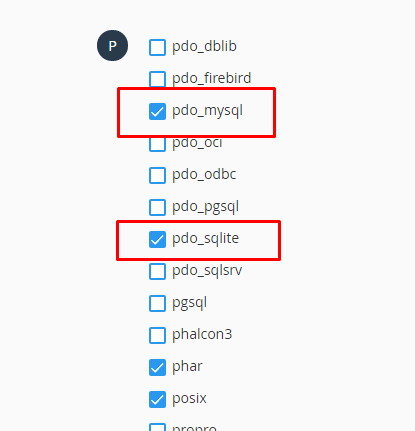
Check PHP’s Mysql, Mysqli extension. Hosting using Cloudlinux will be equipped with a PHP Selector function that allows enabling/disabling PHP Extension. Now you need to check if the Mysql Extension is enabled or not.
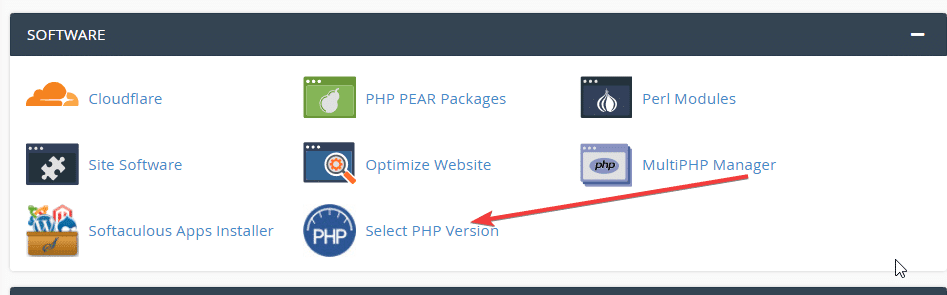
- For PHP 5, you need to make sure the following extensions are enabled:
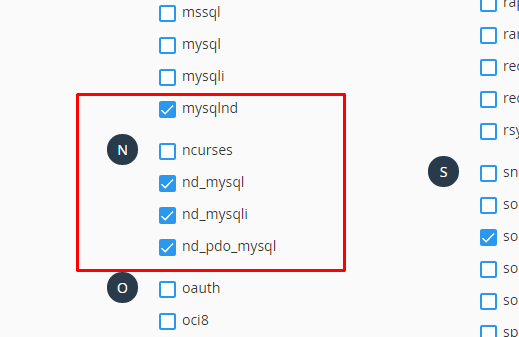
- For PHP 7.x, you need to make sure the following extensions are enabled:
Try Repair WordPress Database
Maybe sometimes your database error, you can try to fix the database error by adding the following line to the file: wp-config.php
define('WP_ALLOW_REPAIR', true);
Then you access the link: https://tên_web_site_của_bạn.com/wp-admin/maint/repair.php
If all of the above methods fail, you can contact your hosting administrator to support you.
You might also like
- Fix Database Table Missing Primary Key error on WordPress
- Fixing the error of not posting posts when scheduling on WordPress
- How to fix error: website redirects too many times in WordPress
- Fixing the robots.txt file is not writable error when using Rank Math
- How to clone WordPress source code manually
- Fix the "The following scheduled events failed to run" error
About the author

Thạch Phạm
Đồng sáng lập và Giám đốc điều hành của AZDIGI. Có hơn 15 năm kinh nghiệm trong phổ biến kiến thức liên quan đến WordPress tại thachpham.com, phát triển website và phát triển hệ thống.