Turbo Cloud Server is a private virtual server solution on the Cloud Computing platform with outstanding performance, high speed, and the best security on the KVM full virtualization platform. Suitable for all user needs such as Webserver, VPN, Remote Workstation, etc.
In this tutorial, AZDIGI will guide you to perform some basic Actions on the service administration page. Let’s follow and perform with AZDIGI.
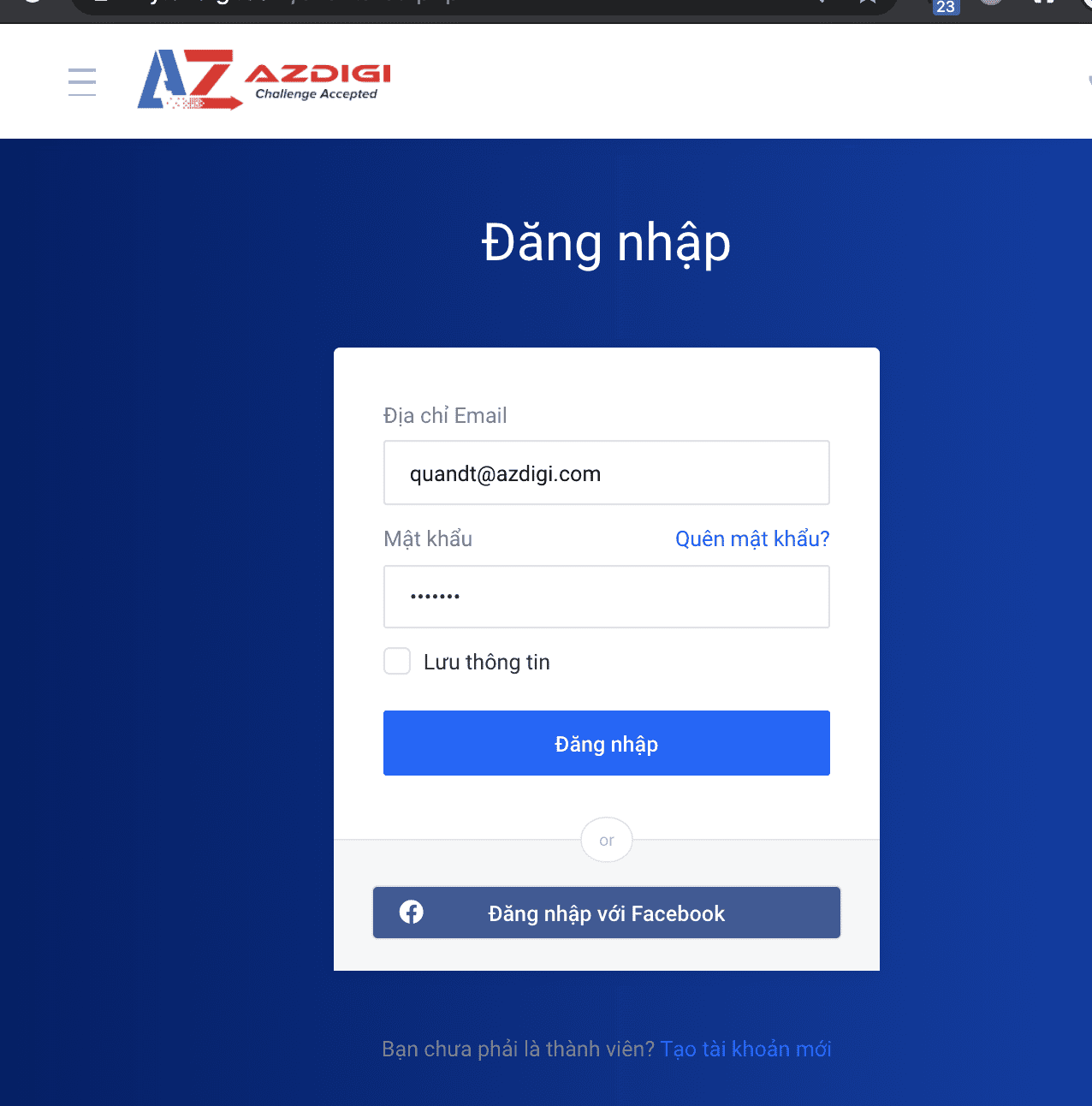
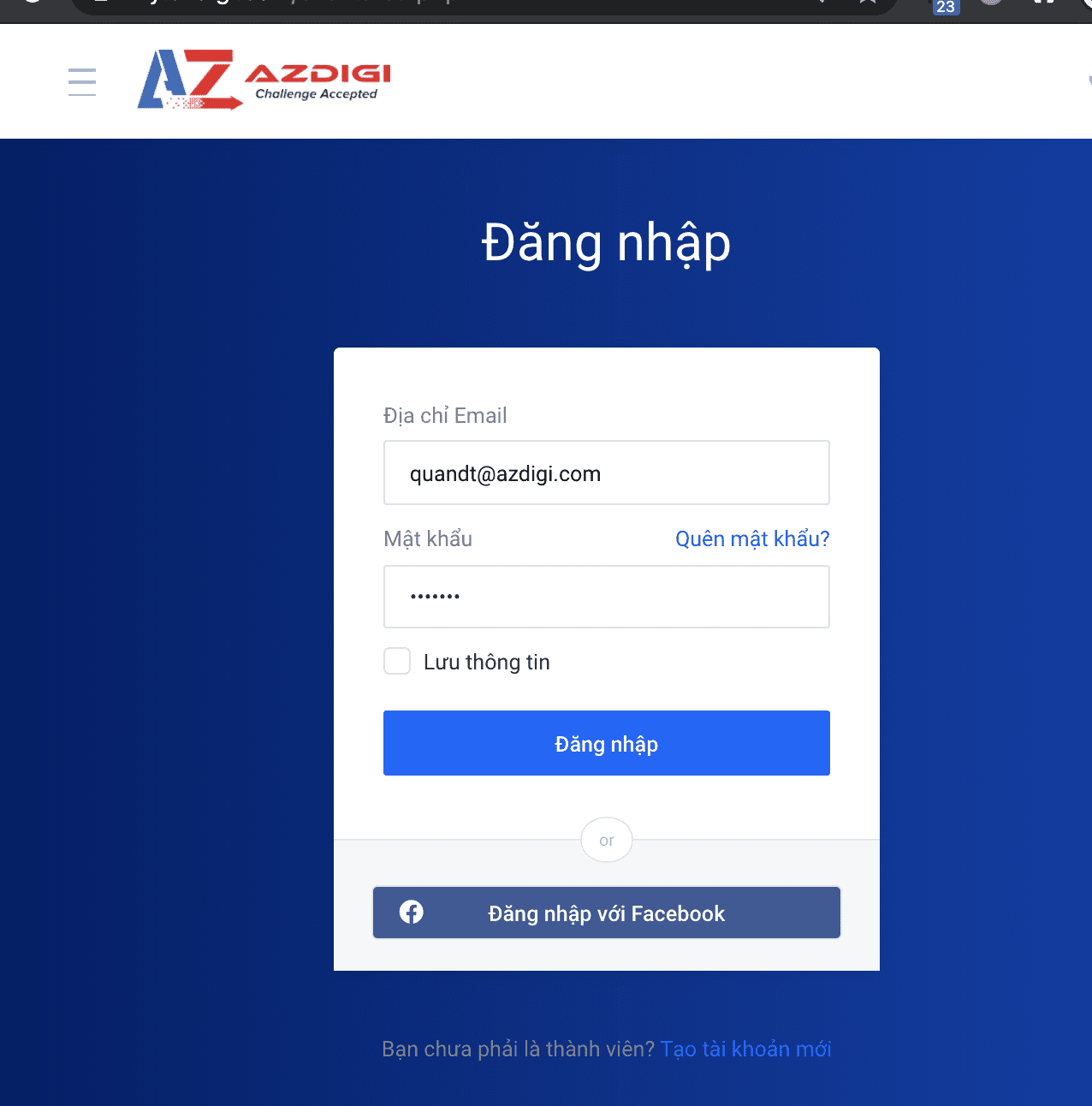
Step 1: Login to admin.
First you need to log in to the AZDIGI service admin page at https://my.azdigi.com/clientarea.php
Step 2: Important Actions
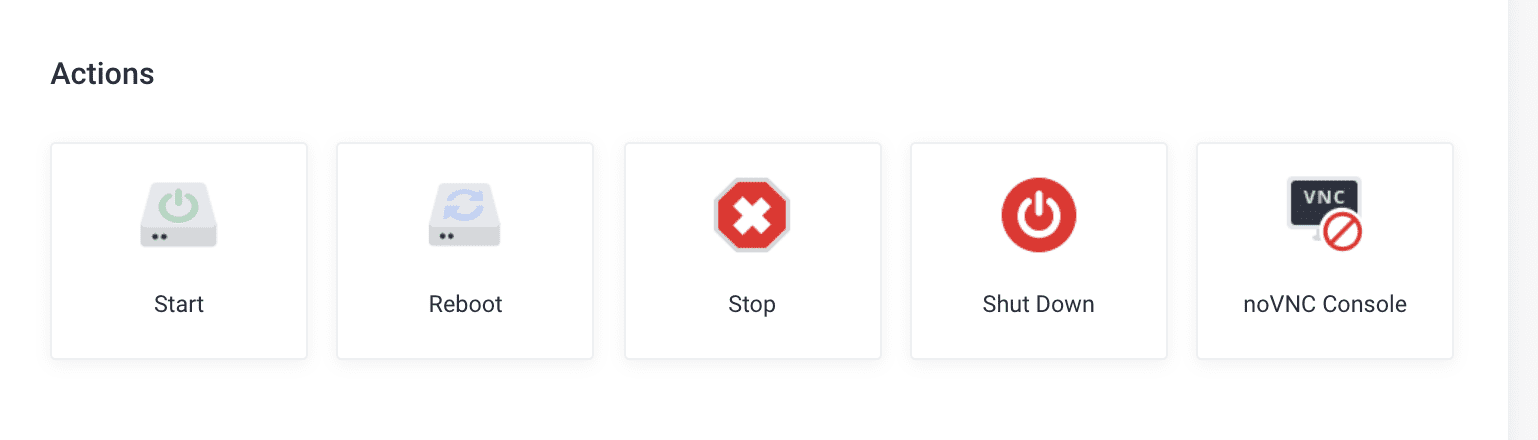
Below are some important Actions, AZDIGI will describe each Action for you to understand the functions better.
1. Start
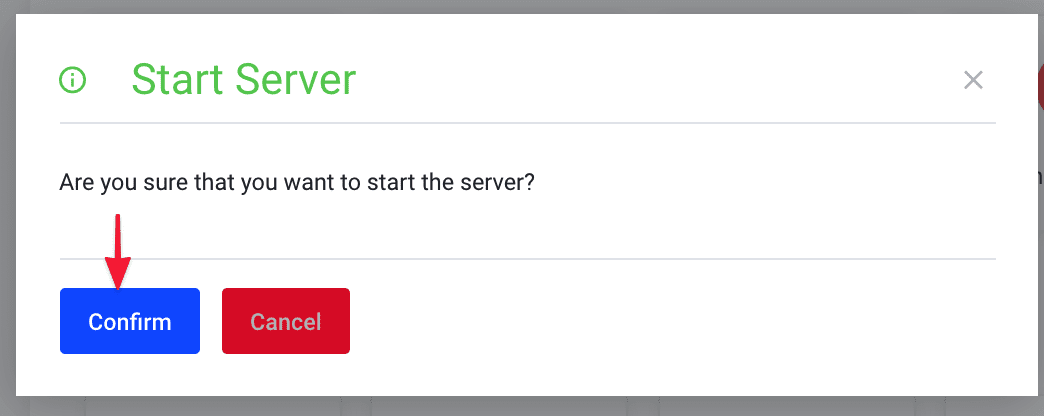
To turn on the server, you click on the Start action, then a message pops up asking if you are sure to start the server, click Confirm.
2. Reboot
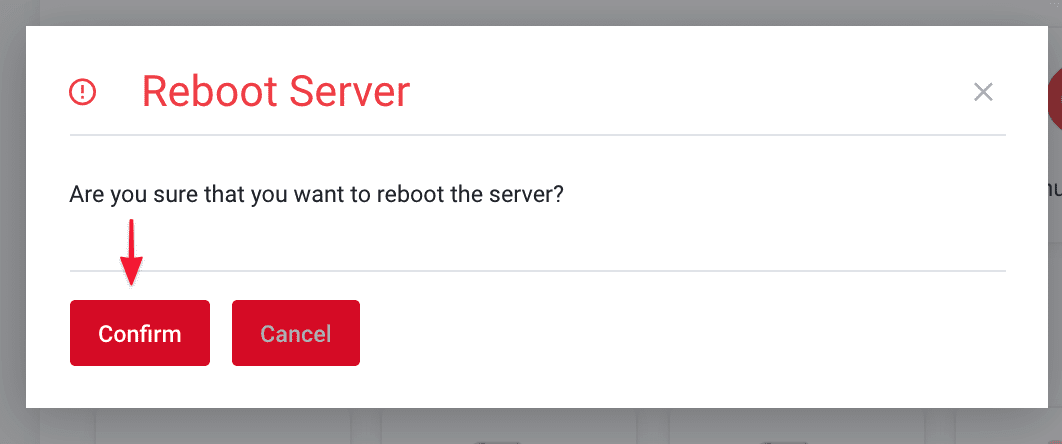
In some cases, when you perform installation tasks and need to Reboot the server, you can quickly boot on the interface by clicking Action => Reboot, then a message pops up asking if you are sure to reboot the server, click Confirm.
3. Stop
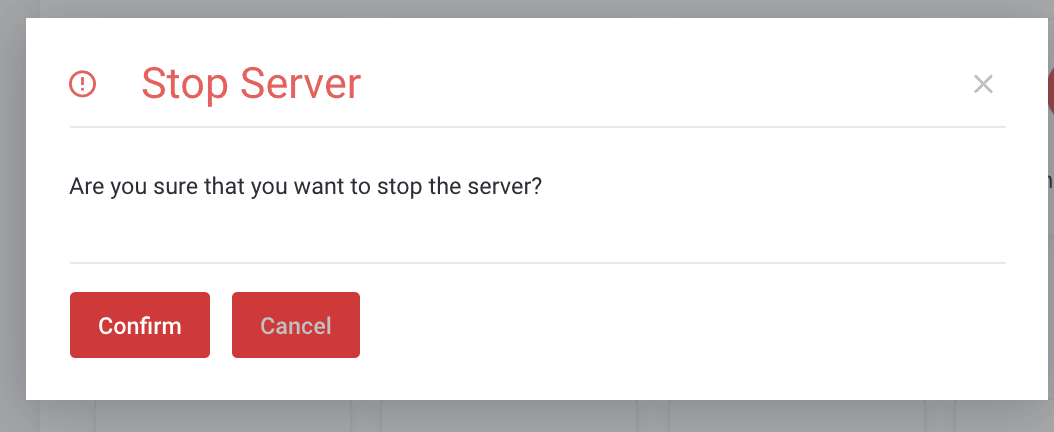
If you need to Stop the server, you can use this action to Stop it suddenly. However, this is a potentially harmful action while the server is running. Do đóTherefore you should use Shut Down and when the server is in a STOP state, you will turn it back on by clicking the START button.
4. Shut Down
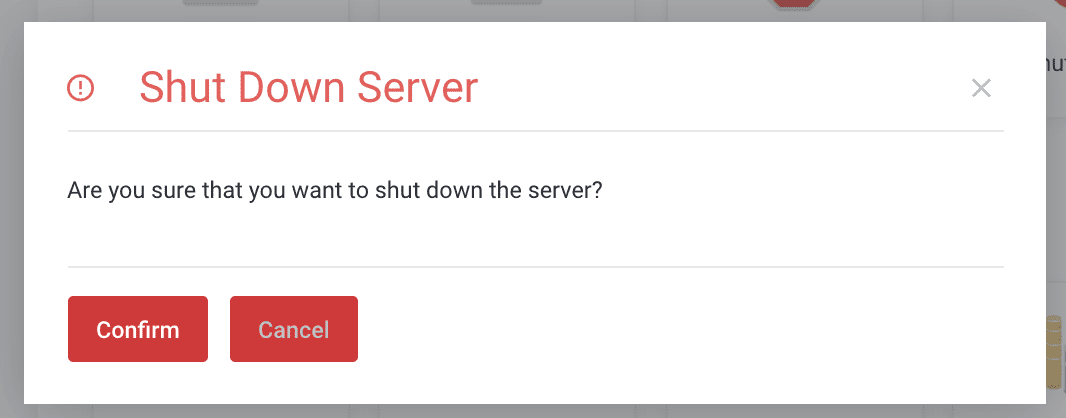
When you want to shut down the server, click Shut Down action. This action will close in-progress tasks until the shutdown is complete and will Shut Down. When the server is in Shut Down state and you want to turn it back on, use the Start action to turn it on.
5. VNC Console
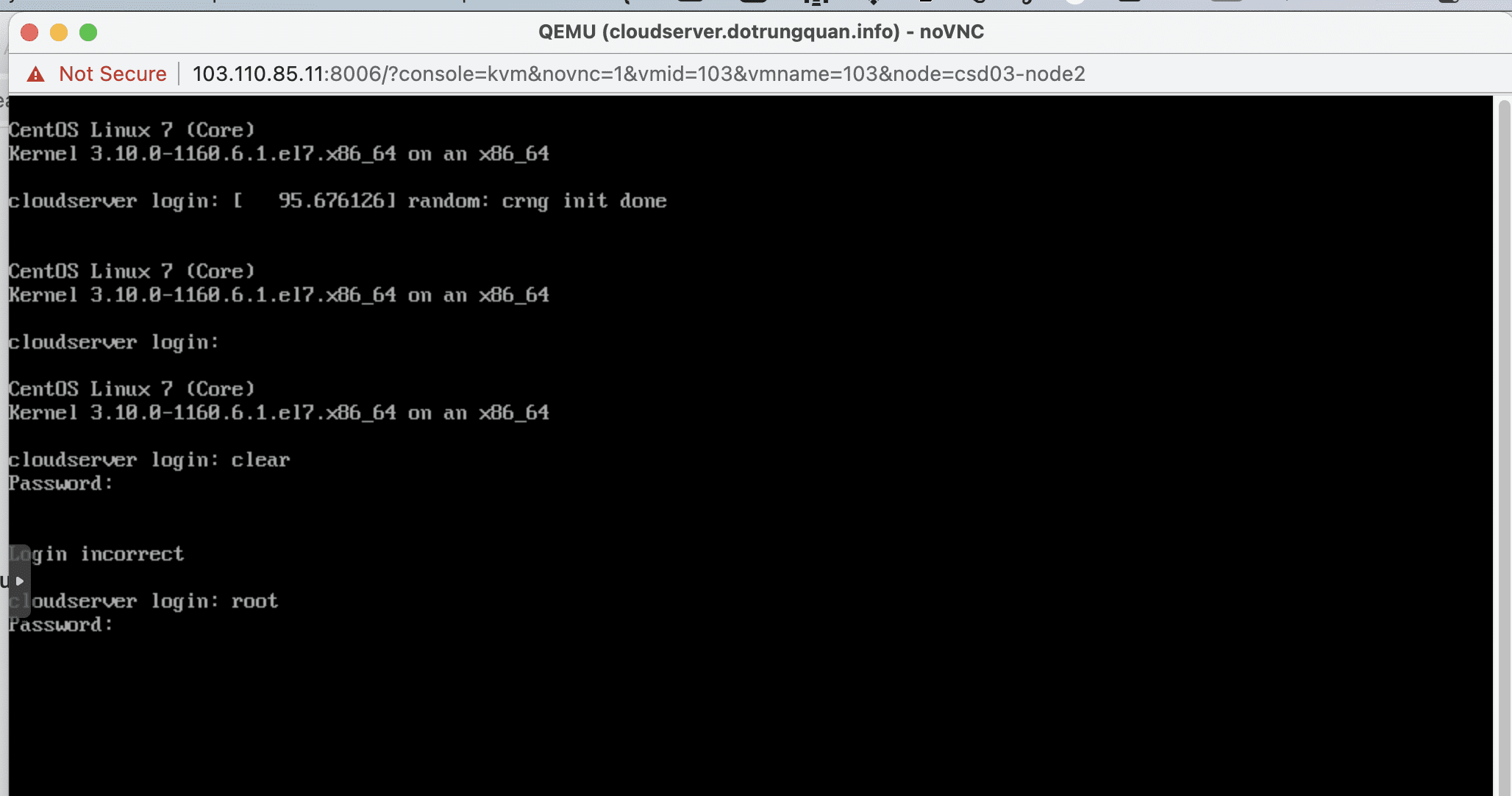
In some cases, you cannot access the server via SSH protocol because of a service or file system error, with VNC, you can still access it to check and fix it.
Please click on noVNC Console to enter the Console.
If you have questions or need technical support. Please contact the Technical Department using the information below.
Technical Department contact information
- Hotline 247: 028 888 24768 (Ext 0)
- Ticket/Email: You use the email to register for the service and send it directly to: support@azdigi.com .
You might also like
About the author

Thạch Phạm
Đồng sáng lập và Giám đốc điều hành của AZDIGI. Có hơn 15 năm kinh nghiệm trong phổ biến kiến thức liên quan đến WordPress tại thachpham.com, phát triển website và phát triển hệ thống.