Ngay sau khi bạn nhận được thông tin tài khoản dịch vụ SEO Hosting tại AZDIGI qua email, bạn có thể tham khảo hướng dẫn bên dưới để biết cách sử dụng nhiều IP trên gói dịch vụ Hosting của bạn.
Mặc định mỗi gói host khi tạo ra sẽ sử dụng IP Chung của máy chủ, để sử dụng IP khác cho mỗi website bạn phải thực hiện theo hướng dẫn bên dưới.
Trỏ tên miền về nameserver của SEO Hosting
Để đảm bảo hoạt động ổn định và bạn muốn thay IP liên tục nhưng thì bạn nên trỏ tên miền về cặp nameserver của dịch vụ SEO Hosting tại AZDIGI như sau:
ns1-seohosting.azdigi.com
ns2-seohosting.azdigi.com
Khi trỏ tên miền về cặp nameserver này, website của bạn sẽ tự trỏ về IP mới khi bạn thực hiện đổi IP.
Thay đổi IP cho tên miền chính của host
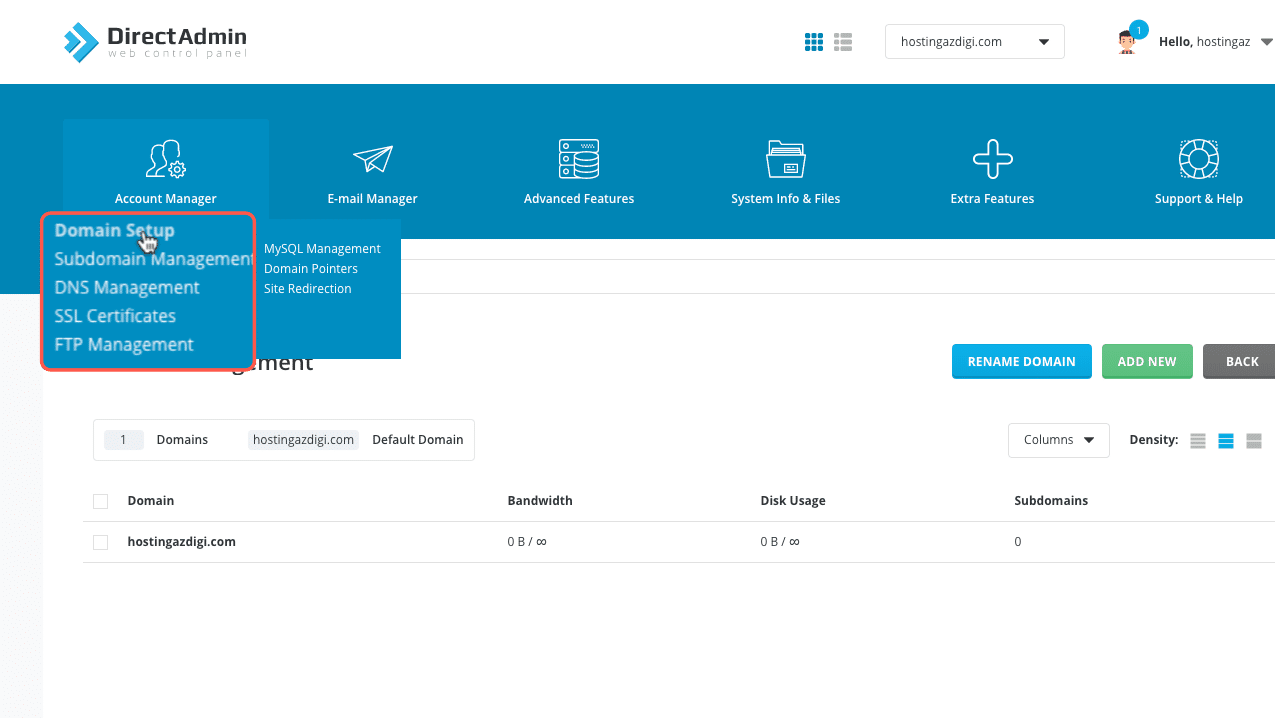
Ngay sau khi đăng nhập vào DirectAdmin theo thông tin gửi qua mail, bạn truy cập vào mục Account Manager => Domain Setup.
Sau đó nhấp vào tên miền của bạn.
Chọn Assigned IPs để vào trang quản lý các IP của tên miền này.
Chọn Add IP.
Sau đó chọn một IP mà bạn muốn sử dụng cho tên miền này. Số lượng IP sẽ tùy thuộc vào gói dịch vụ của bạn. Sau khi chọn một IP cần sử dụng, hãy chắc chắn rằng là đã đánh dấu vào mục Add DNS records for this IP, rồi ấn nút ADD IP để thêm vào tên miền.
Và hãy xóa IP cũ đi, vì một website có thể chạy 2 IP nhưng chỉ có IP phân giải ra đầu tiên là sử dụng nên dùng nhiều IP cho một domain sẽ không có khác gì.
Thay đổi IP cho tên miền phụ
Để thay đổi IP cho tên miền phụ của gói host thì bạn cũng làm như trên. Nghĩa là đầu tiên bạn cần truy cập vào Account Manager => Domain Setup và ấn nút ADD NEW để thêm tên miền vào. Sau đó thực hiện lại các bước như trên.
Vậy là bạn đã sửa IP cho website thành công. Để kiểm tra lại bạn có thể truy cập vào https://www.dnswatch.info và nhập tên miền bạn cần kiểm tra vào, xem DNS có trả về IP của bạn vừa đổi hay chưa.
About the author

Thạch Phạm
Đồng sáng lập và Giám đốc điều hành của AZDIGI. Có hơn 15 năm kinh nghiệm trong phổ biến kiến thức liên quan đến WordPress tại thachpham.com, phát triển website và phát triển hệ thống.