In today’s tutorial, AZDIGI will help you change the Default Website Page DirectAdmin to a new interface you like, thereby easily transmitting the information you need, thereby easily transmitting the information you need.
I. Introduction
When a domain is pointed to your DirectAdmin server IP but not the correct IP of the hosting package or because the service pack doesn’t exist or because the domain name hasn’t been added to the host, when accessing the domain, you will receive the message the following defaults.
For the DirectAdmin server using Apache.
Apache is functioning normally
For the DirectAdmin servers use Nginx or reverse-proxy NGINX_Apache.
Nginx is functioning normally
For the DirectAdmin servers using OpenLiteSpeed.
Openlitespeed is functioning normally
This message doesn’t mean much to our customers.
For hosting at AZDIGI, customers will receive a clearer message, you can refer to the image below:
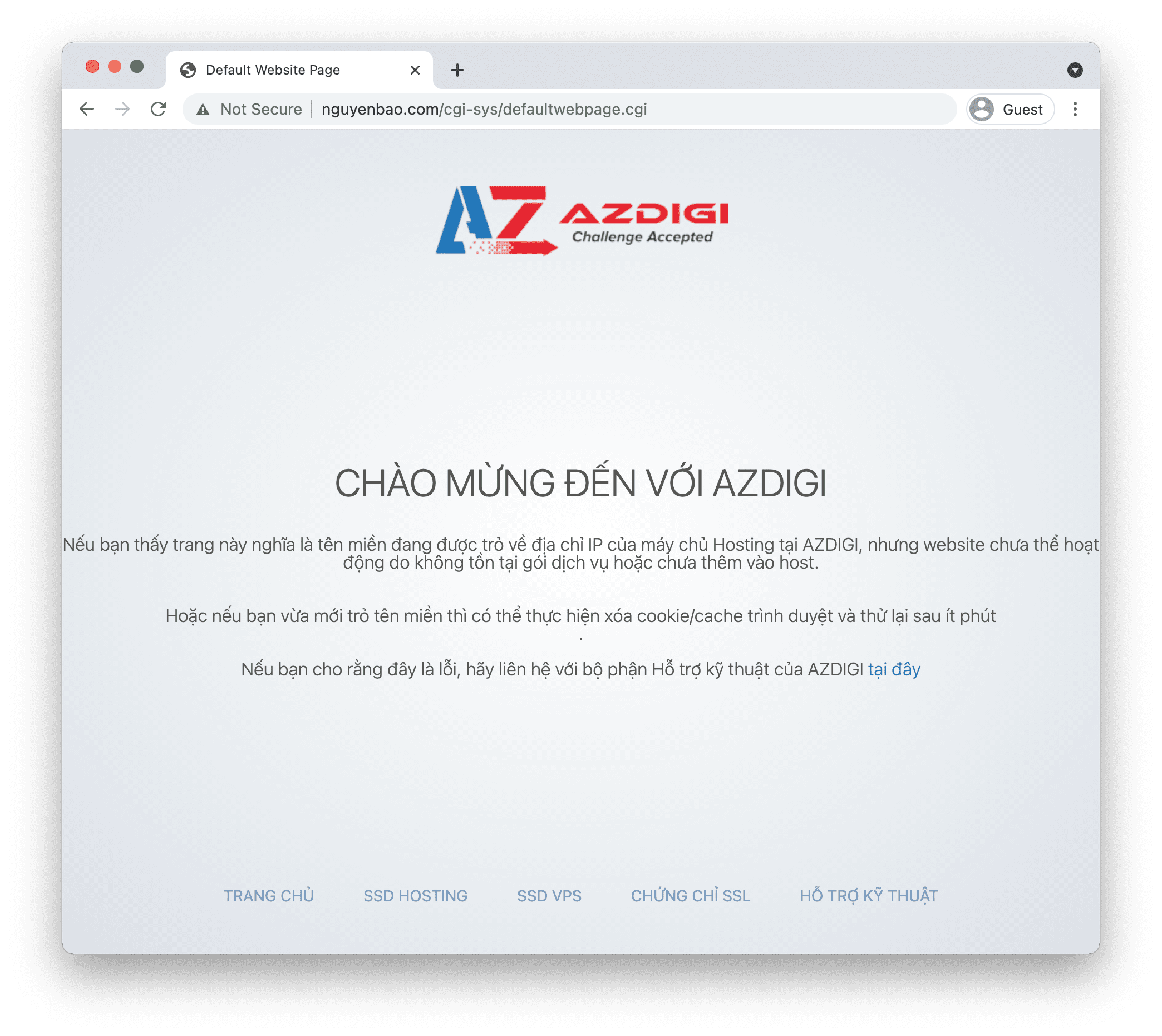
It’s very easy to understand and clear, isn’t it? In this article, AZDIGI will guide you to change the Default Website Page DirectAdmin to the page you want to display.
Note: To continue following this article, you should have an index.html file with the content you want to display, or you can use my file:
II. Change Default Website Page DirectAdmin
To change the Default Website Page DirectAdmin page, we need to follow these 2 steps.
Step 1: Connect sFTP to DirectAdmin server with root user information
Since we just need to replace the default index.html file, we won’t need to SSH into the server.
I will use FileZilla – the most used FTP Client software, to make the connection.
You need to fill in the following information to be able to connect:
- Host: sftp://IP
- Username: root
- Password: Your server root password
- Port: Your SSH port, defaults to 22 if you haven’t changed it.
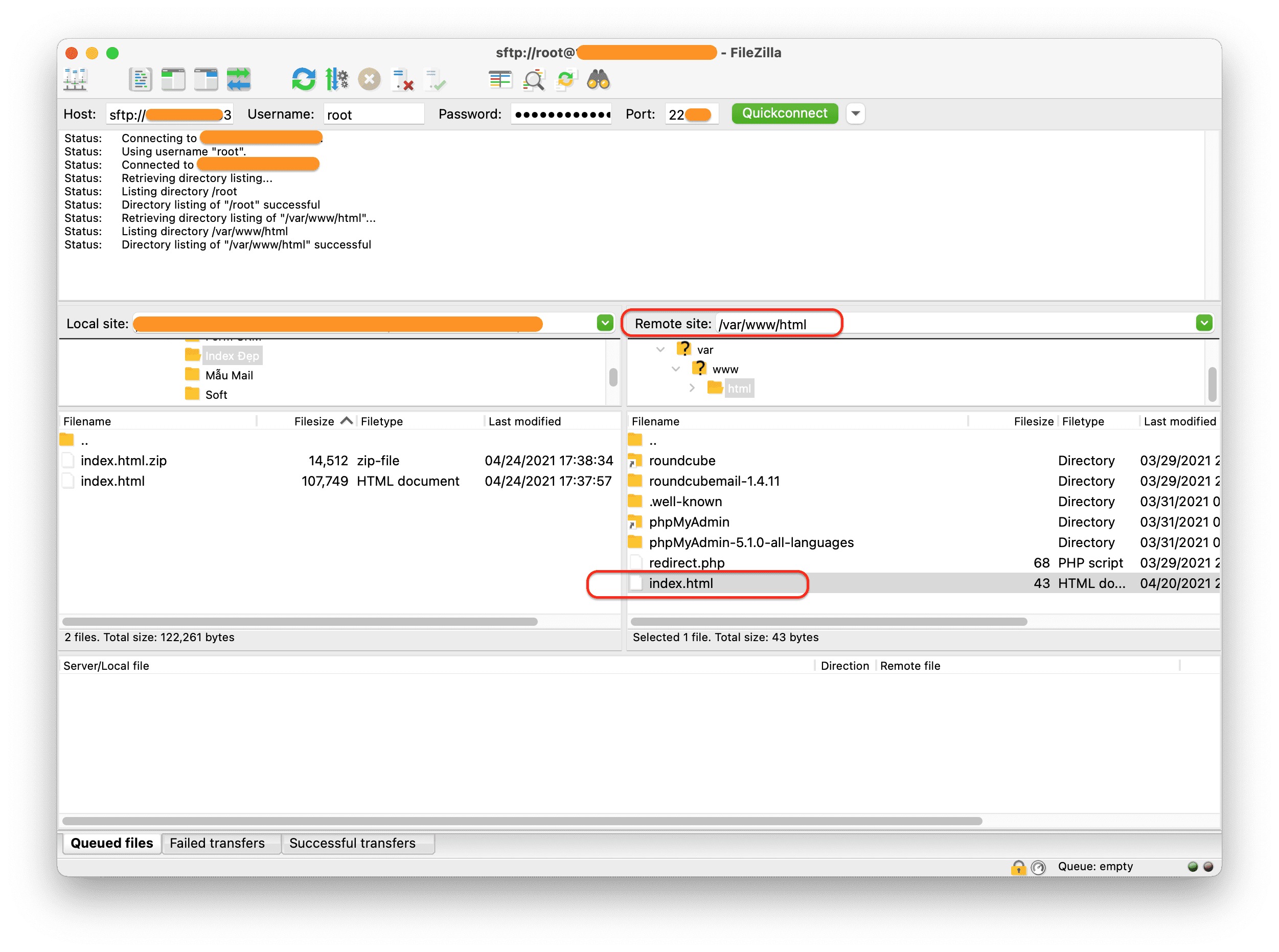
Once you have successfully accessed it, go to the path /var/www/html and replace the index.html file with the one you prepared.
Step 2: Recheck the Default Website Page
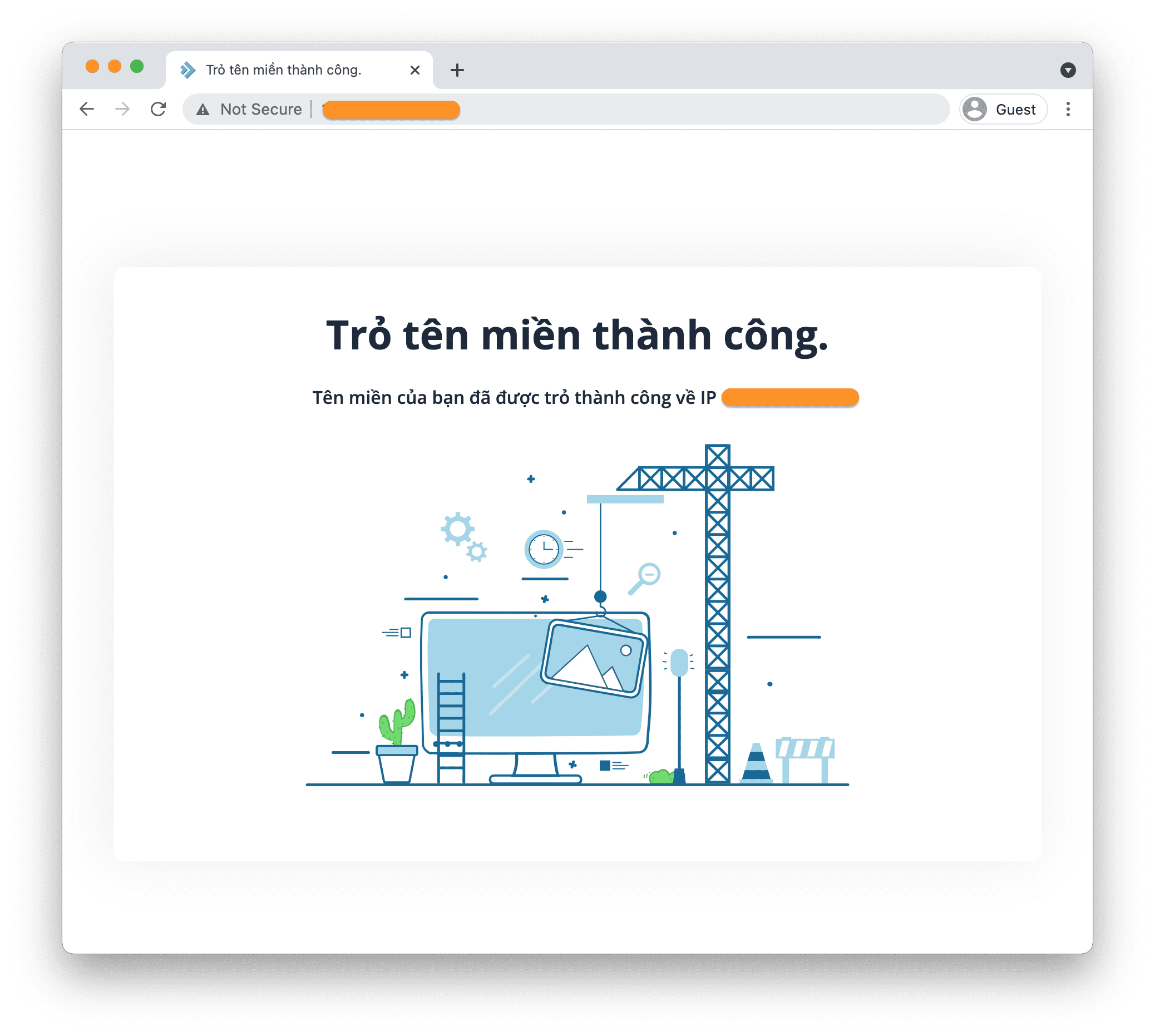
To check, you just need to enter your server’s IP address into your browser and access it, you will immediately see your content page.
Here is my replaced index.html page:
III. Summary
Hopefully, this article will help you convey helpful information to your customers, so please make good use of it.
Wishing you success. See more useful articles about DirectAdmin at the following link:
If you need assistance, you can contact support in the ways below:
- Hotline 247: 028 888 24768 (Ext 0)
- Ticket/Email: You use the email to register for the service and send it directly to: support@azdigi.com .
You might also like
- Allow showing the list of files in the website directory on DirectAdmin
- Change default page when accessing IP on aaPanel
- Install mod_sftp into ProFTPD on DirectAdmin
- Change the Suspended page on DirectAdmin
- How to create and use FTP on DirectAdmin
- How to install the available source code to Webinoly
About the author

Thạch Phạm
Đồng sáng lập và Giám đốc điều hành của AZDIGI. Có hơn 15 năm kinh nghiệm trong phổ biến kiến thức liên quan đến WordPress tại thachpham.com, phát triển website và phát triển hệ thống.