In this tutorial, AZDIGI will guide you on how to increase the upload file size limit on DirectAdmin’s File Manager.
I. Introduction
By default, when you first install DirectAdmin, the maximum file size allowed for upload in the File Manager interface is only 500MB. Even with Admin, Reseller or User rights, it is the same.
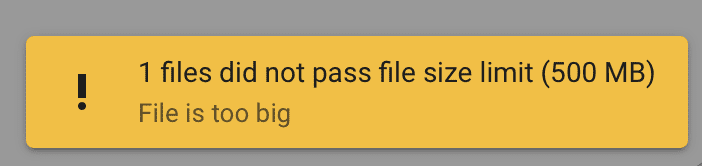
If you try to download a file larger than this 500MB limit, you will receive the following message:
1 files did not pass file size limit (500 MB)
File is too big
To increase the upload file size limit on DirectAdmin’s File Manager, we need to perform the following steps:
II. Increase the upload file size limit on DirectAdmin’s File Manager
To increase the upload file size limit on DirectAdmin’s File Manager, we need to perform the following 3 steps.
Step 1: Log in to DirectAdmin as Admin
To login to DirectAdmin, you access the following path:
http://IP:2222
Remember to replace the IP with your DirectAdmin server IP address.
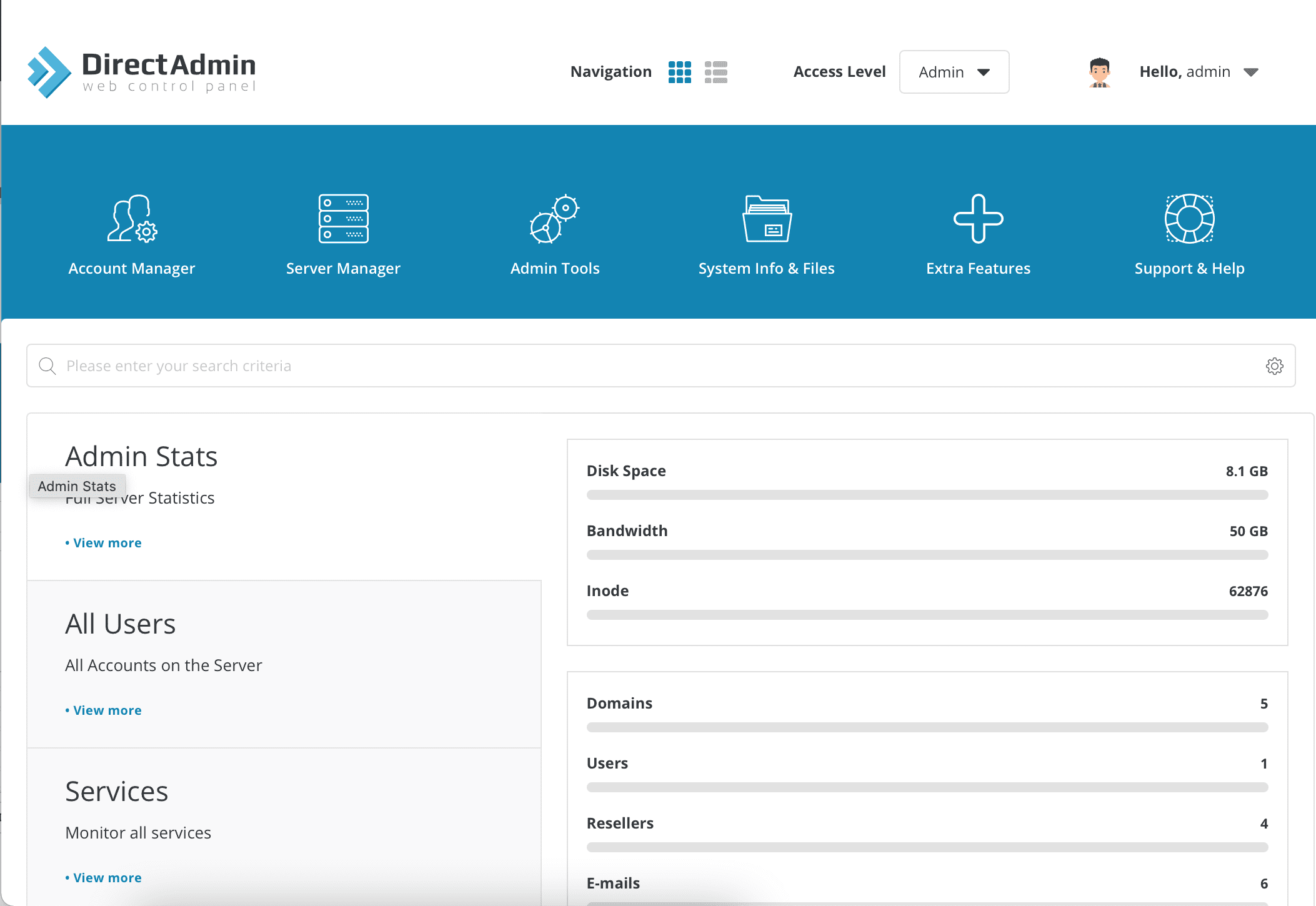
Below is my DirectAdmin interface:
Next, we move on to step 2 to modify the configuration to increase the upload file size limit on DirectAdmin’s File Manager.
Step 2: Change admin configuration to increase upload size
At this interface, go to the Server Manager feature => select Administrator Settings.
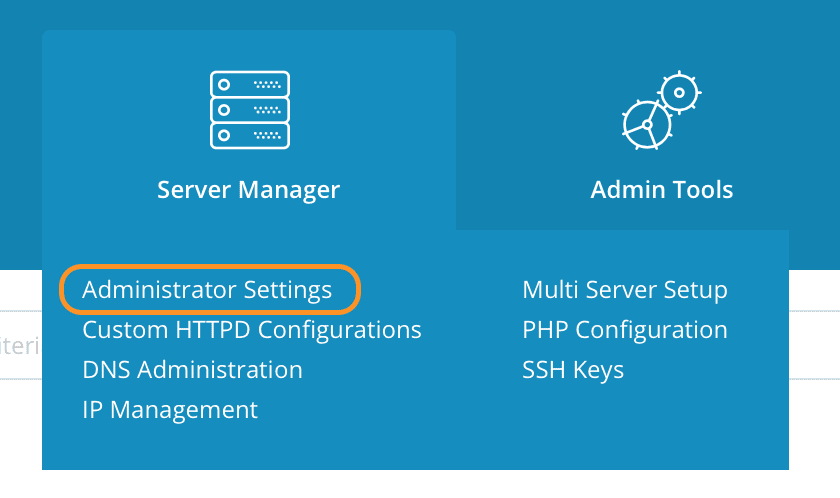
At the Administrator Settings interface, select Server Settings (1) and change the amount of space you need (2), as shown below:
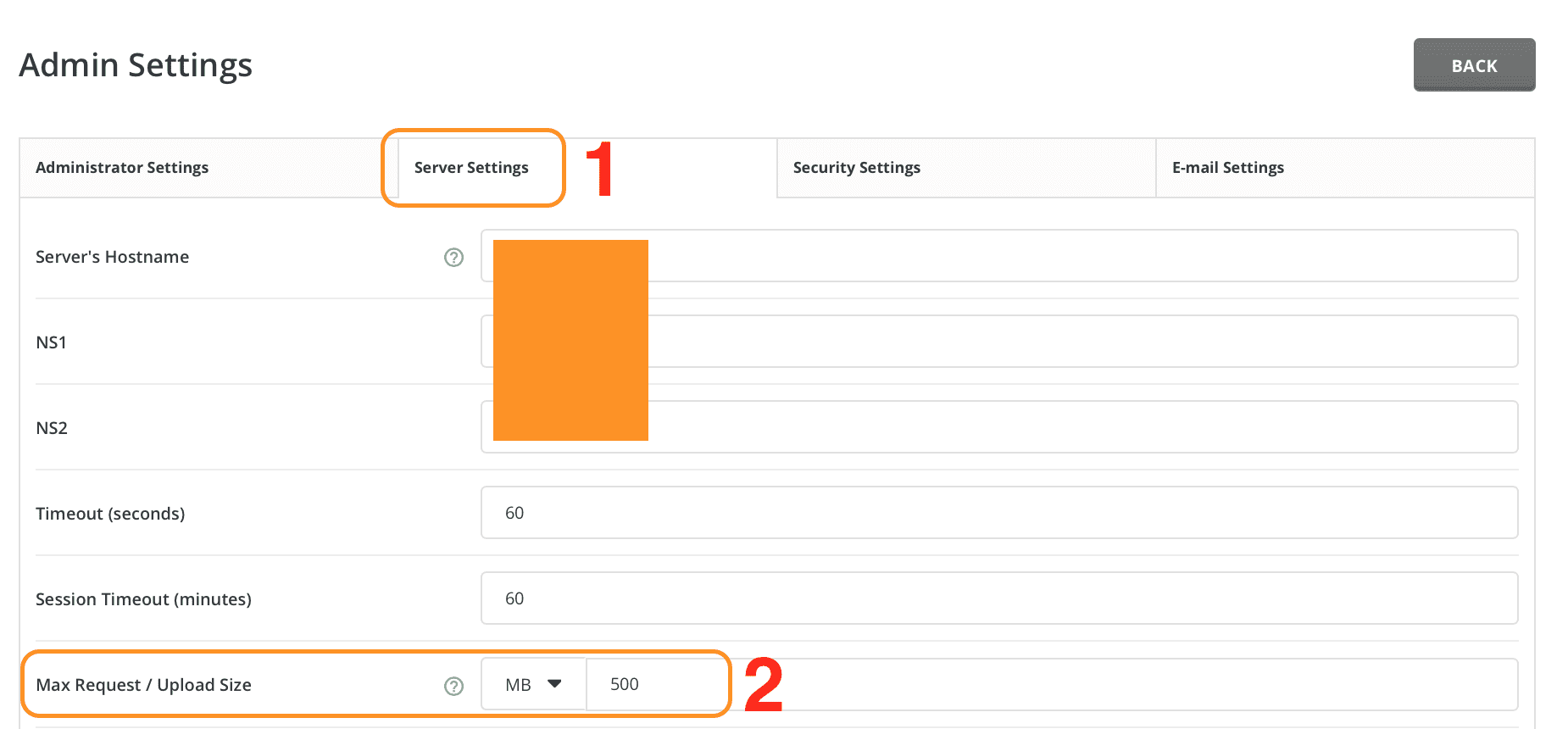
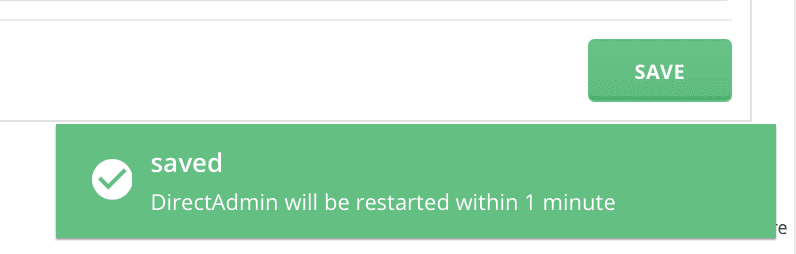
I will change the unit to GB and adjust the value to 10, which means that the maximum file upload size is 10GB. Then scroll down and select Save to save this configuration. Finally, you need to wait about 1 minute for DirectAdmin to apply the new configuration.
Step 3: Try to upload the file that was previously blocked
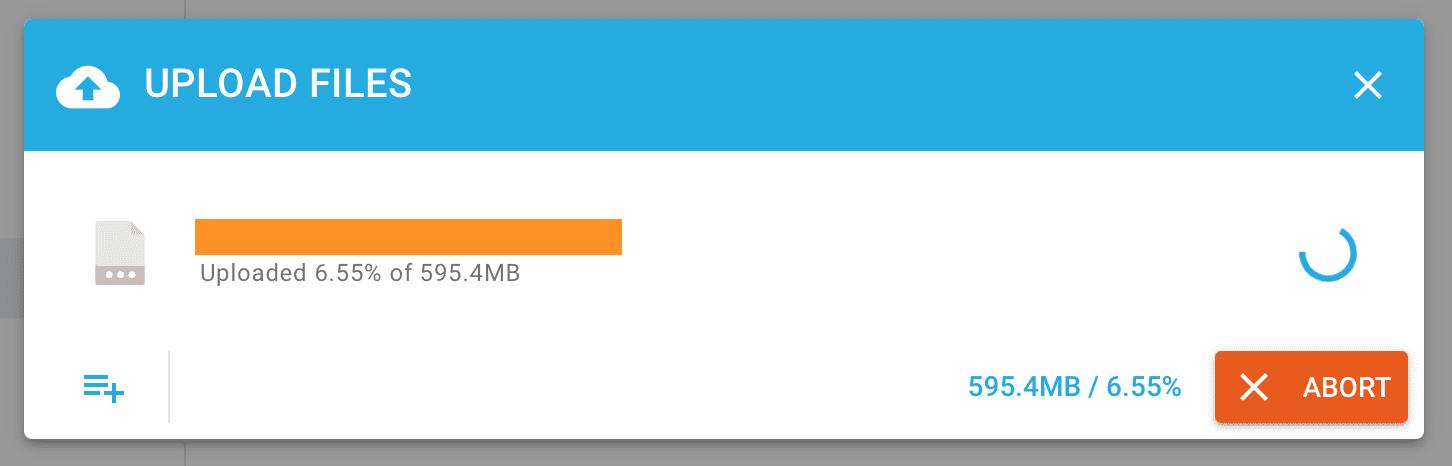
After I did step 2, my previously blocked file could upload normally.
III. Summary
With just 3 simple steps, we have successfully increased the upload file size limit on DirectAdmin’s File Manager. If you don’t have Admin rights, please contact your server administrator or service provider to help you upgrade it.
Hope this article will be of help to you. Wishing you success!
See more useful articles about DirectAdmin at the following link:
If you need assistance, you can contact support in the ways below:
- Hotline 247: 028 888 24768 (Ext 0)
- Ticket/Email: You use the email to register for the service and send it directly to: support@azdigi.com .
About the author

Thạch Phạm
Đồng sáng lập và Giám đốc điều hành của AZDIGI. Có hơn 15 năm kinh nghiệm trong phổ biến kiến thức liên quan đến WordPress tại thachpham.com, phát triển website và phát triển hệ thống.