Remote Desktop is a useful feature that helps you connect and remotely control a computer or server (VPS) running Windows operating system. This article will guide you through the basic steps to connect to a Windows VPS using Remote Desktop.
I. Prepare necessary information
Before you begin, you will need to prepare the following information:
- Windows VPS IP Address : Provided by VPS service provider.
- Username : Usually will be `Administrator` or another account set up by the provider.
- Password : Provided with VPS login information.
II. Using Remote Desktop from macOS
If you’re using MacOS, you can download the Microsoft Remote Desktop app from the App Store. Once downloaded, follow these steps:
Step 1: Open Microsoft Remote Desktop
- Open the Microsoft Remote Desktop application.
Step 2: Add new connection
You press the buttonAdd PC .
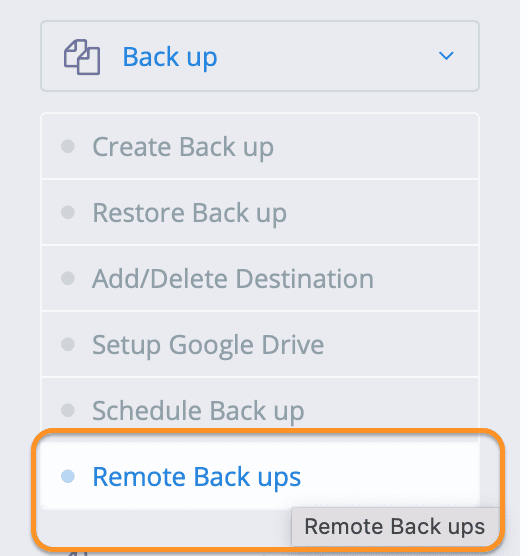
A box will appear for you to fill in remote information. Enter the VPS IP address in the box.PC name .
Note:
The default remote desktop port is port
3389. If you do not change the default port, you only need to fill in the IP information in the PC name section. If you have changed the default remote port, you need to add:port.
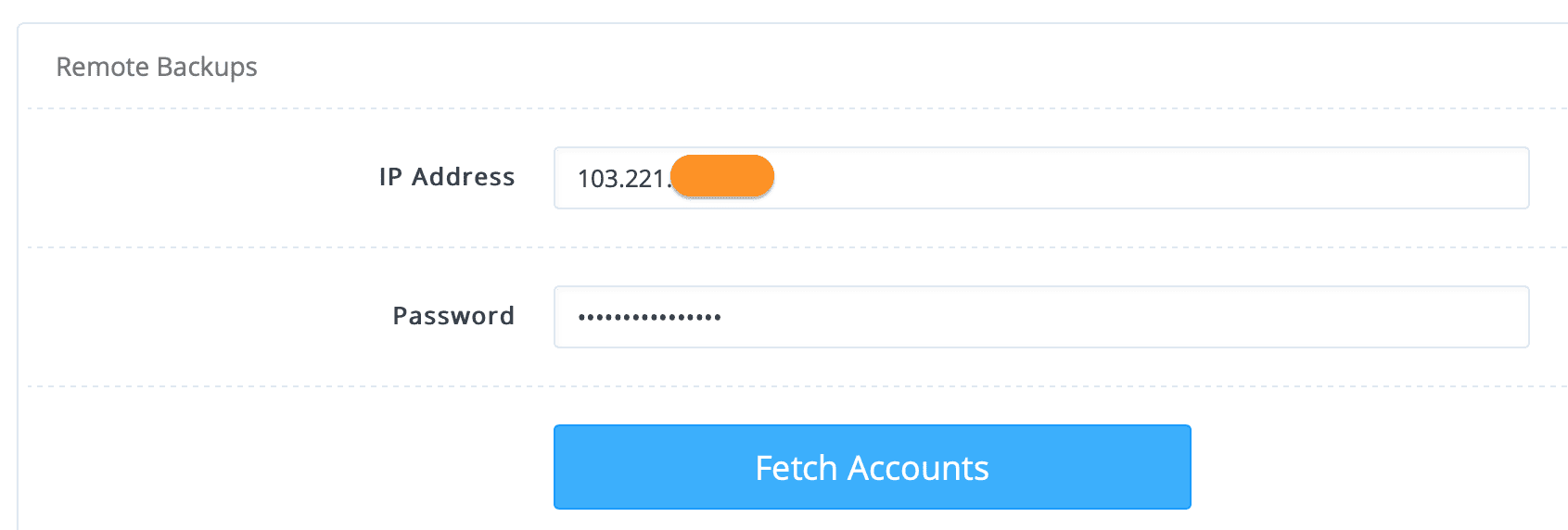
Next partUser Account , you chooseAsk when required When you remote, you will need to enter your username and password to remote into Windows VPS.
Or you chooseAdd User Account to add login information, as well as when you remote into Windows VPS will not ask to enter username and password information to remote.
Step 3: Connect
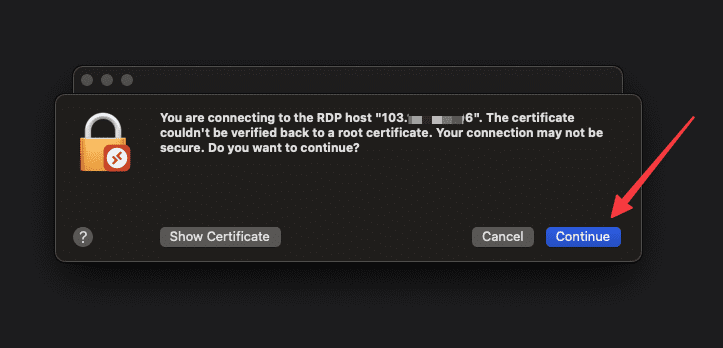
Once setup is complete, click Add and then double-click the newly created connection to start connecting to the VPS.

III. Using Remote Desktop Connection on Windows
If you are using a Windows computer, the toolRemote Desktop Connection already installed. Follow these steps to connect:
Step 1: Open Remote Desktop Connection
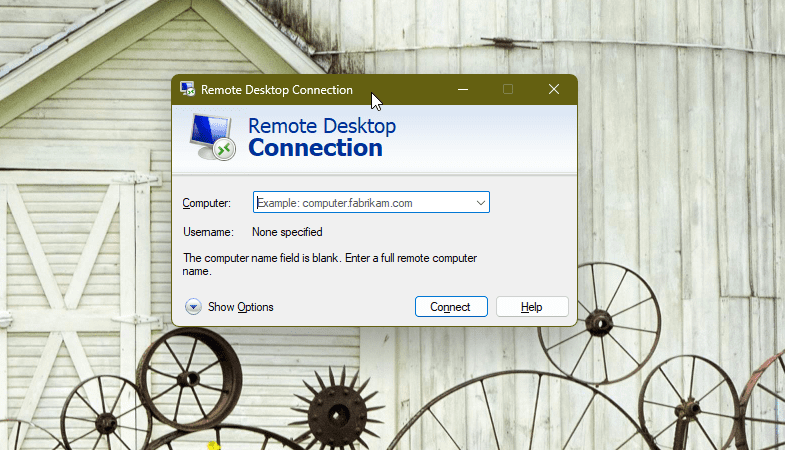
You press the key combinationWindows + R to open the Run window. Typemstsc and press Enter or OK
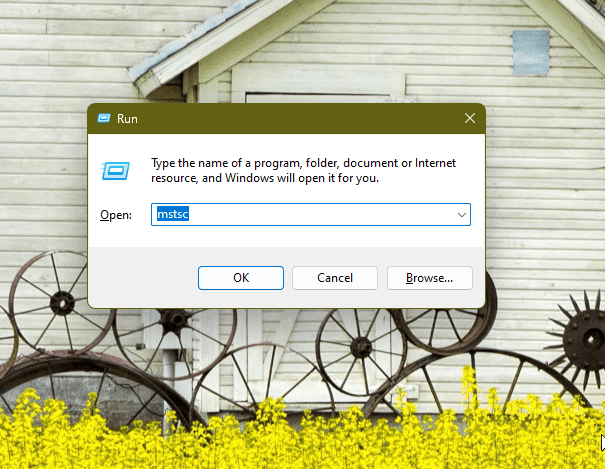
The Remote Desktop Connection window will appear.
Step 2: Enter the VPS IP address
In the Remote Desktop Connection window, enter the VPS IP address in the Computer box.
Step 3: Enter login information
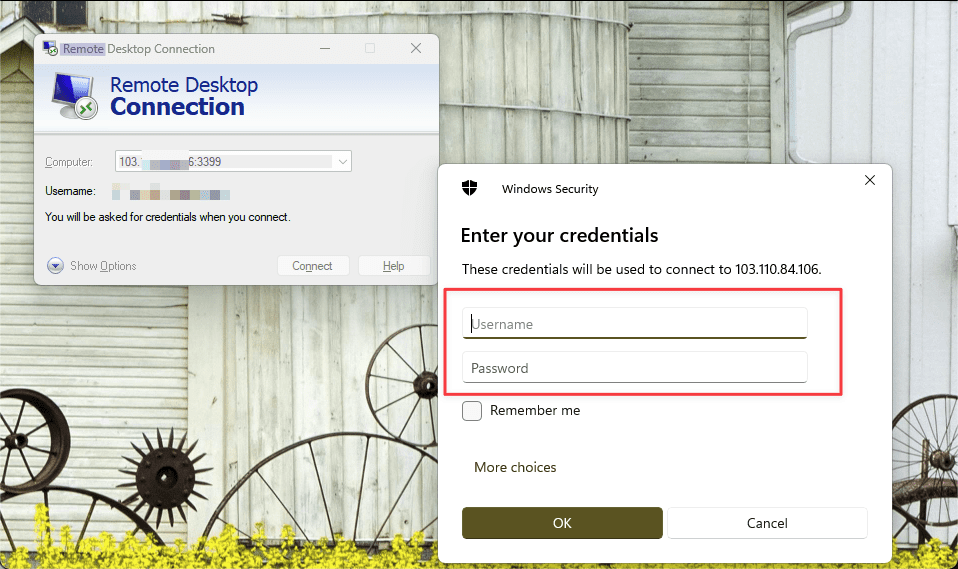
After you fill in the VPS IP and pressConnect . A window will appear asking you to enter your username and password . Fill in the information and click OK to remote into Windows VPS.
Step 4: Accept the connection
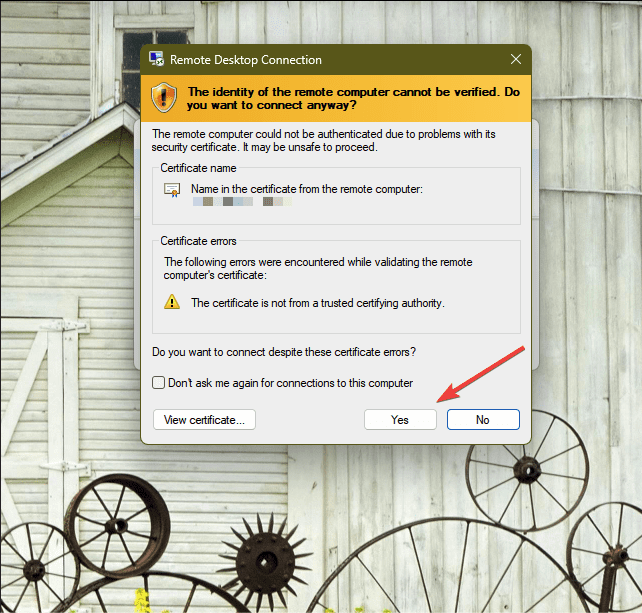
When you connect, you may receive a warning about the security certificate. ClickYes to accept and continue the connection.
IV. Use Remote Desktop from mobile devices
You can also connect to your Windows VPS from your mobile device (Android or iOS) using the Microsoft Remote Desktop app available on the Google Play Store or App Store.
Step 1: Install the application
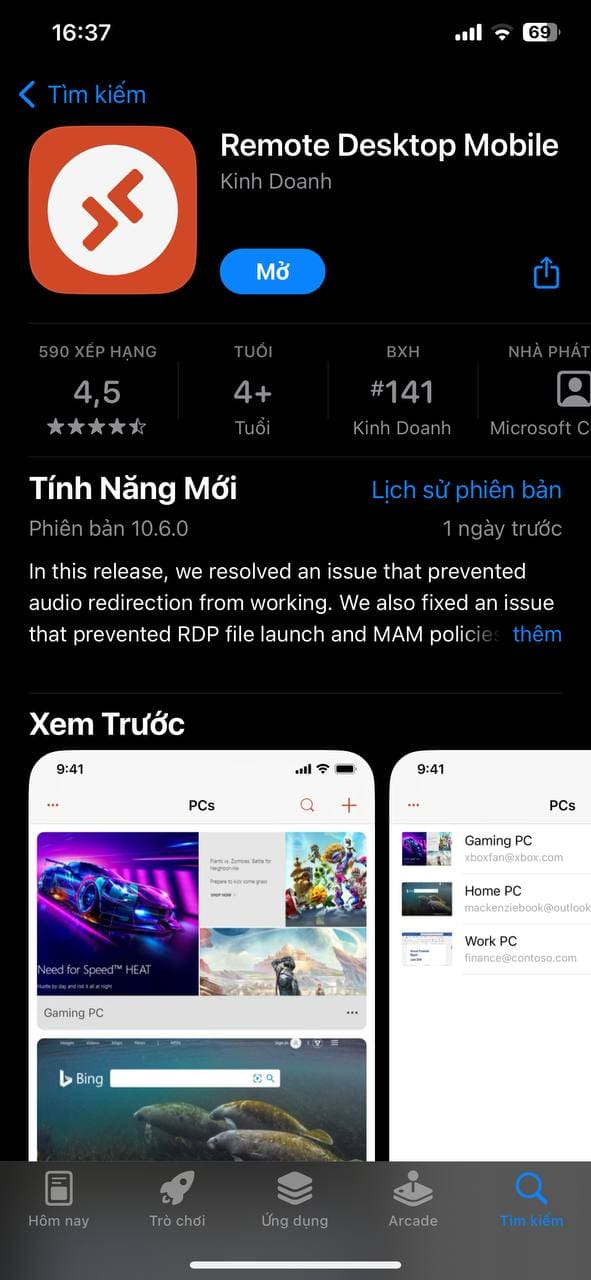
You download and install Microsoft Remote Desktop from the app store.
Step 2: Establish connection
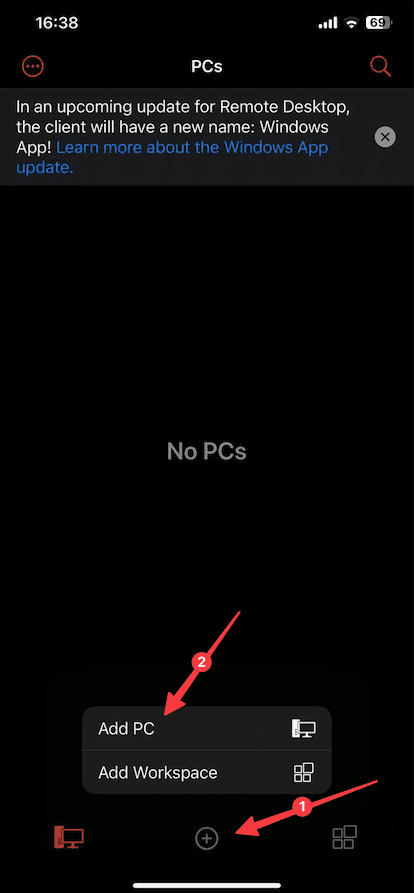
Once you have finished downloading the app, open it and press the check mark.+ and selectAdd PC to add connection.
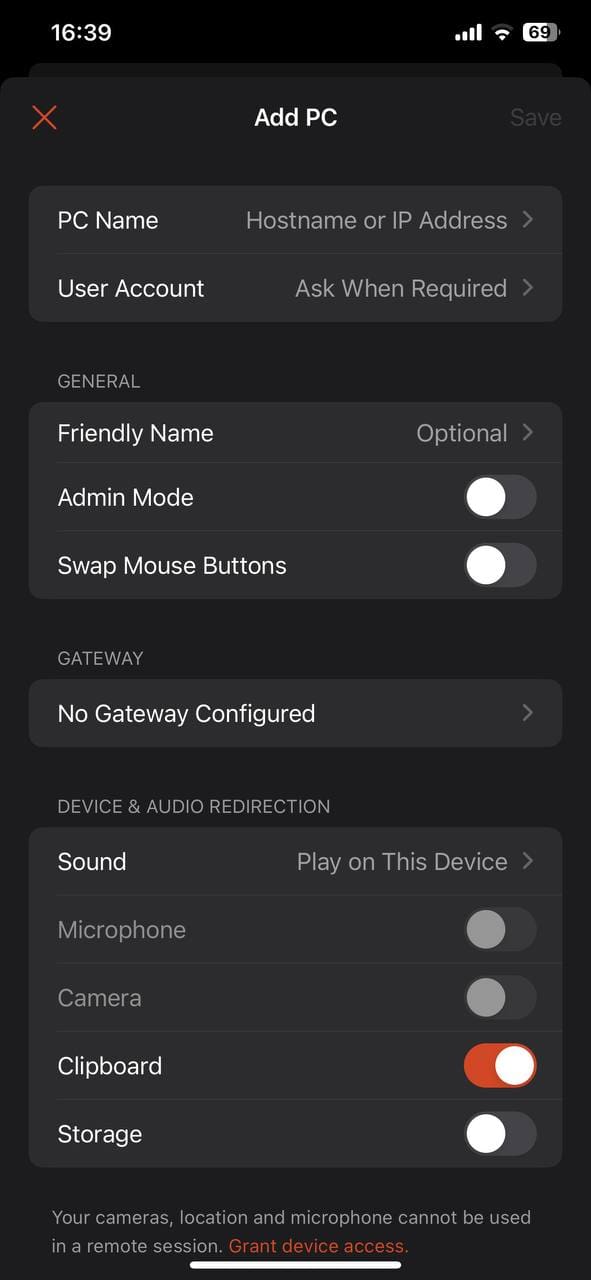
Next, enter the IP address and username and password information into the corresponding boxes.
Step 3: Connect
Once you have set it up, click on the created connection to start a session with the VPS.
V. Common errors and how to fix them
- Unable to connect to VPS : Check your IP address again and make sure your VPS is on and has an internet connection.
- Incorrect login information : Make sure the username and password entered are correct as provided.
- Connection not accepted due to firewall : Check the firewall settings on the VPS to make sure port 3389 (default for Remote Desktop) is open.
Wishing you success!
If you need assistance, you can contact support in the ways below:
- Hotline 247: 028 888 24768
- Ticket/Email: You use the email to register for the service and send it directly to: support@azdigi.com.
You might also like
- How to log in to Linux VPS via SSH protocol
- How to enable MySQL on aaPanel remotely
- Instructions for installing OpenVPN on Linux server
- VPS Windows vs Linux: Comparison and How to Choose the Right Type
- Install the GNOME interface on Ubuntu 20.04 and Remote Desktop
- How to enable Access MySQL remotely on DirectAdmin
About the author

Đàm Trung Kiên
Chào mọi người, mình là Kiên - hiện đang công tác tại Phòng Kỹ thuật AZDIGI. Trong quá trình làm việc mình có cơ hội được tiếp xúc với khá nhiều các vấn đề liên quan đến Website/Hosting/VPS/Server, do đó mình viết lại các hướng dẫn này nhằm chia sẻ kiến thức, cũng như tạo một môi trường để chúng ta giao lưu và học hỏi lẫn nhau, trau dồi thêm nhiều kiến thức bổ ích hơn nữa.