In this article, AZDIGI will help you install the GNOME interface on Ubuntu 20.04 and enable Remote Desktop on that server.
I. Introduction
Most Ubuntu Servers or VPS, when initialized are installed with Ubuntu Server versions by the provider, which means that when you use them, you will not have an interface like Ubuntu Desktop but will use SSH Client software to connect.
And in the process of using, you will use commands to control.
But if you are too familiar with the interface on Ubuntu Desktop, then this article will solve that problem.
II. Install the GNOME interface on Ubuntu 20.04
To install the GNOME interface on Ubuntu 20.04, we follow these 2 steps.
Step 1: SSH into your server
To install the GNOME interface on Ubuntu 20.04, we first need to SSH or access your VPS or server as root. Or you can use a user with sudo privileges If you don’t know how to SSH into your VPS/Server, you can refer to the following tutorial:
After successfully SSH, we continue with step 2 to execute the commands to install the GNOME interface.
Step 2: Execute the commands to install the GNOME interface
To install the GNOME interface, execute the following commands:
sudo apt update
sudo apt install gnome-tweaks
sudo apt install gnome-shell-extensions
Explanation of the above commands:
- Command 1: Update Ubuntu.
- Command 2: Install the GNOME interface package.
- Command 3: Install a set of extensions to add additional functionality to the Gnome shell.
Here are some images when running the above commands:
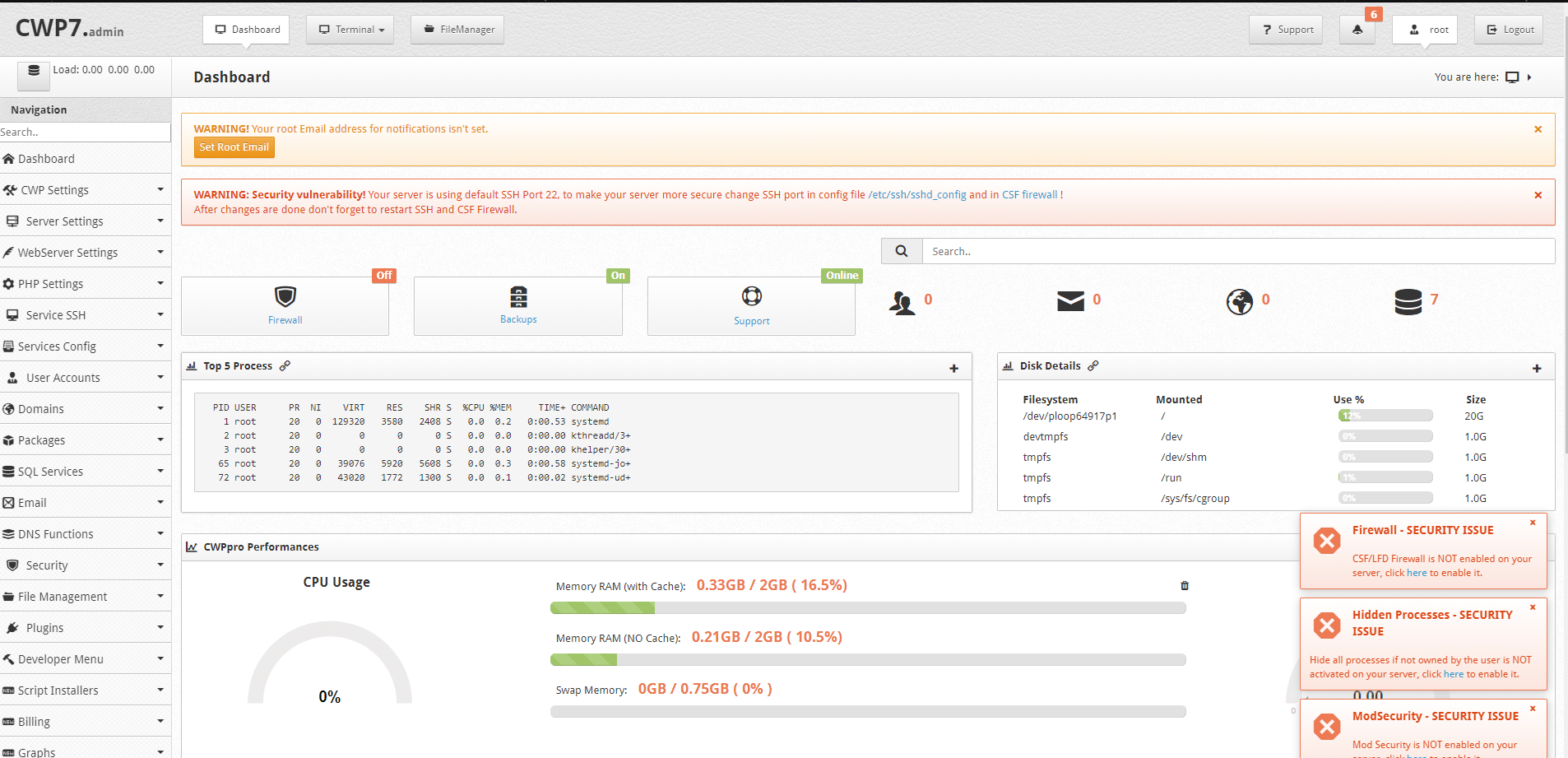
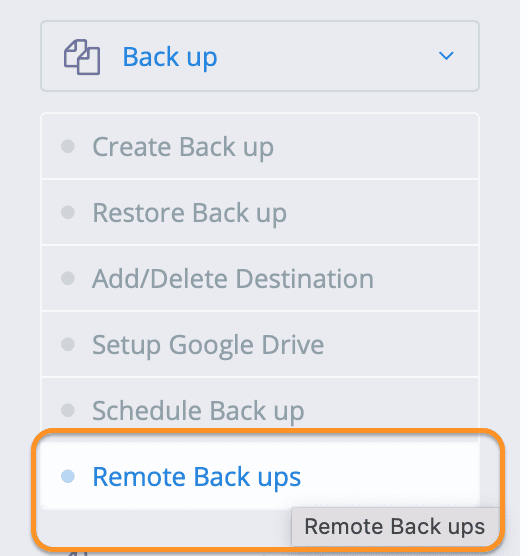
Now, if your VPS/server has a console interface, you will see the interface. But that is still quite inconvenient, so please refer to how you can Remote Desktop into your Ubuntu server.
III. Install Xrdp to support Remote Desktop
Xrdp is available in Ubuntu’s repositories, so you can use the apt command to install it:
sudo apt install xrdp
Once the installation is complete, you can verify if Xrdp is working with the following command:
sudo systemctl status xrdp
If the system shows the results as shown below, then your xrdp is working fine:
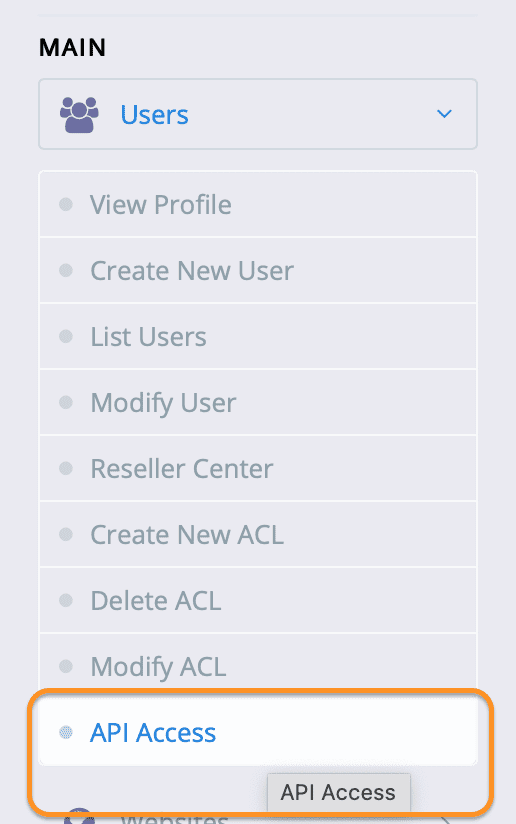
By default, Xrdp uses the file /etc/ssl/private/ssl-cert-snakeoil.key, which can only be read by members of the “ssl-cert” group. Run the following command to add the xrdp user to the group of users that can view this file:
sudo adduser xrdp ssl-cert
Finally, you need to open port 3389 with the following command to complete.
sudo ufw allow 3389
Now you can use the Remote Desktop software available on Windows computers to access your Ubuntu server interface.
Remote Desktop information will include:
- Host: Ubuntu server IP.
- User: root
- Pass: root password.
Here is my screen of when I connect to Remote Desktop:

III. Summary
Hopefully, through this article, you will successfully install the GNOME interface on Ubuntu 20.04 and be able to Remote Desktops as Windows servers.
See more useful articles about Linux VPS at the following link:
If you need assistance, you can contact support in the ways below:
- Hotline 247: 028 888 24768 (Ext 0)
- Ticket/Email: You use the email to register for the service and send it directly to: support@azdigi.com .
About the author

Thạch Phạm
Đồng sáng lập và Giám đốc điều hành của AZDIGI. Có hơn 15 năm kinh nghiệm trong phổ biến kiến thức liên quan đến WordPress tại thachpham.com, phát triển website và phát triển hệ thống.