In this article, AZDIGI will guide you on how to update the aaPanel version quickly and safely. please follow along.
I.. Overview
What is aaPanel?
aaPanel is an internationalized version of BAOTA Panel – A perfect and most famous free web hosting control panel developed in China. Although aaPanel currently has fewer features than the original BAOTA Panel, it will be continuously updated and soon include outstanding functions.
Features of aaPanel
- Very lightweight, only requires 512MB RAM Linux VPS to use.
- Easy to use, install with few mouse clicks.
- Edit PHP configuration, Webserver directly on the interface.
- The App Store library makes it easy to install Redis, Memcached, Google Drive, etc., with one click.
- File management with File Manager has a beautiful interface and supports a very convenient code editor.
- Configure VPS security and Webserver with one click.
- Support website backup to Google Drive, Amazon S3, FTP, etc.
- Vibrant activity community.
To install aaPanel, you can refer to the tutorial below:
In the previous articles, we were familiar with most of the features of aaPanel, in this article, AZDIGI will guide you how to upgrade and update the version of aaPanel you are using to a new version to be able to use new features added. Please follow the steps below.
II. Implementation guide
Step 1: Check the current version and update
First, you access aaPanel by default path: http://IP:8888/ and login with the information provided when installing aaPanel. If you forget your login information, you can check out the article below to reset the login user/password.
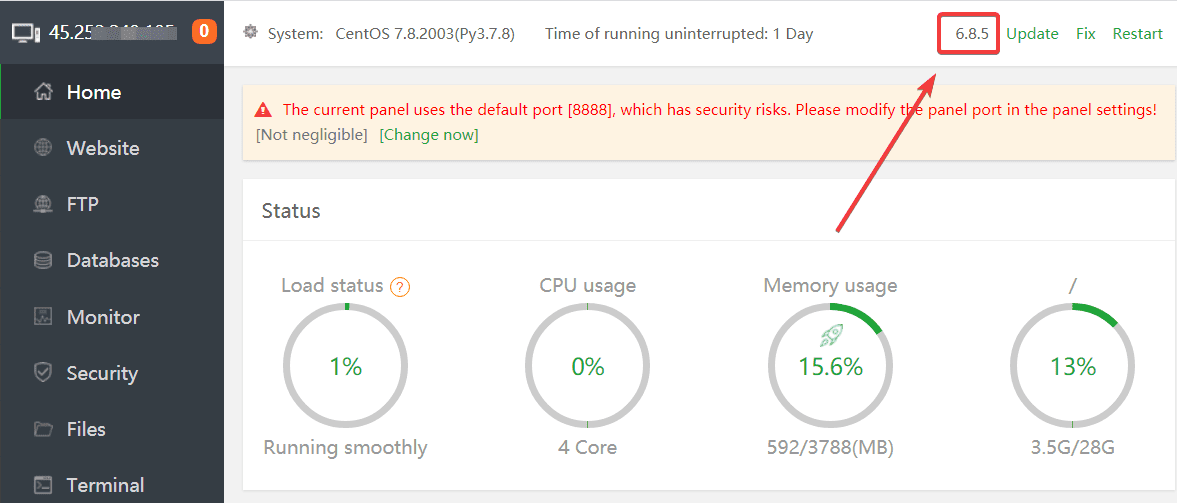
After you have successfully logged into aaPanel, you need to check the version of aaPanel you are using by noting the information in the right corner as shown below:
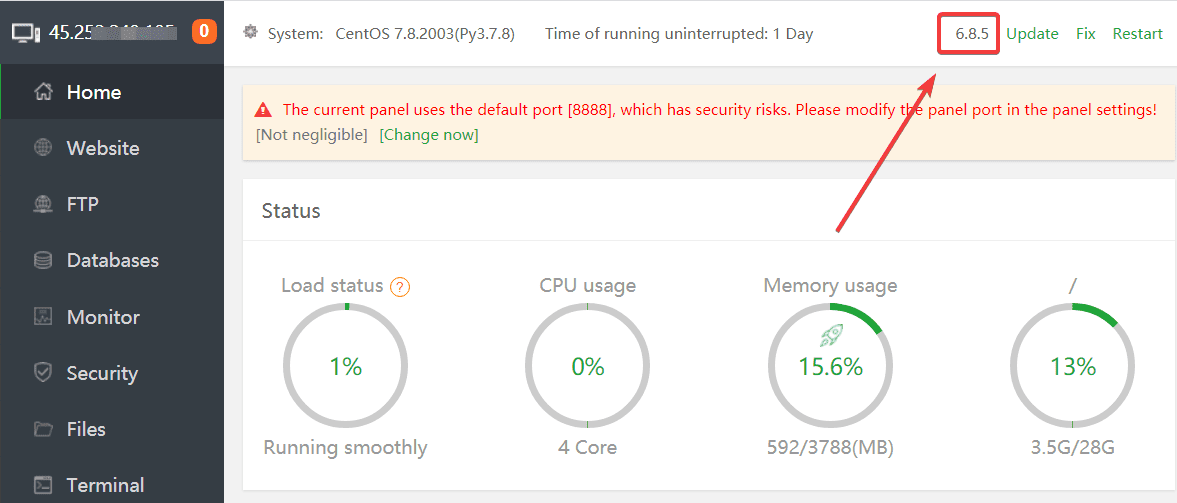
As shown above, the version of aaPanel is 6.8.
Step 2: Update the version of aaPanel
To check the latest update of aaPanel, click on Update.
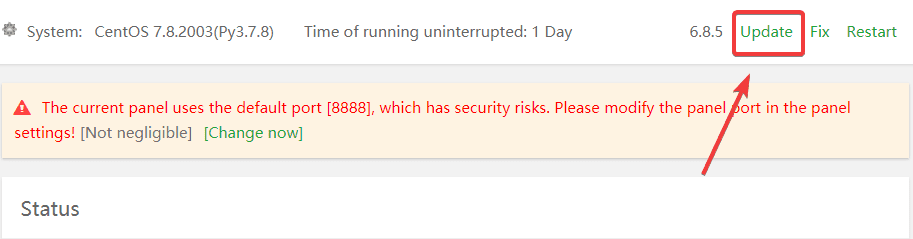
At this point, there will be 2 cases as follow:
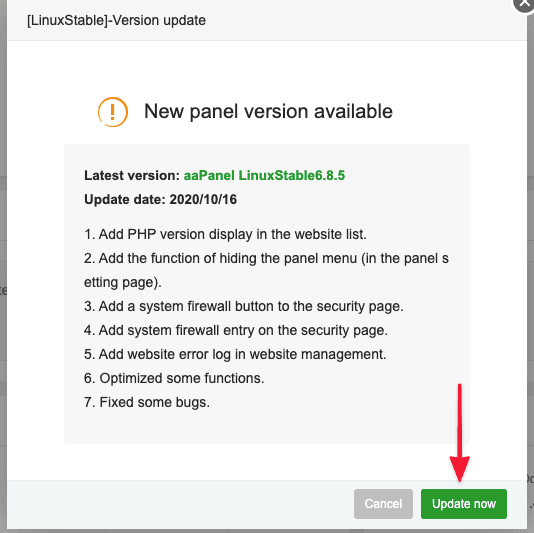
Case 1: A completely new version is available
In this case, if there is a completely new version, when you click Update you will receive a message as shown, you just need to continue to click Update Now and wait for the system to complete.
Case 2: A new version is available but it is only a beta version
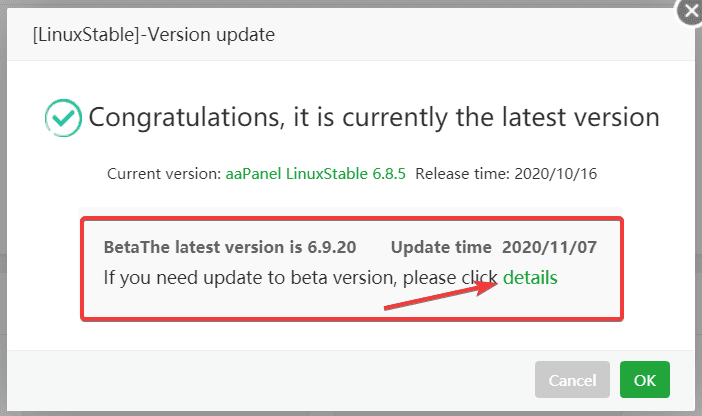
In this case, if you want to upgrade to the Beta version, click on the details in the BetaThe latest version section.
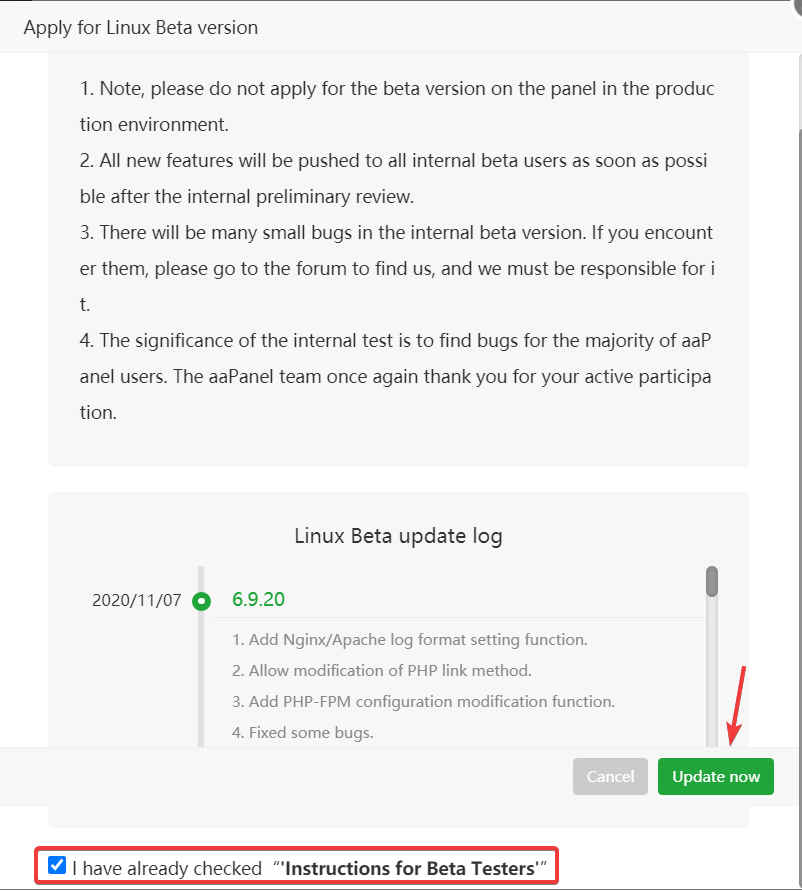
Now you need to tick the line I have already checked => Update Now.
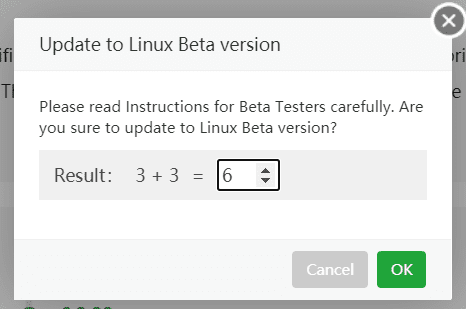
You complete the calculation shown so that the update process is started.
Please keep the window open until the update is complete, the update process will take a few minutes.
Step 3: Restart aaPanel
After the upgrade is complete, you need to restart the panel by clicking Restart => Restart panel as shown below:
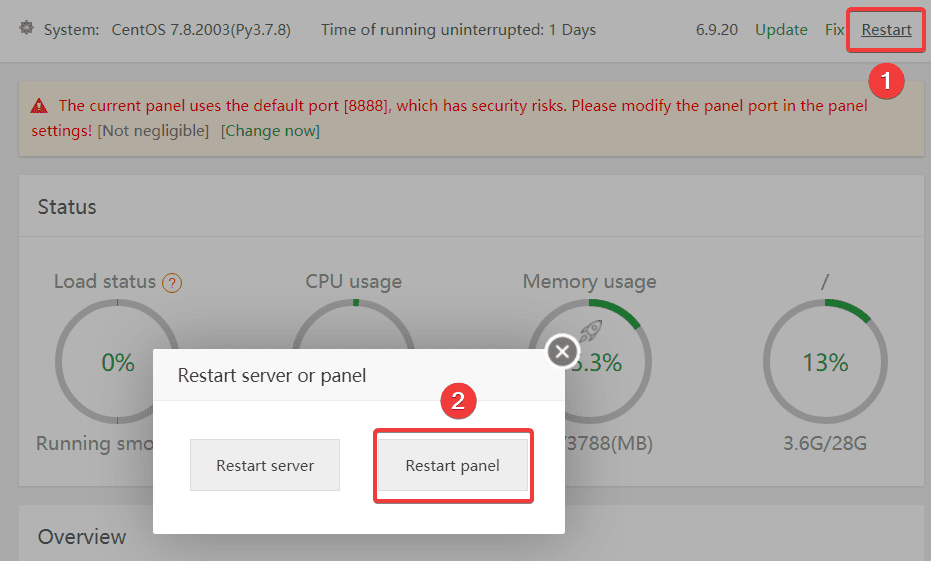
Now you recheck the version after updating. As shown below, I have successfully updated to version 6.9.20.

III. Summary
So in this article, AZDIGI showed you how to update the aaPanel version in the simplest and most detailed way. Regularly checking and upgrading to the latest versions will help aaPanel work more stable and at the same time will patch the backlog vulnerabilities in previous versions. If you find this article interesting and useful, please share it widely.
About the author

Thạch Phạm
Đồng sáng lập và Giám đốc điều hành của AZDIGI. Có hơn 15 năm kinh nghiệm trong phổ biến kiến thức liên quan đến WordPress tại thachpham.com, phát triển website và phát triển hệ thống.