CyberPanel is one of the well-reviewed free control panels for Linux to install and manage webservers, serving websites using PHP and MySQL languages.
This article will guide you to install CyberPanel on your VPS server, to install VPS need to meet the following minimum requirements:
Configuration requirements of CyberPanel
- CentOS 7 or Ubuntu (18.04 , 18.10)
- Minimum 1GB RAM
- Hard drive at least 10GB
Install CyberPanel
Log in to your server via SSH and run the command below to start installing CyberPanel:
sh
Output Select 1 or 2, y or n to confirm the installation steps CyberPanel Installer v2.00Install CyberPanel. Addons and Miscellaneous Exit.
Please enter the number[1-3]: 1 # Choose 1 to install Cyberpanel
RAM check : 52/1024MB (5.08%)
Disk check : 664/9GB (7%) (Minimal 10GB free space)
Install CyberPanel with OpenLiteSpeed. Install Cyberpanel with LiteSpeed Enterprise. Exit. Please enter the number[1-3]: 1
# Choose 1 to install the free version of OpenLiteSpeed.
Install Full service for CyberPanel? This will include PowerDNS, Postfix and Pure-FTPd.
Full installation [Y/n]: y
Full installation selected...
Press Enter key to continue with latest version or Enter specific version such as: 1.9.4 , 1.9.5 ...etc
Select y to install PowerDNS, Postfix and Pure-FTPd features. (if you don't want to install, choose "n")
Branch name set to v2.0.0
Please choose to use default admin password 1234567, randomly generate one (recommended) or specify the admin password?
Choose [d]fault, [r]andom or [s]et password: [d/r/s] r
d: create default password (1234567) r: generate random password d: set password as you like
Do you wish to install Memcached extension and backend?
Please select [Y/n]: y
Select Y to install Memcached
Do you wish to install Redis extension and backend?
Please select [Y/n]: y
Select Y to install Redis
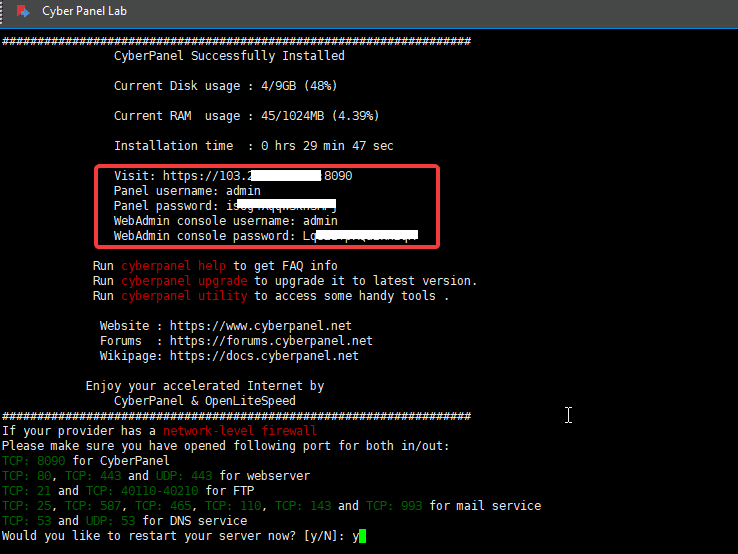
After confirming the above steps, the installation will run for about 20-30 minutes. After successful, you will receive the information below, including the CyberPanel access link, user, password…

Would you like to restart your server now? [y/N]: y
Here you choose Y if you want to restart the server, or choose N if you don’t want to restart
Access the CyberPanel interface
To access the admin page, go to your browser and access: https://IPVPS:8090

Login with previously created admin credentials

So you have completed the steps to install CyberPanel on the CentOS server, and now you can start using CyberPanel.
About the author

Thạch Phạm
Đồng sáng lập và Giám đốc điều hành của AZDIGI. Có hơn 15 năm kinh nghiệm trong phổ biến kiến thức liên quan đến WordPress tại thachpham.com, phát triển website và phát triển hệ thống.