In this article, AZDIGII will show you how to enable the Backup Monitor feature on DirectAdmin most simply.
I. What is Backup Monitor on DirectAdmin?
Since DirectAdmin 1.44.1 version, we have a new feature that is Backup Monitor. This feature will help you track backup/restore progress when your DirectAdmin server is running backup or restoring one or more users at that time.
Then at the Admin Backup/Transfer feature, you will see an In Progress page containing the active process: You can refer to the image below:

However, there are a few DirectAdmin systems I find this feature is not enabled by default.
You can check with the following command:
cat /usr/local/directadmin/conf/directadmin.conf | grep track_task_queue_processes
If no results as shown below, your feature has not been activated.
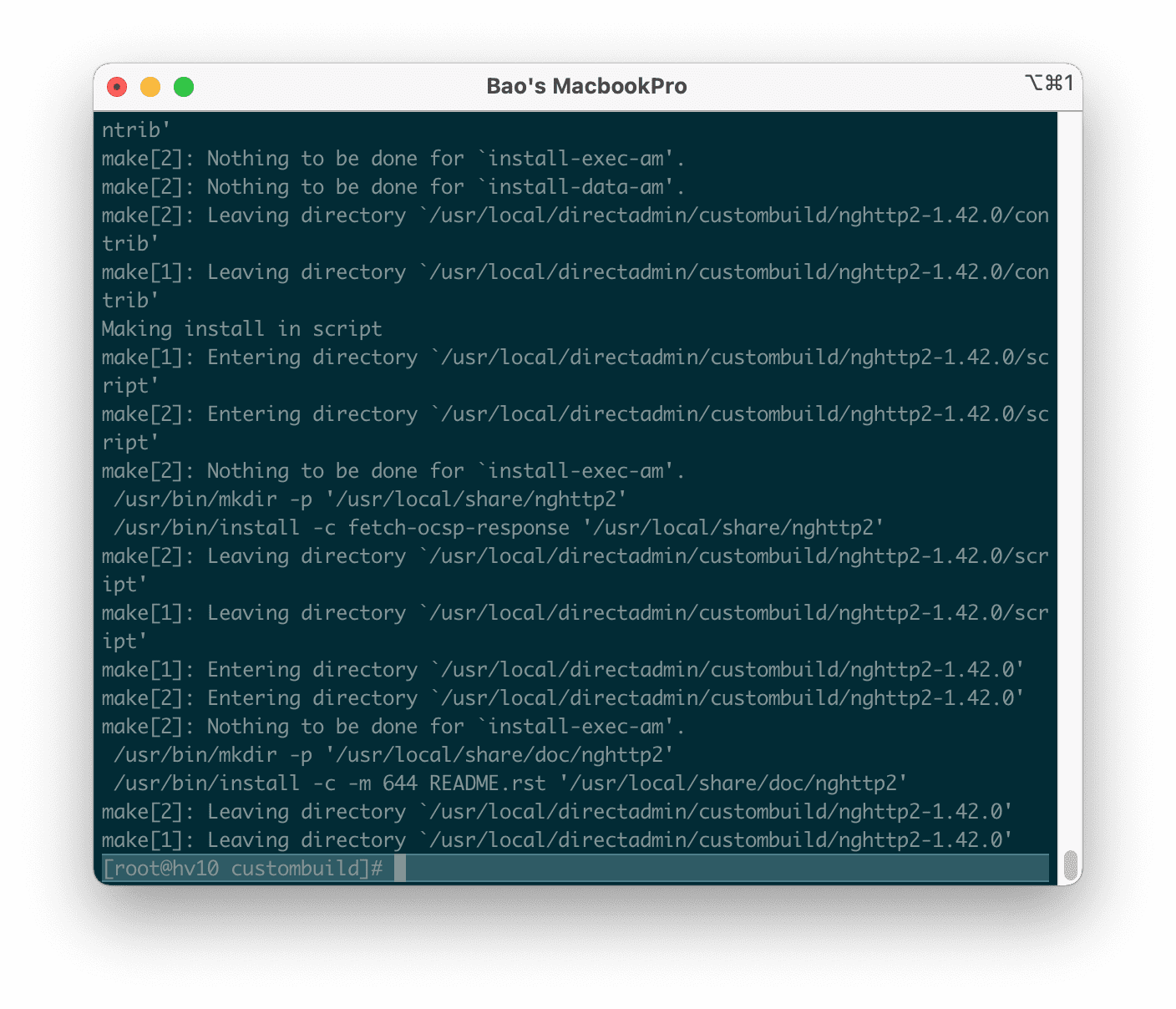
So in this article, AZDIGI will guide you through enabling the Backup Monitor feature on DirectAdmin.
II. Enable Backup Monitor on DirectAdmin
To enable Backup Monitor on DirectAdmin, we follow these 3 steps.
Step 1: SSH into your server
To install mod_ruid2 on DirectAdmin, we first need to SSH or access your VPS/server with root privileges. Or at least log in to the server with a user with sudo privileges. If you don’t know how to SSH into your VPS/Server, you can refer to the following tutorial:
After successfully SSH, we continue with step 2 to perform commands to check the DirectAdmin version because this feature requires DirectAdmin version 1.44.1 or higher.
Step 2: Check the DirectAdmin version
To check the DirectAdmin version, you just need to run the following command:
/usr/local/directadmin/directadmin v
The version I am using is higher than version 1.44.1, so I can completely continue this article.
Step 3: Enable Backup Monitor configuration on DirectAdmin
Enabling the Backup Monitor feature on DirectAdmin is relatively easy, you just need to follow the order of the commands below:
cd /usr/local/directadmin/
./directadmin set track_task_queue_processes 1
service directadmin restart
Explanation of the above commands:
- Command 1: Move into the
/usr/local/directadmin/directory. - Command 2: Configure
track_task_queue_processesto 1. You can set 2 if you want, with value 2, the backup/restore tracking process will be more detailed. . - Command 3: Restart DirectAdmin to get the new configuration.
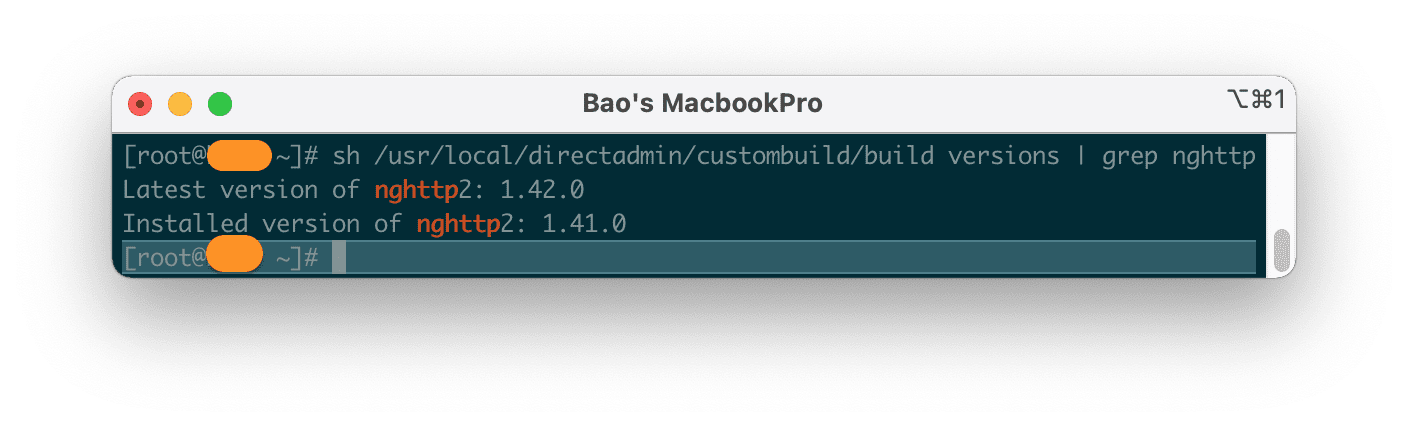
Here is the image when I run the above 3 commands:

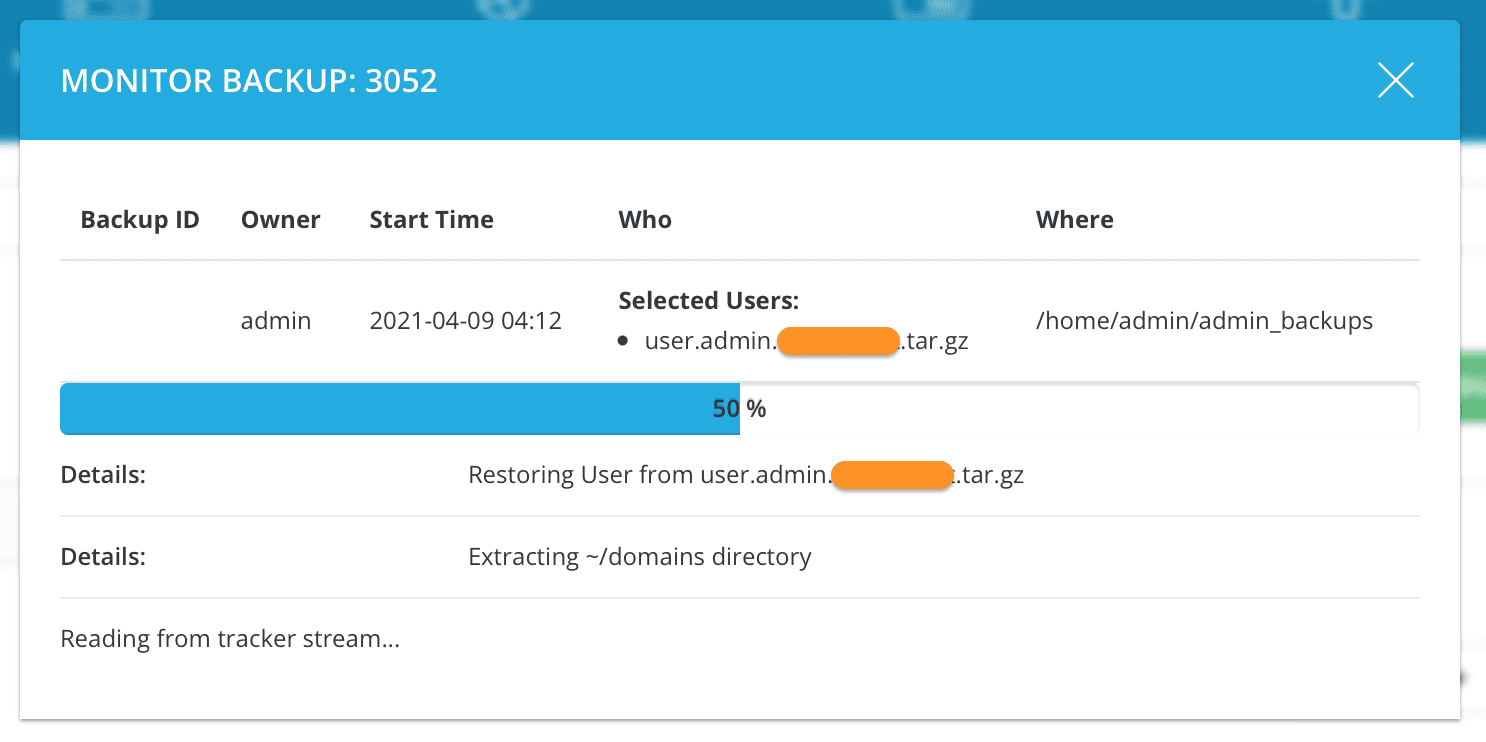
At this point, the Backup Monitor feature on your DirectAdmin is already working. So you can try backup/restore, then wait about 1 minute and reload theAdmin Backup/Transfer page and you will see an In Progress page.
You can click the Detail button to see the details of which step the process is running to, as shown below:
III. Summary
Backup Monitor on DirectAdmin helps you know what step the backup takes from Backup/Restore. Or this process is hanging somewhere, you can also get information from which you can find a way to solve the problem.
Wishing you success. See more useful articles about DirectAdmin at the following link:
If you need assistance, you can contact support in the ways below:
- Hotline 247: 028 888 24768 (Ext 0)
- Ticket/Email: You use the email to register for the service and send it directly to: support@azdigi.com .
You might also like
About the author

Thạch Phạm
Đồng sáng lập và Giám đốc điều hành của AZDIGI. Có hơn 15 năm kinh nghiệm trong phổ biến kiến thức liên quan đến WordPress tại thachpham.com, phát triển website và phát triển hệ thống.