When using DirectAdmin, you may encounter the error message “Your IP is blacklisted” and cannot access the admin page. In this article, AZDIGI will guide you on how to handle this error.
I. Overview
Welcome back to the AZDIGI documentation channel. If you use DirectAdmin, you will surely encounter some cases when you log in to DirectAdmin administration and display the message Your IP is blacklisted as below. It is caused by multiple incorrect logins into DirectAdmin administration.
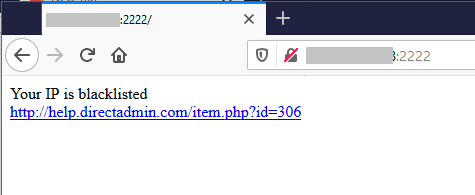
On DirectAdmin, there is a mechanism when you login incorrectly more than 5 times, your IP will be included in the server’s blacklist and cannot access DirectAdmin control for a certain period or depending on the administrator’s configuration.
To remove the blacklisted IP from the DirectAdmin ip_blacklist file, follow these steps.
II. Remove the blacklisted IP
Step 1: SSH into your DirectAdmin system
To optimize MySQL speed on DirectAdmin, we first need to SSH or access your VPS/server with root privileges. If you don’t know how to SSH into your VPS/Server, you can refer to the following tutorial:
After successfully SSH, we continue with step 2 to remove the IP.
Step 2: Remove the blacklisted IP
Blacklisted IPs will be saved in the ip_blacklist file in /usr/local/directadmin/data/admin. You can use the vi vim or nano commands to edit:
vi /usr/local/directadmin/data/admin/ip_blacklist
After opening the ip_blacklist file, find and remove your IP. Use / and enter IP in vi editors to search. If you don’t know what your IP is, you can visit ipecho.net to check your IP.
As below, my IP is locked. I will # this line or delete the line containing the IP to remove it.
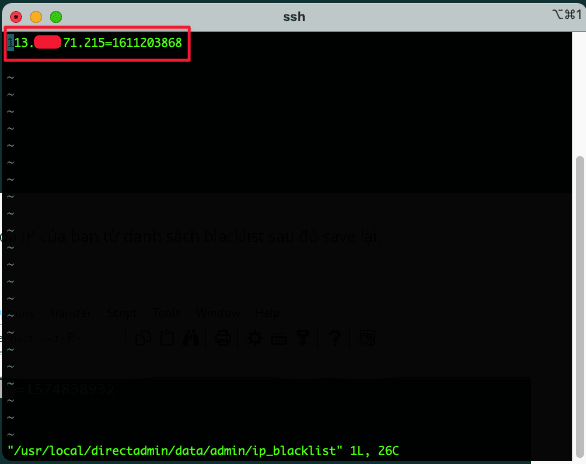
Alternatively, you can use the echo > command to empty the ip_blacklist file. In this way, in addition to your IP being locked, the other IPs that are locked in this file will be removed.
echo > /usr/local/directadmin/data/admin/ip_blacklist
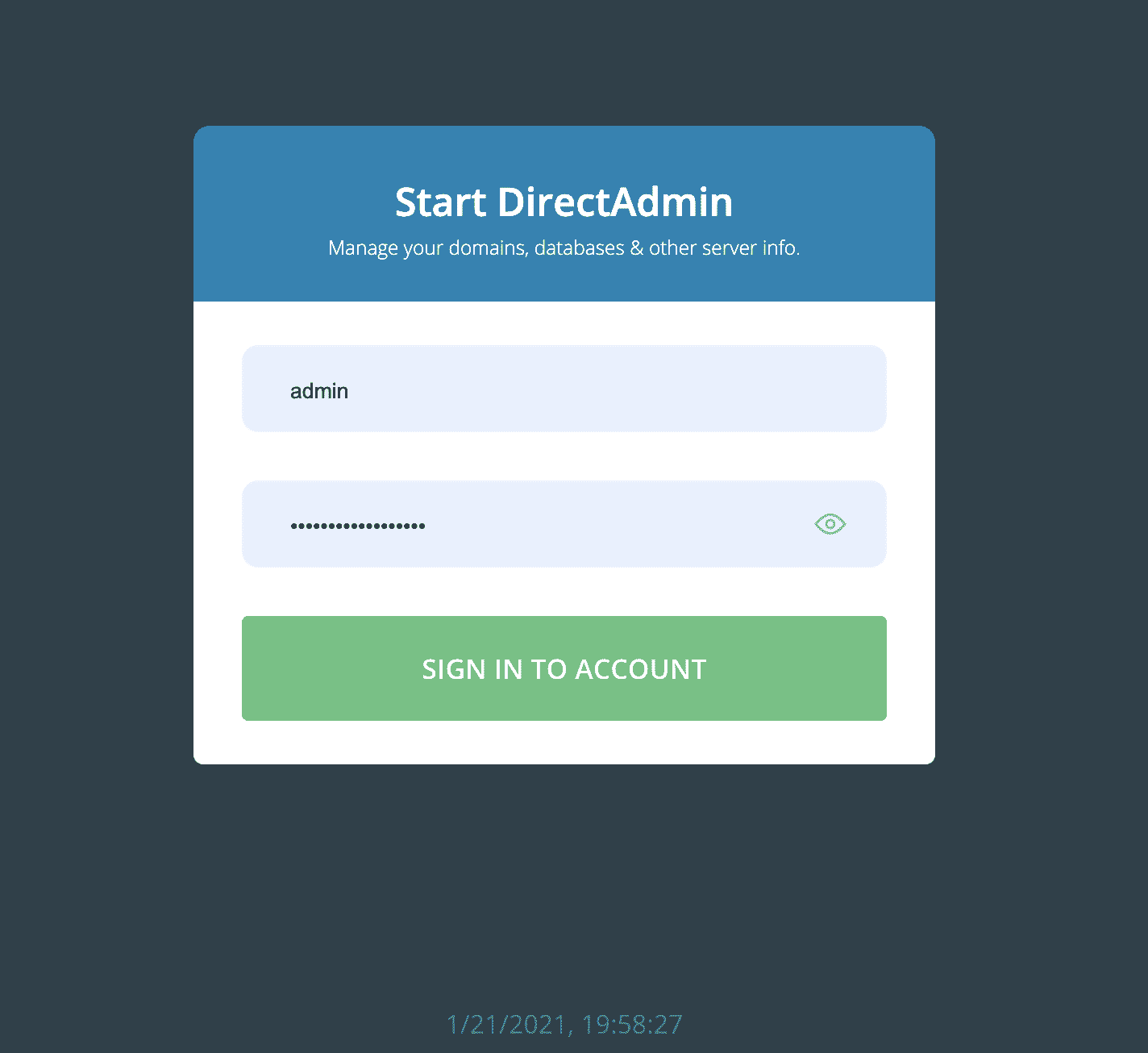
After you have removed it, restart DirectAdmin and check if you can log in.
systemctl restart directadmin
Step 3: Add IP to whitelist
Some cases lead to you logging in incorrectly many times and your IP is locked, you can add your IP to DirectAdmin’s whitelist. After adding IP, your IP will not be locked anymore.
vi /usr/local/directadmin/data/admin/ip_whitelist
III. Summary
Thus, AZDIGI has completed the steps to remove the blocked IP on DirectAdmin. Then you will no longer see the message Your IP is blacklisted and you can safely unlock and add your IP to the white list.
- Reference source: https://help.directadmin.com/item.php?id=306
See more useful articles about DirectAdmin at the following link:
If you need assistance, you can contact support in the ways below:
- Hotline 247: 028 888 24768 (Ext 0)
- Ticket/Email: You use the email to register for the service and send it directly to: support@azdigi.com .
You might also like
- Fix Roundcube Database Error on DirectAdmin
- How to configure IP limit based on IP list for DirectAdmin 1.6
- [Fix] [Fix] Invalid command UNIT_PROXY Apache 2.4.48 DirectAdmin
- Fix the error: xfs_quota: cannot set limits: Function not implemented Directadmin
- How to fix the Security Error No valid session key error on CSF DirectAdmin
- How to fix 'syntax error: unexpected end of file' error on DirectAdmin
About the author

Thạch Phạm
Đồng sáng lập và Giám đốc điều hành của AZDIGI. Có hơn 15 năm kinh nghiệm trong phổ biến kiến thức liên quan đến WordPress tại thachpham.com, phát triển website và phát triển hệ thống.