This feature allows you to set up a password to protect important folders on your web hosting, like the admin folder, or when you don’t want anyone to access your website. When enabling this feature, the system will ask for a username and password to be able to access that folder.
This is very effective protection to prevent unauthorized access, if someone does not have your DirectAdmin information, it is almost impossible to access that folder.
Set up Password Protected Directories on DirectAdmin
Step 1: Set up Password Protected Directories
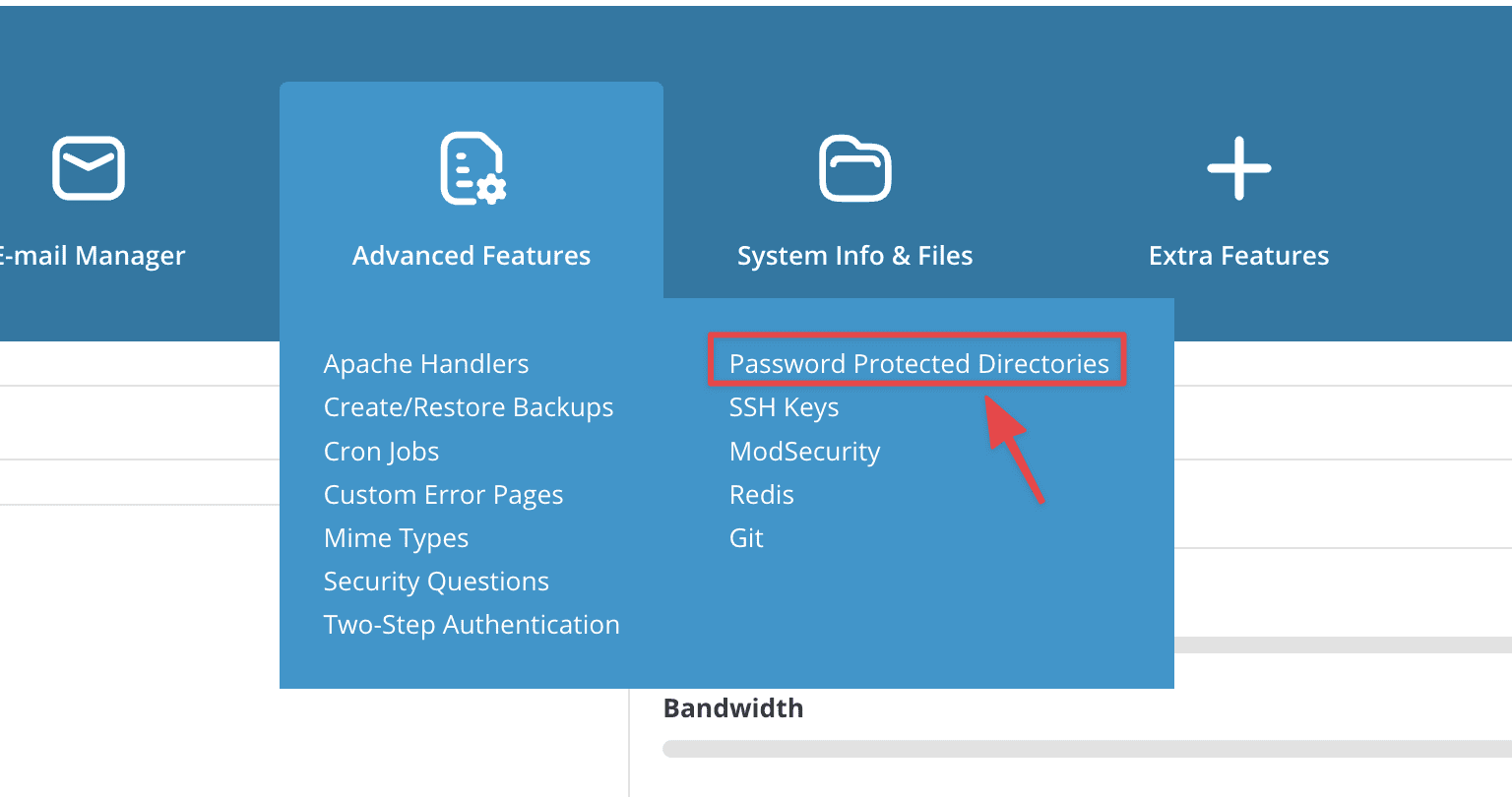
First, go to DirectAdmin => Advanced Features => Password Protected Directories.
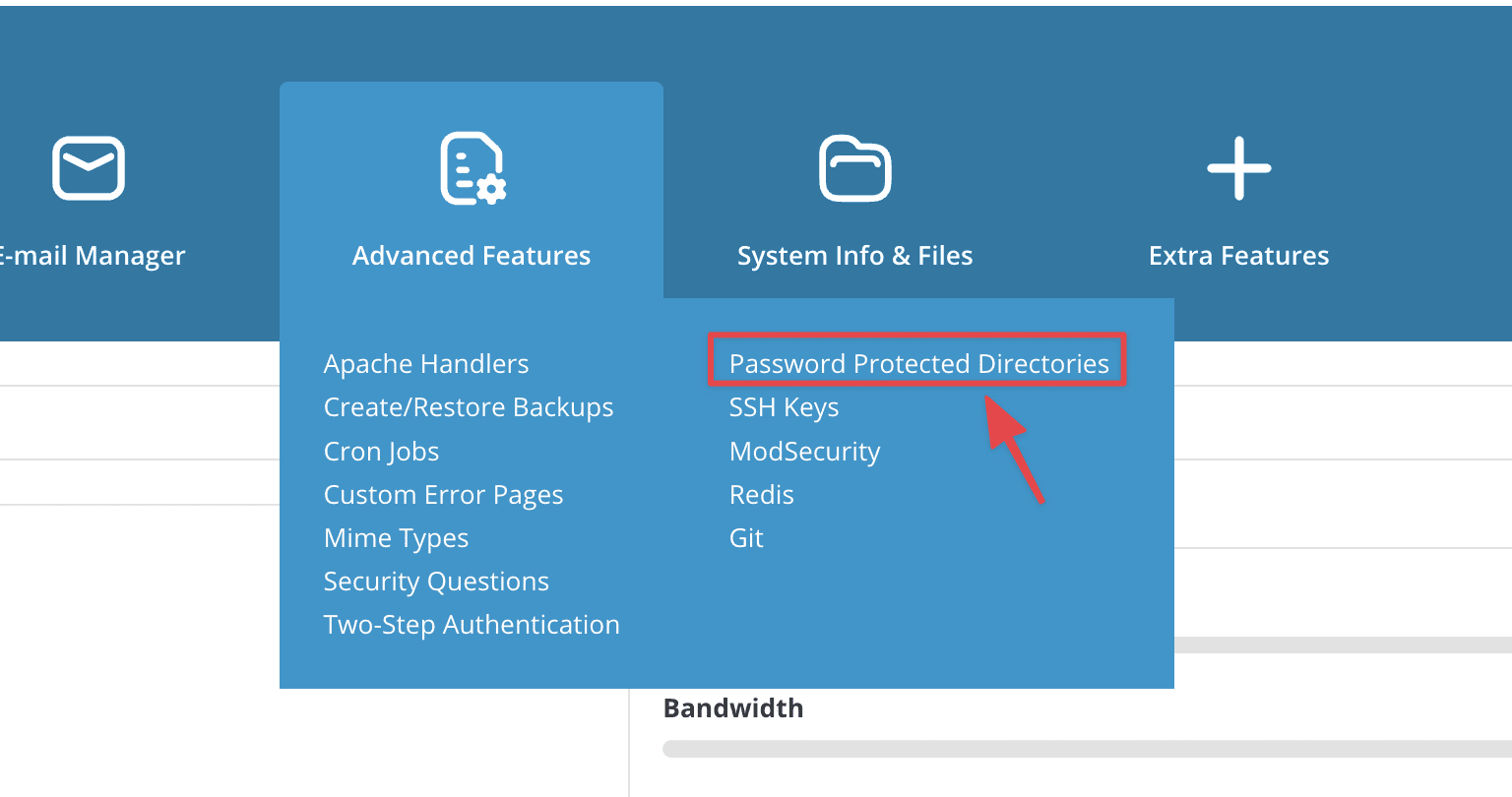
Next, select ADD PROTECTED DIRECTORY.
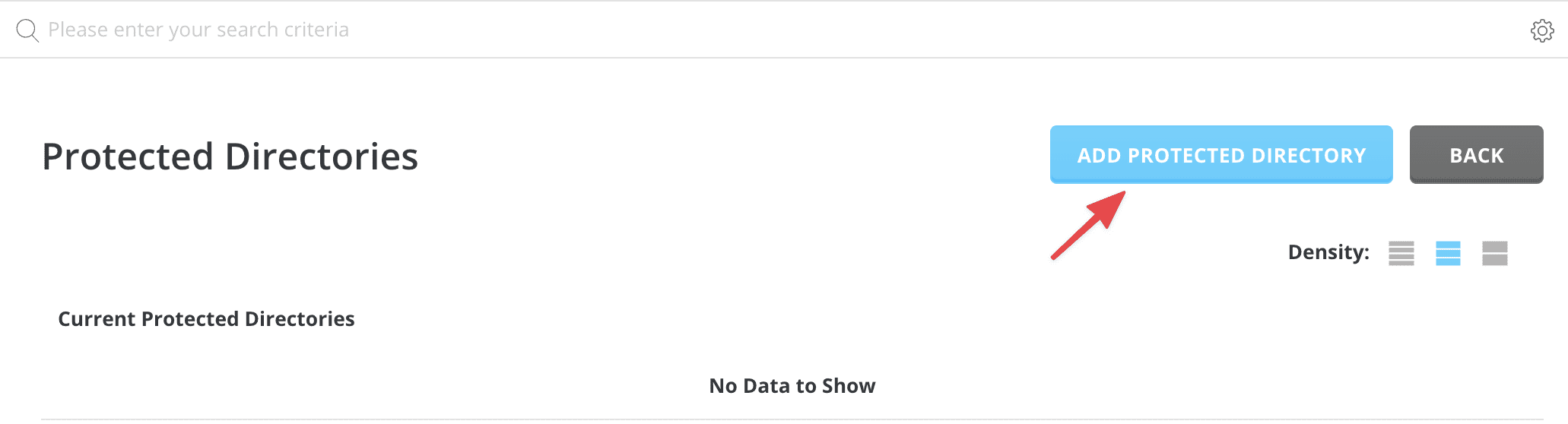
Next in the Path pane, DirectAdmin will list directories related to existing websites on your server. Now I will make a tutorial with the website hd.azdigi.info.
For example, I will proceed to lock the folder containing the data of the website hd.azdigi.info, then you click on the green arrow in the hd.azdigi.info box to drop the subfolders inside. And the directory containing the data of the website hd.azdigi.info is public_html.
To lock, you tick on the public_html folder. Or if you need to lock other folders, you can click the arrow to pop out.
- (1) & (2): You tick √ in the folder you want to lock.
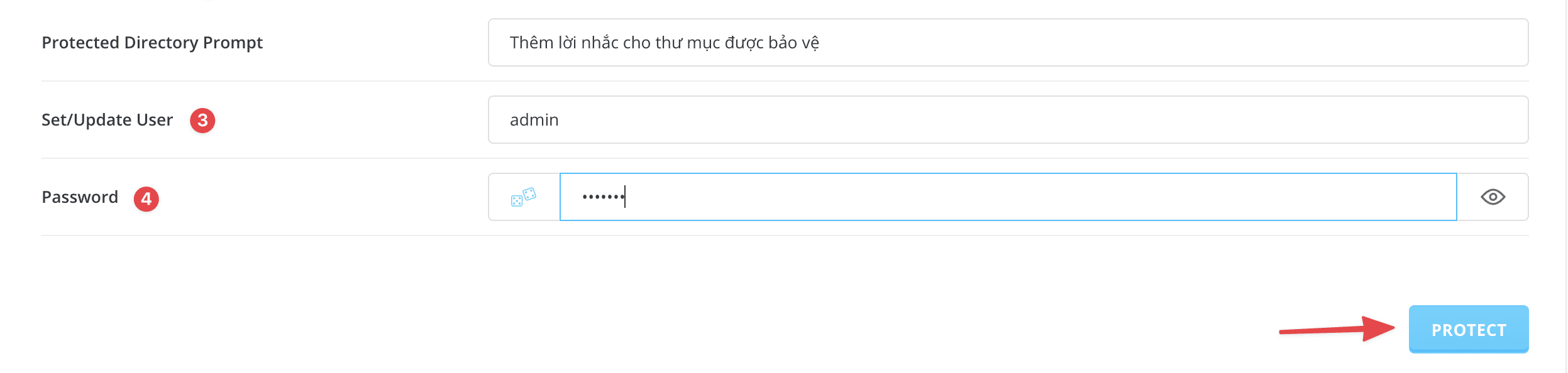
- (3): Set the user name for folder lock.
- (4): Set password for folder lock.
Once you have filled in all the information, click PROTECT to complete the setup.
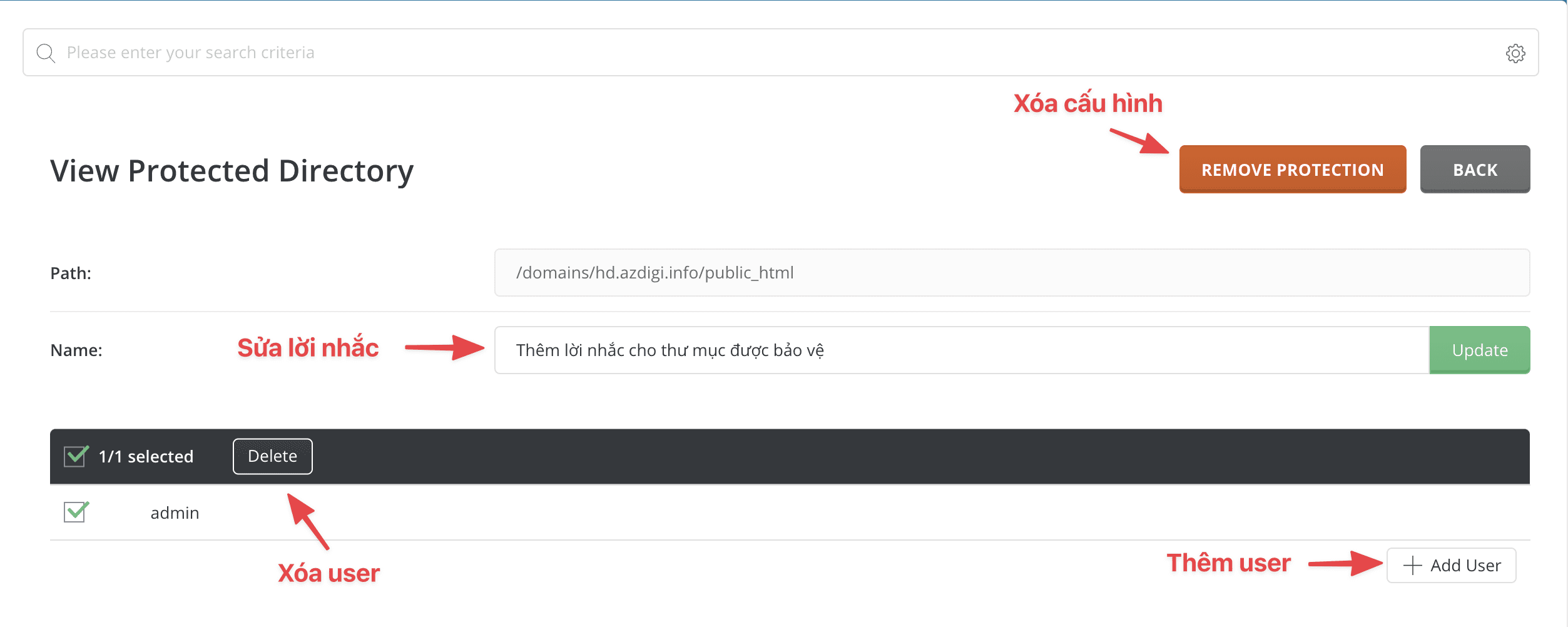
After the setup is complete, if you need to edit information such as deleting/editing/adding or changing the original configuration information, you can access Advanced Features => Password Protected Directories.

Click on the configuration path to change and edit.
Step 2: Check the setup
After successfully setting up Password Protected Directories, check your results.
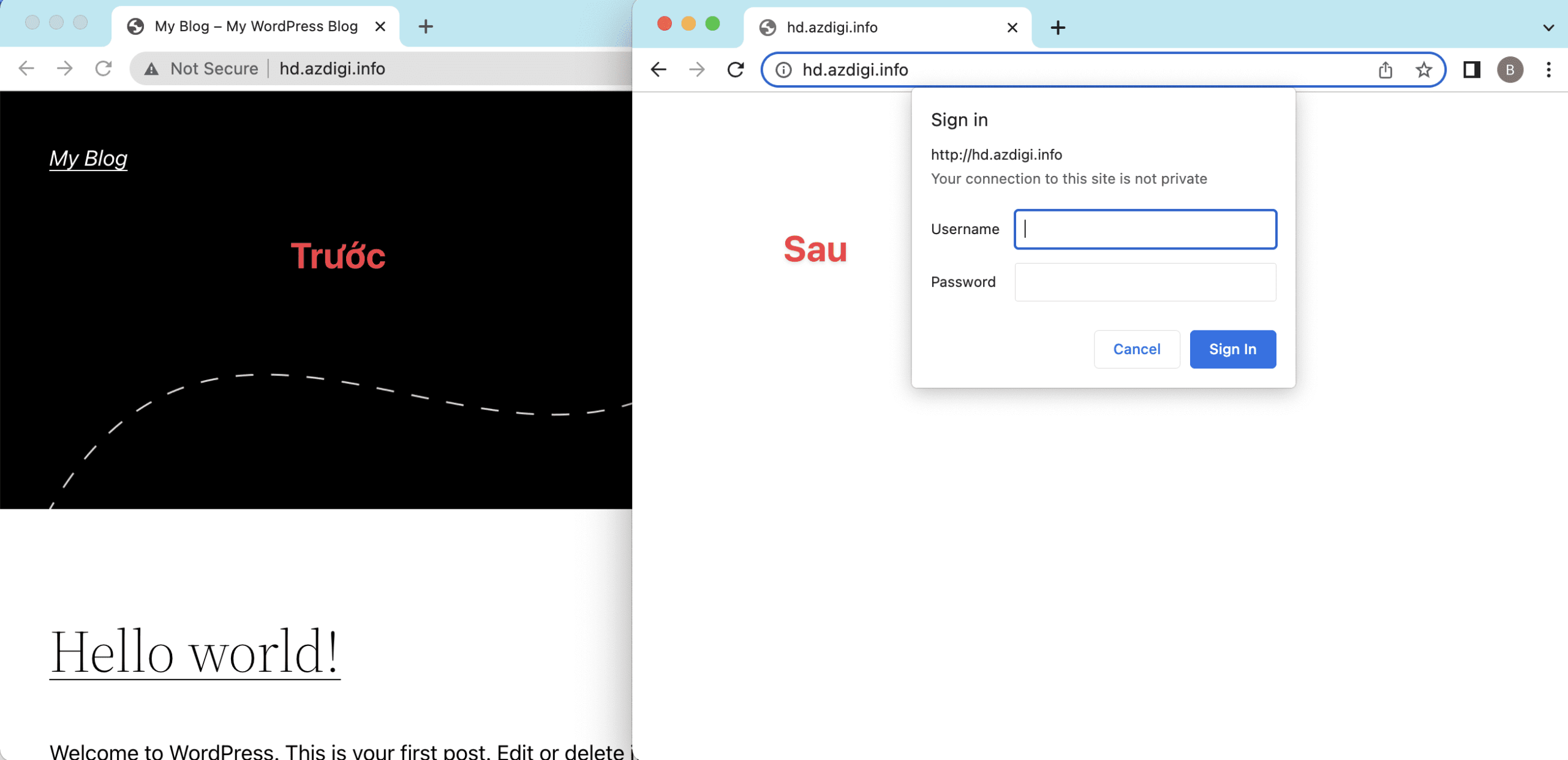
So I have configured Password Protected Directories for the directory containing the data of the website hd.azdigi.info. Now I will access the website in the browser to check the results. Below are the results before and after my configuration, which was successful.
Above are details on how to set up Password Protected Directories on DirectAdmin. In some cases, if you want to display data on the internet but want to limit who can access and view that data, then this will be a useful and simple solution for you.
You can refer to other instructions at the link below:
If you need assistance, you can contact support in the ways below:
- Hotline 247: 028 888 24768 (Ext 0)
- Ticket/Email: You use the email to register for the service and send it directly to: support@azdigi.com
About the author

Thạch Phạm
Đồng sáng lập và Giám đốc điều hành của AZDIGI. Có hơn 15 năm kinh nghiệm trong phổ biến kiến thức liên quan đến WordPress tại thachpham.com, phát triển website và phát triển hệ thống.