Overview
In the process of using DirectAdmin, you will need to upgrade a lot of attached services such as Apache, PHP, MariaDB, Roundcube, Let’s Encrypt Client, DirectAdmin… that you need to upgrade from time to time.
Here are some key reasons to consider upgrading these services:
- Increase security.
- Increased stability.
- Increased compatibility with other services.
- Fix backlog bugs on older versions.
- Integrate new features.
In this article, AZDIGI will guide you to upgrade the Let’s Encrypt Client version to the latest version. This will help you reduce the time to renew SSL, fix the error of failing to install SSL Let’s Encrypt… The latest version at the time of writing this article is 2.0.6.
Upgrade Let’s Encrypt Client DirectAdmin
To upgrade Let’s Encrypt Client DirectAdmin, we do one of the following two methods:
Method 1: Upgrade Let’s Encrypt Client DirectAdmin via SSH
Step 1: SSH into your VPS/Server
To upgrade Let’s Encrypt Client DirectAdmin, you need SSH to VPS/Server. If you do not know the SSH to your VPS/Server, you can refer to the following tutorial:
After SSHing into your VPS/Server we continue with step 2.
Step 2: Check the version you are using and the latest version of Let’s Encrypt Client
To check the version in use and the latest version of Let’s Encrypt Client we use the following two commands:
cd /usr/local/directadmin/custombuild
./build versions
Explanation of the above command:
- Command 1: Move to the custombuild folder
- Command 2: Execute the command to check the current version and the latest released version
After running the second command, you will see a list of software and versions in use.
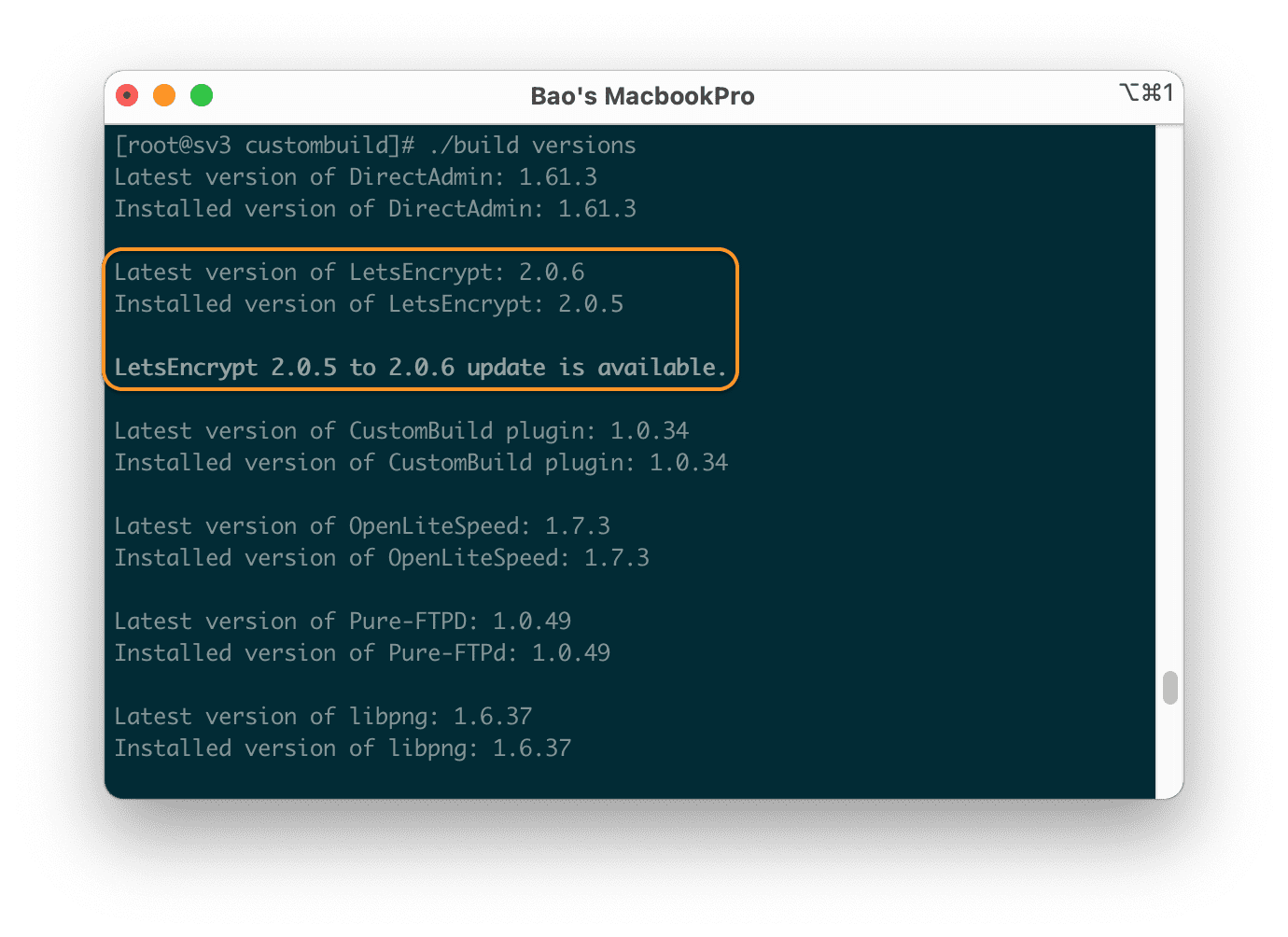
Here you will easily see which software has a newer update that will be highlighted in bold. Here, I’m using Let’s Encrypt Client version 2.0.5 and have a newer update of 2.0.6. To upgrade it, we go to step 3.
Step 3: Update the Let’s Encrypt Client version on DirectAdmin
To update the Let’s Encrypt Client version on DirectAdmin, we just need to use the following two commands:
./build update
./build letsencrypt
Explanation of the above command:
- Command 1: Update custombuild script
- Command 2: Update Let’s Encrypt Client
After running the two commands above, you have updated Let’s Encrypt Client to the latest version. Here are my results:
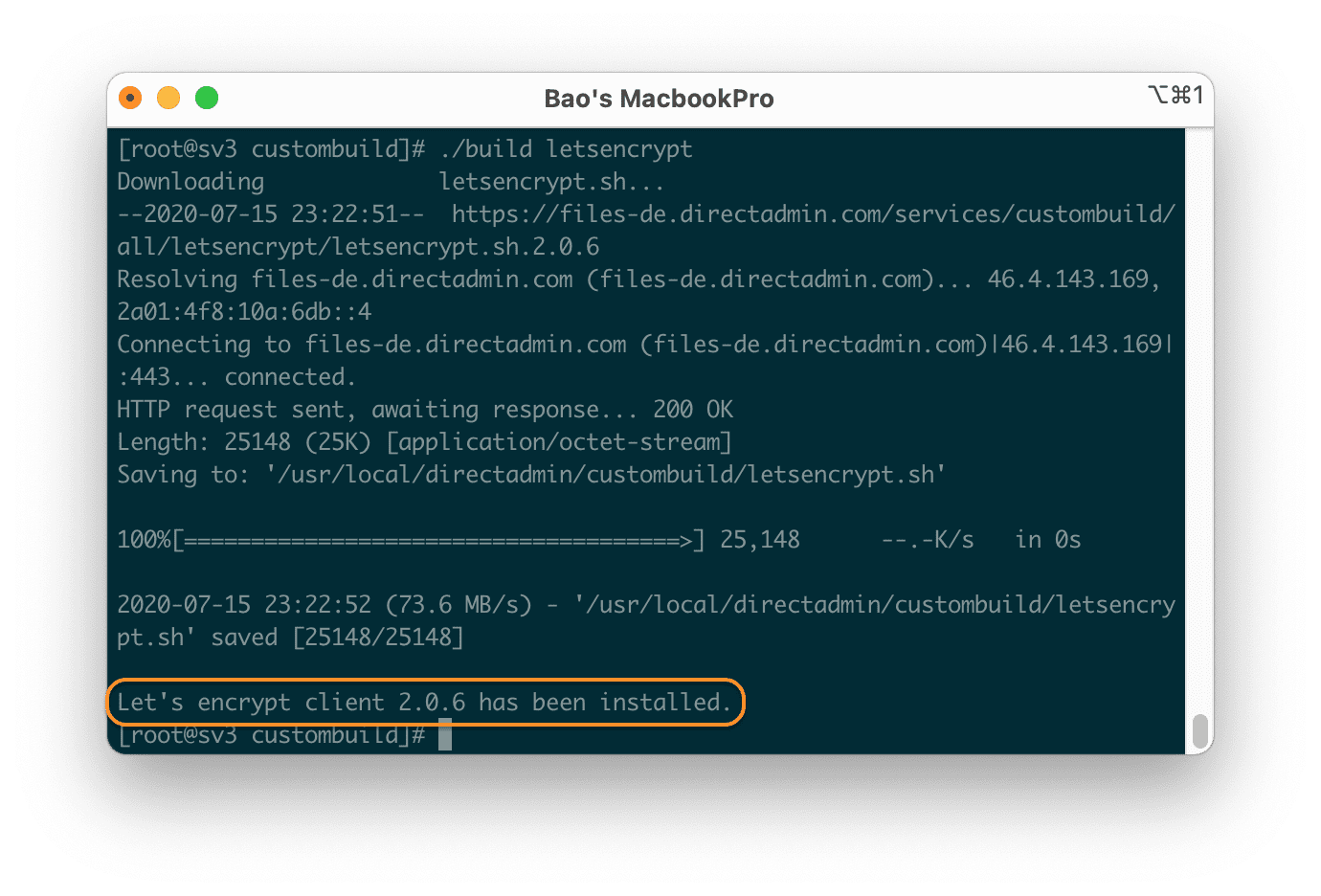
So we know how to upgrade Let’s Encrypt Client on DirectAdmin. If you like, you can refer to method 2 for more information.
Method 2: Upgrade Let’s Encrypt Client DirectAdmin through the DirectAdmin interface
Step 1: Log in to the DirectAdmin admin interface with the Admin account
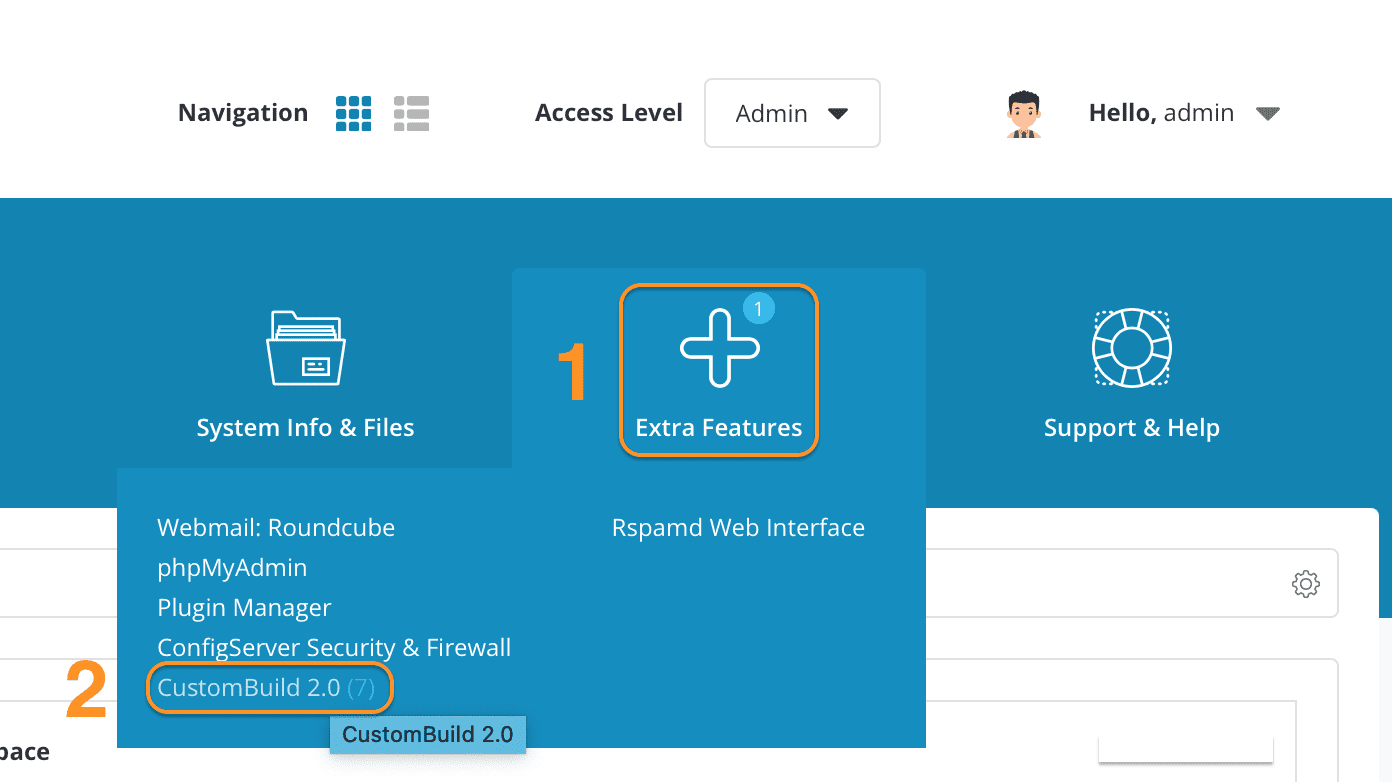
First, you need to log in to the DirectAdmin admin interface with the highest privilege as Admin. Then we proceed to the CunstomBuild 2.0 feature in the Extra Features section as shown below:
Step 2: Update custombuild script
After accessing the CustomBuild 2.0 feature, we need to update the custombuild script. To update the custombuild script, we follow the image below.
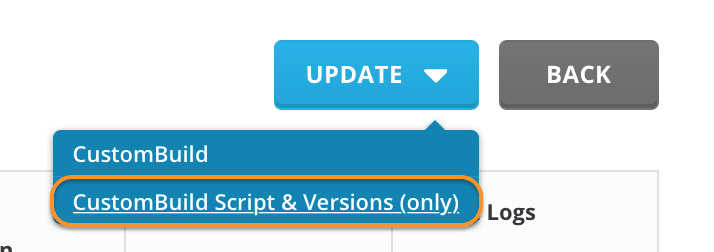
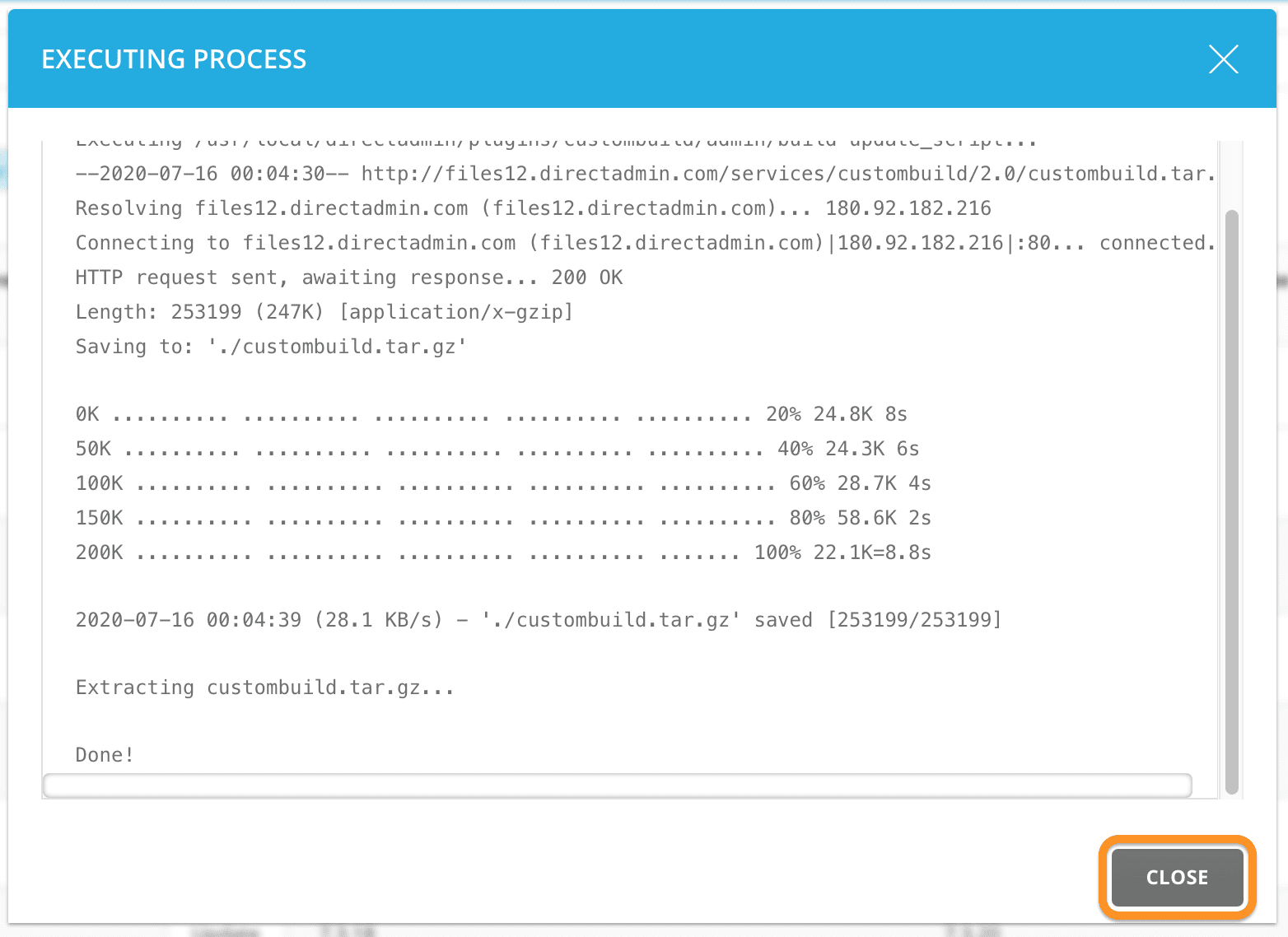
Wait for the update process to complete and then click “Close“.
After clicking “Close“, you will see a table of all the software that needs to be updated. Here you can choose to update each software as you like by clicking Update at the corresponding line.
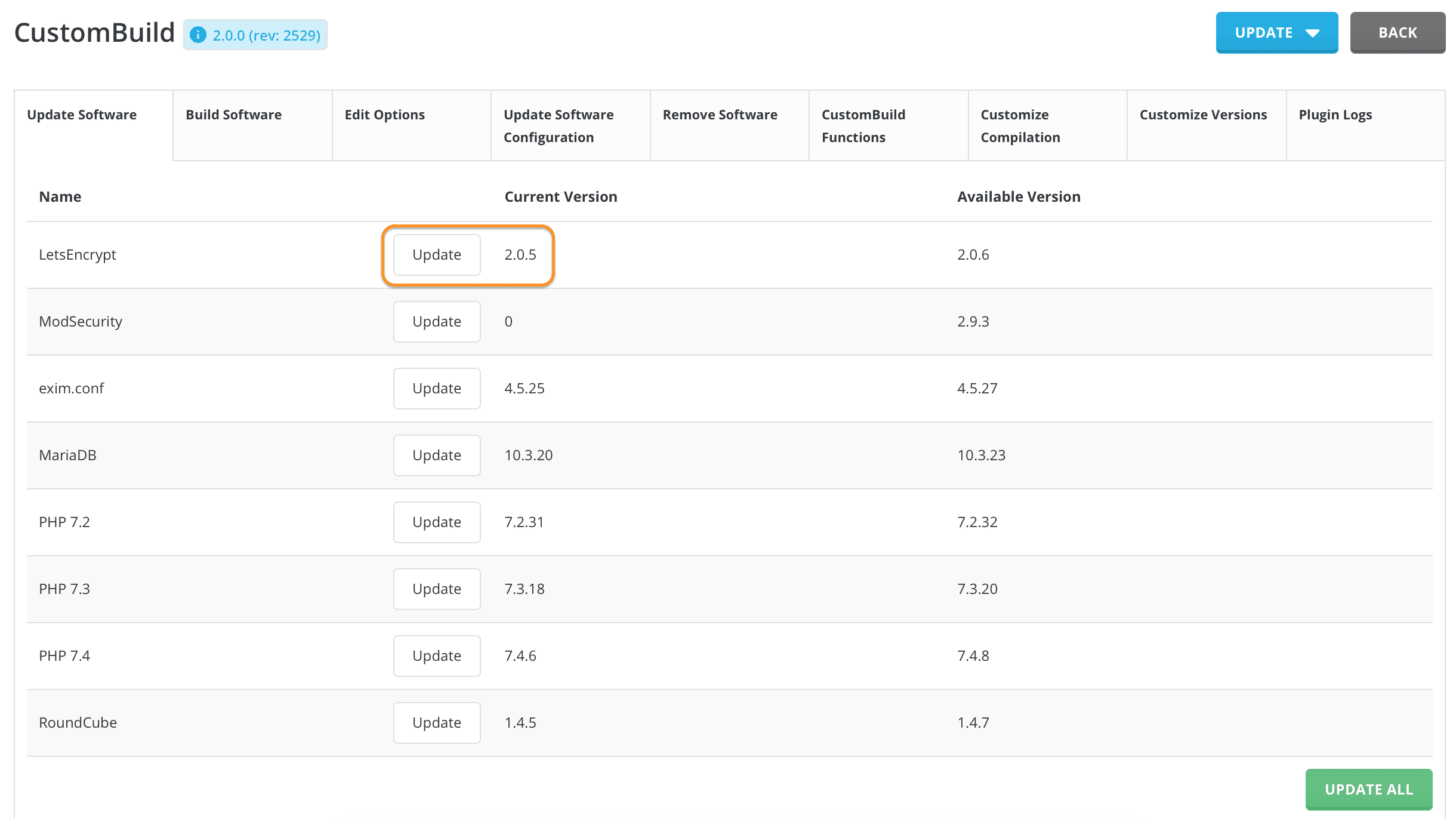
I will update Let’s Encrypt Client so I will click the “Update” button. And we can monitor the process as shown below: Since Let’s Encrypt Client is so lightweight, the process usually doesn’t take long.
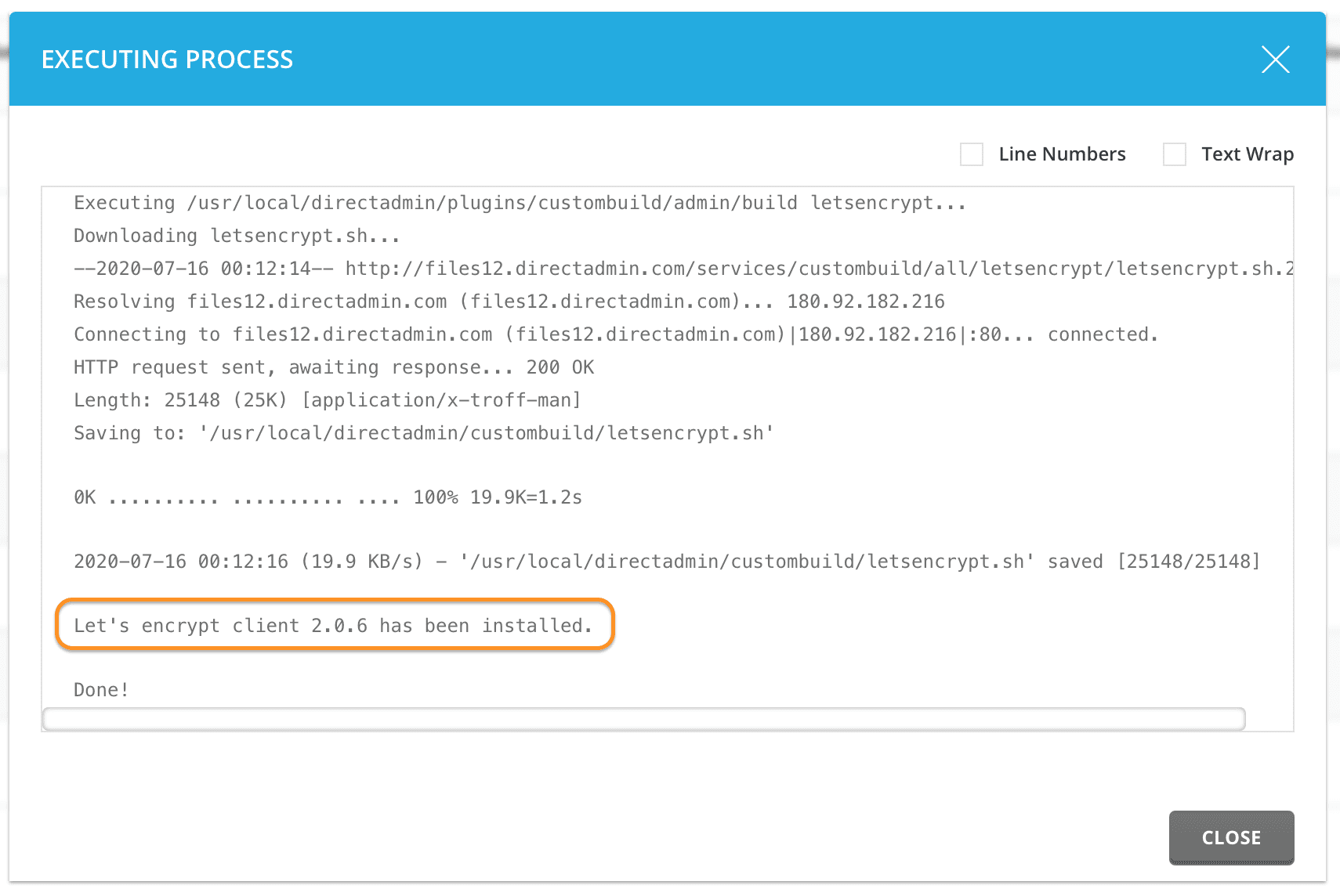
So complete the Let’s Encrypt Client upgrade process on the DirectAdmin interface.
Summary
So we completed 2 methods to upgrade Let’s Encrypt Client on DirectAdmin. If you find this article useful, please share it widely!
Wishing you success.
If you need assistance, you can contact support in the ways below:
- Hotline 247: 028 888 24768 (Ext 0)
- Ticket/Email: You use the email to register for the service and send it directly to: support@azdigi.com
About the author

Thạch Phạm
Đồng sáng lập và Giám đốc điều hành của AZDIGI. Có hơn 15 năm kinh nghiệm trong phổ biến kiến thức liên quan đến WordPress tại thachpham.com, phát triển website và phát triển hệ thống.