In this article, AZDIGI will guide you on using a Two-Step Authentication feature on DirectAdmin to protect your DirectAdmin account.
I. What is Two-Step Authentication?
Two-Step Authentication on DirectAdmin is a feature where, even if you enter the correct login information to your DirectAdmin account, DirectAdmin still requires verification of the authentication code generated from Google Authentication, FreeOTP on smartphones, or Authy on computers. This feature is also known as 2FA.
And once Two-Step Authentication is enabled on DirectAdmin, it will secure your DirectAdmin account from brute force attacks.
II. Using Two-Step Authentication on DirectAdmin
To use the Two-Step Authentication feature on DirectAdmin, we need to follow the two steps below.
Step 1: Download the Google Authenticator or Authy app to your device
Depending on the operating system you are using, choose one of the following links to download:
- Google Authenticator for IOS.
- Google Authenticator for Android.
- Authy for computers and mobile devices.
And in this article, I will use the Google Authenticator app on my phone to authenticate login.
Step 2: Enable Two-Step Authentication on DirectAdmin
First, we log in to DirectAdmin as usual, then select the user icon and choose Password as shown below:
After accessing the next page, we will choose Two-Step Authentication to access this feature. And we will select the button Generate Secret as shown in the image below.
On the information screen that appears as shown in the following image, open the Google Authenticator app on your phone and start scanning the QR code below.
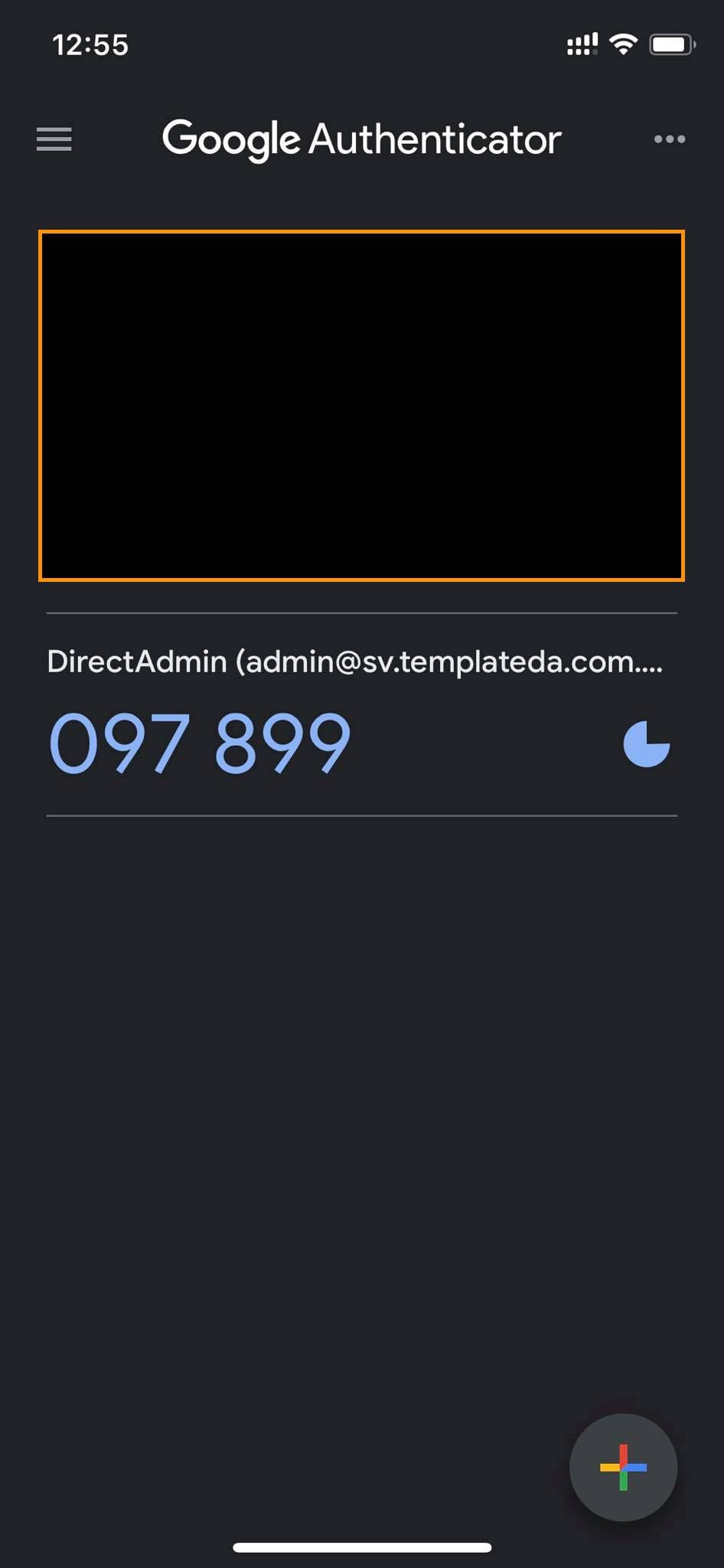
After scanning, you will receive a real-time access code. If you pay attention, you will see the username along with the hostname of the server you are using.
You can completely check your authentication code with the built-in tool on this page. If you check and receive the message as below, your authentication code is ready to use.
Then, on this page, you need to check the box for Require valid Two-Step Authentication Code to login to this account.. From then on, whenever you log in to DirectAdmin with this user, it will always require the authentication code.
Now, open the Google Authenticator app on your phone to get the login verification code. You can choose to Trust this device for 30 days, and DirectAdmin will allow your device to log in for the next 30 days without requiring a login verification code.
At this point, we have completed the process of setting up Two-Step Authentication on DirectAdmin. However, you should continue reading the rest of the article to learn more important information related to this feature.
In case you want to access DirectAdmin without going through the login verification code because you cannot access your Google Authenticator device, select the Scratch Codes page to set up backup codes.
Scratch Codes backup codes setup page.On this page, you select Add Codes. These codes are generated for one-time use in case of emergency when you don’t have access to your phone, so keep them safe and use them carefully. It is recommended to set the expiration date for these codes to “Never expire” as shown below:
There will be 5 codes corresponding to 5 successful logins as shown below. And you should save these login codes somewhere else other than your phone.
After you have successfully logged in, please return to the Two-Step Authentication page to generate a new login code if you want to use it on another mobile device.
III. Summary
Hopefully, through this article, you know how to enable Two-Step Authentication on DirectAdmin to protect your account against today’s rampant Brute Force attack and how to use backup codes to log in even if you don’t have your phone nearby.
Hope this article will be of help to you. Wishing you success!
See more useful articles about DirectAdmin at the following link:
If you need assistance, you can contact support in the ways below:
- Hotline 247: 028 888 24768 (Ext 0)
- Ticket/Email: You use the email to register for the service and send it directly to support@azdigi.com.
You might also like
- How to configure SSH Two Factor Authentication on Ubuntu 22.04
- Enable 2-factor authentication to protect your AZDIGI account
- Disable Two-Step Authentication on DirectAdmin
- EnableTwo-factor authentication on FASTPANEL
- How to enable 2-factor authentication on CyberPanel
- Configure Google Authenticator SSH on CentOS 7
About the author

Thạch Phạm
Đồng sáng lập và Giám đốc điều hành của AZDIGI. Có hơn 15 năm kinh nghiệm trong phổ biến kiến thức liên quan đến WordPress tại thachpham.com, phát triển website và phát triển hệ thống.