
In some cases, after you switch hosting & reinstall the website, accessing the home site still works normally and when accessing subsites such as (posts, pages, categories) all get a 404 not found error in WordPress. Don’t worry, AZDIGI will guide you on how to handle this problem quickly.

Method 1: Update Permalinks
You log in to the WordPress admin, find Settings => Permalinks

Next, you choose Customize and proceed to save, you should clear the browser cache and recheck.

Method 2: Edit in the .htaccess file
By default, the .htaccess file is hidden, so you need to show it up.
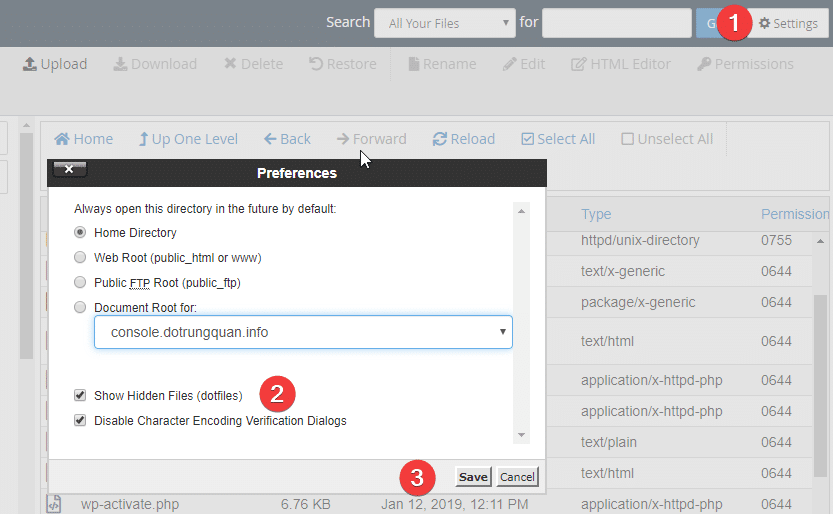
Next, open and edit the .htaccess file and add the code below. If the .htaccess file does not exist, create a new one.
Snippets for WordPress
# BEGIN WordPress
<IfModule mod_rewrite.c>
RewriteEngine On
RewriteBase /
RewriteRule ^index.php$ - [L]
RewriteCond %{REQUEST_FILENAME} !-f
RewriteCond %{REQUEST_FILENAME} !-d
RewriteRule . /index.php [L]
</IfModule>
# END WordPress
If you use WordPress Multisite, you can use the following code
RewriteEngine On
RewriteBase /
RewriteRule ^index.php$ - [L]
# add a trailing slash to /wp-admin
RewriteRule ^([_0-9a-zA-Z-]+/)?wp-admin$ $1wp-admin/ [R=301,L]
RewriteCond %{REQUEST_FILENAME} -f [OR]
RewriteCond %{REQUEST_FILENAME} -d
RewriteRule ^ - [L]
RewriteRule ^([_0-9a-zA-Z-]+/)?(wp-(content|admin|includes).*) $2 [L]
RewriteRule ^([_0-9a-zA-Z-]+/)?(.*.php)$ $2 [L]
RewriteRule . index.php [L]
Video tutorial for editing .htaccess file
Fix 404 not found error in WordPress on NGINX
If your VPS or Linux server is using NGINX as the webserver running your WordPress website, you are probably missing the rewrite path configuration for your NGINX website. To configure the rewrite for WordPress on NGINX, enter the following into the domain configuration file in NGINX on the server.
location /
{
	 try_files $uri $uri/ /index.php?$args;
}
And remember to restart NGINX with the command service nginx restart
Now check again to see if you still get the 404 error!
You might also like
- Aggregate redirects with .htaccess
- Fixing the 500 Internal Server Error on WordPress
- Processing 403 error when accessing WordPress admin (Forbidden)
- How to fix error 404 on aaPanel
- Fixing the 404 Sitemap error on aaPanel using Nginx
- Instructions to redirect www to non-www and vice versa with .htaccess
About the author

Thạch Phạm
Đồng sáng lập và Giám đốc điều hành của AZDIGI. Có hơn 15 năm kinh nghiệm trong phổ biến kiến thức liên quan đến WordPress tại thachpham.com, phát triển website và phát triển hệ thống.