
In the process of using aaPanel, I encountered quite a few problems, but most of the problems had solutions. And you may get an error that MariaDB could not be started with the full error log as follows:
Aria engine is not enabled or did not start. The Aria engine must be enabled to continue as mysqld was configured with --with-aria-tmp-tables
I. Recognizing
This error is difficult to recognize when you only use the aaPanel interface because in the aaPanel interface, the MySQL/MariaDB service still says it is working normally, even if you restart this service, the aaPanel interface still says the same.
However, websites will still show Error establishing a database connection error as shown below:
There is also another way to know that you will not be able to access phpMyadmin even if you have entered the correct information.

II. How to fix the “Aria engine is not enabled or did not start” error
To fix the “Aria engine is not enabled or did not start” error, you need to do the following 3 steps.
Step 1: SSH into your aaPanel server
To fix the “Aria engine is not enabled or did not start” error, we first need to SSH or access your VPS/server with root privileges. If you do not know how to SSH into your VPS/Server, you can refer to the following tutorial:
After successfully SSHing, we continue with step 2 to check the log what is the cause of the error.
Step 2: Check MySQL/MariaDB error log on aaPanel
To check the MySQL/MariaDB error log on aaPanel, we use the following command:
tailf /www/server/data/.err
Remember to change hostname.com to the hostname of your server.
In addition, you need to open another SSH window to run the command to restart the MySQL/MariaDB service with the command:
service mysql restart
After restarting with the above command, we see the error log generated a lot and in it there is the Aria engine is not enabled or did not start, as shown below:
You can open the image with a new tab to see it clearly.
Note: At (1), after I start MySQL/MariaDB, I get a generic error. And in the error log file, the error is very detailed and complete as follows:
Aria engine is not enabled or did not start. The Aria engine must be enabled to continue as mysqld was configured with --with-aria-tmp-tables
So seeing the problem, we continue with step 3 to fix it.
Step 3: Handling “Aria engine is not enabled or did not start” error on aaPanel
To handle this error, we execute the following two commands:
mv /www/server/data/aria_log_control /www/server/data/aria_log_control_bak
service mysql restart
Explanation of the two commands above:
- Command 1: Change the filename
aria_log_controltoaria_log_control_bak. - Command 2: Restart the
MySQL/MariaDBservice.
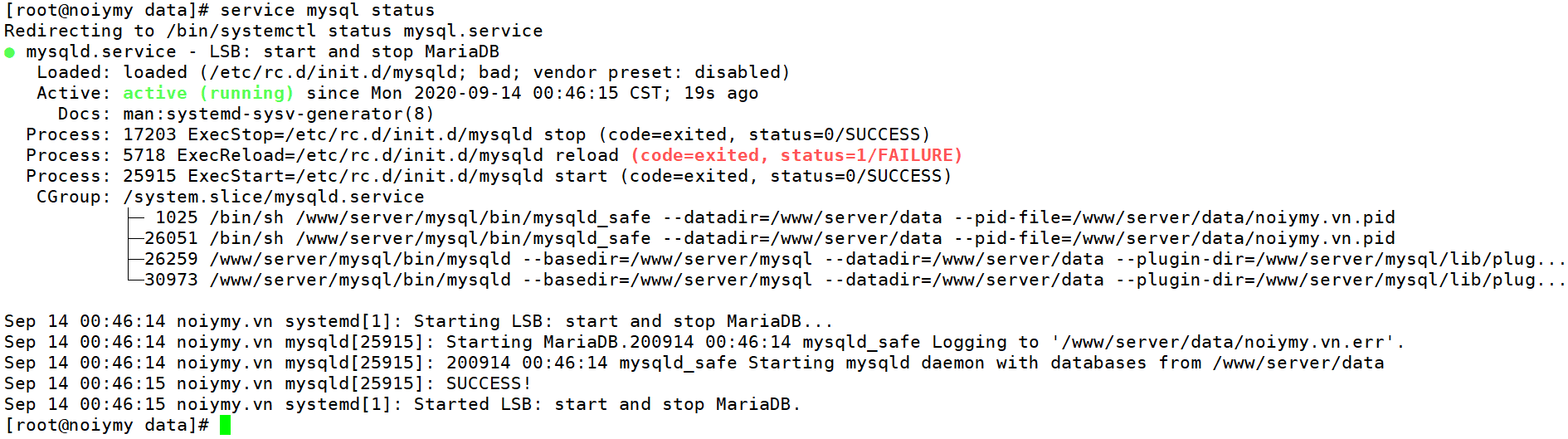
After executing the above two commands, MySQL/MariaDB has worked properly.
III. Summary
Through this article, you have found a way to handle the error MySQL/MariaDB that cannot start. Hope the article is useful to you.
Wishing you success.
You might also like
- How to handle full space due to mysql-bin aaPanel
- Fix MySQL connection lost error on aaPanel
- How to fix the 500 internal server error in PhpMyAdmin?
- How to convert MySQL to MariaDB on DirectAdmin
- Fix Roundcube Database Error on DirectAdmin
- How to fix the error: Request body no files data length is larger on DirectAdmin
About the author

Thạch Phạm
Đồng sáng lập và Giám đốc điều hành của AZDIGI. Có hơn 15 năm kinh nghiệm trong phổ biến kiến thức liên quan đến WordPress tại thachpham.com, phát triển website và phát triển hệ thống.