In this article, I will guide you to fix the 500 error on CyberPanel during use.
I. Overview
Error 500 on CyberPanel has many causes, but in this article, AZDIGI will show you a relatively common 500 error and how to fix it.
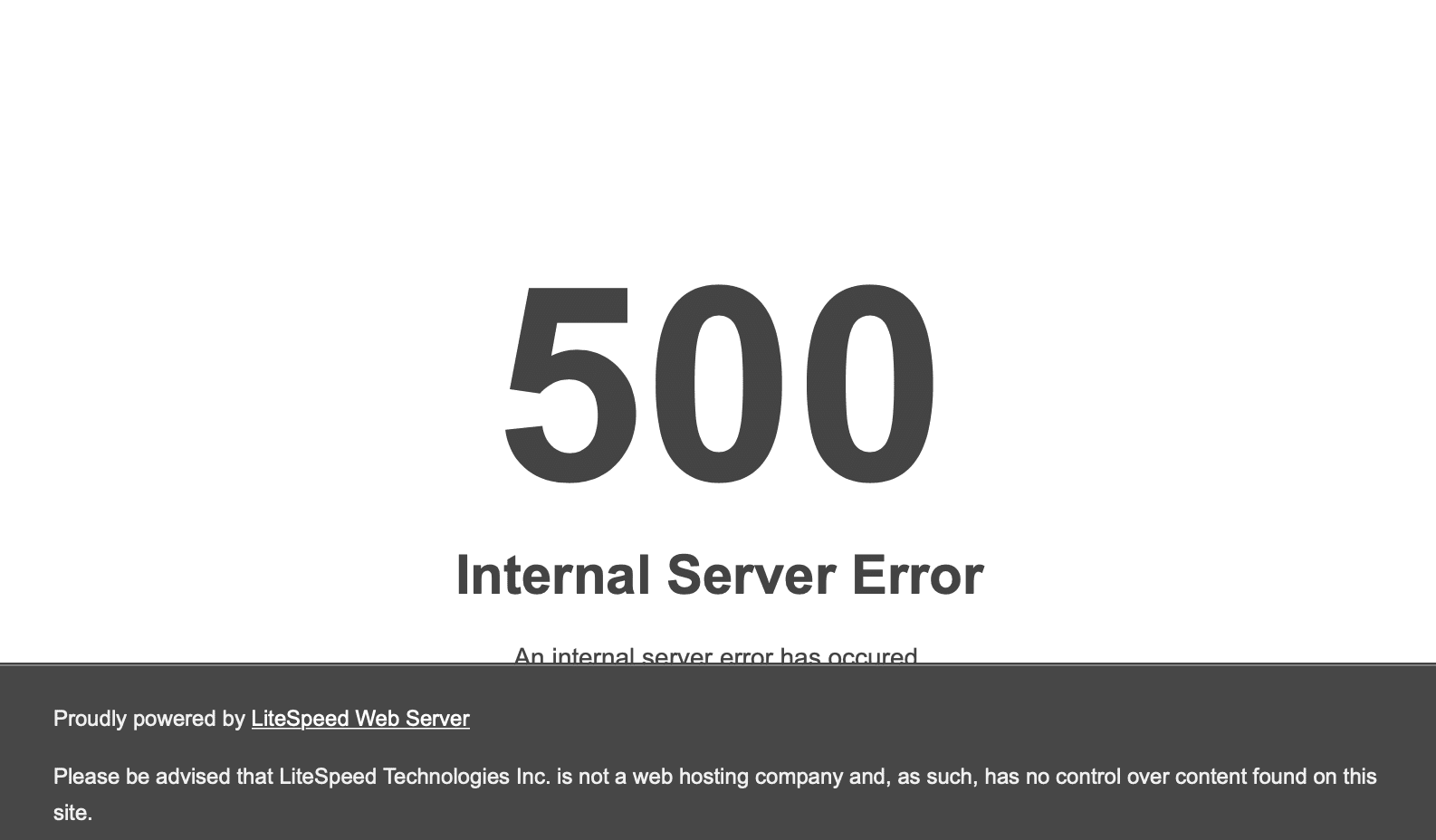
Below is an image to identify this error:
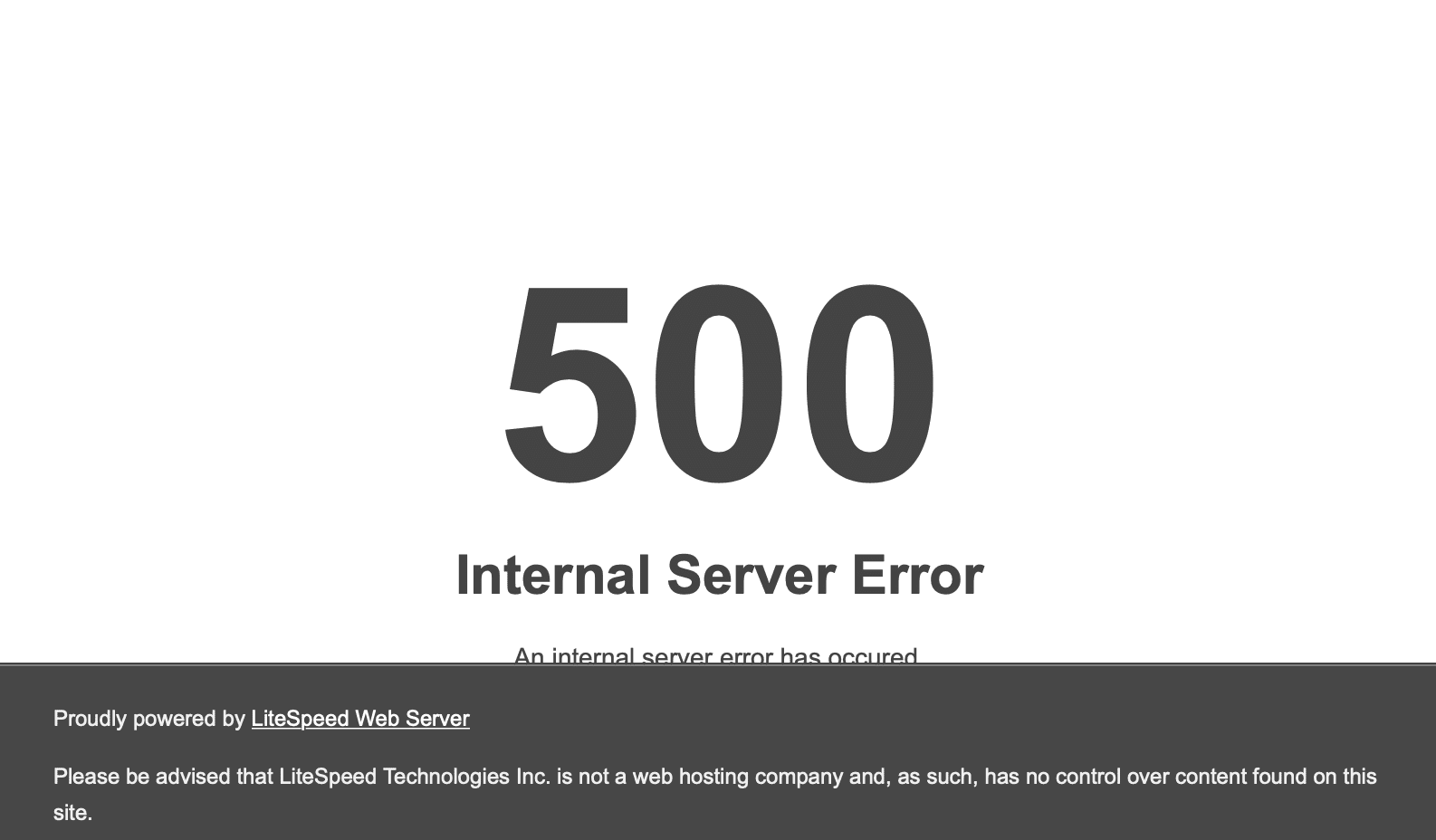
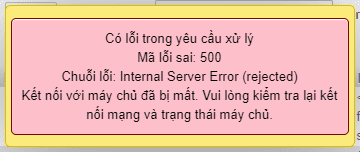
Usually, both of these errors will appear at the same time.
Please continue reading the next part of this article to refer to the solution to handling error 500 on CyberPanel.
II. Fix the 500 error on CyberPanel
To fix the error 500 on CyberPanel, we follow these steps.
Step 1: SSH into your CyberPanel system
To fix the 500 error on CyberPanel, we first need to SSH into your VPS/server as root. If you don’t know how to SSH into your VPS/Server, you can refer to the following tutorial:
After successfully SSH, we continue with step 2 to perform the 500 CyberPanel error checking and handling command.
Step 2: Check the cause and fix the error 500 on CyberPanel
First, you should find the cause in the CyberPanel error log file with the following command:
cat /home/cyberpanel/error-logs.txt
Or you can check the hard drive space with the df -h command to check the usage on the server partitions.
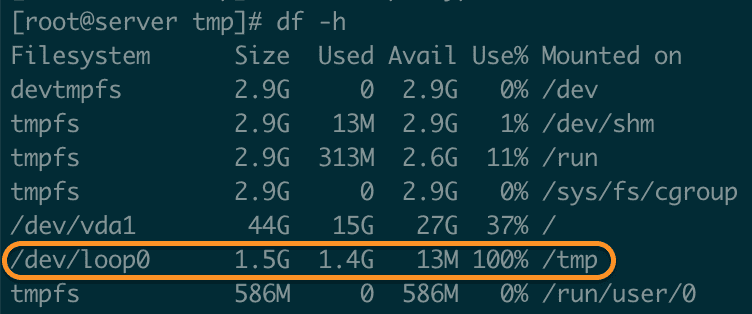
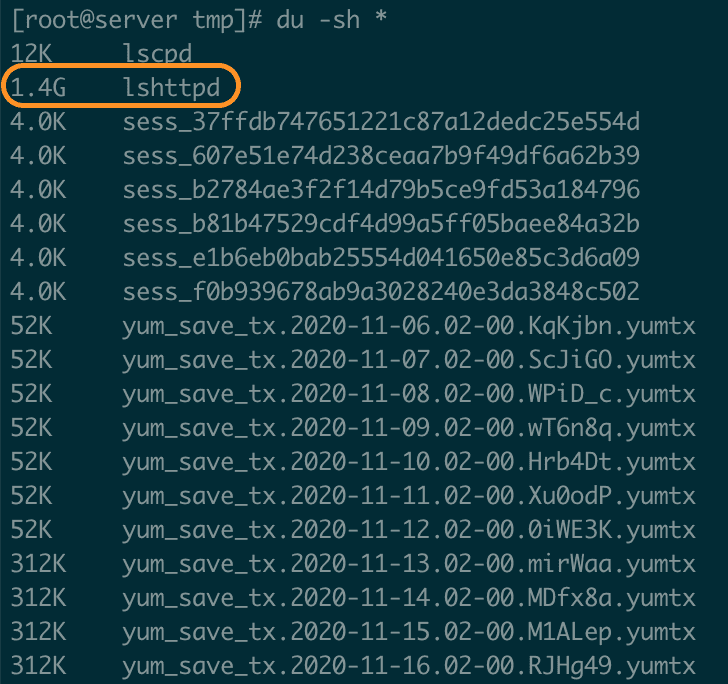
/tmp partition is running out of space.In the image above, my /tmp partition has reached 100%. So let’s move to this partition together and use the du -sh * command to check exactly which folders take up the most space.
In my /tmp partition, there are a lot of files and folders, but you will see that there is a folder lshttpd that uses the most space.
/tmp partition.When moving into this folder, we will see that there is a bak_core folder and in this folder, there are files that take up a lot of space as follows:
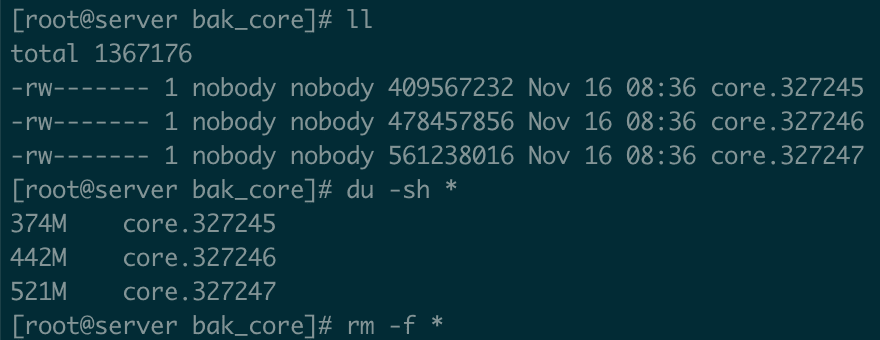
I found out on CyberPanel’s forum, these are the files that back up the core of CyberPanel when CyberPanel is upgraded. And you can completely delete it after your CyberPanel is upgraded.
After deleting these files, we check the capacity of the /tmp partition again.
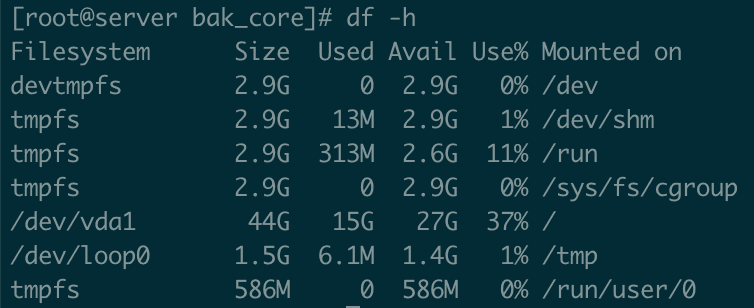
As you can see, my /tmp partition has more free space already. Then use the following command to restart CyberPanel.
systemctl restart lscpd
After restarting CyberPanel, the error did not exist anymore.
However, to prevent this from happening again, you should adjust the /tmp partition to a higher capacity.
III. Summary
With error 500, there are many causes, if I encounter other cases, I will update more in this article for your reference.
Hope the article is helpful to you.
Wishing you success.
- See also: The general guide of CyberPanel.
If you need assistance, you can contact support in the ways below:
- Hotline 247: 028 888 24768 (Ext 0)
- Ticket/Email: You use the email to register for the service and send it directly to: support@azdigi.com .
- Website AZDIGI: https://azdigi.com/
You might also like
- How to handle full space due to mysql-bin aaPanel
- Fixing the 500 Internal Server Error on WordPress
- Fix the error: xfs_quota: cannot set limits: Function not implemented Directadmin
- Fix the "Aria engine is not enabled or did not start" error on aaPanel
- Fix the error: can not be uploaded Error message CyberPanel
- Fix the "Error with system Quotas" error on DirectAdmin
About the author

Thạch Phạm
Đồng sáng lập và Giám đốc điều hành của AZDIGI. Có hơn 15 năm kinh nghiệm trong phổ biến kiến thức liên quan đến WordPress tại thachpham.com, phát triển website và phát triển hệ thống.