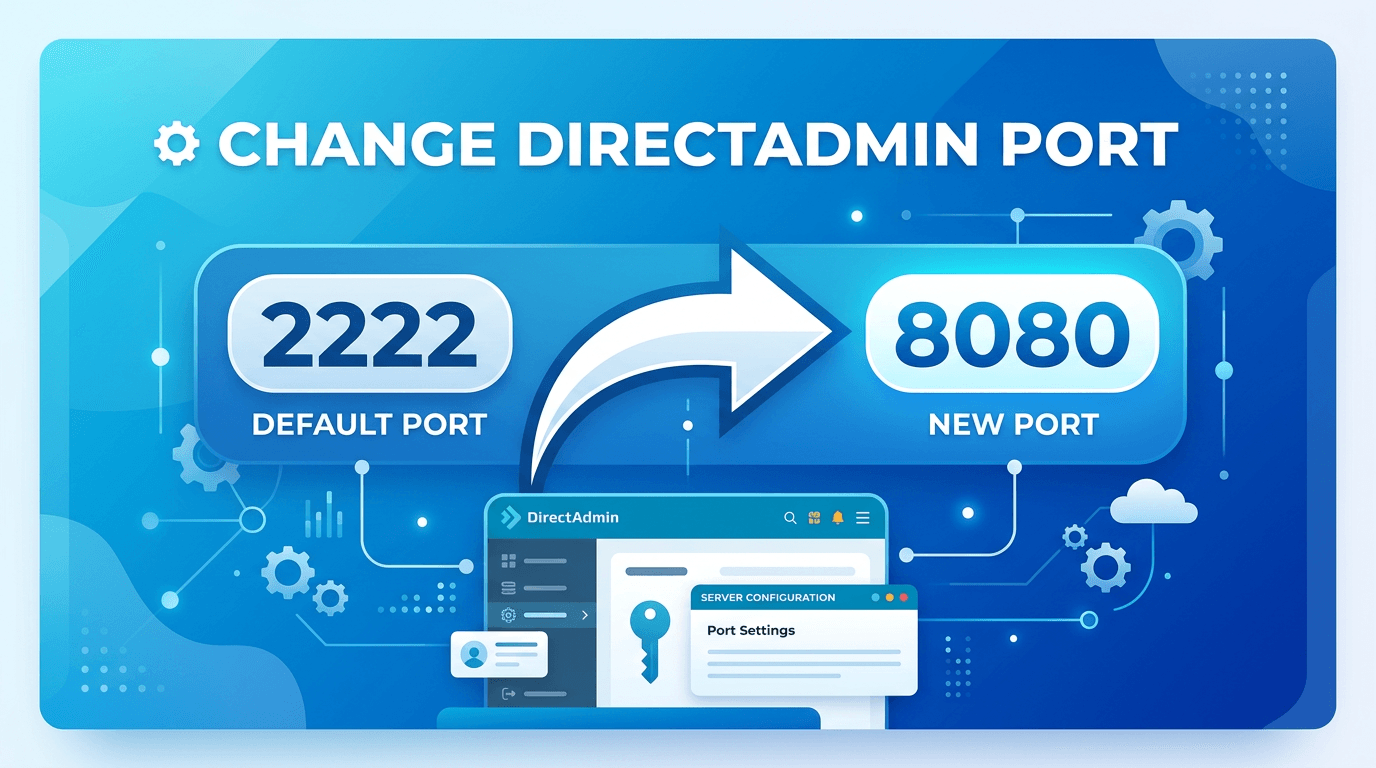
In today’s tutorial, AZDIGI will show you how to change the DirectAdmin port to help increase the security of DirectAdmin or depending on your other purposes.
I. Introduction
When using DirectAdmin, we will default use Port 2222 to log in. However, many users or providers use the port for DirectAdmin to increase the security of their DirectAdmin server. Because if using the default Port, the possibility of a Brute Force attack will be higher.
So to change the DirectAdmin port, please see the next part of the article.
II. Change the DirectAdmin port
To change the DirectAdmin port, follow these 3 steps.
Step 1: SSH into your DirectAdmin system
To change the DirectAdmin port, we first need to SSH or access your VPS/server with root privileges. If you don’t know how to SSH into your VPS/Server, you can refer to the following tutorial:
After successfully SSH, we continue with step 2 to change the default Port to the new Port in the DirectAdmin configuration file.
Step 2: Change the default Port at DirectAdmin configuration
After successfully SSH, we continue to edit the configuration file of DirectAdmin with the following commands:
cd /usr/local/directadmin/conf/
vi directadmin.conf
Explanation of the two commands above:
- Command 1: Move to the directory where the configuration file is located.
- Command 2: Edit the configuration file named
directadmin.conf.
At the configuration file editing interface, look for the port= to edit, if there is no this line, add it at the bottom as shown below. Remember to add the port you want after the = sign.
After you have finished editing, save and restart DirectAdmin with the following commands:
killall -9 directadmin
/etc/init.d/directadmin start
Explanation of the two commands above:
- Command 1: Shut down all processes named DirectAdmin.
- Command 2: Restart DirectAdmin to get the new configuration.
Now try to access your DirectAdmin with the new port. My example is http://IP:3333. If you do not use any Firewall, you can access it immediately.
However, most of us will use the CSF Firewall with DirectAdmin, so we need to do an additional step 3, to open this new port.
Step 3: Open the DirectAdmin’s new port
After changing the DirectAdmin port but not being able to access it, you need to change the default Port 2222 to the newly changed Port in Firewall CSF. My newly changed port is 3333, so I will make the change with the following command:
vi /etc/csf/csf.conf
In the Firewall CSF configuration file, you need to change the entire port 2222 to 3333 in the following lines:
139	TCP_IN =
250	TCP6_IN =
2726	PORTS_directadmin =
The numbers 139, 250, 2726 correspond to the lines I edited. These line numbers may vary depending on the CSF Firewall version.
Here is the image after I edited it.
After making the changes, please save and run the command to restart Firewall CSF.
csf -r
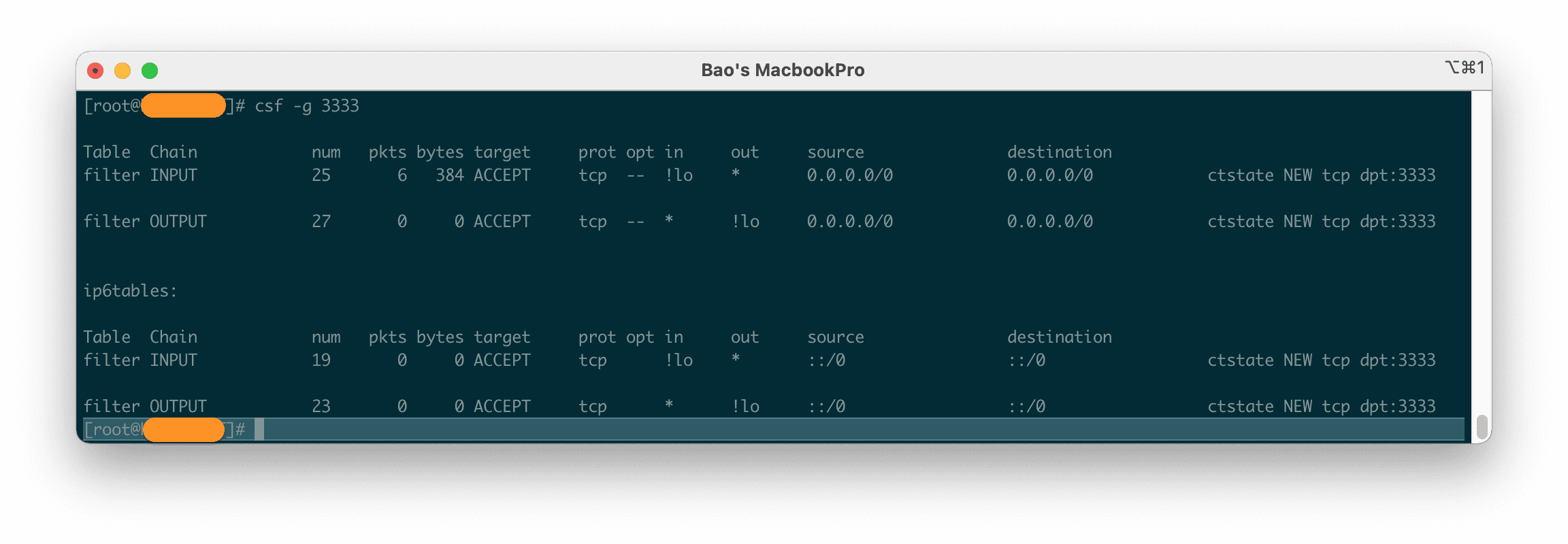
You can check again with the following command:
csf -g 9999
If the result is similar to the following image, you have done it correctly.
Finally, please try to reaccess http://IP:3333 . Here is my result.
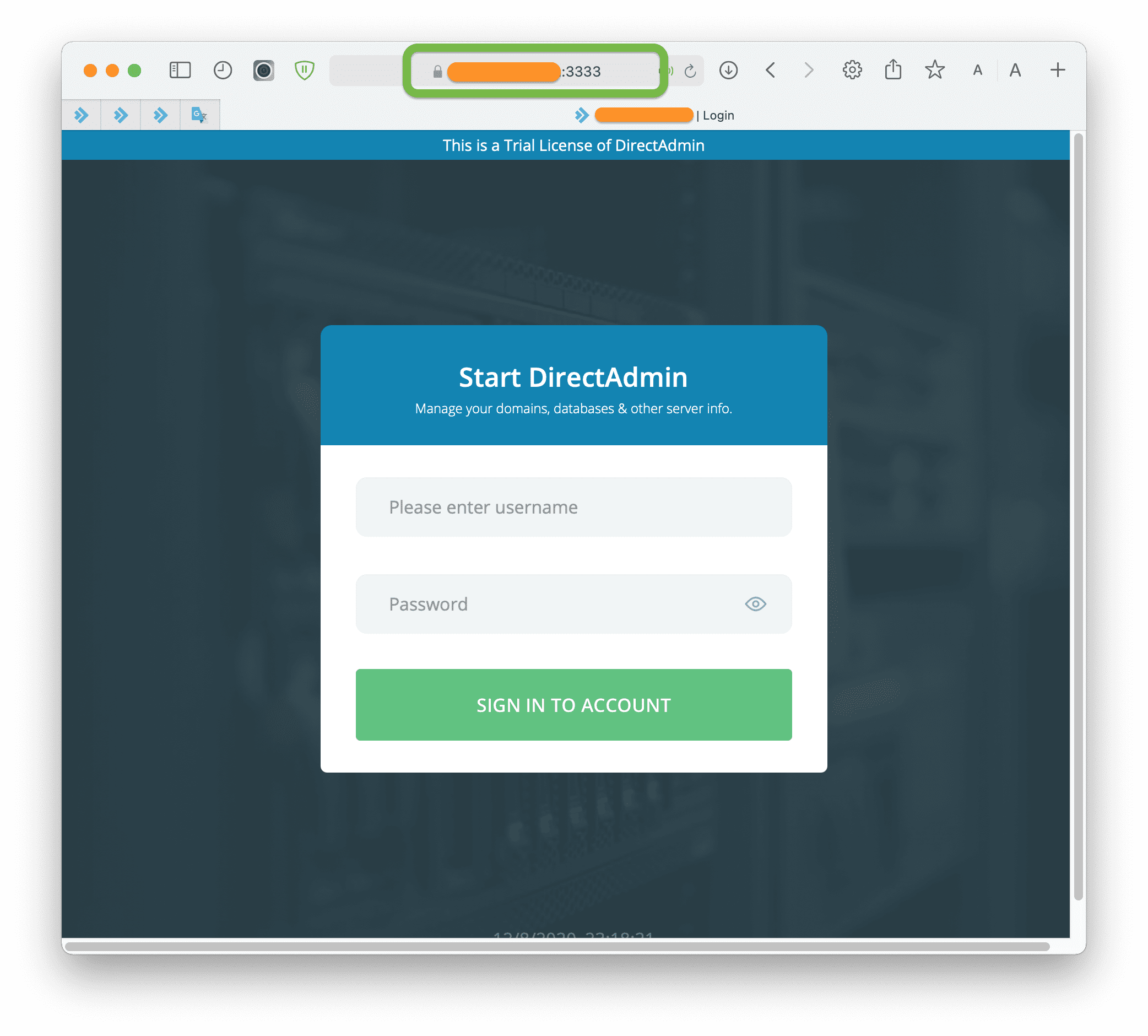
So we have completed the change of port of DirectAdmin.
III. Summary
With just 3 simple steps, we successfully changed the DirectAdmin port. If you want your DirectAdmin to be more secure, you can refer to the following two articles:
Hope this article will be of help to you. Wishing you success!
See more useful articles about DirectAdmin at the following link:
If you need assistance, you can contact support in the ways below:
- Hotline 247: 028 888 24768 (Ext 0)
- Ticket/Email: You use the email to register for the service and send it directly to: support@azdigi.com .
About the author

Thạch Phạm
Đồng sáng lập và Giám đốc điều hành của AZDIGI. Có hơn 15 năm kinh nghiệm trong phổ biến kiến thức liên quan đến WordPress tại thachpham.com, phát triển website và phát triển hệ thống.