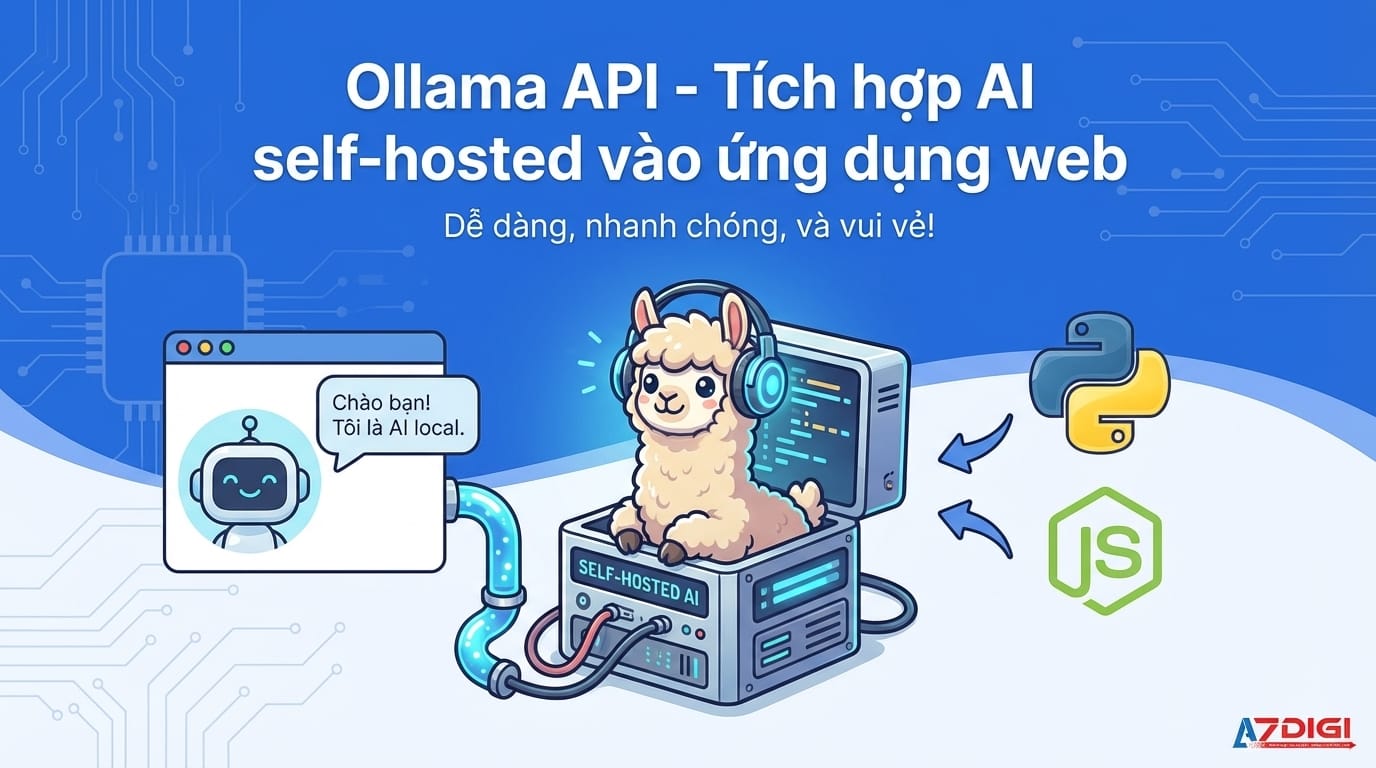
One of the strongest advantages of Ollama is not just running local models easily, but also its extremely simple API. Specifically, Ollama provides an OpenAI-compatible endpoint, meaning you can change just 1 line of code to switch from OpenAI to a self-hosted model. This article will cover all the important endpoints, how to integrate with Python and Node.js, streaming, function calling, and finally building a simple chatbot widget.
Main Ollama API Endpoints
By default, Ollama runs the API server at http://localhost:11434. Below are the endpoints you will use most often.
POST /api/generate – Text completion
The most basic endpoint, send a prompt and receive a response:
curl http://localhost:11434/api/generate -d '{
  "model": "llama3.2",
  "prompt": "Explain what Docker is in 3 sentences",
  "stream": false
}'
The response returns JSON containing the response field with the generated text content, along with metadata like total_duration, eval_count (number of output tokens).
POST /api/chat – Chat with conversation history
This endpoint is more similar to ChatGPT API, supporting an array of messages with roles system, user, assistant:
curl http://localhost:11434/api/chat -d '{
  "model": "llama3.2",
  "messages": [
    {"role": "system", "content": "You are a technical assistant, answer concisely."},
    {"role": "user", "content": "How do Nginx and Apache differ?"}
  ],
  "stream": false
}'
To maintain conversation context, you just need to append new messages to the messages array each time you call. Ollama does not save state between requests, so the entire history must be sent again each time.
GET /api/tags – List installed models
curl http://localhost:11434/api/tagsReturns a list of all models available on the machine, along with information like size, modified date, parameter count. Useful when you want to build UI allowing users to select models.
POST /api/embed – Vector embedding
curl http://localhost:11434/api/embed -d '{
  "model": "nomic-embed-text",
  "input": "Ollama supports embedding"
}'
This endpoint returns vector embeddings of text, used for RAG (Retrieval-Augmented Generation), semantic search, or clustering. The most popular models for embedding are nomic-embed-text or mxbai-embed-large.
OpenAI-compatible endpoint
This is a very nice feature of Ollama. Besides its own API, Ollama also exposes the /v1/chat/completions endpoint that is fully compatible with OpenAI API format:
curl http://localhost:11434/v1/chat/completions -d '{
  "model": "llama3.2",
  "messages": [
    {"role": "user", "content": "Hello!"}
  ]
}'
This means that any application using OpenAI SDK, you just need to change the base_url to Ollama and it will work. No need to modify logic, no need to change libraries. Frameworks like LangChain, LlamaIndex, or Open WebUI all leverage this endpoint.
The /v1/chat/completions endpoint supports most common parameters like temperature, top_p, max_tokens, stream, stop. However, some OpenAI-specific parameters (like logprobs) may not yet be supported.
Integration with Python
Method 1: Using requests (simplest)
import requests
response = requests.post("http://localhost:11434/api/chat", json={
    "model": "llama3.2",
    "messages": [
        {"role": "user", "content": "Write a Python function for bubble sort"}
    ],
    "stream": False
})
data = response.json()
print(data["message"]["content"])
No need to install anything besides requests. Suitable for small scripts, automation, or quick prototyping.
Method 2: Using OpenAI SDK (drop-in replacement)
from openai import OpenAI
client = OpenAI(
    base_url="http://localhost:11434/v1",
    api_key="ollama"  # Ollama doesn't need a key, but SDK requires passing one
)
response = client.chat.completions.create(
    model="llama3.2",
    messages=[
        {"role": "system", "content": "Answer in Vietnamese."},
        {"role": "user", "content": "Compare PostgreSQL and MySQL"}
    ]
)
print(response.choices[0].message.content)
This method is extremely convenient if you already have a codebase using OpenAI. Just change the base_url and you can switch between OpenAI and Ollama at will. The api_key value can be anything since Ollama doesn’t check it, but the SDK requires this field to be non-empty.
Integration with Node.js
Method 1: Using fetch API
const response = await fetch("http://localhost:11434/api/chat", {
  method: "POST",
  headers: { "Content-Type": "application/json" },
  body: JSON.stringify({
    model: "llama3.2",
    messages: [{ role: "user", content: "Hello from Node.js!" }],
    stream: false,
  }),
});
const data = await response.json();
console.log(data.message.content);
Node.js 18+ has built-in fetch, no need to install additional packages. Lightweight, clean, sufficient for most use cases.
Method 2: Using openai npm package
import OpenAI from "openai";
const client = new OpenAI({
  baseURL: "http://localhost:11434/v1",
  apiKey: "ollama",
});
const completion = await client.chat.completions.create({
  model: "llama3.2",
  messages: [{ role: "user", content: "Explain what REST API is" }],
});
console.log(completion.choices[0].message.content);
Similar to Python, just change the baseURL and you’re done. All methods of the OpenAI SDK work normally.
Streaming responses
By default, Ollama streams responses (token by token), similar to how ChatGPT displays text gradually. This provides a much better experience compared to waiting for the entire response before displaying it.
Streaming with Python
import requests
response = requests.post("http://localhost:11434/api/chat", json={
    "model": "llama3.2",
    "messages": [{"role": "user", "content": "Tell a short story"}],
    "stream": True
}, stream=True)
for line in response.iter_lines():
    if line:
        import json
        chunk = json.loads(line)
        print(chunk["message"]["content"], end="", flush=True)
Streaming with JavaScript (browser)
const response = await fetch("http://localhost:11434/api/chat", {
  method: "POST",
  body: JSON.stringify({
    model: "llama3.2",
    messages: [{ role: "user", content: "Hello!" }],
    stream: true,
  }),
});
const reader = response.body.getReader();
const decoder = new TextDecoder();
while (true) {
  const { done, value } = await reader.read();
  if (done) break;
  const chunk = JSON.parse(decoder.decode(value));
  process.stdout.write(chunk.message.content);
}
Ollama streams in newline-delimited JSON (NDJSON) format, with each line being a JSON object containing the next token. When done: true, the response is complete.
Function calling / Tool use
From version 0.5+, Ollama supports function calling (tool use) via the /api/chat endpoint. This feature allows models to “call” functions you define in advance, such as checking weather, querying databases, or calling external APIs.
curl http://localhost:11434/api/chat -d '{
  "model": "llama3.2",
  "messages": [
    {"role": "user", "content": "What's the weather like in Hanoi today?"}
  ],
  "tools": [
    {
      "type": "function",
      "function": {
        "name": "get_weather",
        "description": "Get weather information by city",
        "parameters": {
          "type": "object",
          "properties": {
            "city": {
              "type": "string",
              "description": "City name"
            }
          },
          "required": ["city"]
        }
      }
    }
  ],
  "stream": false
}'
When the model decides it needs to call a function, the response will contain tool_calls instead of normal text. Your application will execute that function, then send the result back to the model with the tool role so it can synthesize the final answer.
Not all models support tool use well. Models recommended for function calling: llama3.2, qwen2.5, mistral. Check the model card on Ollama library to see which models support it.
Build a simple chatbot widget
Below is a complete chatbot widget using only HTML + vanilla JavaScript, calling Ollama API directly. You can embed it into any website.
<!DOCTYPE html>
<html>
<head>
  <style>
    #chat-box {
      width: 400px; height: 500px; border: 1px solid #ddd;
      border-radius: 8px; display: flex; flex-direction: column;
      font-family: system-ui, sans-serif;
    }
    #messages {
      flex: 1; overflow-y: auto; padding: 16px;
    }
    .msg { margin: 8px 0; padding: 8px 12px; border-radius: 12px; max-width: 80%; }
    .user { background: #007bff; color: white; margin-left: auto; }
    .bot { background: #f1f1f1; }
    #input-area { display: flex; padding: 8px; border-top: 1px solid #ddd; }
    #input-area input { flex: 1; padding: 8px; border: 1px solid #ddd; border-radius: 4px; }
    #input-area button { margin-left: 8px; padding: 8px 16px; background: #007bff; color: white; border: none; border-radius: 4px; cursor: pointer; }
  </style>
</head>
<body>
<div id="chat-box">
  <div id="messages"></div>
  <div id="input-area">
    <input id="user-input" placeholder="Enter message..." />
    <button onclick="sendMessage()">Send</button>
  </div>
</div>
<script>
const OLLAMA_URL = "http://localhost:11434/api/chat";
const MODEL = "llama3.2";
let history = [
  { role: "system", content: "You are a friendly assistant, answer concisely in English." }
];
function addMessage(text, sender) {
  const div = document.createElement("div");
  div.className = `msg ${sender}`;
  div.textContent = text;
  document.getElementById("messages").appendChild(div);
  div.scrollIntoView({ behavior: "smooth" });
}
async function sendMessage() {
  const input = document.getElementById("user-input");
  const text = input.value.trim();
  if (!text) return;
input.value = "";
  addMessage(text, "user");
  history.push({ role: "user", content: text });
try {
    const res = await fetch(OLLAMA_URL, {
      method: "POST",
      headers: { "Content-Type": "application/json" },
      body: JSON.stringify({ model: MODEL, messages: history, stream: false }),
    });
    const data = await res.json();
    const reply = data.message.content;
    addMessage(reply, "bot");
    history.push({ role: "assistant", content: reply });
  } catch (err) {
    addMessage("Error connecting to Ollama API", "bot");
  }
}
// Send with Enter
document.getElementById("user-input").addEventListener("keydown", (e) => {
  if (e.key === "Enter") sendMessage();
});
</script>
</body>
</html>
This widget has everything: displays user/bot messages, saves conversation history, send with Enter, auto-scroll. You just need to ensure Ollama is running and the model is pulled to use it immediately.
If the frontend and Ollama are on different domains/ports, you need to configure the OLLAMA_ORIGINS environment variable to allow CORS. For example: OLLAMA_ORIGINS="*" ollama serve.
Tips when working with Ollama API
Timeout and retry
Large models can take 30-60 seconds to generate responses, especially the first time when the model hasn’t been loaded into RAM yet. Set a sufficiently large timeout (at least 120 seconds) and implement retry logic:
import requests
from requests.adapters import HTTPAdapter
from urllib3.util.retry import Retry
session = requests.Session()
retries = Retry(total=3, backoff_factor=1, status_forcelist=[502, 503, 504])
session.mount("http://", HTTPAdapter(max_retries=retries))
response = session.post(
    "http://localhost:11434/api/chat",
    json={"model": "llama3.2", "messages": [{"role": "user", "content": "Hi"}], "stream": False},
    timeout=120
)
Preload model
The first time you call the API with a model, Ollama must load the model into memory (can take 10-30 seconds depending on size). To avoid delay for users, you can preload the model when the application starts:
# Preload model into memory
curl http://localhost:11434/api/chat -d '{
  "model": "llama3.2",
  "messages": []
}'
Error handling
Some common errors when working with Ollama API:
- Connection refused: Ollama is not running. Check with
ollama serveorsystemctl status ollama. - Model not found: Haven’t pulled the model yet. Run
ollama pull <model>first. - Out of memory: Model is too large for current RAM/VRAM. Switch to a smaller model or use a quantized version.
- CORS error: Need to set
OLLAMA_ORIGINSwhen calling from browser.
Keep-alive and concurrent requests
By default, Ollama keeps models in memory for 5 minutes after the last request. You can customize this with the keep_alive parameter in the request (in seconds, or strings like "30m", "1h"). Set keep_alive: 0 to unload the model immediately after returning a response, saving RAM for resource-limited servers.
Conclusion
Ollama API is powerful enough to build production-ready AI applications that are completely self-hosted. The most important points:
- Simple API, just a few endpoints are enough for most use cases.
- The
/v1/chat/completionsendpoint is OpenAI-compatible, making code migration extremely fast. - Supports streaming, function calling, embedding for complex applications.
- Can integrate with any programming language via HTTP.
You don’t need to use heavy frameworks to get started. A single HTML file with a few lines of JavaScript is enough to have a chatbot running completely on your own machine. From here you can expand further: add RAG with embedding, use function calling to connect with databases, or build a full SaaS application running your own models.
You might also like
- n8n + Ollama - Automate Workflows with AI Running on Your Own VPS
- Installing Ollama on VPS Ubuntu - Run Private AI in 15 Minutes
- Reverse Proxy Ollama with Nginx - Access AI via Custom Domain with HTTPS
- Installing Dify AI on VPS - Free No-code AI Platform
- What is vLLM? When should you use vLLM instead of Ollama
- Integrating OpenViking into OpenClaw: Upgrading AI Agent Memory, Reducing Token Costs by 83%
About the author

Trần Thắng
Expert at AZDIGI with years of experience in web hosting and system administration.