
Ollama is a tool that allows you to run AI models (LLM) directly on your own server. Instead of depending on ChatGPT or Claude and paying per token, you can self-host your own AI, data stays private, ask as much as you want.
I just tested it on an Ubuntu VPS with 4 vCPU, 3.8GB RAM, no GPU at all. Results: it works, acceptable speed, and installation takes exactly 1 command. This guide will go from start to finish, follow along and you will get it running.
Minimum VPS Requirements
Ollama can run on CPU, GPU is not required. Of course having GPU makes it much faster, but if you only use small models (3B, 7B) then CPU is fine.
| Specification | Minimum | Recommended |
|---|---|---|
| CPU | 2 vCPU | 4 vCPU or more |
| RAM | 4 GB | 8 GB or more |
| Disk | 20 GB free | 40 GB or more |
| OS | Ubuntu 22.04 / 24.04 | Ubuntu 24.04 |
| GPU | Not required | NVIDIA (if available) |
In this guide I use VPS 4 vCPU, 3.8GB RAM, Ubuntu 24.04, CPU-only. Enough to run 3B models comfortably.
Installing Ollama
Exactly 1 command, no need for anything else:
curl -fsSL https://ollama.com/install.sh | sh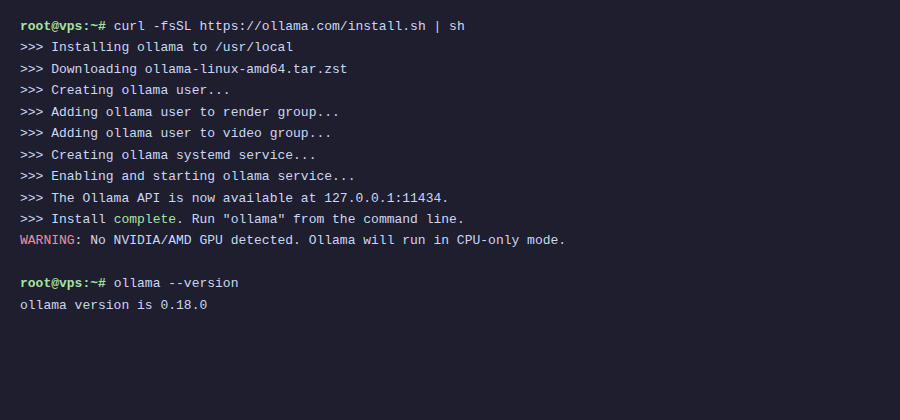
This script will auto-detect the operating system, download binary, create ollama user, and setup systemd service. After running you will see a success installation message.
If VPS has no GPU, you will see WARNING: No NVIDIA/AMD GPU detected. Ollama will run in CPU-only mode. That’s fine, it still runs normally.
Check version:
ollama --versionI got version 0.18.0. Ollama updates quite frequently so your version might be newer.
Ollama runs as a background service, auto-starts on boot. You can check status with:
sudo systemctl status ollamaPull First Model
Ollama after installation has no models. You need to pull one before using.
I chose Qwen 2.5 3B as the first model for several reasons:
- Lightweight, only 1.9GB, suitable for low RAM VPS
- Good Vietnamese support (better than Llama 3 same size)
- From Alibaba Cloud, trained on multilingual data so understands Vietnamese context well
- 3B parameters on CPU still gives usable speed
Pull the model:
ollama pull qwen2.5:3b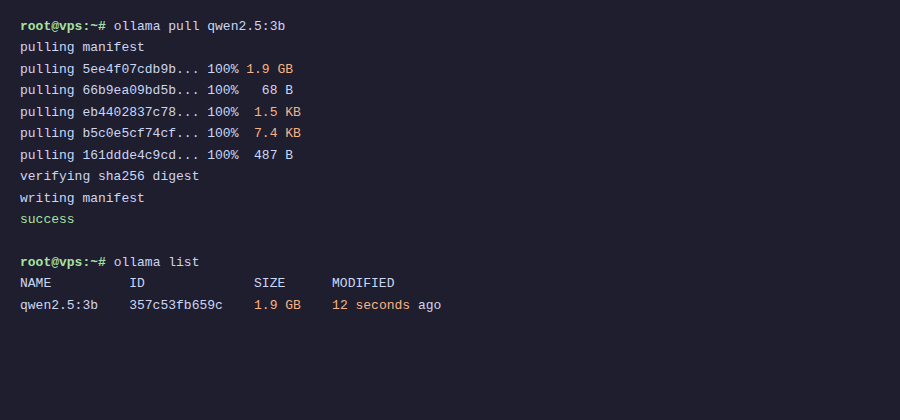
Downloads about 1.9GB, depending on VPS network speed it can be fast or slow. AZDIGI VPS usually takes a few minutes.
Test Chat in Terminal
Fastest way to test is using ollama run command:
ollama run qwen2.5:3bAfter typing it enters interactive chat mode. Try asking in Vietnamese:
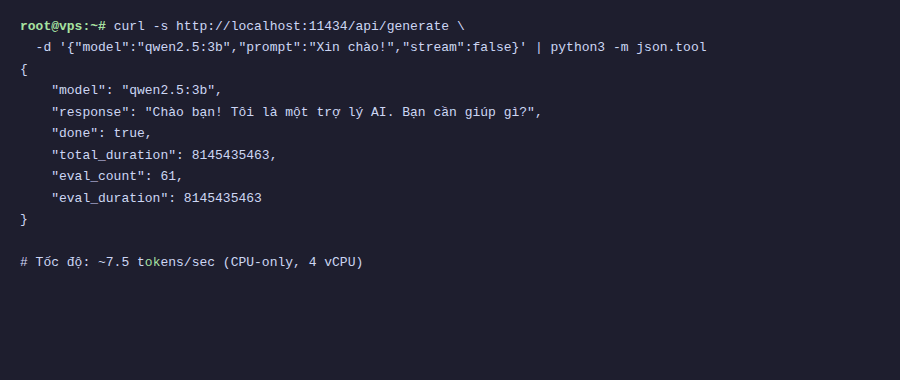
On my test VPS, response speed is about 7.5 tokens/second with Vietnamese and 9.3 tokens/second with English. Not as fast as ChatGPT, but completely usable. You can read as fast as it generates.
To exit chat mode, type /bye or press Ctrl+D.
Using Ollama API
Ollama by default runs API server at http://localhost:11434. You can call API using curl or integrate into your application.
Check if Ollama is running:
curl http://localhost:11434If it returns Ollama is running then OK.
Send prompt via API:
curl http://localhost:11434/api/generate -d '{
  "model": "qwen2.5:3b",
  "prompt": "What is Docker? Explain briefly.",
  "stream": false
}'
Response returns JSON format, where response field contains the answer. Parameter "stream": false to receive full response at once instead of streaming tokens.
Chat API (with conversation history):
curl http://localhost:11434/api/chat -d '{
  "model": "qwen2.5:3b",
  "messages": [
    {"role": "user", "content": "Hello, who are you?"}
  ],
  "stream": false
}'
Chat API differs from generate in that it accepts messages array, you can pass entire conversation history so model has context.
List models via API:
curl http://localhost:11434/api/tagsAdvanced Configuration
By default Ollama only listens on localhost, meaning only accessible from that VPS itself. If you want applications from other machines to call API, need to change bind address.
Open Ollama service file:
sudo systemctl edit ollamaAdd the following content:
[Service]
Environment="OLLAMA_HOST=0.0.0.0:11434"
Then restart Ollama:
sudo systemctl daemon-reload
sudo systemctl restart ollama
When binding to 0.0.0.0, API will be open to all IP access. If VPS has public IP, remember to configure firewall to block port 11434 from outside, or use reverse proxy (Nginx/Caddy) with authentication in front.
Some other useful environment variables:
| Environment Variable | Description | Default |
|---|---|---|
OLLAMA_HOST | Bind address | 127.0.0.1:11434 |
OLLAMA_MODELS | Model storage directory | ~/.ollama/models |
OLLAMA_NUM_PARALLEL | Number of parallel requests | 1 |
OLLAMA_MAX_LOADED_MODELS | Number of models loaded simultaneously | 1 |
Model Management
After using for some time, you will need to manage downloaded models. Here are commonly used commands:
List downloaded models:
ollama list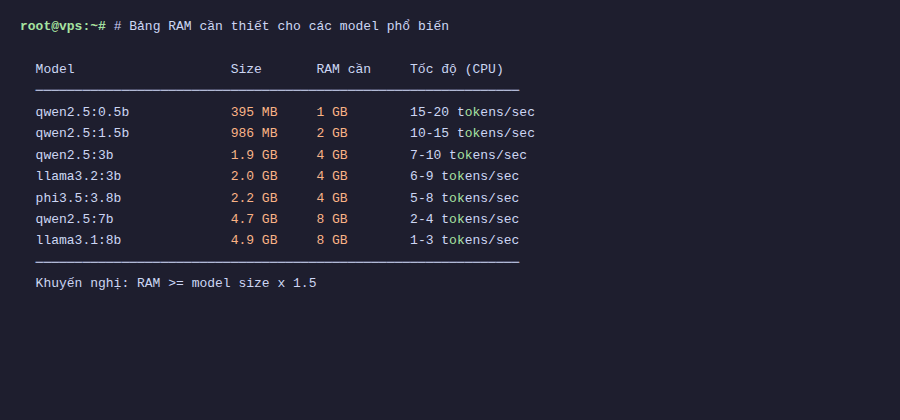
Download additional new models:
ollama pull llama3.2:3b
ollama pull gemma3:4b
Remove unused models:
ollama rm qwen2.5:3bView detailed model information:
ollama show qwen2.5:3bThe show command will display information like architecture, parameter count, quantization, context length of the model.
How Much RAM Needed?
This is a question I often receive. Basically larger models (more parameters) need more RAM. Below is a reference table:
| Model | Parameters | Size | Minimum RAM |
|---|---|---|---|
| Qwen 2.5 3B | 3B | 1.9 GB | 4 GB |
| Llama 3.2 3B | 3B | 2.0 GB | 4 GB |
| Gemma 3 4B | 4B | 3.0 GB | 6 GB |
| Qwen 2.5 7B | 7B | 4.7 GB | 8 GB |
| Llama 3.1 8B | 8B | 4.9 GB | 8 GB |
| Qwen 2.5 14B | 14B | 9.0 GB | 16 GB |
| Llama 3.3 70B | 70B | 43 GB | 64 GB |
Quick rule: RAM needed is at least double the model file size. For example 1.9GB model should have minimum 4GB RAM. Also operating system needs separate RAM, so leave extra 1-2GB.
With 4GB RAM VPS, you can comfortably run 3B models. To run 7-8B models should have at least 8GB. For 70B models need dedicated server, regular VPS is not enough.
Summary
So you now have your own AI running on VPS. Total time from start to chatting is probably less than 15 minutes (mostly waiting for model download).
Summary of what we did:
- Install Ollama with single command
- Pull Qwen 2.5 3B model (1.9GB, Vietnamese support)
- Chat directly in terminal
- Call API for application integration
- Configure bind address and environment variables
- Manage models (pull, list, rm, show)
Chatting in terminal is fun, but using long term you will find it lacking. Next guide I will show how to install Open WebUI, a beautiful web interface like ChatGPT for chatting with Ollama through browser, with conversation history, multiple models, file upload, and many other interesting features.
You might also like
- Running DeepSeek on VPS without GPU - Detailed guide with Ollama
- n8n + Ollama - Automate Workflows with AI Running on Your Own VPS
- Choosing the Right AI Model for VPS - Llama vs Qwen vs DeepSeek vs Gemma
- Ollama API - Integrating Self-Hosted AI into Web Applications
- What is Gemma 4? Google most powerful open AI model running from phones to servers
- Securing Self-Hosted AI - SSL, Authentication and Firewall for Ollama
About the author

Trần Thắng
Expert at AZDIGI with years of experience in web hosting and system administration.