
DeepSeek has become the most talked about name in the AI world lately. A powerful reasoning model, free, open source. But there’s one problem: if you use DeepSeek’s API, your data will be sent to servers in China. For many people, especially when processing sensitive company or customer data, this is unacceptable.
The solution? Run DeepSeek on your own server. And the good news is you don’t need expensive GPUs to do this. A regular Linux VPS with CPU and a few GB of RAM is enough to run smaller versions of DeepSeek-R1 through Ollama.
In this article, I will guide you through running DeepSeek-R1 on a VPS without GPU, test it on a real 4 vCPU / 4GB RAM VPS, and share some performance optimization tips.
This article is part 3 in the “Running AI on VPS” series. If you haven’t installed Ollama yet, please check out part 1: Installing Ollama on VPS first.
What is DeepSeek-R1?
DeepSeek-R1 is an AI model developed by DeepSeek (China), notable for its “chain-of-thought reasoning” capability. Simply put, instead of answering immediately, the model will think through step by step before giving the final answer. You can see this thinking process in the <think>...</think> tag when chatting.
The original DeepSeek-R1 model has 671 billion parameters (671B), requiring hundreds of GB of VRAM to run. But DeepSeek has also released “distilled” versions that are much smaller. These versions are retrained from the original model, retaining most of the reasoning capabilities but with sizes dozens of times smaller. These are exactly the versions we can run on CPU.
Versions that can run on VPS
Ollama natively supports distilled versions of DeepSeek-R1. Below are the 3 most popular versions and their corresponding hardware requirements:
| Model | Size | Minimum RAM | Notes |
|---|---|---|---|
deepseek-r1:1.5b | ~1.1 GB | 4 GB | Runs well on small VPS, suitable for testing and simple tasks |
deepseek-r1:7b | ~4.7 GB | 8 GB | Balance between quality and resources |
deepseek-r1:14b | ~9 GB | 16 GB | Noticeably better reasoning quality |
Note: The minimum RAM above includes the operating system. For example, a 4GB RAM VPS actually only has about 3.5-3.8GB available, which is still enough to run the 1.5b version.
Download and run DeepSeek-R1
If you’ve already installed Ollama following the previous guide, downloading DeepSeek-R1 only requires one command:
ollama pull deepseek-r1:1.5bWait a few minutes to download (depending on network speed), then test it:
ollama run deepseek-r1:1.5b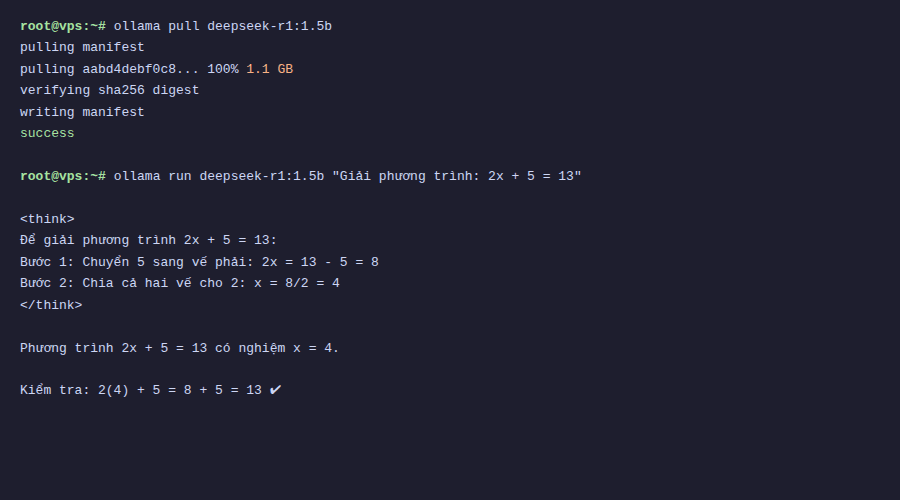
Testing reasoning capabilities
The strength of DeepSeek-R1 is reasoning, the ability for logical deduction. I tested it with a simple math question to see how the model processes:
>>> If I have 3 apples, give you 1, then buy 5 more, how many apples do I have?With DeepSeek-R1, you’ll see the model display the <think> section first, listing each calculation step, then giving the result. This is a major difference from regular models like Qwen or Llama, which answer directly without showing the thinking process.
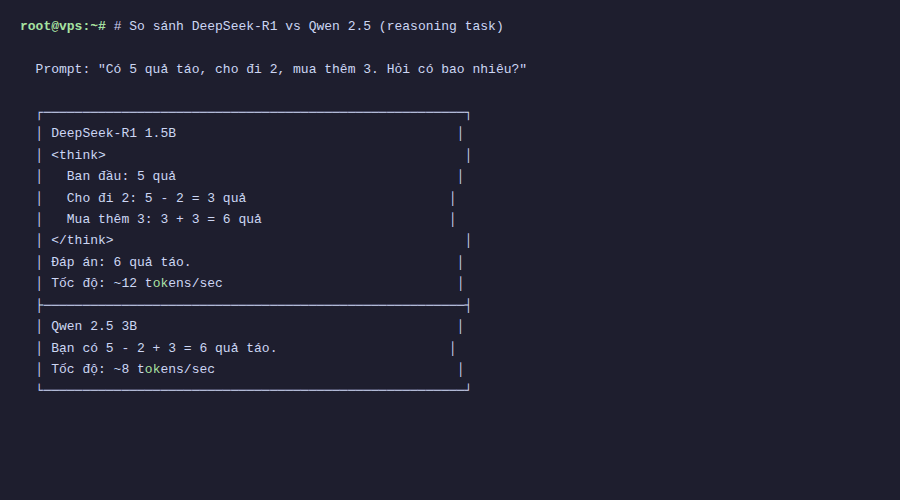
Of course, the 1.5b version is still a small model, so sometimes it reasons incorrectly or loops in the thinking part. The 7b and 14b versions give much more accurate reasoning results, but also require more RAM.
What is quantization? Why can models run on CPU?
You might wonder: how can a 1.5 billion parameter model only take 1.1GB? The answer is quantization.
During training, each model parameter is stored as 16-bit (FP16) or 32-bit floating point numbers. A 1.5B parameter model in FP16 would take about 3GB. Quantization is the process of reducing the precision of these parameters, for example:
- Q4_K_M: each parameter uses only ~4 bits. Greatly reduces size, slightly reduces quality. This is the default level Ollama uses.
- Q8_0: each parameter uses 8 bits. Larger file than Q4 but better quality.
- FP16: maintains 16-bit, quality almost like original but very large file.
Ollama uses the GGUF format (developed by llama.cpp), designed specifically to run models on CPU efficiently. Thanks to GGUF and Q4 quantization, a 7B model can be compressed to ~4.7GB and run on CPU without needing GPU.
Real benchmark on CPU-only VPS
I tested on a VPS with 4 vCPU, 3.8GB RAM, Ubuntu 24.04, no GPU. Ollama version 0.18.0.
With deepseek-r1:1.5b, generation speed is about 15-25 tokens/second. Comfortable for reading, equivalent to fast typing speed. The “thinking” part usually takes 5-15 seconds depending on the question, then the model starts answering.
If you ask complex questions and the model “thinks” for long (hundreds of tokens in the thinking part), wait time can be 30-60 seconds. This is the trade-off when running on CPU: you get privacy and free usage, but have to accept slower speed compared to GPU or API.
An important note: the first run after pulling the model will take a few seconds to load the model into RAM. Subsequent runs will be faster because Ollama keeps the model in memory.
DeepSeek vs Qwen vs Llama: when to use what?
If you’ve read previous articles in this series, you’ve tried Qwen 2.5. So when should you use which model?
- DeepSeek-R1: use when you need logical reasoning, math, code analysis, or any task requiring the model to “think carefully” before answering. Downside is it’s slower due to the extra thinking step.
- Qwen 2.5: good for general chat, content writing, Vietnamese responses. Faster than DeepSeek-R1 at same size because no reasoning step.
- Llama 3: strong with English, code generation. Supports Vietnamese less than Qwen.
In practice, you can install multiple models at once on Ollama and switch according to needs. Ollama will automatically manage loading/unloading models in RAM.
Optimization tips when running on VPS
After running for a while, I’ve drawn some tips to help DeepSeek-R1 run smoother on resource-limited VPS:
Limit concurrent requests
By default, Ollama allows multiple concurrent requests. On small VPS, this easily causes RAM exhaustion. You should limit to 1:
export OLLAMA_NUM_PARALLEL=1Or add to Ollama’s systemd service file for permanent application.
Reduce context length
Longer context length uses more RAM. If you only need short chats, you can limit context when running:
ollama run deepseek-r1:1.5b --ctx-size 2048Monitor RAM usage
Use htop or free -h to monitor RAM while the model is running. If you see swap starting to be used heavily, the model will run very slowly. At this point you should use a smaller model or upgrade your VPS.
# Check RAM usage
free -h
# See how much RAM the Ollama process uses
ps aux | grep ollama
Auto unload model
Ollama keeps models in RAM after chatting (default 5 minutes). On small VPS, you can reduce this time:
export OLLAMA_KEEP_ALIVE=60 # unload after 60 seconds of non-useConclusion
DeepSeek-R1 is a very good choice if you need reasoning capabilities without wanting to send data outside. The 1.5b version runs comfortably on 4GB RAM VPS, while the 7b version runs on 8GB VPS. CPU speed is not as fast as GPU, but sufficient for many practical tasks.
Combined with Qwen 2.5 for general chat and DeepSeek-R1 for reasoning, you now have a fairly complete AI toolset running entirely on your own VPS.
In the next article, I will guide you on connecting Ollama with applications like Open WebUI for a better chat interface, and how to securely expose Ollama’s API for remote use. See you in the next post!
You might also like
- Choosing the Right AI Model for VPS - Llama vs Qwen vs DeepSeek vs Gemma
- Installing Ollama on VPS Ubuntu - Run Private AI in 15 Minutes
- n8n + Ollama - Automate Workflows with AI Running on Your Own VPS
- What is vLLM? When should you use vLLM instead of Ollama
- What is Gemma 4? Google most powerful open AI model running from phones to servers
- What is vLLM? When should you use vLLM instead of Ollama
About the author

Trần Thắng
Expert at AZDIGI with years of experience in web hosting and system administration.