As a system administrator, the phrase ssh key must no longer be strange to you. At the same time, in the process of using it, there will be times when you need to change the password for your private key for more security.
So how to change the passphrase with ssh-keygen? In this article, AZDIGI will show you how to do this.
- See also: How to create and use SSH Key
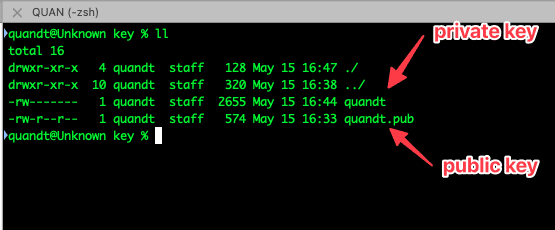
I will have the following files:
- quandt: This is the private key
- quandt.pub: This is the public key
- I set the passphrase 12345678 and I will change it to another password.
To change the passphrase for the private key, do the following:
Step 1: List the private and public of OpenSSH
Please cd into the folder where the private key and public key files are stored on your device. Alternatively, you can use the command lsls -l $HOME/.ssh/ to view the files.
As shown below, I have a file public key (quandt.pub) and private key (quan), in which the original private key (quan) when created with a password, is 12345678. And I will change this password.
Note:
- id_dsa. *: Authentication with DSA key
- id_rsa. *: Authenticate user’s RSA key
- id_ed25519. *: EdDSA Key Validator
Step 2: Change the password
To change the password, you use the command ssh-keygen -f private_key -p
- For example:
quandt@Unknown key % ssh-keygen -f quandt -p
Enter old passphrase: <= Enter old passphrase
Key has comment 'quandt@Unknown.local'
Enter new passphrase (empty for no passphrase): <= Enter new passphrase
Enter same passphrase again: <= Re-enter passphrase
Your identification has been saved with the new passphrase.

Now you can use the new password to SSH into the server; of course, the private key is still the old file. However, let’s open the private key file before and after changing the password to see if the contents inside are different.
Below is the content of 2 private key files. When compared, the contents of these two files are completely different but match the public key.
Hopefully, the article on how to change the passphrase with ssh-keygen will help you easily change the password successfully, thereby improving the security on the server.
Wishing you success!
If you need support, you can contact support in the ways below:
- Hotline 247: 028 888 24768 (Ext 0)
- Ticket/Email: You use the email to register for the service and send it directly to: support@azdigi.com .
About the author

Thạch Phạm
Đồng sáng lập và Giám đốc điều hành của AZDIGI. Có hơn 15 năm kinh nghiệm trong phổ biến kiến thức liên quan đến WordPress tại thachpham.com, phát triển website và phát triển hệ thống.