WordOps provides fast and secure WordPress deployment with Nginx using simple and easy-to-remember commands. Added since EasyEngine v3, it’s been much more than the updated EEv3 version with a number of new features, including Wildcard SSL Certificates with DNS API authentication support, Linux kernel optimization, or a custom Nginx package New with TLS v1.3 and Cloudflare HTTP/2 HPACK support.
Configuration required
- Minimum 512MB RAM.
- Disk space (free hard drive) at least 100MB.
- Supported OS: Ubuntu (16.04 64bit, 18.04 64bit), Debian (9 64 bit, 10 64 bit) and Raspbian (9 armv7l, 10 armv7l)
Install WordOps
Log in to the server via SSH and run the command below to start installing CyberPanel:
Update the system with the following command:
apt update -y
Install WordOps by executing the following command, the system will automatically install the included packages and launch WordOps
wget -qO wo wops.cc && sudo bash wo
Install WordOps Stack
wo stack install
| Nginx | APT package | WordOps web server |
| PHP 7.2 | APT package | PHP7.2-FPM |
| MariaDB 10.3 | APT package | Open-source version of MySQL |
| WP-CLI | Binary | The WordPress command-line tool |
| Composer | Binary | PHP packages manager |
| MySQLTuner | Binary | Command-line tool to tune MySQL |
| Fail2ban | APT package | Authentication bruteforce protection |
| phpMyAdmin | Web App | MySQL server web interface |
| Adminer | Web App | lightweight phpMyAdmin alternative |
| OpcacheGUI | Web App | web interface for Opcache monitoring |
| Netdata | Binary | Monitoring suite |
| Anemometer | Web App | MySQL Slow Query Monitor |
| WordOps dashboard | Web App | Bootstrap template for WordOps backend |
| eXtplorer | Web App | Web File manager |
| cheat.sh | Binary | Command-line Linux cheatsheet |
| Sendmail | APT package | Sendmail MTA |
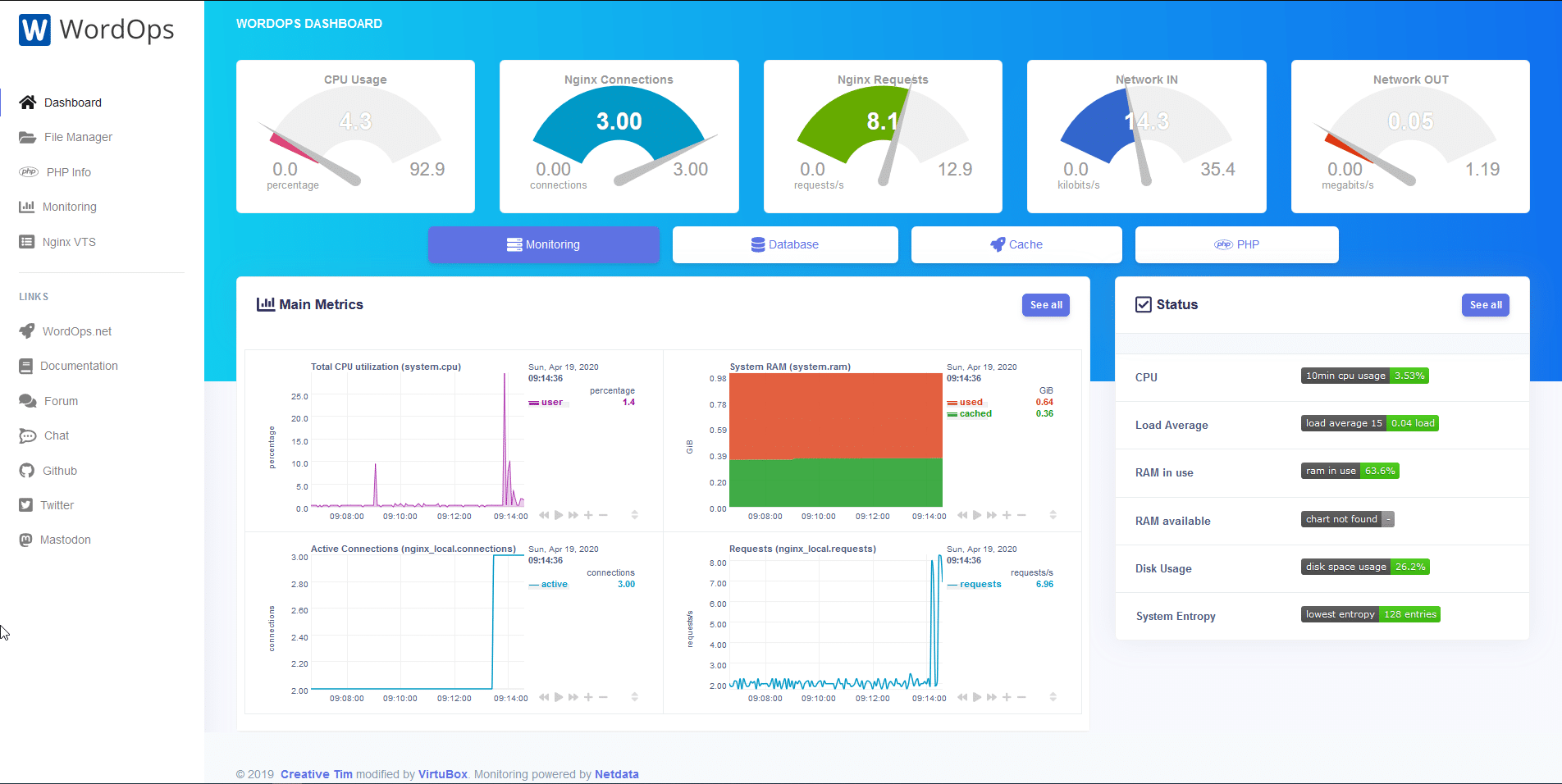
After the installation is complete and need to access the Backend of WordOps, enter the following command to get information:
wo secure --auth
Then you access the link below with the information you just got above
https://YOUR.SERVER.IP:22222
Add website to WordOps
To add a website using PHP and MySQL according to the default configuration of WordOps, run the following command:
wo site create domain.ltd --php --mysqlRemember to repalce domain.ltd to the website domain name you need to add.
In case if you want to install a default WordPress website on your website, and configure NGINX for WordPress, you can add the website with the command:
wo site create domain.ltd --wpOr if you want to use WordPress with PHP 8.1, add the --php81 parameter as follows:
wo site create domain.ltd --wp --php81There are many other parameters when adding a website with WordOps, you can see more athttps://docs.wordops.net/getting-started/creating-sites/.
Wishing you success!
About the author

Thạch Phạm
Đồng sáng lập và Giám đốc điều hành của AZDIGI. Có hơn 15 năm kinh nghiệm trong phổ biến kiến thức liên quan đến WordPress tại thachpham.com, phát triển website và phát triển hệ thống.