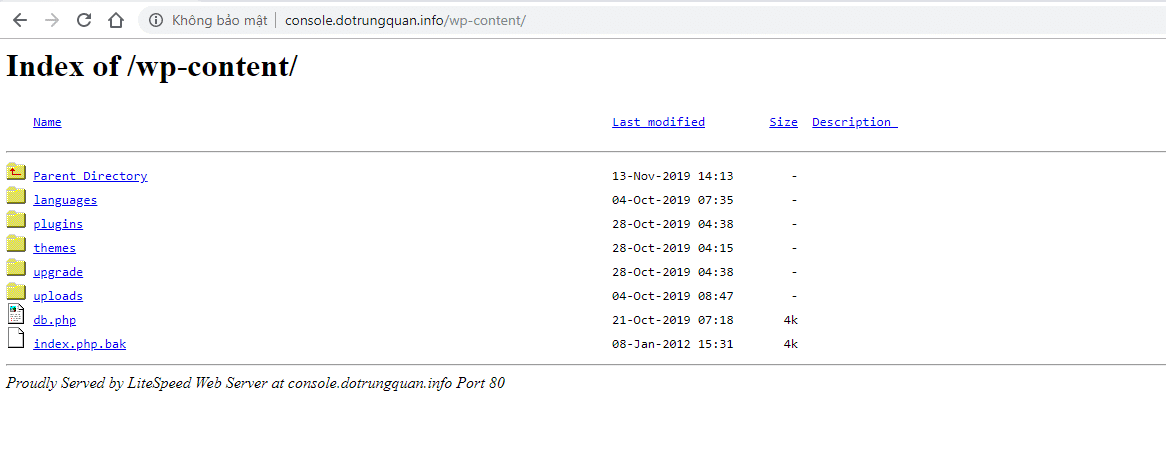
In today’s article, AZDIGI will guide you to disable the index of the folder in cPanel. In some cases, your folder like wp-content or wp-admin loses the index.php file, then all your folder files when accessed directly from the browser will all appear as shown below. This will cause many disadvantages for website management, especially the ability to reduce security because the files will be visible directly.

There are 2 ways to disable the display of the entire file directory above:
METHOD 1: CREATE AN INDEX.PHP FILE IN THE DIRECTORY
You go to the directory and create an index.php file and paste the code below into it.
For example, if I create the file index.php in the wp-content folder when accessing this folder, it will be blocked and show a 403 warning.
Don’t worry because your website can still get the image data inside this folder
<?php
// Silence is golden.
METHOD 2: DISABLE INDEX WITH THE TOOL ON CPANEL
You access the folder you want to disable => right-click on Manage Indices

Then you select No Indexing and Save it.

That’s already done, try to access it and you won’t see it anymore.
You might also like
About the author

Thạch Phạm
Đồng sáng lập và Giám đốc điều hành của AZDIGI. Có hơn 15 năm kinh nghiệm trong phổ biến kiến thức liên quan đến WordPress tại thachpham.com, phát triển website và phát triển hệ thống.