In the process of using hosting, if you need to remove an entire website from your hosting to replace it with a new set of source code, but you are not technically savvy and hesitate before removing it. This tutorial will help you make it.
Step 1: Log in to Hosting
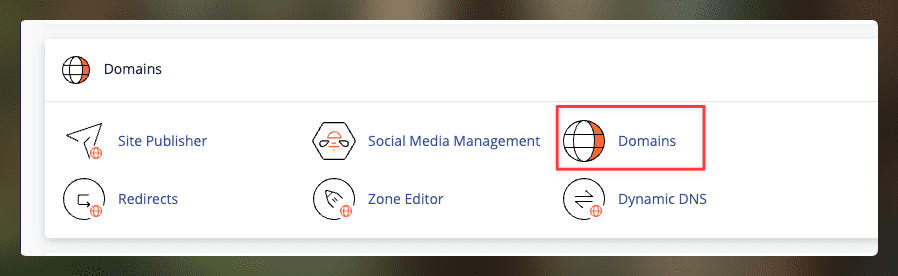
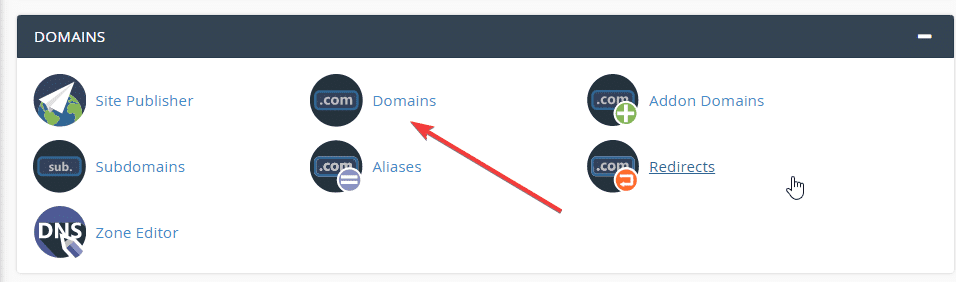
Login to cPanel and click Domains
Step 2: Identify the website to remove
This section will show all the domains and websites that exist on your hosting. Here are two items you need to pay attention to:
- Domain: Your website name
- Document Root: The path that contains your source code data
As shown below, I will remove the website source code named console.dotrungquan.info. I click on the link to save the file in the document root to go directly to the source code location
Then you tick Select All => Delete to remove.
Next, you tick Skip the trash and permanently delete the files to delete them in Trash.

So you have completed the step of removing a website’s data from the Hosting.
You might also like
About the author

Thạch Phạm
Đồng sáng lập và Giám đốc điều hành của AZDIGI. Có hơn 15 năm kinh nghiệm trong phổ biến kiến thức liên quan đến WordPress tại thachpham.com, phát triển website và phát triển hệ thống.