Disable IP check on CyberPanel. In this article, AZDIGI will guide you to disable the IP check function on CyberPanel. Why is there an IP check and in what cases to disable IP check?
I. Overview
By default, when your IP accesses the CyberPanel admin page, CyberPanel will check your IP to set up a session.
For example, when you use IP 1.2.3.4 to access CyberPanel, CyberPanel will check IP 1.2.3.4 to grant your browser a session with IP 1.2.3.4.
However, because your public IP is constantly changing, just press reload or perform an operation on CyberPanel immediately the session will be out because CyberPanel checks the IP when it is not 1.2.3.4 anymore but another IP like 4.5.6.7. You will then see a message as follows:

This IP check is to improve the security of the server. Not only CyberPanel but on other controls like cPanel, DirectAdmin still has this function. However, during use, it will be difficult when you use a dynamic IP that changes constantly, making you unable to log in and use it.
In this article, AZDIGI will guide you to disable IP check on CyberPanel.
Note: AZDIGI doesn’t recommend disabling it. However, if you interfere while working and you need to disable it, you can do the following:
II. Implementation Guide
To disable IP check on CyberPanel, you do the following:
Step 1: SSH into the server
To disable the IP check on CyberPanel, we first need to SSH into your VPS/server with root privileges. If you don’t know how to SSH into your VPS/Server, you can refer to the following tutorial:
Step 2: Edit IP check file
cp /usr/local/CyberCP/CyberCP/secMiddleware.py /usr/local/CyberCP/CyberCP/secMiddleware.py.bak
vi /usr/local/CyberCP/CyberCP/secMiddleware.py
I will explain the above 2 commands as follows:
- Command 1: This command will copy the file
secMiddleware.pyto a copy with the namesecMiddleware.py.bak. The reason I add this command is for backup when unfortunately we edit the wrong file or delete unwanted contents. - Command 2: This command will execute edit file
secMiddleware.py
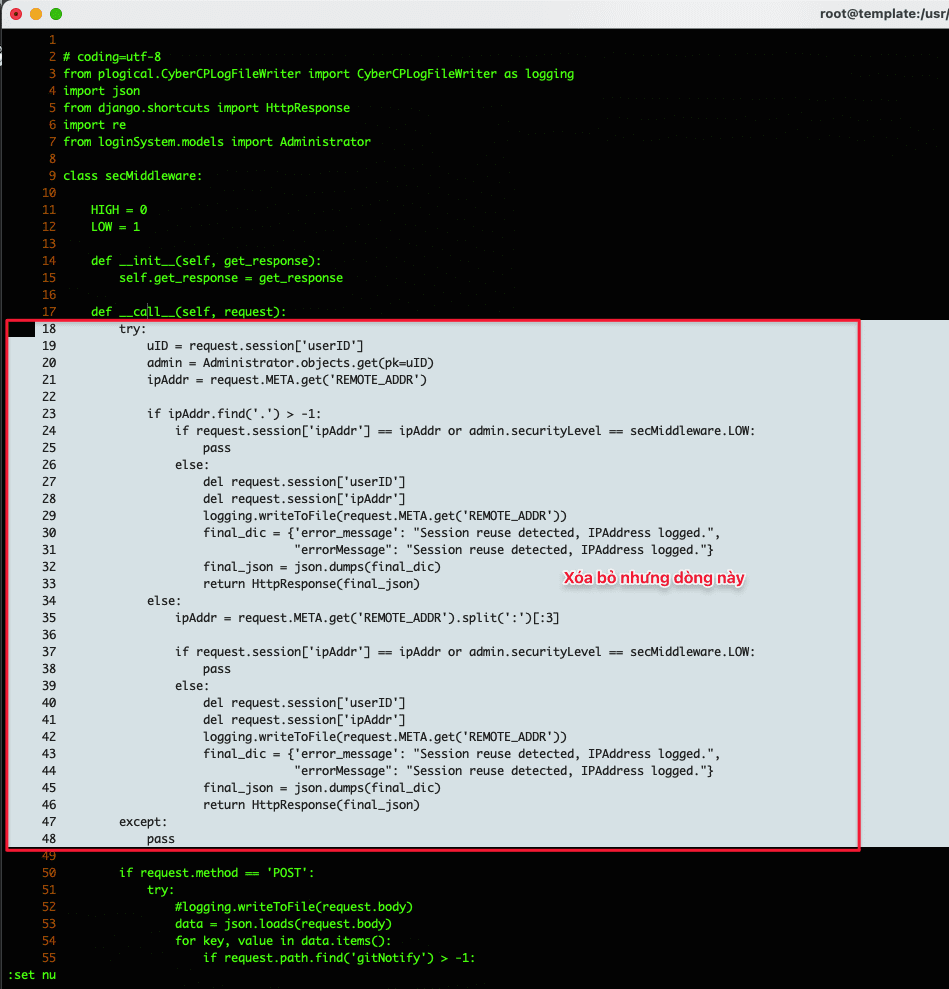
After opening the secMiddleware.py file, find and delete the lines from the try: paragraph to the pass line as shown below:
################
try:
            uID = request.session['userID']
            ipAddr = request.META.get('REMOTE_ADDR')
if ipAddr.find('.') > -1:
                if request.session['ipAddr'] == ipAddr:
                    pass
                else:
                    del request.session['userID']
                    del request.session['ipAddr']
                    logging.writeToFile(request.META.get('REMOTE_ADDR'))
                    final_dic = {'error_message': "Session reuse detected, IPAddress logged.",
                                 "errorMessage": "Session reuse detected, IPAddress logged."}
                    final_json = json.dumps(final_dic)
                    return HttpResponse(final_json)
            else:
                ipAddr = request.META.get('REMOTE_ADDR').split(':')[:3]
if request.session['ipAddr'] == ipAddr:
                    pass
                else:
                    del request.session['userID']
                    del request.session['ipAddr']
                    logging.writeToFile(request.META.get('REMOTE_ADDR'))
                    final_dic = {'error_message': "Session reuse detected, IPAddress logged.",
                                 "errorMessage": "Session reuse detected, IPAddress logged."}
                    final_json = json.dumps(final_dic)
                    return HttpResponse(final_json)
        except:
            pass
################
Step 3: Restart the service
After deleting the paragraphs in the secMiddleware.py file in step 2. You proceed to restart the service to apply the change. You use the following command to start the service: `lscpd`
systemctl restart lscpd
Now go back to your browser and log in to see if you still have the above error.
III. Summary
Hopefully, through the article Disable IP check on CyberPanel will help you disable this feature to work more smoothly.
AZDIGI doesn’t recommend disabling it due to security issues. However, sometimes it’s really annoying when your IP changes constantly, leading to not being able to log in to handle work.
Wishing you success!
- See also: CyberPanel tutorial series
If you need assistance, you can contact support in the ways below:
- Hotline 247: 028 888 24768 (Ext 0)
- Ticket/Email: You use the email to register for the service and send it directly to: support@azdigi.com .
About the author

Thạch Phạm
Đồng sáng lập và Giám đốc điều hành của AZDIGI. Có hơn 15 năm kinh nghiệm trong phổ biến kiến thức liên quan đến WordPress tại thachpham.com, phát triển website và phát triển hệ thống.