All is calm, then suddenly the website crashes. SSH access fails. Customers are calling non-stop. You open your terminal and… don’t know where to start.
📚 This article belongs to the Linux VPS Administration Series.
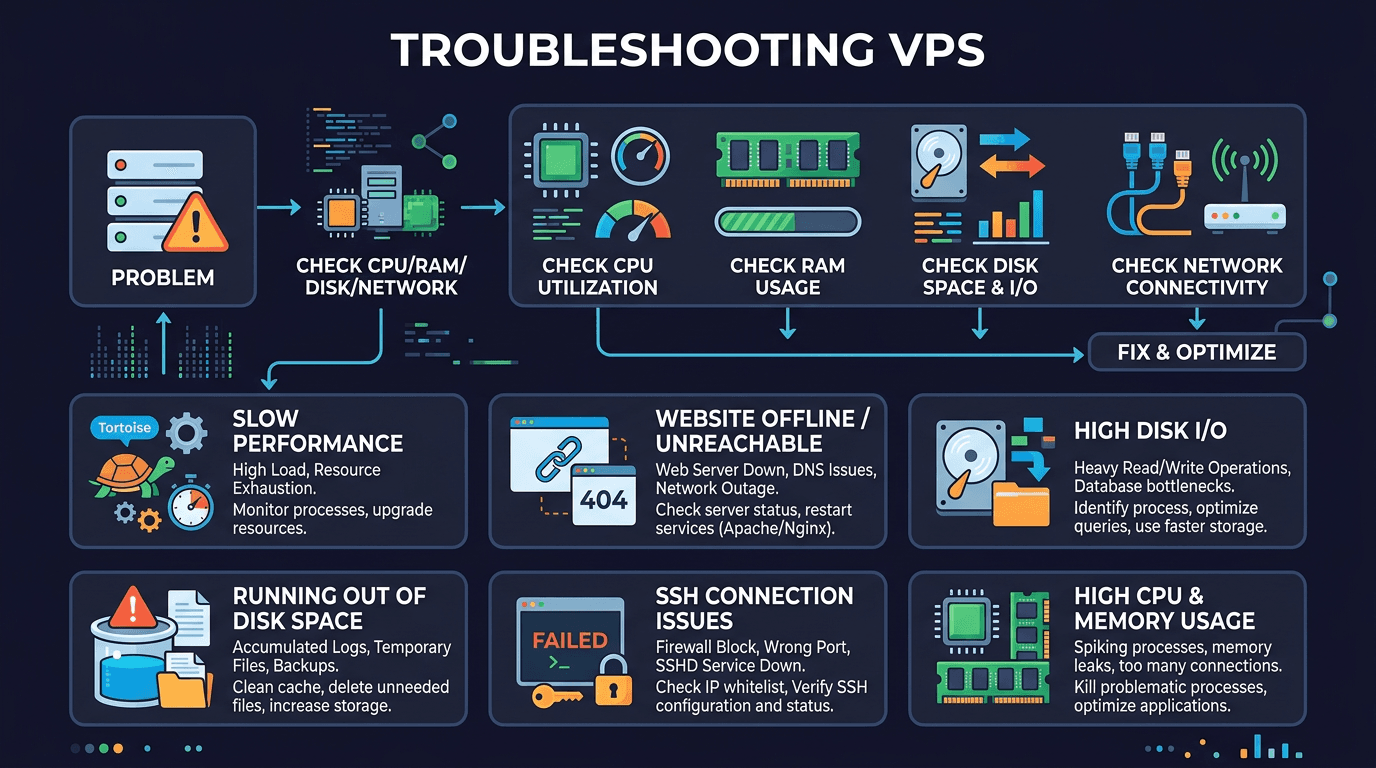
If you’ve ever found yourself in this situation, you’re not alone. Troubleshooting is a skill that every VPS administrator needs, but few are taught systematically. Most people handle incidents by “trying things out,” randomly restarting services, and hoping for the best – sometimes it works, sometimes it makes things worse.
This article will cover the 6 most common issues when operating Linux VPS, along with systematic approaches so you don’t have to guess every time your server “acts up.”
Troubleshooting mindset: don’t guess, investigate
Before diving into specific incidents, I want to discuss the approach. If you have the right methodology, you can handle any issue. Without methodology, even simple errors can take hours to resolve.
The standard troubleshooting process consists of 6 steps:
- Identify symptoms: What’s broken? What’s the specific error? When did it start?
- Gather data: Check logs, metrics, service status. Don’t assume – read actual data.
- Form hypotheses: Based on collected data, what could be the cause?
- Test hypotheses: Test each hypothesis one by one. Only change one thing at a time.
- Apply fix: Once you’ve identified the correct cause, fix it.
- Verify: Double-check that the issue is truly resolved. Don’t fix and forget.
Golden rule: only change one thing at a time. If you change 3 things simultaneously and the issue resolves, you won’t know which fix actually worked. Next time you encounter the same issue, you’ll be guessing again.
It sounds simple, but when servers are down and pressure is mounting, it’s easy to skip the process to “try something quick.” Resist that temptation.
Issue 1: Unable to SSH to VPS
This is a classic issue and also the most frightening, because when you can’t SSH, you’re essentially “locked out.” But don’t panic – follow the steps systematically.
Step 1: Is the VPS running?
It might sound silly, but sometimes the VPS is simply turned off. Log into your provider’s panel (DigitalOcean, Vultr, Linode, or whatever provider you use) to check the status. If the VPS is off, turn it on. If it shows “running” but you still can’t SSH, use VNC/Console from the panel for direct access.
Step 2: Check if sshd is running
If you can access via the provider’s console, the first thing to check is the SSH service:
systemctl status sshd        # CentOS/AlmaLinux/Rocky
systemctl status ssh         # Ubuntu/Debian
If the service has stopped, restart it:
systemctl start sshd         # CentOS/AlmaLinux/Rocky
systemctl start ssh          # Ubuntu/Debian
Also check if sshd is listening on the correct port:
ss -tlnp | grep sshNormal output should show sshd listening on port 22 (or your custom port if changed). If you don’t see anything, check the config at /etc/ssh/sshd_config for syntax errors:
sshd -tThis command will report syntax errors if any exist. Fix the errors then restart sshd.
Step 3: Is the firewall blocking access?
Firewall is a common culprit. Check with:
# UFW (Ubuntu/Debian)
ufw status
# firewalld (CentOS/AlmaLinux/Rocky)
firewall-cmd --list-all
# iptables (both)
iptables -L -n | grep 22
If SSH port is blocked, open it:
# UFW
ufw allow 22/tcp
# firewalld
firewall-cmd --permanent --add-service=ssh
firewall-cmd --reload
Don’t forget to check Security Groups or firewall at the provider level. Some providers like AWS, GCP have separate firewalls outside the VPS.
Step 4: Is IP banned by fail2ban?
If you have fail2ban installed (which you should), your IP might be banned due to too many failed login attempts:
# Check list of banned IPs
fail2ban-client status sshd
# Unban your IP
fail2ban-client set sshd unbanip YOUR_IP
Tip: Add your fixed IP to the whitelist in /etc/fail2ban/jail.local (ignoreip line) so it never gets banned accidentally. If your IP is dynamic, use SSH keys instead of passwords to avoid fail2ban interference.
📖 Related: SSH Keys · SSH Hardening · Fail2ban · SSH via Tailscale
Issue 2: Website inaccessible
Customers report 502, 503 errors, or the website won’t load at all. This is when you need to check from outside to inside.
Step 1: Is DNS resolving correctly?
Before diving deep into the server, check if DNS is pointing to the correct IP:
dig yourdomain.com +short
# or
nslookup yourdomain.com
If the returned IP is wrong or there’s no result, the problem is with DNS, not the server. Check your DNS records where you manage the domain.
Step 2: Is the web server running?
# Nginx
systemctl status nginx
# Apache
systemctl status httpd       # CentOS/AlmaLinux/Rocky
systemctl status apache2     # Ubuntu/Debian
If the service has stopped, check the reason before restarting:
# View recent error logs
journalctl -u nginx --no-pager -n 30
journalctl -u httpd --no-pager -n 30    # CentOS/AlmaLinux/Rocky
journalctl -u apache2 --no-pager -n 30  # Ubuntu/Debian
A common reason web servers fail to start is syntax errors in config files:
# Test config before restarting
nginx -t
apachectl configtest
Step 3: Are ports 80/443 listening?
ss -tlnp | grep -E ':80|:443'If nothing is listening on port 80 or 443, the web server isn’t running or is listening on a different port. Check the web server configuration.
Step 4: Are web ports open in firewall?
# UFW
ufw status | grep -E '80|443'
# firewalld
firewall-cmd --list-services | grep -E 'http|https'
Step 5: SSL certificate expired?
If the HTTP website still works but HTTPS shows errors, the SSL certificate might have expired:
# Check certificate expiration date
echo | openssl s_client -connect yourdomain.com:443 -servername yourdomain.com 2>/dev/null | openssl x509 -noout -dates
If using Let’s Encrypt, renew with:
certbot renew
systemctl reload nginx   # or httpd/apache2
Set up a cron job to automatically renew Let’s Encrypt certificates so they never expire unexpectedly. The previous article in this series showed how to set up cron – you should apply it for this purpose.
📖 Related: Firewall UFW/firewalld · Basic Networking · Systemd Service Management
Issue 3: VPS slow and laggy
The VPS runs but everything is slow. SSH commands have delays, website takes forever to load. This is when you need to identify the “bottleneck” – is it CPU, RAM, Disk, or Network.
Check CPU
# Quick overview
top -bn1 | head -20
# Or use htop for better readability
htop
Look at the %Cpu(s) line. If us (user) is high, some process is consuming CPU. Look at the process list below to find the culprit. If wa (I/O wait) is high, the problem is with disk, not CPU.
Check RAM
free -hPay attention to the available column. If available is near 0, the system is severely short on RAM. Linux will then use swap (much slower than RAM), or worse, activate the OOM Killer to “kill” processes.
Check if the OOM Killer has been active:
dmesg | grep -i "oom\|out of memory"
journalctl | grep -i "oom\|out of memory"
If you see OOM Killer logs, find which process is consuming the most RAM:
ps aux --sort=-%mem | head -10Check Disk I/O
# Need sysstat package installed
iostat -x 1 5
Look at the %util column. If it’s near 100%, the disk is overloaded. The await column shows average wait time (ms) for each I/O request. High values (over 20ms with SSD) indicate disk bottleneck.
Check Network
# View realtime bandwidth
iftop
# Or view overall statistics
vnstat
If bandwidth is unusually high, the VPS might be under DDoS attack or some process is sending/receiving large amounts of data.
Find resource-consuming processes
Once you’ve identified the bottleneck (CPU, RAM, or Disk), find the responsible process:
# Top 10 CPU-consuming processes
ps aux --sort=-%cpu | head -10
# Top 10 RAM-consuming processes
ps aux --sort=-%mem | head -10
# Which process is doing most disk read/write
iotop
Don’t rush to kill processes when you see them consuming resources. Sometimes it’s an important process (database, web server) handling heavy workload. Understand why it’s consuming resources first, then decide how to handle it.
📖 Related: Process Management – ps, kill, htop · VPS Resource Monitoring Script via Telegram
Issue 4: Disk full
This issue sounds simple but the consequences are not. When disk is full, databases can’t write, logs can’t be written, you might even be unable to SSH because the shell needs to write temporary files.
Step 1: Confirm disk is actually full
df -hLook at the Use% column. If the / partition is at 100% (or 99%), you need to free up space immediately.
Step 2: Find which directories are taking up most space
# View space usage of top-level directories
du -sh /* 2>/dev/null | sort -rh | head -10
# Drill down into suspicious directories
du -sh /var/* 2>/dev/null | sort -rh | head -10
du -sh /var/log/* 2>/dev/null | sort -rh | head -10
Or use ncdu if installed, this tool provides interactive browsing and is very intuitive:
ncdu /Step 3: Find large files
# Find files larger than 100MB
find / -type f -size +100M 2>/dev/null | head -20
# View specific sizes
find / -type f -size +100M -exec ls -lh {} \; 2>/dev/null | sort -k5 -rh | head -20
Step 4: Quick cleanup
Some common culprits and how to handle them:
Bloated log files:
# Truncate logs instead of deleting (avoid errors with processes still writing)
truncate -s 0 /var/log/syslog
truncate -s 0 /var/log/nginx/access.log
# Clean old journal logs
journalctl --vacuum-time=3d
journalctl --vacuum-size=100M
Package cache:
# Ubuntu/Debian
apt clean
apt autoremove
# CentOS/AlmaLinux/Rocky
dnf clean all
Old Docker images/containers:
# See how much Docker is using
docker system df
# Clean unused resources
docker system prune -a
Step 5: Setup log rotation to prevent recurrence
After freeing up space, ensure logs don’t bloat again. Check if logrotate is configured:
# View logrotate config
cat /etc/logrotate.conf
ls /etc/logrotate.d/
# Test if logrotate runs correctly
logrotate -d /etc/logrotate.conf
Important tip: Use truncate -s 0 instead of rm for log files being actively written to by processes. If you rm a file while a process still holds the file descriptor, space won’t be freed until that process ends. Use lsof | grep deleted to check for deleted files still occupying space.
📖 Related: Disk Management · ncdu · Check inodes
Issue 5: Database not running
MySQL/MariaDB or PostgreSQL suddenly stops, website shows “Error establishing a database connection.” This is an issue I encounter quite frequently.
Step 1: Check service status
# MySQL/MariaDB
systemctl status mysqld      # CentOS/AlmaLinux/Rocky
systemctl status mysql       # Ubuntu/Debian
systemctl status mariadb     # If using MariaDB
# PostgreSQL
systemctl status postgresql
Step 2: Read error logs
Error logs are the first place to look. They’ll tell you exactly why the database stopped:
# MySQL/MariaDB error logs
tail -50 /var/log/mysql/error.log          # Ubuntu/Debian
tail -50 /var/log/mysqld.log               # CentOS/AlmaLinux/Rocky
tail -50 /var/log/mariadb/mariadb.log      # MariaDB on CentOS
# PostgreSQL
tail -50 /var/log/postgresql/postgresql-*-main.log   # Ubuntu/Debian
tail -50 /var/lib/pgsql/data/log/*.log               # CentOS/AlmaLinux/Rocky
Step 3: Common causes
Disk full: Database needs to write data and logs. If disk is full, it stops immediately. Check df -h and free up space as shown above.
Out of RAM (killed by OOM):
dmesg | grep -i "oom.*mysql\|oom.*mariadb\|oom.*postgres"
journalctl | grep -i "oom.*mysql\|oom.*mariadb\|oom.*postgres"
If database was killed by OOM Killer, you need to reduce its memory configuration. For example, with MySQL/MariaDB, reduce innodb_buffer_pool_size in the config file.
Permission errors:
# Check MySQL data directory permissions
ls -la /var/lib/mysql/
# Fix permissions if wrong
chown -R mysql:mysql /var/lib/mysql/
Port conflict: If another process is occupying port 3306 (MySQL) or 5432 (PostgreSQL):
ss -tlnp | grep 3306
ss -tlnp | grep 5432
After identifying and fixing the cause, restart the database:
systemctl start mysqld       # or mysql, mariadb, postgresql
systemctl status mysqld      # Verify it's running
📖 Related: Auto-restart MySQL script · MySQL Database backup/import
Issue 6: VPS hacked / cryptomining
This is an issue nobody wants to face, but if you operate VPS long enough, you’ll eventually encounter it. Attackers commonly use VPS for cryptocurrency mining, spam sending, or as stepping stones to attack other servers.
Warning signs
CPU constantly at 100% with suspicious processes:
top -bn1 | head -20If you see processes with strange names (random character strings, fake names resembling “kworker” but consuming CPU) taking 90-100% CPU, the VPS is likely being used for cryptomining.
Unauthorized users in the system:
# Check users with login shells
grep -v "nologin\|false" /etc/passwd
# Check users with sudo privileges
grep -v "^#" /etc/sudoers
ls -la /etc/sudoers.d/
Malicious crontabs:
# Check crontabs for all users
for user in $(cut -f1 -d: /etc/passwd); do
    crontab_content=$(crontab -l -u "$user" 2>/dev/null)
    if [ -n "$crontab_content" ]; then
        echo "=== Crontab for $user ==="
        echo "$crontab_content"
    fi
done
# Check cron directories
ls -la /etc/cron.d/
ls -la /etc/cron.daily/
Suspicious files in the system:
# Find executable files in /tmp, /dev/shm (where malware often hides)
find /tmp /dev/shm /var/tmp -type f -executable 2>/dev/null
# Find recently created/modified files
find / -mtime -1 -type f 2>/dev/null | grep -v "/proc\|/sys"
Response procedure
1. Isolate: If the VPS is being used to attack external targets, isolate it by blocking all outbound traffic (except your SSH):
# Block all outbound, keep only SSH
iptables -P OUTPUT DROP
iptables -A OUTPUT -p tcp --dport 22 -j ACCEPT
iptables -A OUTPUT -m state --state ESTABLISHED,RELATED -j ACCEPT
2. Investigate and document: Gather information before deleting anything. You need to know how the attacker got in to prevent recurrence:
# View login history
last -20
lastb -20      # Failed logins
# Check for added SSH keys
find / -name "authorized_keys" 2>/dev/null -exec cat {} \;
# View active network connections
ss -tupn
3. Clean up: Kill malware processes, delete suspicious files, remove malicious crontabs, delete unauthorized users, remove unauthorized SSH keys.
4. Harden: Change all passwords, update the system, recheck firewall configuration, audit web applications for vulnerabilities.
Reality check: If the VPS has been severely compromised (especially root access), the safest approach is to rebuild a new VPS from scratch. You can never be 100% certain everything is cleaned up. Backup important data, set up a new server, restore data. Takes more time but much safer.
📖 Related: 15-step Security Checklist · SSH Login Alert Bot via Telegram · Reading System Logs
Troubleshooting toolkit
Summary of tools used throughout this article, categorized by purpose for easy reference:
System monitoring
| Tool | Purpose | Installation |
|---|---|---|
top |
View CPU, RAM, processes realtime | Built-in |
htop |
More intuitive version of top | apt/dnf install htop |
vmstat |
System overview statistics | Built-in |
iostat |
Disk I/O statistics | apt/dnf install sysstat |
sar |
Historical performance data (CPU, RAM, I/O) | apt/dnf install sysstat |
iotop |
See which processes are reading/writing disk | apt/dnf install iotop |
Network
| Tool | Purpose | Installation |
|---|---|---|
ss |
View listening ports, current connections | Built-in |
curl |
Test HTTP requests | Built-in |
dig |
Check DNS | apt install dnsutils / dnf install bind-utils |
traceroute |
View packet routing path | apt/dnf install traceroute |
tcpdump |
Capture and analyze network packets | apt/dnf install tcpdump |
iftop |
View realtime bandwidth | apt/dnf install iftop |
Logs
| Tool | Purpose |
|---|---|
journalctl |
View systemd service logs |
/var/log/ |
Directory containing system and application logs |
dmesg |
Kernel logs (detect OOM, hardware errors) |
tail -f |
Follow logs in realtime |
Disk
| Tool | Purpose | Installation |
|---|---|---|
df |
View partition disk usage | Built-in |
du |
View directory/file disk usage | Built-in |
lsof |
See which files are open by which processes | Built-in |
ncdu |
Interactive directory/file size viewer | apt/dnf install ncdu |
Troubleshooting flowchart
When encountering issues, here’s a decision flowchart you can follow:
VPS has an issue
│
├─ Can SSH?
│  ├─ NO → Access provider console → Check: VPS running? sshd? firewall? fail2ban?
│  └─ YES → Continue ↓
│
├─ Website accessible?
│  ├─ NO → DNS correct? → Web server running? → Port listening? → Firewall? → SSL?
│  └─ YES but slow → Continue ↓
│
├─ VPS slow/laggy?
│  ├─ High CPU → top/htop → Find CPU-consuming process
│  ├─ Out of RAM → free -h → Which process uses most? OOM?
│  ├─ High Disk I/O → iostat → Which process writes most?
│  └─ High Network → iftop → DDoS? Suspicious process?
│
├─ Disk full?
│  ├─ YES → du -sh /* → Find large directories/files → Clean up → Setup logrotate
│  └─ NO → Continue ↓
│
├─ Database error?
│  └─ Error logs → Disk full? OOM? Permission? Port conflict? → Fix → Restart
│
└─ Suspect hack?
   └─ 100% CPU suspicious process? Unauthorized users? Malicious crontabs? → Isolate → Check → Clean → Rebuild
This flowchart doesn’t cover every situation, but it gives you a clear starting point instead of fumbling around not knowing what to check first.
Checkpoint: Hands-on practice
Theory is enough, now let’s get hands-on. I’ll present some exercises to simulate issues for you to practice troubleshooting on a real VPS (use a test VPS, never on production).
Exercise 1: Simulate disk full
# Create large file to simulate disk full
fallocate -l 5G /tmp/fake-large-file
# Now troubleshoot:
# 1. Use df -h to confirm increased disk usage
# 2. Use du -sh /* to find which directory increased
# 3. Use find to locate large files
# 4. Delete the fake file
rm /tmp/fake-large-file
Exercise 2: Simulate web server down
# Stop nginx (or apache)
systemctl stop nginx
# Troubleshoot:
# 1. curl localhost — see what error
# 2. systemctl status nginx — check status
# 3. ss -tlnp | grep 80 — port listening?
# 4. Fix: systemctl start nginx
# 5. Verify: curl localhost
Exercise 3: Simulate CPU-consuming process
# Create fake CPU-consuming process
yes > /dev/null &
# Troubleshoot:
# 1. top — find CPU-consuming process
# 2. Note the PID of that process
# 3. ps aux | grep [PID]
# 4. Kill it: kill [PID]
# 5. Verify with top again
Exercise 4: Simulate SSH blocked
⚠️ Only do this if you have console access via provider panel!
# Block SSH port with firewall
ufw deny 22/tcp
# Try SSH from another terminal — should fail
# Then troubleshoot via console:
# 1. ufw status — see blocked rule
# 2. ufw allow 22/tcp — fix it
# 3. Try SSH again
Each exercise simulates a real scenario. Practice until troubleshooting becomes second nature. Remember, the goal isn’t just to fix issues, but to understand why they happened and how to prevent them.
What’s next?
Troubleshooting is a skill that improves with experience. Each incident teaches you something new. The systematic approach outlined in this article will serve as your foundation, but over time you’ll develop your own shortcuts and instincts.
Some additional tips for growing your troubleshooting skills:
- Document everything: Keep a troubleshooting journal. What went wrong? What was the cause? How did you fix it? Review this periodically.
- Set up monitoring: Don’t wait for issues to happen. Use monitoring tools to catch problems before they become critical.
- Practice during calm periods: Don’t wait for emergencies to learn troubleshooting. Practice during quiet times when there’s no pressure.
- Learn from others: Join communities, read incident reports from other companies. Every war story teaches something valuable.
Next in our Linux VPS series, we’ll cover monitoring and alerting – how to catch problems before they become emergencies. Because the best way to handle incidents is to prevent them from happening in the first place.
📖 What would you like to see next in this series? Leave a comment or reach out – your feedback helps shape future content!
You might also like
- CrowdSec on Linux VPS - Next-Generation IDS to Replace Fail2ban
- Instructions to change SSH Port in Linux
- RegreSSHion Vulnerability in OpenSSH (CVE-2024-6387): How to Update OpenSSH Version to Protect Servers
- What Do You Need to Prepare When Renting a VPS? Checklist for Beginners
- Coolify Production - Backup, Security
- What is Cloud VPS? How is it different from traditional VPS?
About the author

Trần Thắng
Expert at AZDIGI with years of experience in web hosting and system administration.