
Renting a VPS should not begin with a price table. First define what the application will run, who will administer the system and how much interruption the workload can tolerate. Those answers determine the CPU, memory, storage, operating system and management model that make sense.
A safe process has two parts. Before ordering, check the workload, resources, server location, backup policy, SLA and renewal costs. After receiving the VPS, replace the initial credentials, update the operating system, configure SSH, firewall rules, backups and monitoring before moving a production application onto it.
If you only need a small website and do not want to administer a server, hosting may be simpler. A VPS fits workloads that need administrative access, custom software, several services on one machine or an isolated environment. The guide to what a VPS is explains the architecture and limits of virtual private servers in more detail.
| Requirement | Reasonable starting direction |
|---|---|
| Small website with no server administrator | Shared Hosting or Managed Hosting |
| Root access, Docker, custom runtimes or several services | VPS |
| Provider assistance with the operating system | Managed VPS or a service with a defined management scope |
| Less dependence on one compute host | Evaluate Cloud Server and HA architecture |
Who should rent a VPS?
A VPS usually makes sense when the limits of hosting are clear, rather than simply because a larger specification looks attractive.
Websites and applications that need a private environment
A website with stable traffic may need Nginx, a specific PHP version, queue workers, Redis or custom system rules. A VPS provides control over that stack and its update schedule. The same control also makes the administrator responsible for configuration mistakes.
Docker, APIs, bots and development environments
A VPS works well for Docker Compose, APIs, CI runners, staging, bots and background services. Each application should have resource limits, log rotation and a restart policy. Installing every service under the root account is not a sound design, even on a small environment.
Databases and I/O-sensitive workloads
A database on a VPS should be evaluated by IOPS, latency and storage policy, not only capacity. Local NVMe can provide low latency but may be more tightly connected to one host. Shared or distributed storage has a different failure domain and should be benchmarked with a workload similar to production.
Cases where a VPS may not be appropriate
A VPS may be the wrong choice when nobody can update the operating system, verify backups or respond to incidents. A simple website can be easier to operate on managed hosting. When a workload must reduce the effect of a compute-node failure, compare VPS and Cloud Server architecture before deciding.
Checklist before renting a VPS
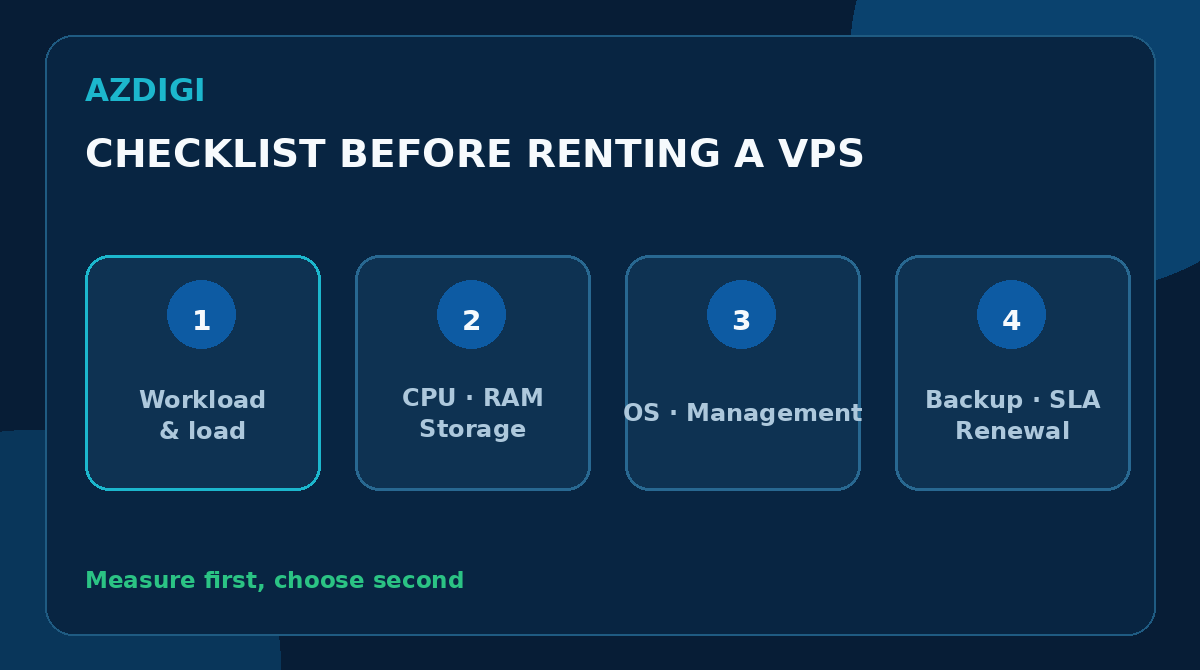
These checks provide the input for a purchasing decision. If an item is still unknown, record the assumption and use a shorter billing term while testing it.
Define the workload and expected load
List the applications, request volume, number of websites, data size, concurrent connections and background tasks. A WordPress site, an API with several workers and a database use CPU, memory and storage differently.
Separate average demand from peak demand. A short CPU burst may be harmless, while sustained CPU saturation or constant memory pressure suggests the configuration is too small. When no measurements exist yet, start with a test environment and collect them before making a long commitment.
Estimate CPU and memory
A vCPU represents processing time scheduled by the hypervisor from physical processors. The vCPU count does not describe all performance because CPU generation, clock speed, overcommit policy and host load also matter.
Memory must cover the operating system, applications, cache and peak load. Swap can reduce the impact of a sudden memory shortage in some cases, but it does not replace RAM. After a trial run, check memory pressure, swap activity and OOM events instead of relying on one memory-percentage snapshot.
Choose storage by IOPS, latency and capacity
Capacity tells you how much data can be stored. IOPS and latency often have more impact on databases, builds, queues and sites with many small files. Check the following:
- Whether storage is local, shared or distributed.
- Whether IOPS or throughput limits apply.
- Whether snapshots and backups count toward capacity.
- Whether increasing storage requires downtime or migration.
- Which export formats are available when leaving the service.
SSD and NVMe describe a drive type or interface, not end-to-end performance. The SSD VPS and NVMe VPS comparison covers this distinction in more detail.
Check networking, IP addresses and traffic limits
A 1 Gbps port does not mean an application always transfers at 1 Gbps. Ask whether bandwidth is shared or rate-limited, how traffic is counted and what happens after exceeding a quota.
If the VPS will send email, run a VPN, connect to a partner allowlist or expose an API, check IPv4 and IPv6 availability, rDNS policy, restricted ports and the IP replacement process. A previously abused IP can affect email reputation, but changing an IP does not replace SPF, DKIM, DMARC and proper mail operations.
Choose Linux or Windows
Linux suits most web servers, containers, APIs and open-source tools. Ubuntu LTS, Debian, AlmaLinux and Rocky Linux are common options. Choose a release that remains supported and matches the software you intend to run.
Windows Server is appropriate when an application depends on IIS, older .NET Framework versions, Microsoft SQL Server or Remote Desktop. Include licensing, baseline memory and update requirements in the estimate. Do not select Windows only because the interface is familiar when the workload is better suited to Linux. The Windows VPS and Linux VPS comparison provides additional context.
Choose managed or unmanaged service
With an unmanaged VPS, a provider normally maintains the infrastructure and connectivity to the VM. The customer manages the operating system, packages, firewall, applications, data and backups. The exact boundary depends on the service terms.
Managed VPS adds operational assistance, but “managed” has no universal scope. Ask whether the service includes:
- Operating-system installation and updates.
- Web server or control-panel configuration.
- Malware response and hardening.
- Backup restoration.
- Database and application tuning.
- After-hours assistance and response targets.
When a team is not comfortable administering Linux, managed service or managed hosting may cost less than the time spent recovering an inexpensive unmanaged VPS.
Choose a server location
Latency is often lower when a server is close to the main user base and network routing is suitable. For customers in Vietnam, benchmark from the networks they actually use instead of choosing from a country or city label alone.
Data location can also affect regulatory requirements, disaster-recovery plans and backup placement. When two independent regions are required, verify the actual failure domains rather than assuming that two product names represent separate data centers.
Verify backup, snapshot and restore policies
A snapshot records state at a point in time and often provides a quick rollback within the same platform. A backup should have a retention policy and more independent recovery options. The terms are not interchangeable.
Before ordering, ask:
- Whether backup is included or sold separately.
- Backup frequency and retention.
- Whether copies reside on the same infrastructure.
- Whether customers can start a restore themselves.
- How full-machine and file-level restore differ.
- Whether backups can be exported when the service ends.
Even when a provider supplies backups, critical data should have another copy controlled by the customer. A backup that has never been restored is stored data, not yet a tested recovery plan.
Read the SLA and support scope
An SLA should define the metric, measurement scope, exclusions and credit-request process. Infrastructure uptime does not mean the website is always available. An application may still stop because of a full disk, database error, expired certificate or failed update.
Check support channels, hours, ticket priorities and responsibility for incidents inside the guest OS. “24/7 support” does not show whether the provider will repair an application configuration or only the infrastructure.
Calculate total cost and renewal terms
Costs can include the VPS, control-panel or Windows licenses, backups, snapshots, IPv4 addresses, excess traffic, monitoring and managed service. Compare offers using the same billing period and equivalent resources.
Check renewal rates, refund conditions, data-retention time after non-payment and automatic renewal settings. For an unproven workload, monthly billing during the first stage makes it easier to validate fit before committing to a longer term.
How to size a VPS for the workload
There is no single configuration for every VPS. A safer approach is to choose a starting point, measure it and increase resources when metrics show a shortage.
| Workload | Metrics to monitor | Signs that sizing needs review |
|---|---|---|
| WordPress or dynamic website | CPU, memory, PHP workers, database latency | TTFB rises with traffic, workers are regularly full |
| API and workers | CPU time, queue depth, error rate | Queue keeps growing, timeouts or retries increase |
| Database | IOPS, disk latency, buffer hit, connections | Slow queries, high I/O wait, insufficient cache |
| Docker host | Per-container CPU/RAM, disk use, restarts | OOM termination, full disk, repeated restarts |
| VPN or proxy | Throughput, connections, packet loss | Rate limit reached, latency and packet loss rise |
Start small but confirm the upgrade path
A small starting plan should not mean accepting inadequate resources. Confirm that vCPU, memory, disk and networking can be increased without changing the IP address or performing a manual migration. Scale-up is often simple but may require a reboot.
When demand varies and multiple instances are required, making one VPS larger does not solve the complete problem. The system may need a load balancer, several nodes, database replication and a suitable deployment process.
Reserve resources for the operating system and background work
Do not allocate every byte of memory and disk to the application. The operating system needs memory, logs need space, package upgrades need temporary capacity and backups can create I/O peaks. Alert before the disk is full rather than waiting for services to stop.
Benchmark before moving to production
Use test data and traffic that resemble production. Measure response time, I/O, database behavior, networking and restarts. A synthetic benchmark is only a reference when it differs substantially from the real workload.
VPS ordering process
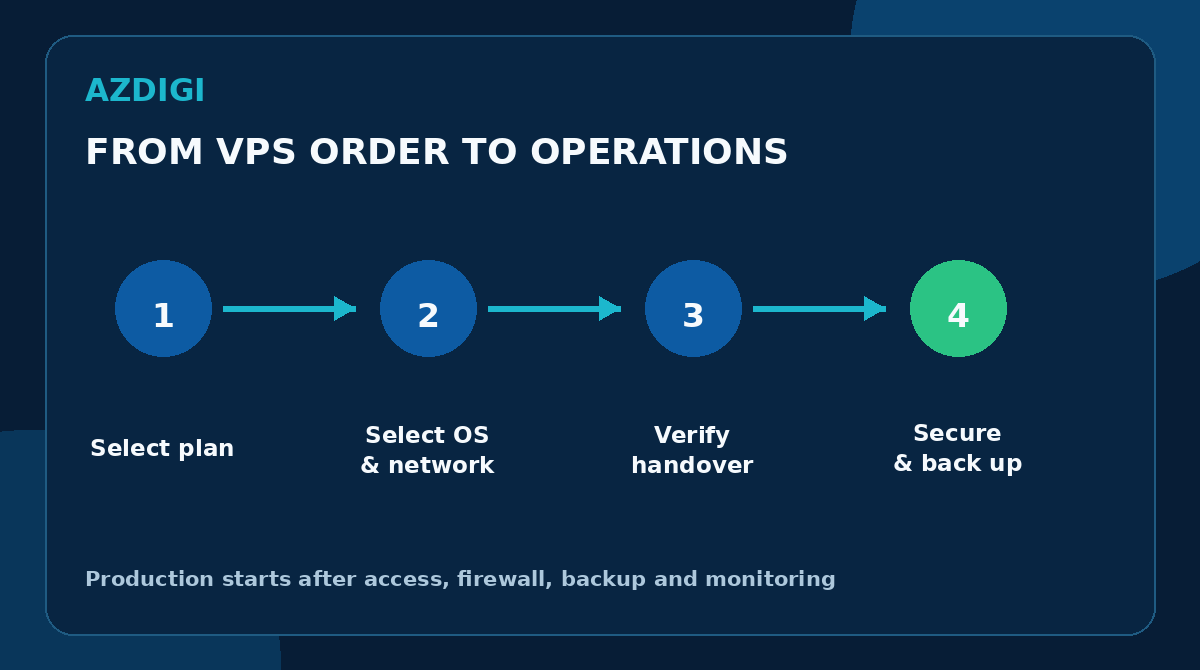
Step 1: Select a plan and billing term
Review the workload, resources, operating system, location, backup and support checklist. Save the specification shown at purchase so it can be compared during renewal or upgrade.
To inspect current options, review VPS configurations at AZDIGI. Select based on workload and test measurements, not only a “budget” label or CPU name.
Step 2: Select the operating system and network options
Use a supported image. Check CPU architecture, control-panel version and licensing requirements. Record IPv4, IPv6, rDNS and private-network needs before payment.
Step 3: Pay and retain billing records
Use an email account monitored by the organization, enable MFA for the customer account when available and retain invoices in a controlled location. Do not make one employee’s personal email the only place where renewal and incident notices arrive.
Step 4: Verify the handover
When the VPS is delivered, compare its IP address, resources, OS, location and access rights with the order. Do not share the root password through public chat. If an initial password arrives by email, replace it after first login.
Checklist after receiving the VPS
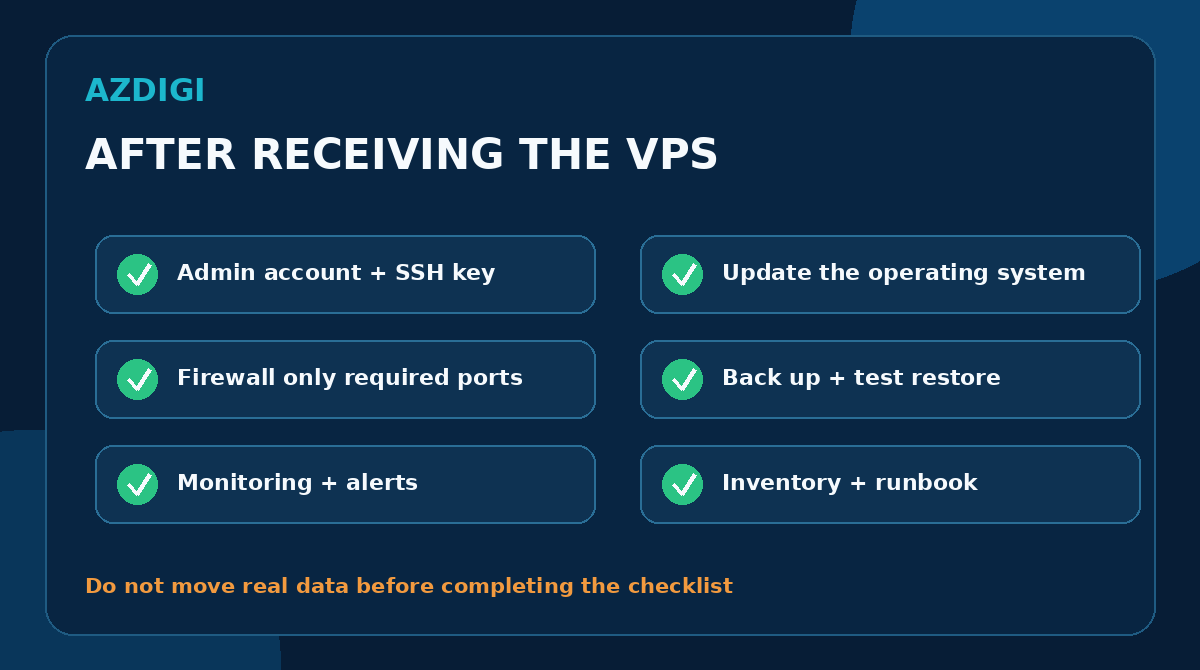
Complete these tasks before moving real data onto the server. For production, turn them into a runbook and record who performed each step.
Create an administrative account and SSH key
On Linux, create a separate account with sudo, install the public key and test access in a new terminal. Disable password or root login only after the new session works, which avoids locking yourself out.
adduser deploy
usermod -aG sudo deploy
mkdir -p /home/deploy/.ssh
chmod 700 /home/deploy/.ssh
Put the public key in authorized_keys, set appropriate permissions and test the connection. Do not upload the private key to the server or send it by email.
Update the operating system
On Ubuntu or Debian:
sudo apt update
sudo apt upgrade -y
On AlmaLinux or Rocky Linux:
sudo dnf update -yCheck whether a kernel or critical package update requires a reboot. Before major upgrades, create a backup and keep a plan for returning to the previous version.
Configure the firewall without losing SSH access
Do not assume that every VPS has the same ports open or closed. Inspect current rules and confirm the SSH port before enabling a firewall.
For example, with UFW and SSH on port 22:
sudo ufw allow 22/tcp
sudo ufw allow 80/tcp
sudo ufw allow 443/tcp
sudo ufw enable
sudo ufw status verbose
Open HTTP and HTTPS only when the server actually runs a web service. A database should not be exposed to the public Internet when an application can connect through localhost, a private network or VPN.
Install applications with least privilege
Run each service under an appropriate user instead of root. Keep secrets outside source code, restrict file permissions and limit listening ports.
For Docker, pin image versions, limit logs and do not mount the Docker socket into untrusted containers. When using a control panel, keep the panel and extensions updated according to vendor guidance.
Configure backups and test a restore
Identify the data to back up, including databases, uploaded files, configuration, secrets and certificates. Schedule copies according to the required RPO, encrypt them when appropriate and keep at least one copy outside the VPS.
Restore a sample dataset, record the time and document each step. Repeat the test on a schedule, especially after architecture changes or substantial data growth.
Enable monitoring and alerts
Monitor at least:
- Uptime from outside the VPS.
- CPU, memory, swap and load average.
- Disk use, inodes and I/O latency.
- Service state, HTTP errors and database health.
- Domain, TLS certificate and backup-job expiration or failure.
Alerts must reach a channel with someone responsible for responding. A dashboard without alerts or an incident runbook is not sufficient for production.
Document the configuration and recovery procedure
Keep an inventory of IP addresses, hostname, OS, major packages, ports, DNS, firewall rules, backup location and responsible owner. Do not store passwords or private keys in broadly shared documents.
A runbook should explain access recovery, backup restoration, DNS changes and provider escalation. Test the runbook before an actual incident.
Common mistakes
Choosing by price while ignoring operating cost
An inexpensive VPS can be suitable for a lab but may not be economical if the team spends many hours troubleshooting, creating backups and responding to security incidents. Compare total cost, not just the monthly fee.
Treating snapshots as backups
A snapshot on the same platform can be lost with the VPS after an account, storage or provider incident. Keep another copy outside the main failure domain and test restoration.
Disabling SSH passwords before testing the key
A mistake in the key, user or firewall configuration can remove access. Keep the existing session open, test a new session and only then disable the old authentication method.
Exposing a database or control panel unnecessarily
A public port increases attack surface. Use a firewall, private network, VPN or allowlist when possible. Enable MFA for the panel when supported.
Increasing resources before finding the bottleneck
High CPU can come from an inefficient query or failed process. Full memory can reflect a healthy cache. Inspect metrics, logs and workload profiles before upgrading.
Ignoring account ownership and expiration
A VPS can be interrupted because a card expires, an email account is no longer monitored or a domain expires. Use organizational accounts, multiple notification recipients and a recurring review.
Frequently asked questions
Do I need Linux skills to rent a VPS?
An unmanaged Linux VPS requires familiarity with SSH, packages, services, firewall rules, logs and backups. If the team lacks the skills or time, choose managed service, a supported control panel or managed hosting.
Should I rent a VPS monthly or yearly?
Monthly billing is useful for validating performance, support and operating procedures. A longer term is reasonable after the workload is stable, renewal terms are clear and backup restoration has been tested.
What should I do first after receiving a VPS?
Verify the delivered configuration, replace the initial credentials, create an administrative account with an SSH key, update the operating system and configure the firewall. Then set up backups and monitoring before deploying production data.
Do I need to change the SSH port?
Changing the port can reduce automated scan noise, but it does not replace SSH keys, firewall rules, fail2ban, system updates and least privilege. If you change it, update the firewall first and test access in a separate session.
Do I still need my own backup if the provider has one?
Yes, when the data matters. Verify the provider’s backup scope and keep another copy under your control. The copies should reside in different failure domains.
When should I move beyond a VPS?
Increase resources when metrics prove a CPU, memory, IOPS or network shortage. Move to another architecture when the requirement concerns failure domains, multiple nodes, scale-out or RPO/RTO that one VPS cannot meet.
Select a VPS based on operational capacity
A suitable service must match both the workload and the team’s ability to operate it. If the team can update the OS, secure SSH, verify backups and monitor resources, an unmanaged VPS provides substantial control. Otherwise, managed service or hosting may cost less than incident recovery time.
Complete the checklist, verify current service terms and choose a billing period that leaves room for testing. After delivery, do not move the application into production until access, firewall rules, backups, monitoring and the runbook are ready.
Technical references
- Ubuntu Server documentation: system updates, users and Ubuntu Server operations.
- OpenSSH manual: SSH daemon configuration and authentication methods.
- UFW manual: UFW rules and status.
- CISA Stop Ransomware Guide: backups, copy separation and recovery planning.
You might also like
- How to Choose a Budget VPS: Specifications, Costs and Common Traps
- What Is a VPS? How It Works, Pros, Cons and Use Cases
- VPS vs Cloud Server: Which One Should You Choose?
- Seven VPS Providers in Vietnam: Criteria and Evaluation Guide
- What Do You Need to Prepare When Renting a VPS? Checklist for Beginners
- VPS SSD vs VPS NVMe: What's the difference, which one to choose?
About the author

Trần Thắng
Expert at AZDIGI with years of experience in web hosting and system administration.