In this article, AZDIGI will guide you on how to fix the error “the user account has been locked.”
Cause
If you are unable to log in through Remote Desktop due to this error, it is because the default lockout policy for your operating system is set to temporarily lock the account after multiple incorrect login attempts.
As a security precaution, the user account has been locked out because there were too many logon attempts or password change attempts. Wait a while before trying again, or contact your system administrator or technical support.
How to fix
Step 1: Log in to the management page
Since remote access to the VPS is not possible, use the VNC function in the “Server Information” section to log in to the VPS.
Then, click on the “Launch HTML 5 VNC Client” section as shown below
tep 2: Connect to the VPS
Enter the password to log in to the VPS; here, you can only enter manually, and copying/pasting is not possible. Therefore, enter carefully to ensure accuracy.

Step 3: How to fix it
After logging in, navigate and perform the following steps:
Go to “Settings” => select “Edit Group Policy“
Continuing, choose > “Computer Configuration“
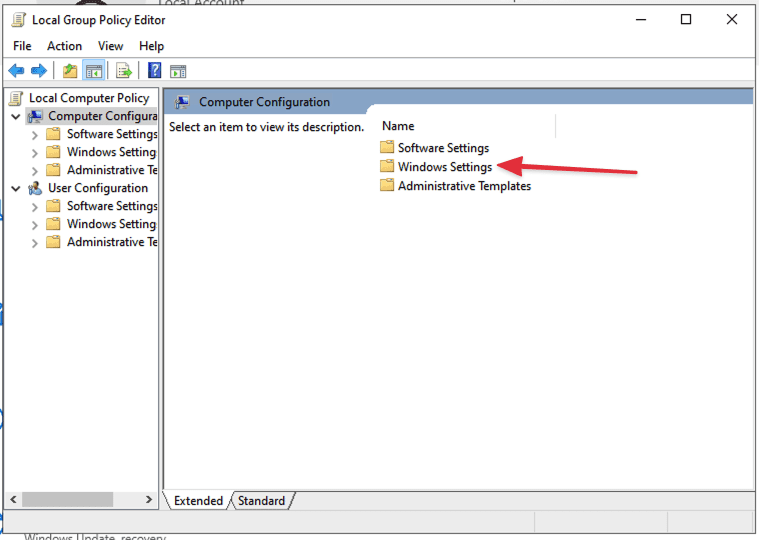
In “Computer Configuration”, select “Windows Settings”
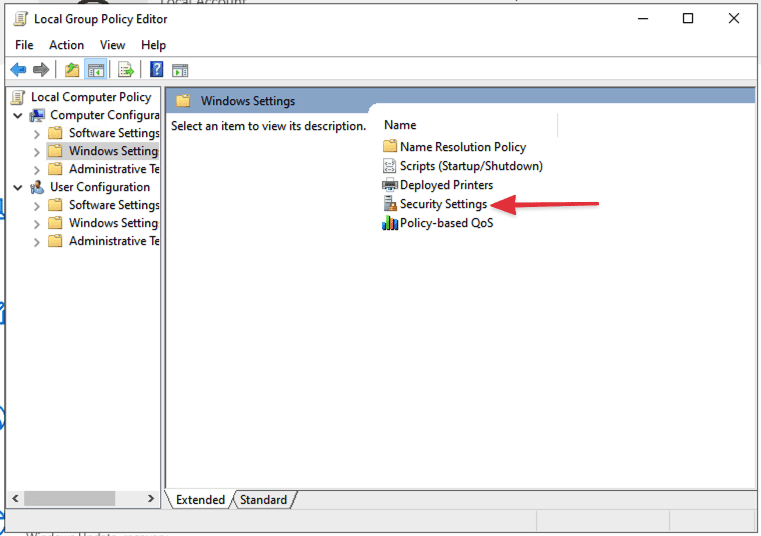
Next, choose “Security Settings”
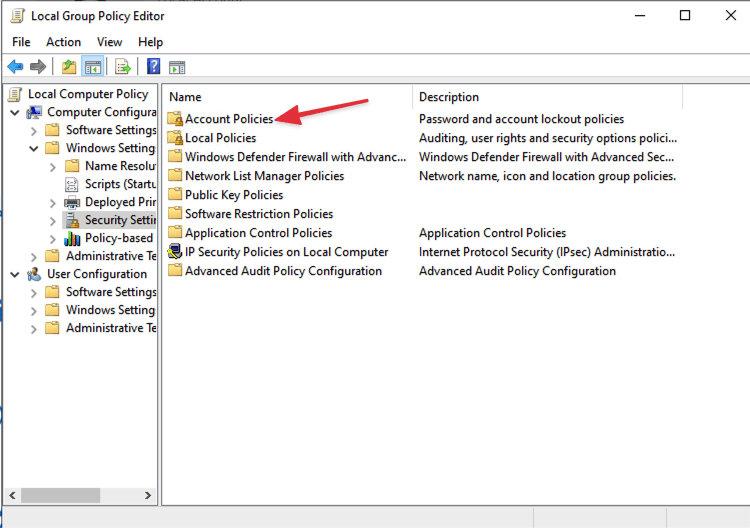
Then, select “Account Policies”
Next, choose “Account Lockout Policy”
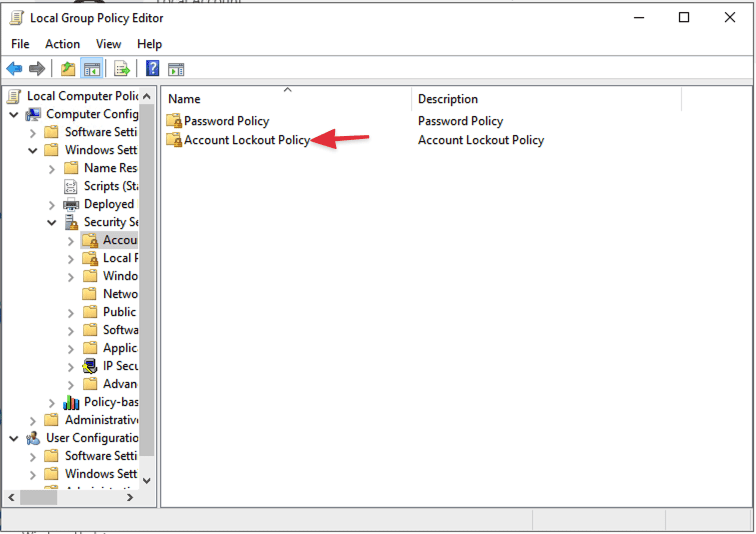
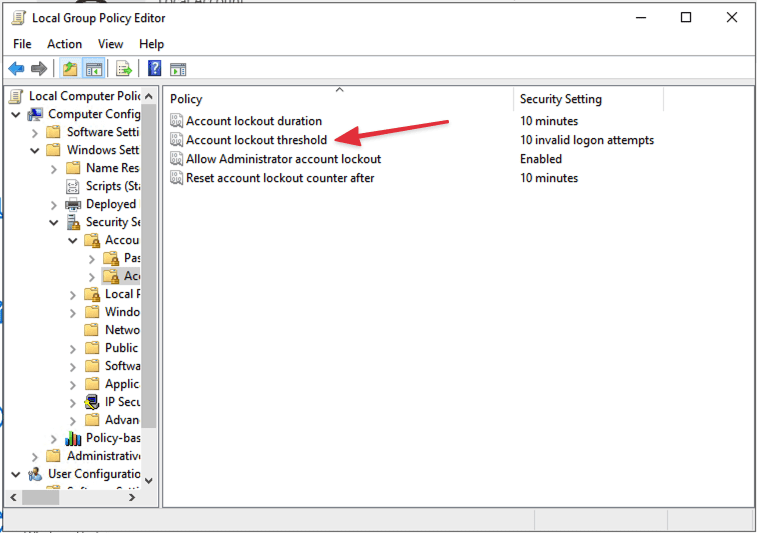
Then, select “Account Lockout Threshold”
Here, it is clearly stated that after 10 invalid login attempts, the account will be locked, and the lockout duration will be 10 minutes.
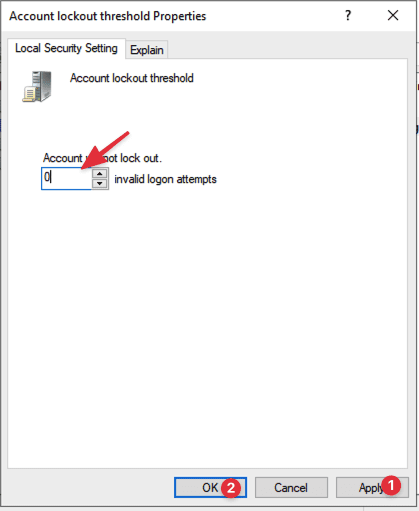
To resolve this, change the value from “10” to “0” After that, select Apply > OK > OK
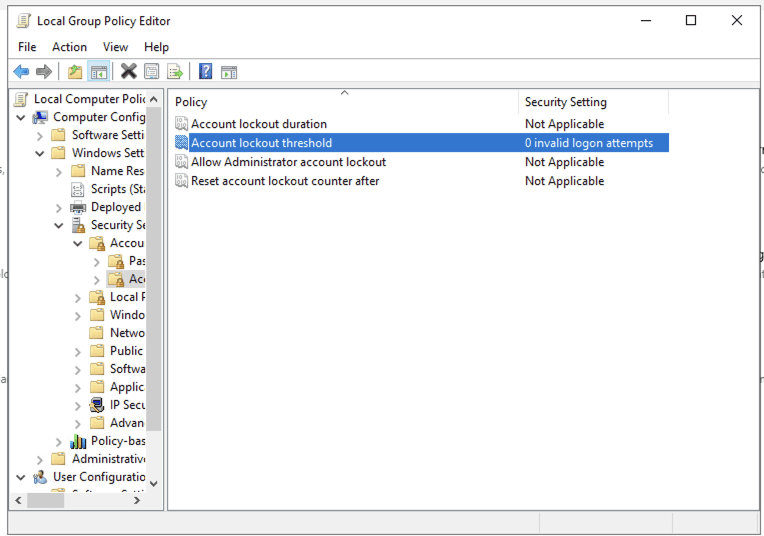
After completion, you will see the changed values as shown in the image:
Step 4: Update configuration
Open the “CMD” window with administrator privileges and run the following command to enforce the changes:
gpupdate /force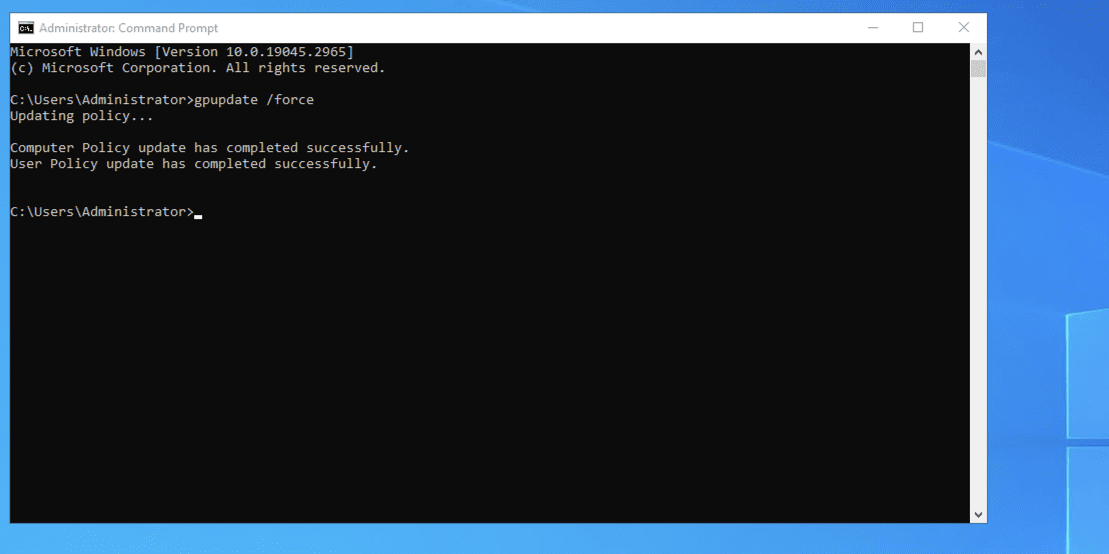
This successfully disables the blocking feature and removes the block when there are multiple incorrect login attempts to the VPS. Now, users should be able to remote into the VPS.
Conclusion
The above is a guide on how to troubleshoot the issue of the admin account being temporarily locked on Windows 10 if you encounter this situation. Hopefully, AZDIGI‘s shared guide will be helpful to you. Wishing you success!
Note for VPS using Windows 10: If you do not activate the Windows license, you will RECEIVE a minimum of 2 vCPUs.
If you need assistance, you can contact support in the ways below:
- Hotline 247: 028 888 24768 (Ext 0)
- Ticket/Email: You use the email to register for the service and send it directly to: support@azdigi.com.
You might also like
About the author

Thạch Phạm
Đồng sáng lập và Giám đốc điều hành của AZDIGI. Có hơn 15 năm kinh nghiệm trong phổ biến kiến thức liên quan đến WordPress tại thachpham.com, phát triển website và phát triển hệ thống.