Fix the Login failed error when accessing Terminal on aaPanel with 2 steps.
Introduction
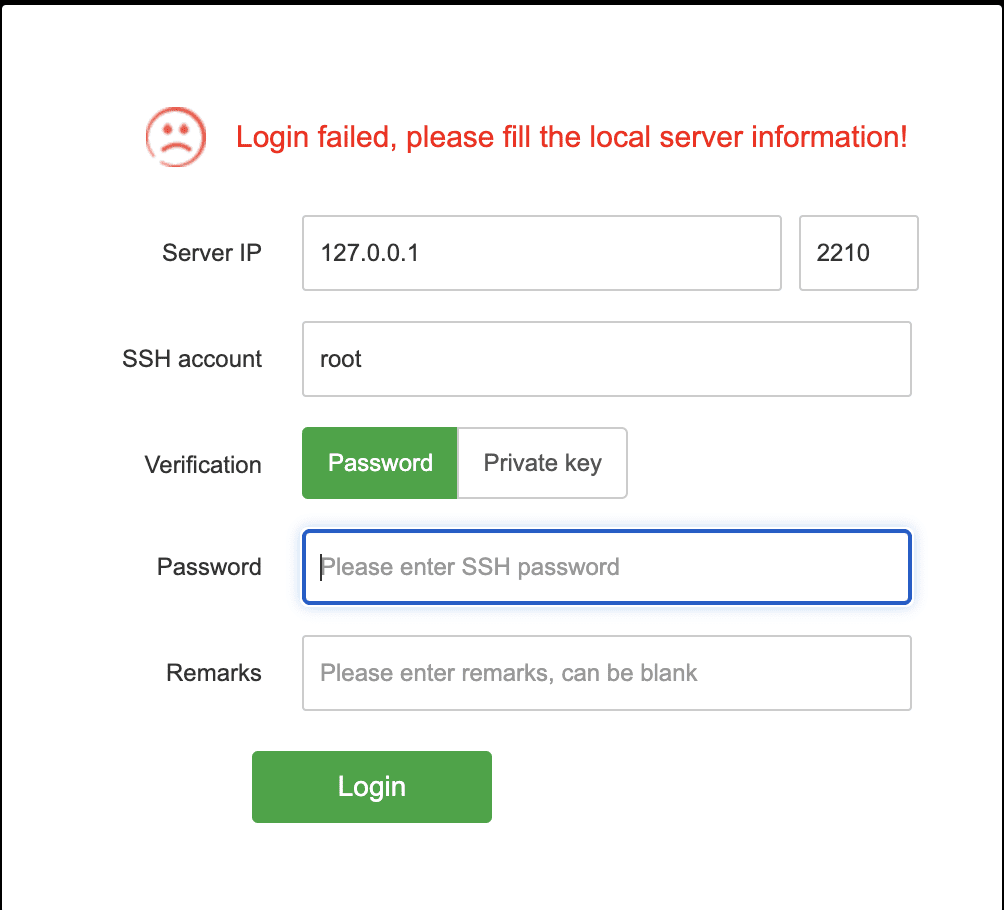
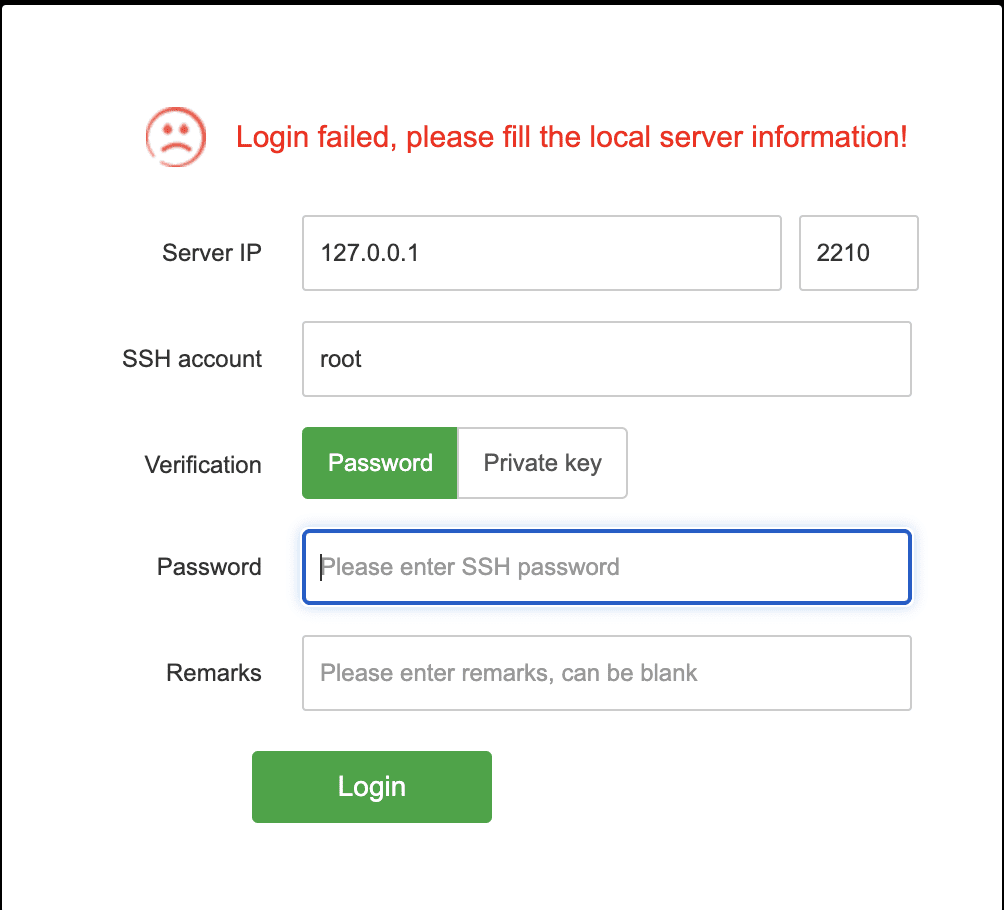
In the process of using the aaPanel control, you may encounter an error warning “Login failed please fill the local server information” when accessing the Terminal. Error details as shown below:
How to fix it
According to research from the homepage, when you change the root password, change the port or the configuration related to the SSH service, the default mechanism of aaPanel will not automatically update. Instead, you need to re-enter the information for it. And how to fix it, please follow along.
Step 1: Login to aaPanel
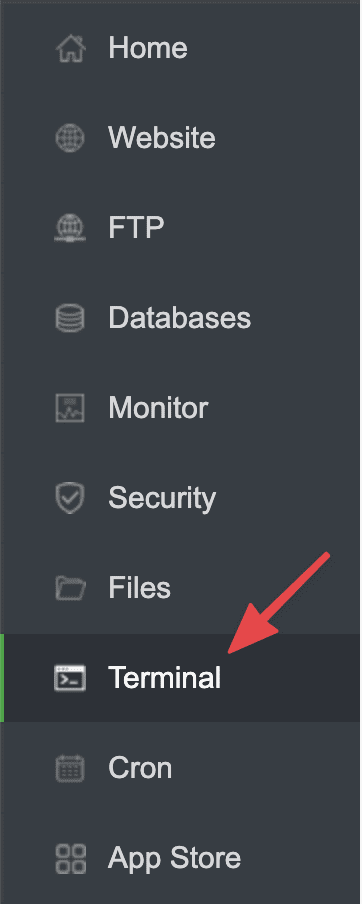
You log into your aaPanel admin, select Terminal.
Step 2: Change the information
You need to change the information to match the SSH information you are using.
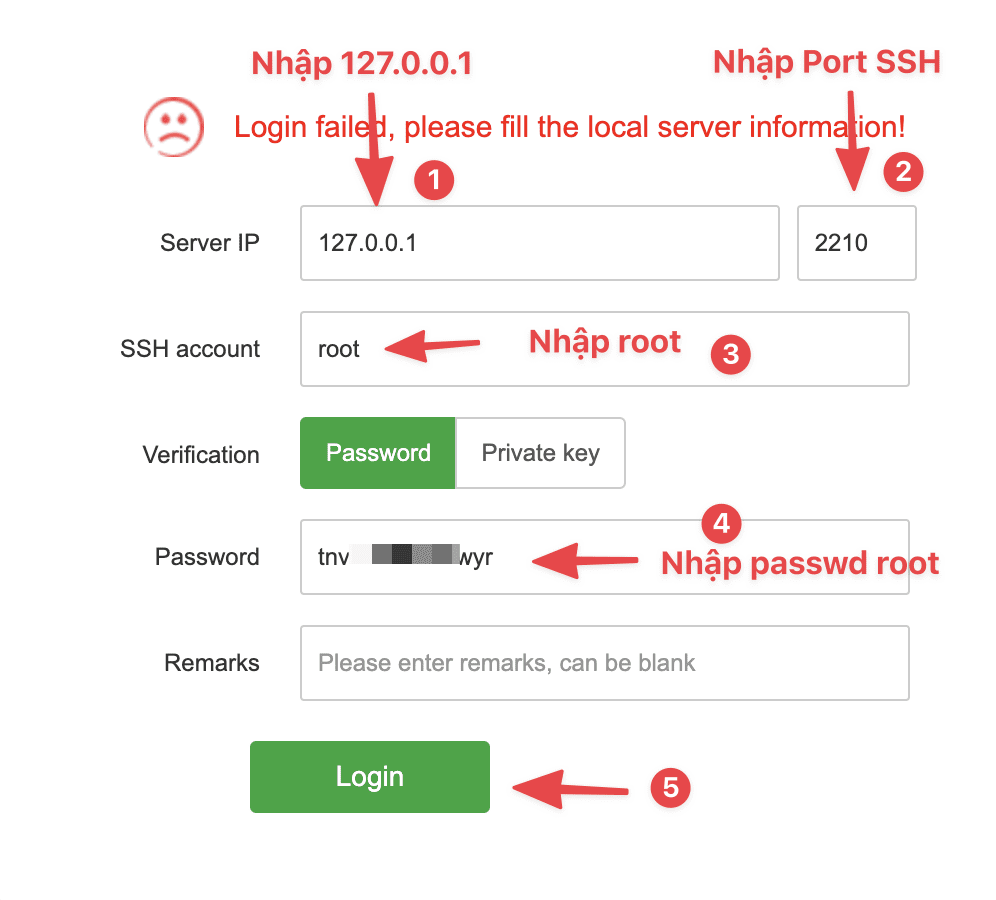
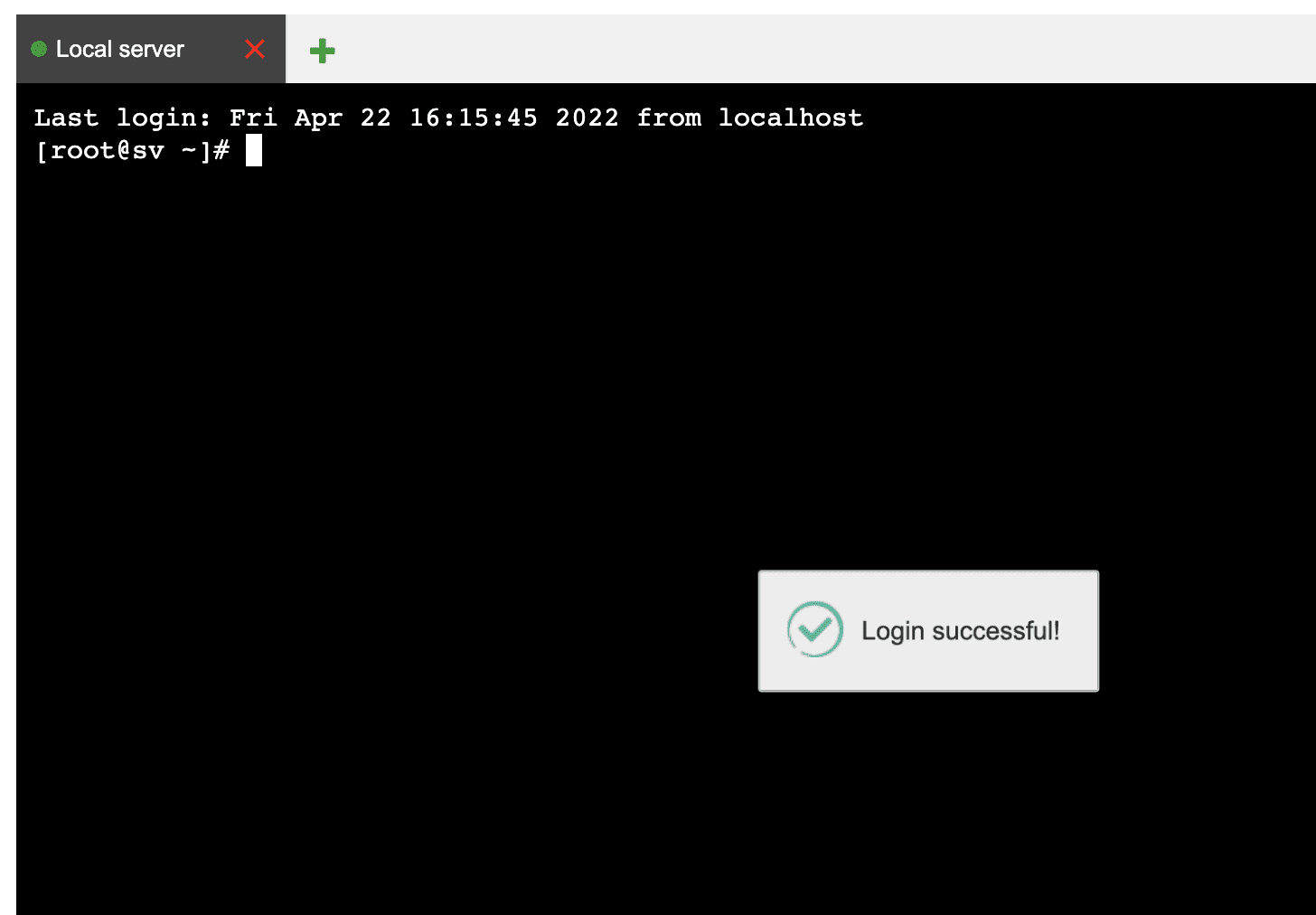
After successful login, you will receive the message Login successful! as shown below:
You can refer to other instructions at the link below:
If you need assistance, you can contact support in the ways below:
- Hotline 247: 028 888 24768 (Ext 0)
- Ticket/Email: You use the email to register for the service and send it directly to: support@azdigi.com .
You might also like
- How to fix error 404 on aaPanel
- Fix the "Aria engine is not enabled or did not start" error on aaPanel
- Fix MySQL connection lost error on aaPanel
- How to fix the Security Error No valid session key error on CSF DirectAdmin
- 401 Unauthorized Error: causes and how to fix
- [Fix] [Fix] Invalid command UNIT_PROXY Apache 2.4.48 DirectAdmin
About the author

Thạch Phạm
Đồng sáng lập và Giám đốc điều hành của AZDIGI. Có hơn 15 năm kinh nghiệm trong phổ biến kiến thức liên quan đến WordPress tại thachpham.com, phát triển website và phát triển hệ thống.