In this article, AZDIGI will guide you through configuring the Alias domain on aaPanel simply. We will first find out what domain Alias is…
I. What is Domain Alias?
The Alias domain or Parked domain is different from the main domain but has the same structure as the main domain. For example, when we access the main domain or Alias/Parked domain, we all get the same content of the main domain, and only the domain name is different.
When to use domain Alias?
There are 2 cases where you should use Alias domain:
- Want to run 2 or more domains for the same website.
- When you want to use Email accounts with many different domains, emails sent to addresses under domain Alias will be forwarded to the Email address of the main domain.
Note: To be configured, the main and Alias domains must be added and successfully pointed to the server IP.
In this article, I will do it with 2 specific domains below:
- The main domain: sitewp.tk
- The Alias domain: blog.sitewp.tk
II. Configure Alias domain on aaPanel
Step 1: Determine the document root of the main domain
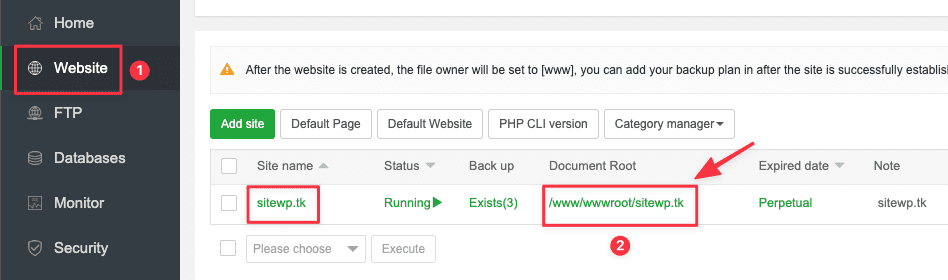
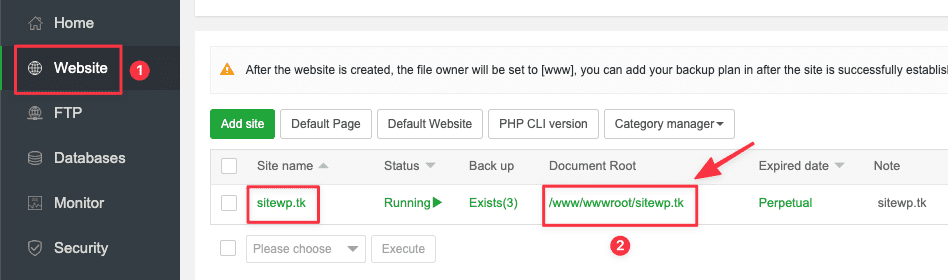
First, you need to log in to aaPanel and access the Website to see the Document root of the main domain.
Here my main domain is sitewp.tk and the Document root path is: /www/wwwroot/sitewp.tk. After determining the main domain’s Document root, you create the Alias domain according to step 2.
Step 2: Add Alias domain
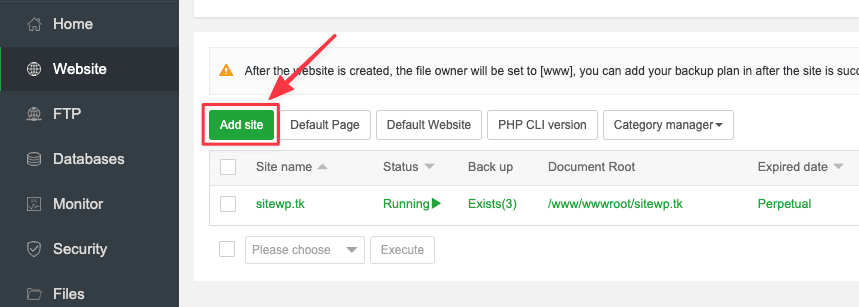
At the aaPanel interface, you add a new domain and configure Alias as follows: Website => Add site.
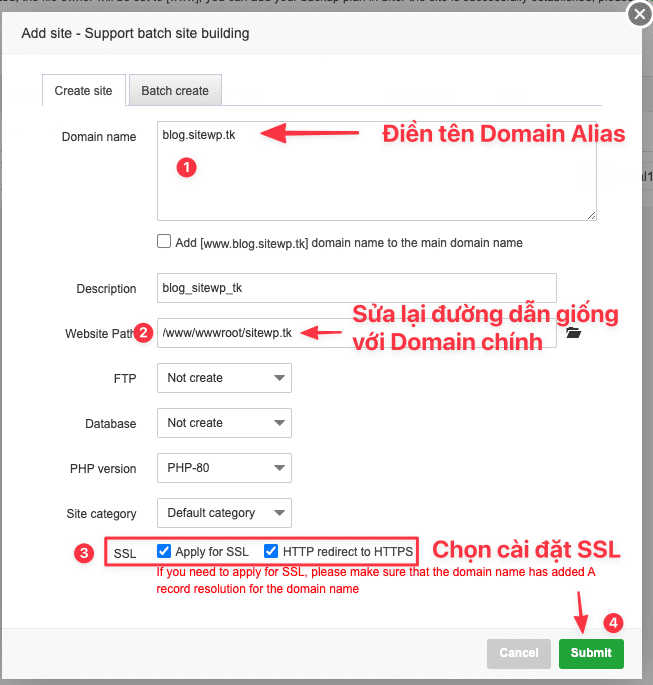
Next, in the setup section, you add the domain and set it up as follows:
Step 3: Add configuration
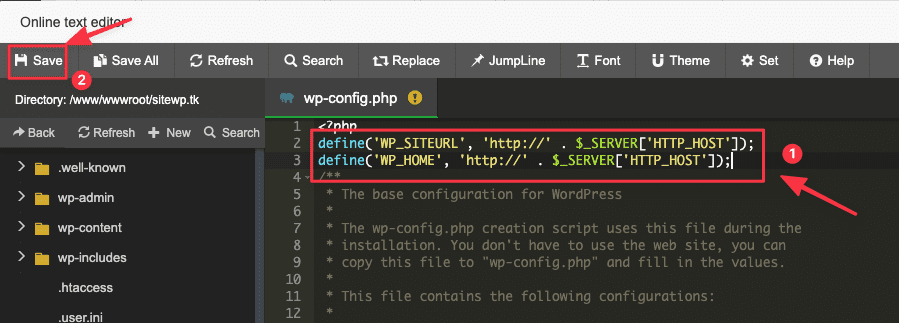
You access the Document root path of the website; in this example, the path is (/www/wwwroot/sitewp.tk), you open the file wp-config.php and add the content below:
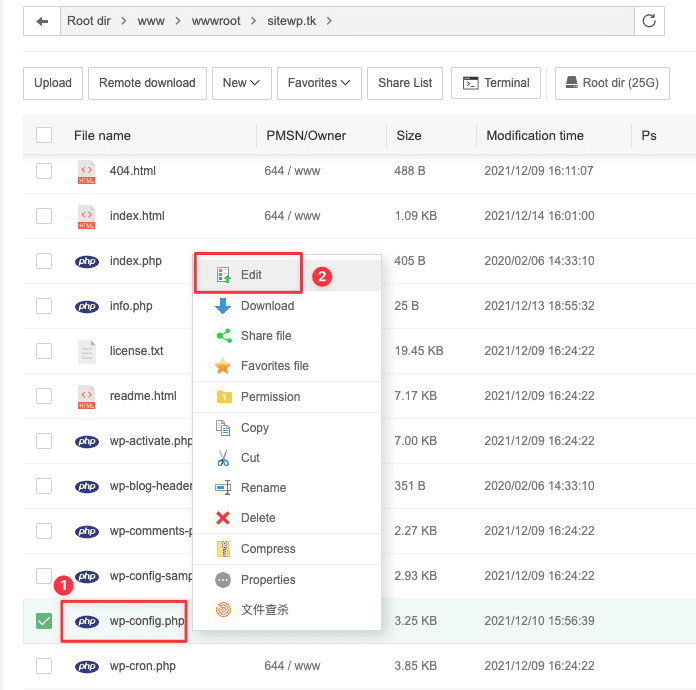
define('WP_SITEURL', 'http://' . $_SERVER['HTTP_HOST']);
define('WP_HOME', 'http://' . $_SERVER['HTTP_HOST']);
Add content and Save.
Next, you need to configure the URL rewrite for the Alias domain as shown below:
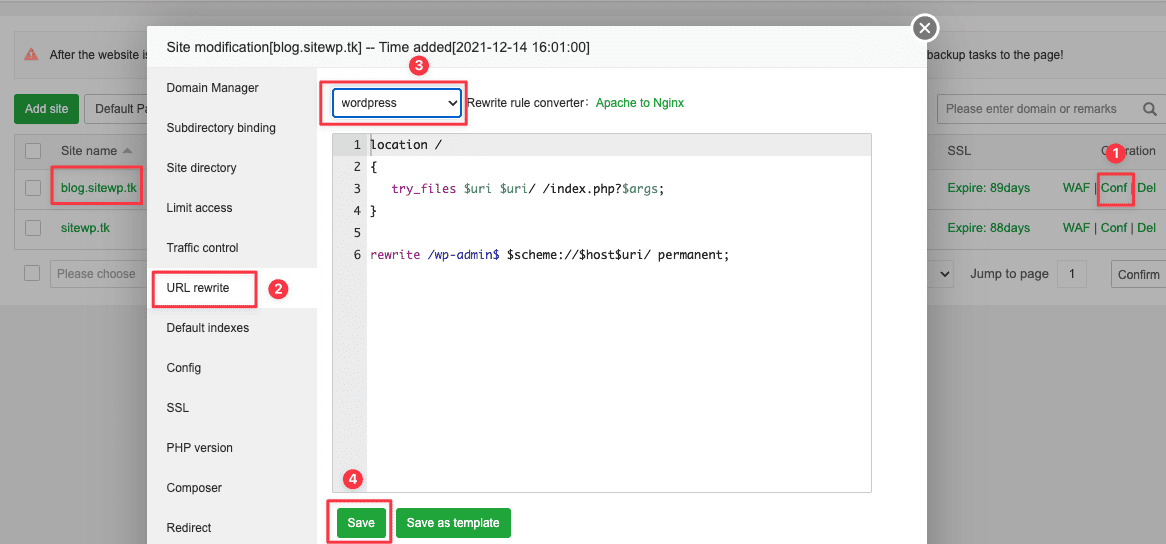
Thus, the configuration steps are completed. Then you can access the browser to check your results.
Here are my results after configuration:

III. Summary
In this article, AZDIGI has shown you how to install and operate domain Alias; using Domain Alias will be very suitable for you who need to use and run multiple websites with the same content as the main domain.
Basically, the function of the Alias domain is the same, but depending on what control panel you are using, the installation interface will be different. Hope this article was helpful and made it easy for you to set up one.
See more useful articles about aaPanel at the following link:
If you need assistance, you can contact support in the ways below:
- Hotline 247: 028 888 24768 (Ext 0)
- Ticket/Email: You use the email to register for the service and send it directly to: support@azdigi.com .
- Website AZDIGI: https://azdigi.com/
About the author

Thạch Phạm
Đồng sáng lập và Giám đốc điều hành của AZDIGI. Có hơn 15 năm kinh nghiệm trong phổ biến kiến thức liên quan đến WordPress tại thachpham.com, phát triển website và phát triển hệ thống.