Anthropic has just released a new feature for Claude Code called Channels, allowing users to message Claude Code directly via Telegram and Discord. Instead of sitting in front of a terminal, you can send requests from your phone and receive results instantly in familiar chat apps.
This feature is currently in research preview, requiring Claude Code v2.1.80 or higher and a claude.ai account (Pro, Max, or Enterprise). This article provides detailed instructions on setting up Channels for both Telegram and Discord, how to run Claude Code continuously to receive messages anytime, along with important security considerations and current limitations.
What is Claude Code Channels?
Claude Code is Anthropic’s official CLI tool that allows using Claude directly in the terminal to write code, run commands, and work with files. However, until now you had to sit in front of a terminal to interact with it.
Channels solves that limitation. Starting from version v2.1.80, Claude Code supports the Channels feature, allowing external messages to be pushed into a running Claude Code session. Simply put: you message Claude Code via Telegram or Discord, it processes and returns results directly on that platform.
Channels is currently in research preview and supports two platforms: Telegram and Discord. This feature is built on Model Context Protocol (MCP), an open standard developed by Anthropic. The community can absolutely build additional connectors for other platforms.
This article guides you through setting up Channels for Telegram and Discord, running Claude Code continuously to receive messages anytime, and important considerations about security and current limitations.
Architecture Overview
Before diving into setup, understanding how Channels works will help you debug more easily if you encounter issues.
Channel is an MCP Server
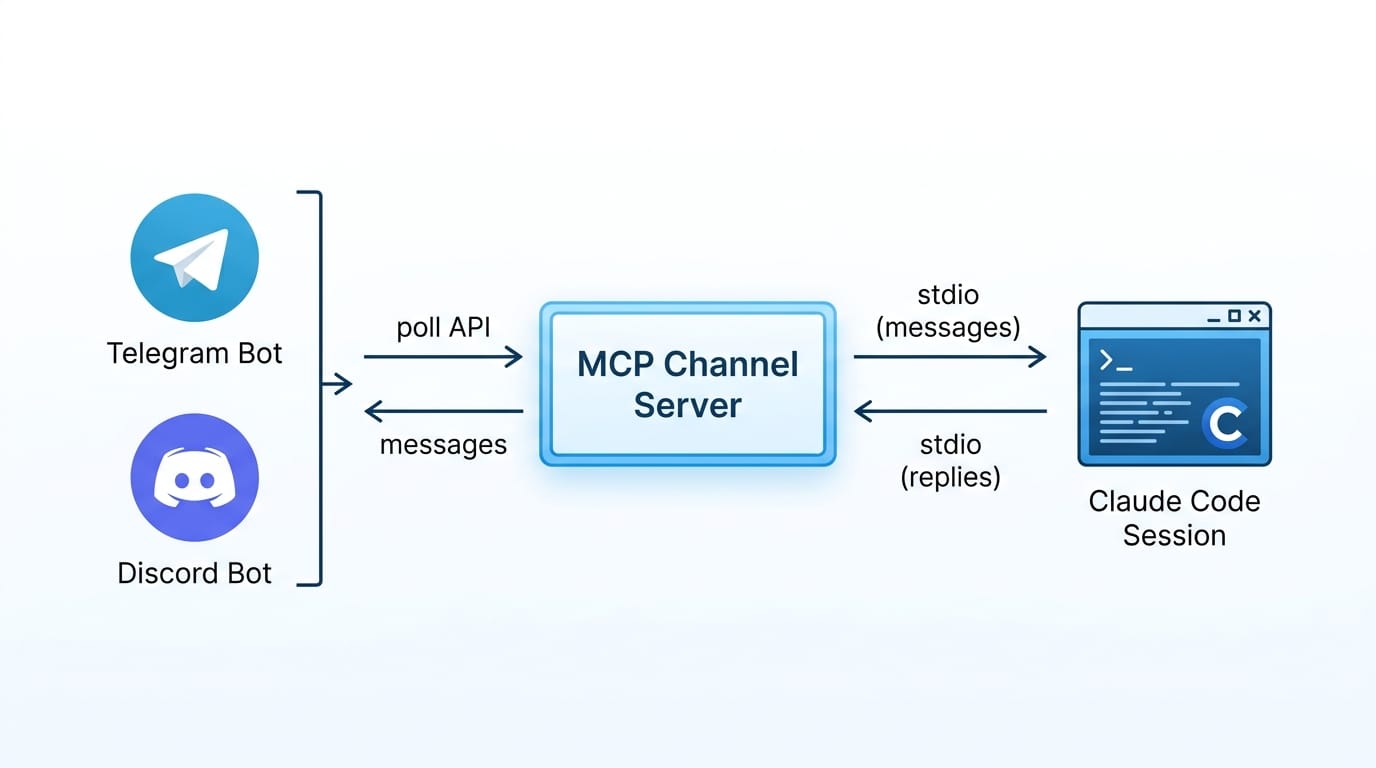
Each channel (Telegram, Discord, or custom) is essentially an MCP server running on the same machine as Claude Code. When you start Claude Code with the --channels flag, it spawns the channel server as a subprocess and communicates via stdio.
Workflow with chat platforms (Telegram, Discord):
- Channel server polls the platform’s API (Telegram Bot API, Discord Gateway) to fetch new messages.
- When there’s a message from a paired user, the channel forwards the content to the Claude Code session.
- Claude processes the request (reading files, running commands, writing code, etc.).
- Results are sent back via channel server → platform → user receives them on Telegram/Discord.
Events Only Arrive When Session is Open
This is an important point to understand: channel events only reach Claude Code when the session is running. If you close the terminal and Claude Code stops, messages sent from Telegram/Discord won’t be processed. Therefore, to use Channels as an “always-on” communication channel, you need to run Claude Code in the background or in a persistent terminal. This section will guide you through this in the following section.
Webhook Channel
Besides chat platforms, you can also build webhook-style channels: a server listens on a local HTTP port, receives POST requests, and forwards the payload to Claude. The architecture remains similar (MCP server, stdio transport), just with a different input source.
Installation Requirements
Before getting started, ensure you meet the following requirements:
- Claude Code v2.1.80 or higher: check with
claude --version. If you don’t have the required version, runnpm update -g @anthropic-ai/claude-code. - Bun runtime: the channels plugin requires Bun to run. Install with
curl -fsSL https://bun.sh/install | bash. Node or Deno also work in some cases, but Bun is recommended. - Logged-in claude.ai account: Claude Code must be logged in with a Pro, Max, or Enterprise account. Channels doesn’t support API key authentication.
- Team/Enterprise: admins must enable the channels feature first. By default, channels is disabled for organizations.
Telegram Channel Setup Guide
Telegram is the first platform supported and also the most popular way to use Channels.
Step 1: Create Telegram Bot
Open Telegram, find @BotFather and send the /newbot command. BotFather will ask for the bot name and username. After creation, you’ll receive a bot token that looks like:
7123456789:AAH1bGciOiJSUzI1NiIsInR5cCI6Ikp...Save this token. You’ll need it in step 3.
Step 2: Install Telegram Plugin
In the terminal running Claude Code, type:
/plugin install telegram@claude-plugins-officialClaude Code will download the plugin from Anthropic’s official registry. This process takes a few seconds.
Step 3: Configure Bot Token
Continue in Claude Code, run the configure command with the token you just got from BotFather:
/telegram:configure 7123456789:AAH1bGciOiJSUzI1NiIsInR5cCI6Ikp...Replace the token above with your actual token. The plugin will save the token to local configuration.
Step 4: Start Claude Code with Telegram Channel
Exit the current session (if any) and restart Claude Code with the --channels flag:
claude --channels plugin:telegram@claude-plugins-officialThis flag tells Claude Code to spawn the Telegram channel server along with the session. You’ll see logs confirming the channel has connected.
Step 5: Pair Telegram Account
Open Telegram, find the bot you just created and send any message (e.g., “hello”). The bot will return a pairing code (a short string of characters).
Return to the Claude Code terminal and enter:
/telegram:access pair YOUR_PAIRING_CODEReplace YOUR_PAIRING_CODE with the code you just received on Telegram.
Step 6: Enable Allowlist Policy
After successful pairing, set up security policy so only paired accounts can send messages:
/telegram:access policy allowlistDone. Now you can message the bot on Telegram, and Claude Code will receive and process requests directly in the terminal.
Discord Channel Setup Guide
Setting up Discord is slightly more complex than Telegram because you need to create an application and configure permissions on the Discord Developer Portal.
Step 1: Create Discord Application and Bot
Access the Discord Developer Portal, log in and click New Application. Name the application (e.g., “Claude Code Bot”) and confirm creation.
In the newly created application page, go to the Bot tab in the left sidebar. Here you’ll see the Reset Token button, click to create a new bot token and copy it. The token is only shown once, so save it immediately.
Step 2: Enable Message Content Intent
Still in the Bot tab, scroll down to the Privileged Gateway Intents section. Enable Message Content Intent. If not enabled, the bot won’t be able to read message content.
Step 3: Create Invite URL and Add Bot to Server
Switch to the OAuth2 → URL Generator tab:
- Scopes section: select
bot - Bot Permissions section: select the following permissions:
- View Channels
- Send Messages
- Send Messages in Threads
- Read Message History
- Attach Files
- Add Reactions
Copy the generated URL at the bottom of the page, open it in a browser and select the server you want to invite the bot to.
Step 4: Install Discord Plugin
In the Claude Code terminal:
/plugin install discord@claude-plugins-officialStep 5: Configure Bot Token
/discord:configure YOUR_DISCORD_BOT_TOKENReplace YOUR_DISCORD_BOT_TOKEN with the token you copied in step 1.
Step 6: Start Claude Code with Discord Channel
claude --channels plugin:discord@claude-plugins-officialIf you want to run both Telegram and Discord simultaneously, list both:
claude --channels plugin:telegram@claude-plugins-official --channels plugin:discord@claude-plugins-officialStep 7: Pair Discord Account
Open Discord, DM (direct message) the bot you just invited. The bot will send back a pairing code.
In Claude Code:
/discord:access pair YOUR_PAIRING_CODEStep 8: Enable Allowlist Policy
/discord:access policy allowlistAfter this step, the Discord bot is ready. You can message the bot via DM or in channels where the bot has access.
Try with Fakechat First
If you just want to quickly test how Channels works without creating Telegram or Discord bots, use Fakechat, a demo channel running on localhost.
Install and Run Fakechat
/plugin install fakechat@claude-plugins-officialExit Claude Code and restart:
claude --channels plugin:fakechat@claude-plugins-officialThen open a browser at http://localhost:8787. You’ll see a simple chat interface. Type messages, they’ll be forwarded to the Claude Code session running in the terminal, and results will be displayed immediately in the browser.
Fakechat helps you understand the workflow before setting up real platforms. No token needed, no bot creation required. Just install the plugin and run.
Running Claude Code Continuously (Always-On)
As mentioned in the architecture section, Channels only works when the Claude Code session is open. If you close the terminal, messages from Telegram/Discord won’t be processed.
There are several ways to keep Claude Code running continuously:
Using tmux or screen
This is the simplest method if you’ve SSH’d into a server or are using a VPS:
# Create new tmux session
tmux new -s claude
# Run Claude Code with channels
claude --channels plugin:telegram@claude-plugins-official
# Detach from tmux: press Ctrl+B then D
# Reattach: tmux attach -t claude
With screen it’s similar:
# Create session
screen -S claude
# Run Claude Code
claude --channels plugin:telegram@claude-plugins-official
# Detach: press Ctrl+A then D
# Reattach: screen -r claude
Using systemd service (Linux)
If you want Claude Code to auto-start when the server reboots, create a systemd unit file:
sudo nano /etc/systemd/system/claude-channels.serviceContent:
[Unit]
Description=Claude Code with Channels
After=network.target
[Service]
Type=simple
User=your-username
WorkingDirectory=/home/your-username/projects
ExecStart=/usr/local/bin/claude --channels plugin:telegram@claude-plugins-official
Restart=on-failure
RestartSec=10
Environment=HOME=/home/your-username
[Install]
WantedBy=multi-user.target
Then enable and start:
sudo systemctl daemon-reload
sudo systemctl enable claude-channels
sudo systemctl start claude-channels
# Check status
sudo systemctl status claude-channels
Replace your-username with the actual user on the server. Ensure that user has logged into claude.ai in Claude Code before running the service.
Running on VPS
If you don’t want to keep your laptop on 24/7, running Claude Code on a Linux VPS is a reasonable choice. You need a VPS with minimum 1-2GB RAM (Claude Code runs relatively lightweight, heavy processing happens on Anthropic’s cloud).
Process: SSH into VPS → install Node.js/Bun → install Claude Code → login to claude.ai → configure channels → run in tmux or systemd as above.
Security
Channels allows external parties to send commands to Claude Code, a tool that has permissions to read files and run commands on your machine. Therefore, security is a concern that needs attention from the start.
Sender Allowlist
Each channel maintains a list of allowed senders (allowlist). Only accounts that have been paired can send messages to Claude Code. Strangers DMing the bot will have no effect.
Always enable allowlist policy after pairing:
/telegram:access policy allowlist
/discord:access policy allowlist
Control channels per session
The --channels flag specifies which channels are enabled in each session. If you run claude without this flag, no channels are active. You have complete control over which channels are allowed to send messages to which sessions.
Pairing Flow
The pairing process requires you to have access to both sides: the Telegram/Discord account (to receive pairing code) and Claude Code terminal (to enter the code). No one can pair remotely without terminal access.
Practical Notes
- Don’t pair other people’s accounts unless you absolutely trust them. Paired users can request Claude Code to execute commands on your machine.
- Consider running Claude Code in a restricted environment (container, VM, separate user) if using channels on production servers.
- Periodically review the list of paired senders.
Building Custom Channels
If Telegram and Discord aren’t enough, you can build your own custom channels. Channels are based on MCP, so anyone familiar with this standard can create new connectors.
How It Works
A custom channel is an MCP server with the claude/channel capability. It emits notifications/claude/channel events whenever there are new messages that need to be sent to Claude Code. Communication happens via stdio transport, just like how other MCP servers work.
Example: Webhook Receiver
A common use case is webhook receiver: server listens on a local port, receives HTTP POST requests, then forwards them to Claude:
- Server listens at
http://localhost:8788 - Receives POST requests with body as message content
- Emits
notifications/claude/channelevent with content from request - Claude processes and returns results
You can build it as one-way (just receive alerts, no reply needed) or two-way (chat bridge with reply tool to send responses back).
Testing Custom Channels
When developing new channels, use a separate flag to load:
claude --dangerously-load-development-channels /path/to/your/channelThis flag bypasses registry checks, allowing you to load channels from local paths. Only use during development. True to its dangerously name, it skips some safety checks.
Extension Ideas
Since Channels are based on MCP, the extension possibilities are quite broad:
- Connectors for Slack, Microsoft Teams, WhatsApp
- Webhook bridge receiving alerts from monitoring systems (Grafana, Uptime Kuma) → Claude analyzes and responds
- Email-to-Claude bridge
- GitHub webhook → Claude automatically reviews PRs
The community can publish channels to the plugin registry for others to install using /plugin install.
Enterprise Controls
How Channels works depends on the account type:
Pro / Max (individual, no organization)
Channels is available out of the box, opt-in per session with the --channels flag. No additional configuration needed at the account level.
Team / Enterprise
By default, channels is disabled for organizations. Admins need to enable it manually:
- Log into claude.ai with an admin account.
- Go to Admin settings.
- Find the Claude Code section.
- Enable Channels (or channelsEnabled).
After admin enables it, organization members can use the --channels flag.
This design is suitable for enterprises: centralized admin control, members opt-in per session. If access needs to be revoked, admins just need to disable the setting.
Comparison with Other Solutions
Claude Code Channels isn’t the only solution for chatting with AI agents via messaging platforms. There are several other projects that do similar things, notably OpenClaw, an open source project that allows connecting AI agents with multiple platforms.
Here’s a quick comparison:
| Criteria | Claude Code Channels | OpenClaw |
|---|---|---|
| Origin | Native from Anthropic | Open source, community |
| Supported Platforms | Telegram, Discord (research preview) | iMessage, Slack, Telegram, WhatsApp, Discord |
| Setup Complexity | Low, install plugin, configure token | Medium, requires Mac Mini or VPS, more setup steps |
| Account Requirements | claude.ai Pro/Max/Enterprise | API key (multiple providers) |
| Self-hosted | Runs on local machine, processing via Anthropic cloud | Fully self-hosted |
| Always-on | Need to keep Claude Code running continuously | Runs as daemon/service |
| Extensibility | MCP-based, community can build new connectors | Plugin system, multiple platforms available |
| Stage | Research preview | Production-ready |
Claude Code Channels has the advantage of native integration. If you already use Claude Code daily, just adding the --channels flag lets you message via Telegram. OpenClaw is more suitable if you need support for multiple platforms, want to use different AI providers, or need a production-ready solution immediately.
The common point is that both allow turning AI agents into “personal chatbots” on familiar messaging platforms. And since Channels is based on MCP (open standard), in the long term, the community can build additional connectors for any platform.
Current Limitations
Channels is in research preview stage, so there are some limitations to note:
- Only Telegram and Discord: no Slack, WhatsApp, or other platforms in the official plugin set. For other platforms, you need to build your own or wait for the community.
- Requires claude.ai login: cannot be used with API keys. If you’re using Claude via API (no subscription), Channels is not available.
- Session must be running: no queue or buffer mechanism. Messages sent when Claude Code isn’t running will be ignored (or wait until session restarts, depending on how the channel handles it).
- Research preview: APIs, configuration methods, command names may change in future versions. Don’t build production workflows that depend too heavily on the current structure.
- One session, one context: messages from channels go into the same Claude Code session that’s running, sharing the same context window. If you’re working in the terminal and someone messages via Telegram, both share the context.
- Team/Enterprise disabled by default: requires admin enablement. If you use Claude Code through an organization and admin hasn’t enabled it, you can’t use
--channels.
Conclusion
Claude Code Channels opens up a new way to interact with Claude. Instead of sitting in front of a terminal, you message via Telegram or Discord and receive results directly on your phone. Setup isn’t too complex: create a bot, install plugin, pair account, run Claude Code with the --channels flag.
The most important point is keeping the session running continuously (tmux, screen, or systemd on VPS) and setting up allowlist policy to control who can send commands to Claude Code.
The feature is still in research preview so it will continue to change, but the underlying MCP platform is flexible enough for community development. If you use Claude Code daily and want faster interaction when not in front of a computer, Channels is worth trying.
💡 To run Claude Code continuously on a Linux VPS, you can check out Pro VPS at AZDIGI, the smallest package starting from 99,000 VND/month is sufficient since the heavy processing happens on Anthropic’s cloud.
You might also like
- Complete OpenClaw Guide: Step-by-Step Tutorial from A to Z
- What Is Hermes Agent? Installation and Usage Guide
- OpenClaw Security: Step-by-Step Safe Configuration Guide
- What is Claude Code Agent Teams? How to coordinate multiple AI agents in parallel
- OpenClaw hybrid: Gateway on VPS + Node on local Mac
- What is MCP? How AI agents connect to tools and external data
About the author

Trần Thắng
Expert at AZDIGI with years of experience in web hosting and system administration.