In today’s article, I will guide you to fix 404 errors on aaPanel, as well as explain the cause of this error.
I. Causes of error 404 on aaPanel
The common causes that will lead to error 404 on aaPanel are known:
- Case 1: The path or file does not exist.
- Case 2: There is no .htaccess file, so the subsites get an error 404 (the home page is still accessible)
- Case 3: There is a .htaccess file, but URL Rewrite is not enabled, so the subsites still get an error 404 (the homepage is still accessible)
In this article, AZDIGI will show you how to fix error 404 on aaPanel in case 3. Because the other two cases are relatively basic and you rarely have to meet. And case 3, you will often encounter this when you just added a new website and uploaded data.
This error only occurs when you only use the web server Nginx or Nginx Tengine. As the default Apache web server already fully supports htaccess, you can skip this article.
If you want to switch webserver from Nginx to Apache, you can refer to the following tutorial:
II. Fix error 404 on aaPanel
To fix error 404 on aaPanel, we follow these 2 steps.
Step 1: Access the aaPanel admin page
To access the aaPanel admin interface, we access the link http://IP:8888 on the browser.
Remember to change the IP to your IP aaPanel server.
Below is my aaPanel interface:
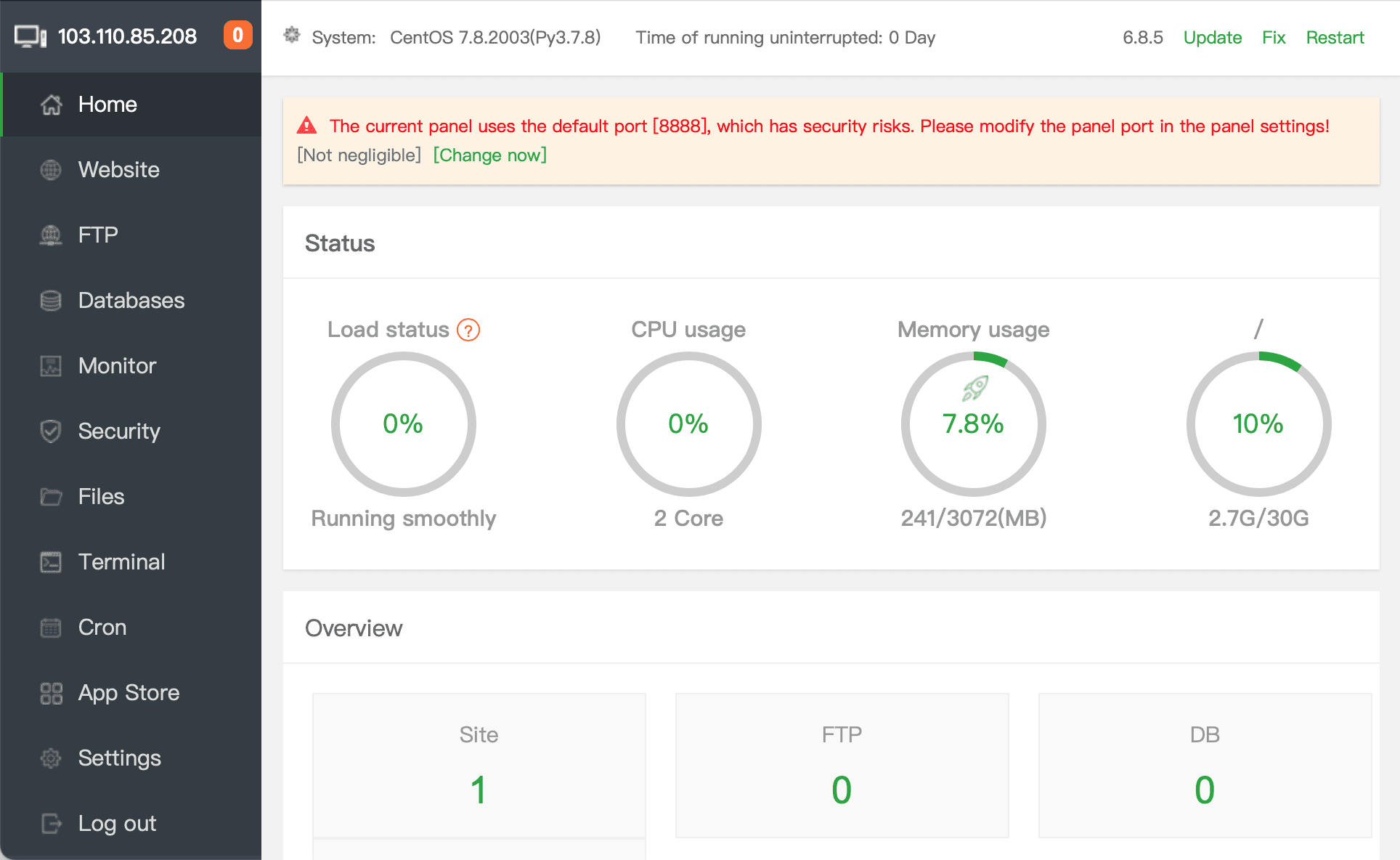
After accessing the aaPanel admin page, we continue to step 2 to enable URL Rewrite for the website with error 404.
Step 2: Enable URL Rewrite for the website that is getting the error 404
At this step, you need to access the list of websites on aaPanel according to the following image:
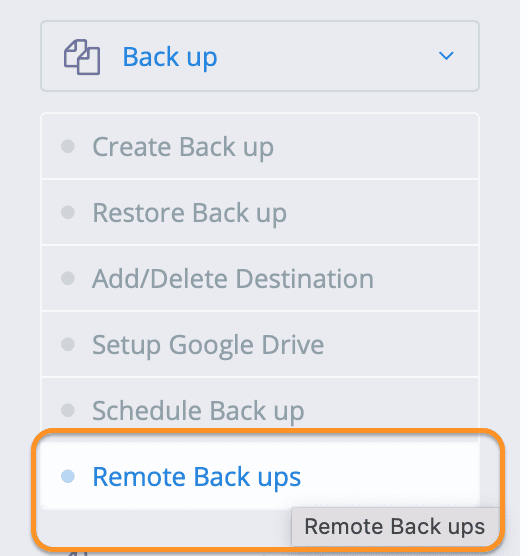
Then you choose the website’s domain name, you get the error 404.
After selecting the website to fix the error, a website configuration frame will appear as shown below. And we will use the URL rewrite feature.
On this window, you choose your site type in the Rewrite rule converter section. For example, with my WordPress site, I will choose as shown below and finally click Save.
After saving, you wait for a while to be able to fix the 404 error on aaPanel successfully and the subpages of this site can be accessed normally.
III. Summary
With just two simple steps, we successfully fixed error 404 on aaPanel. This error won’t happen on Apache because Apache itself already supports 100% rewrites on htaccess. As for Nginx, they will need to be recompiled for Nginx to understand.
Hope this article will be of help to you. Wishing you success!
See more useful articles about aaPanel at the following link:
If you need assistance, you can contact support in the ways below:
- Hotline 247: 028 888 24768 (Ext 0)
- Ticket/Email: You use the email to register for the service and send it directly to: support@azdigi.com .
- High Quality Hosting at AZDIGI
You might also like
- How to fix 404 not found error in WordPress
- Fixing the 404 Sitemap error on aaPanel using Nginx
- How to switch Nginx Tengine to Apache on aaPanel
- 401 Unauthorized Error: causes and how to fix
- 401 Unauthorized Error: causes and how to fix
- Fix the "Aria engine is not enabled or did not start" error on aaPanel
About the author

Thạch Phạm
Đồng sáng lập và Giám đốc điều hành của AZDIGI. Có hơn 15 năm kinh nghiệm trong phổ biến kiến thức liên quan đến WordPress tại thachpham.com, phát triển website và phát triển hệ thống.